When using an E-MapReduce (EMR) cluster built on an instance family with local disks, such as i-series or d-series, you may be notified of a local disk failure. This topic describes how to replace a damaged local disk in your cluster.
Precautions
-
To avoid a prolonged service interruption, we recommend replacing the faulty node. You can decommission the node with the failed disk and add a new node to the cluster.
-
Data on the replaced disk will be lost. Before you begin, ensure your data has sufficient replicas or is backed up.
-
The replacement process includes stopping services, unmounting the disk, mounting a new disk, and restarting services. This process typically takes up to five business days. Before you proceed, assess if the remaining disk space and cluster workload can sustain your business operations while the services are stopped.
Procedure
Log on to the ECS console to view event details, including the instance ID, status, damaged disk ID, event progress, and related operations.
Step 1: Obtain damaged disk information
-
Log on to the node with the damaged disk by using SSH. For more information, see Log on to a cluster.
-
Run the following command to view block device information.
lsblk
The command output is similar to the following example.
NAME   MAJ:MIN RM  SIZE RO TYPE MOUNTPOINT
vdd    254:48   0  5.4T  0 disk /mnt/disk3
vdb    254:16   0  5.4T  0 disk /mnt/disk1
vde    254:64   0  5.4T  0 disk /mnt/disk4
vdc    254:32   0  5.4T  0 disk /mnt/disk2
vda    254:0    0  120G  0 disk
└─vda1 254:1    0  120G  0 part /
-
Run the following command to view disk information.
sudo fdisk -l
The command output is similar to the following example.
Disk /dev/vdd: 5905.6 GB, 5905580032000 bytes, 11534336000 sectors
Units = sectors of 1 * 512 = 512 bytes
Sector size (logical/physical): 512 bytes / 4096 bytes
I/O size (minimum/optimal): 4096 bytes / 4096 bytes
-
Based on the output from the previous two steps, record the device name as $device_name and the mount point as $mount_path.
For example, if the failed disk device is vdd, the device name is /dev/vdd, and the mount point is /mnt/disk3.
Step 2: Isolate the damaged local disk
-
Stop all applications that read from or write to the damaged disk.
In the EMR console, navigate to the cluster with the failed disk. On the Services tab, find the services that use the disk, such as HDFS, HBase, and Kudu. In the Actions column for the service, choose .
Alternatively, run the sudo fuser -mv $device_name command on the node to list all processes that use the disk. Then, stop the corresponding services in the EMR console.
-
Run the following command to prevent read and write operations on the local disk.
sudo chmod 000 $mount_path
-
Run the following command to unmount the local disk.
sudo umount $device_name;sudo chmod 000 $mount_path
Important
Failing to unmount the disk may cause its device name to change after the repair, which can lead to applications reading from or writing to the wrong disk.
-
Update the fstab file.
-
Back up the existing /etc/fstab file.
-
Delete the entry for the disk from the /etc/fstab file.
For example, if the failed disk is /dev/vdd, you must delete the entry for that disk.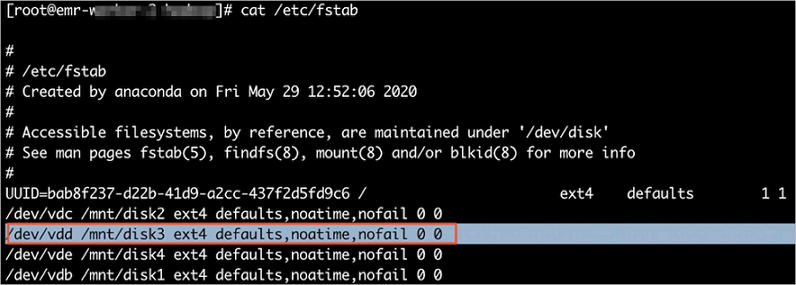
-
Restart the services that you stopped.
On the Services tab for the cluster, find the services you stopped in Step 2. In the Actions column for the service, choose .
Step 3: Replace the disk
Step 4: Mount the disk
After the disk is repaired, mount it to make it available.
-
Run the following command to normalize the device name.
device_name=`echo "$device_name" | sed 's/x//1'`
This command normalizes device names such as /dev/xvdk by removing the letter x, which changes the name to /dev/vdk.
-
Run the following command to create the mount point directory.
-
Run the following command to mount the disk.
mount $device_name $mount_path;sudo chmod 755 $mount_path
If the disk fails to mount, perform the following steps:
-
Run the following command to format the disk.
fdisk $device_name << EOF
n
p
1

wq
EOF
-
Run the following command to remount the disk.
mount $device_name $mount_path;sudo chmod 755 $mount_path
-
Run the following command to update the fstab file.
echo "$device_name $mount_path $fstype defaults,noatime,nofail 0 0" >> /etc/fstab
Note
Run which mkfs.ext4 to check if ext4 is installed. If so, set $fstype to ext4. Otherwise, set $fstype to ext3.
-
Create a script file and add the script for your cluster type.
Data lake (Hadoop) clusters
while getopts p: opt
do
	case "${opt}" in
  	p) mount_path=${OPTARG};;
  esac
done

mkdir -p $mount_path/data
chown hdfs:hadoop $mount_path/data
chmod 1777 $mount_path/data

mkdir -p $mount_path/hadoop
chown hadoop:hadoop $mount_path/hadoop
chmod 775 $mount_path/hadoop

mkdir -p $mount_path/hdfs
chown hdfs:hadoop $mount_path/hdfs
chmod 755 $mount_path/hdfs

mkdir -p $mount_path/yarn
chown hadoop:hadoop $mount_path/yarn
chmod 755 $mount_path/yarn

mkdir -p $mount_path/kudu/master
chown kudu:hadoop $mount_path/kudu/master
chmod 755 $mount_path/kudu/master

mkdir -p $mount_path/kudu/tserver
chown kudu:hadoop $mount_path/kudu/tserver
chmod 755 $mount_path/kudu/tserver

mkdir -p $mount_path/log
chown hadoop:hadoop $mount_path/log
chmod 775 $mount_path/log

mkdir -p $mount_path/log/hadoop-hdfs
chown hdfs:hadoop $mount_path/log/hadoop-hdfs
chmod 775 $mount_path/log/hadoop-hdfs

mkdir -p $mount_path/log/hadoop-yarn
chown hadoop:hadoop $mount_path/log/hadoop-yarn
chmod 755 $mount_path/log/hadoop-yarn

mkdir -p $mount_path/log/hadoop-mapred
chown hadoop:hadoop $mount_path/log/hadoop-mapred
chmod 755 $mount_path/log/hadoop-mapred

mkdir -p $mount_path/log/kudu
chown kudu:hadoop $mount_path/log/kudu
chmod 755 $mount_path/log/kudu

mkdir -p $mount_path/run
chown hadoop:hadoop $mount_path/run
chmod 777 $mount_path/run

mkdir -p $mount_path/tmp
chown hadoop:hadoop $mount_path/tmp
chmod 777 $mount_path/tmp
Other clusters
while getopts p: opt
do
	case "${opt}" in
  	p) mount_path=${OPTARG};;
  esac
done

sudo mkdir -p $mount_path/flink
sudo chown flink:hadoop $mount_path/flink
sudo chmod 775 $mount_path/flink

sudo mkdir -p $mount_path/hadoop
sudo chown hadoop:hadoop $mount_path/hadoop
sudo chmod 755 $mount_path/hadoop

sudo mkdir -p $mount_path/hdfs
sudo chown hdfs:hadoop $mount_path/hdfs
sudo chmod 750 $mount_path/hdfs

sudo mkdir -p $mount_path/yarn
sudo chown root:root $mount_path/yarn
sudo chmod 755 $mount_path/yarn

sudo mkdir -p $mount_path/impala
sudo chown impala:hadoop $mount_path/impala
sudo chmod 755 $mount_path/impala

sudo mkdir -p $mount_path/jindodata
sudo chown root:root $mount_path/jindodata
sudo chmod 755 $mount_path/jindodata

sudo mkdir -p $mount_path/jindosdk
sudo chown root:root $mount_path/jindosdk
sudo chmod 755 $mount_path/jindosdk

sudo mkdir -p $mount_path/kafka
sudo chown root:root $mount_path/kafka
sudo chmod 755 $mount_path/kafka

sudo mkdir -p $mount_path/kudu
sudo chown root:root $mount_path/kudu
sudo chmod 755 $mount_path/kudu

sudo mkdir -p $mount_path/mapred
sudo chown root:root $mount_path/mapred
sudo chmod 755 $mount_path/mapred

sudo mkdir -p $mount_path/starrocks
sudo chown root:root $mount_path/starrocks
sudo chmod 755 $mount_path/starrocks

sudo mkdir -p $mount_path/clickhouse
sudo chown clickhouse:clickhouse $mount_path/clickhouse
sudo chmod 755 $mount_path/clickhouse

sudo mkdir -p $mount_path/doris
sudo chown root:root $mount_path/doris
sudo chmod 755 $mount_path/doris

sudo mkdir -p $mount_path/log
sudo chown root:root $mount_path/log
sudo chmod 755 $mount_path/log

sudo mkdir -p $mount_path/log/clickhouse
sudo chown clickhouse:clickhouse $mount_path/log/clickhouse
sudo chmod 755 $mount_path/log/clickhouse

sudo mkdir -p $mount_path/log/kafka
sudo chown kafka:hadoop $mount_path/log/kafka
sudo chmod 755 $mount_path/log/kafka

sudo mkdir -p $mount_path/log/kafka-rest-proxy
sudo chown kafka:hadoop $mount_path/log/kafka-rest-proxy
sudo chmod 755 $mount_path/log/kafka-rest-proxy

sudo mkdir -p $mount_path/log/kafka-schema-registry
sudo chown kafka:hadoop $mount_path/log/kafka-schema-registry
sudo chmod 755 $mount_path/log/kafka-schema-registry

sudo mkdir -p $mount_path/log/cruise-control
sudo chown kafka:hadoop $mount_path/log/cruise-control
sudo chmod 755 $mount_path/log/cruise-control

sudo mkdir -p $mount_path/log/doris
sudo chown doris:doris $mount_path/log/doris
sudo chmod 755 $mount_path/log/doris

sudo mkdir -p $mount_path/log/celeborn
sudo chown hadoop:hadoop $mount_path/log/celeborn
sudo chmod 755 $mount_path/log/celeborn

sudo mkdir -p $mount_path/log/flink
sudo chown flink:hadoop $mount_path/log/flink
sudo chmod 775 $mount_path/log/flink

sudo mkdir -p $mount_path/log/flume
sudo chown root:root $mount_path/log/flume
sudo chmod 755 $mount_path/log/flume

sudo mkdir -p $mount_path/log/gmetric
sudo chown root:root $mount_path/log/gmetric
sudo chmod 777 $mount_path/log/gmetric

sudo mkdir -p $mount_path/log/hadoop-hdfs
sudo chown hdfs:hadoop $mount_path/log/hadoop-hdfs
sudo chmod 755 $mount_path/log/hadoop-hdfs

sudo mkdir -p $mount_path/log/hbase
sudo chown hbase:hadoop $mount_path/log/hbase
sudo chmod 755 $mount_path/log/hbase

sudo mkdir -p $mount_path/log/hive
sudo chown root:root $mount_path/log/hive
sudo chmod 775 $mount_path/log/hive

sudo mkdir -p $mount_path/log/impala
sudo chown impala:hadoop $mount_path/log/impala
sudo chmod 755 $mount_path/log/impala

sudo mkdir -p $mount_path/log/jindodata
sudo chown root:root $mount_path/log/jindodata
sudo chmod 777 $mount_path/log/jindodata

sudo mkdir -p $mount_path/log/jindosdk
sudo chown root:root $mount_path/log/jindosdk
sudo chmod 777 $mount_path/log/jindosdk

sudo mkdir -p $mount_path/log/kyuubi
sudo chown kyuubi:hadoop $mount_path/log/kyuubi
sudo chmod 755 $mount_path/log/kyuubi

sudo mkdir -p $mount_path/log/presto
sudo chown presto:hadoop $mount_path/log/presto
sudo chmod 755 $mount_path/log/presto

sudo mkdir -p $mount_path/log/spark
sudo chown spark:hadoop $mount_path/log/spark
sudo chmod 755 $mount_path/log/spark

sudo mkdir -p $mount_path/log/sssd
sudo chown sssd:sssd $mount_path/log/sssd
sudo chmod 750 $mount_path/log/sssd

sudo mkdir -p $mount_path/log/starrocks
sudo chown starrocks:starrocks $mount_path/log/starrocks
sudo chmod 755 $mount_path/log/starrocks

sudo mkdir -p $mount_path/log/taihao_exporter
sudo chown taihao:taihao $mount_path/log/taihao_exporter
sudo chmod 755 $mount_path/log/taihao_exporter

sudo mkdir -p $mount_path/log/trino
sudo chown trino:hadoop $mount_path/log/trino
sudo chmod 755 $mount_path/log/trino

sudo mkdir -p $mount_path/log/yarn
sudo chown hadoop:hadoop $mount_path/log/yarn
sudo chmod 755 $mount_path/log/yarn
-
Run the following commands to execute the script, create the service directories, and then delete the script. Replace $file_path with the path to your script file.
chmod +x $file_path
sudo $file_path -p $mount_path
rm $file_path
-
Use the new disk.
In the EMR console, restart the services on the node and verify that the disk is working correctly.
 > Stop.