Elastic Desktop Service (EDS) Enterprise supports monthly subscription and pay-as-you-go billing. Monthly subscription lets you prepay for cloud computer resources at a lower rate, making it the better choice when your organization needs cloud computers running consistently over weeks or months. For pay-as-you-go details, see Pay-as-you-go.
Pricing structure
Monthly subscription pricing has two components:
| Component | What it covers | Billing basis |
|---|---|---|
| Computing resources | vCPUs and memory | Per month, based on computing plan |
| Storage resources | System disk and data disk capacity | Per GiB per month |
Total monthly cost = Computing resource fee + Storage resource fee. For hour-limited plans, additional overage fees may apply if usage exceeds the allocated hours.
Computing plans
Monthly subscription offers the following computing plans:
| Plan | Included hours | Overage handling |
|---|---|---|
| 120 Hours/Month | 120 | Pay-as-you-go for hours beyond quota |
| 250 Hours/Month | 250 | Pay-as-you-go for hours beyond quota |
| 360 Hours/Month | 360 | Pay-as-you-go for hours beyond quota |
| Unlimited | No limit | Not applicable |
Billing cycle
Monthly subscription cloud computers can be billed on a weekly, monthly, or yearly basis. Available billing cycles vary by cloud computer type. The options shown in the EDS Enterprise console take precedence.
Settlement cycle
The settlement cycle defines the exact billing window, based on UTC+8. It starts when computing resources are created or renewed, and ends at 00:00:00 (UTC+8) on the day after the expiration date.
Example: A cloud computer purchased at 15:20:00 on November 20, 2020, with a one-month subscription, has a settlement cycle ending at 00:00:00 (UTC+8) on December 21, 2020.
Billing examples
Hour-limited plan
Purchase details:
| Item | Value |
|---|---|
| Computing specification | 4 vCPUs, 8 GiB memory |
| Computing plan | 120 Hours/Month |
| System disk | 80 GiB |
| Data disk | 100 GiB |
| Subscription duration | 2 months |
Billing formulas:
Computing resources (subscription):
Fee = Monthly price x Number of monthsComputing resources (overage, pay-as-you-go):
Fee = Hourly price x Number of hoursStorage resources (subscription):
Fee = Monthly price per GiB x Capacity in GiB x Number of months
Usage scenario:
Month 1: 110 hours used (within the 120-hour quota)
Month 2: 145 hours used (120 hours within quota + 25 hours overage)
Fee calculation:
Subscription fees
  Computing resource fee = 15.80 x 2 = USD 31.60
  Storage resource fee   = 0.051 x (80 + 100) x 2 = USD 18.36
  Subtotal               = 31.60 + 18.36 = USD 49.96

Overage fee (Month 2)
  = 0.148 x 25 = USD 3.70
Unlimited plan
Purchase details:
| Item | Value |
|---|---|
| Computing specification | 4 vCPUs, 8 GiB memory |
| Computing plan | Unlimited |
| System disk | 80 GiB |
| Data disk | 100 GiB |
| Subscription duration | 2 months |
Billing formulas:
Computing resources (subscription):
Fee = Monthly price x Number of monthsStorage resources (subscription):
Fee = Monthly price per GiB x Capacity in GiB x Number of months
Fee calculation:
Computing resource fee = 53.30 x 2 = USD 106.60
Storage resource fee   = 0.051 x (80 + 100) x 2 = USD 18.36
Total                  = 106.60 + 18.36 = USD 124.96
Expiration effects
Subscription cloud computers cannot be released before expiration. To release a subscription cloud computer early, submit a ticket.
When a monthly subscription ends, the cloud computer goes through the following stages:
| Time after expiration | Status | Effect |
|---|---|---|
| Days 1 -- 15 | Active | Cloud computers remain usable. They cannot be released during this period. |
| Days 16 -- 30 | Expired | Data is retained, but you cannot start, stop, restart, or connect to the cloud computers. Renew as soon as possible to restore access. |
| Day 31 onward | Released | Cloud computers are automatically released. All data and snapshots are permanently deleted and cannot be recovered. |
Before cloud computers expire or are released, notifications are sent through the EDS Enterprise console and text messages. Failure to renew within the 30-day grace period results in permanent deletion of cloud computers and all associated data. Renew cloud computers and back up data before expiration.
Change an exhaustion policy
For cloud computers on hour-limited plans, configure an exhaustion policy to control what happens when monthly allocated hours are used up.
Log on to the EDS Enterprise console.
In the left-side navigation pane, choose Resources > Cloud Computers.
In the upper-left corner of the top navigation bar, select a region.
On the Cloud Computers page, do one of the following:
Single cloud computer: Find the target cloud computer, click the ⋮ icon in the Actions column, and select Change Exhaustion Policy.
Multiple cloud computers: Select the target cloud computers and choose More > Change Exhaustion Policy in the lower part of the page.
In the Exhaustion Policy dialog box, select a policy and click Confirm.
Policy Behavior Automatically Start Billing Additional usage beyond the quota is billed on a pay-as-you-go basis. End users retain uninterrupted access. Automatically Stop/Hibernate Cloud computers are automatically stopped or hibernated. End users can restart or wake them and pay for additional usage as needed. Shut Down and Switch to Maintenance Mode Cloud computers are stopped and enter Under Maintenance mode. End users cannot access them until an administrator manually removes them from this mode in the EDS Enterprise console. At the start of the next monthly cycle, cloud computers automatically exit Under Maintenance mode.
Renewal
Renew cloud computers before expiration to avoid data loss or service interruption.
Renewal methods
| Method | Description |
|---|---|
| Manual renewal | Cloud computers are automatically released 30 days after expiration. Renew at any time before release. |
| Auto-renewal | Cloud computers are renewed automatically before expiration, preventing unintended release. |
Auto-renewal
How it works
The system deducts the renewal fee from your Alibaba Cloud account 3 days before the expiration date. Make sure your account has enough balance.
If automatic deduction fails, the system sends an email notification. Monitor your email to prevent automatic release upon expiration.
If you manually renew before auto-renewal triggers, auto-renewal does not occur in the same billing cycle.
The auto-renewal duration matches the subscription duration. For example, a two-month subscription auto-renews for two months.
Eligibility
Cloud computers must be in the Running state and have more than one day remaining before expiration.
Enable auto-renewal at creation
When creating cloud computers with a monthly subscription duration of one month or more, turn on the auto-renewal switch. The auto-renewal duration matches the subscription duration.
For details on creating cloud computers, see Create cloud computers.
To change the auto-renewal duration later, click Expenses > Renewal Management in the top navigation bar and go to the Renewal page.
Enable auto-renewal for existing cloud computers
Log on to the EDS Enterprise console.
In the top navigation bar, move the pointer over Expenses and click Renewal Management.
On the Renewal page, specify the expiration time, service, and region.
On the Manual tab, do one of the following: > Note: Cloud computers eligible for auto-renewal must be in the Running state and have more than one day remaining before expiration.
Single cloud computer: Find the target cloud computer and click Enable Auto Renewal in the Actions column.
Multiple cloud computers: Select the target cloud computers and click Enable Auto Renewal in the lower-left corner of the Renewal page.
In the Enable Auto Renewal dialog box, specify the renewal duration and click Auto Renew.
After enabling auto-renewal, find the cloud computers on the Auto tab of the Renewal page. From there, view, modify, or cancel auto-renewal settings. To change the auto-renewal period, find the cloud computer on the Auto tab, click Edit Auto Renewal in the Actions column, and select a different renewal duration.
Renew from the Cloud Computers page
Manually renew monthly subscription cloud computers by region from the Cloud Computers page.
Log on to the EDS Enterprise console.
In the left-side navigation pane, choose Resources > Cloud Computers.
In the upper-left corner of the top navigation bar, select a region.
On the Cloud Computers page, do one of the following:
Single cloud computer: Find the target cloud computer and click Renew in the Actions column.
Multiple cloud computers: Select up to 100 cloud computers and choose More > Renew in the lower part of the page.
On the Renew Cloud Computer page, verify the cloud computer details and specify the renewal duration.
(Optional) To simultaneously renew an expiring premium bandwidth plan, select Simultaneously renew premium bandwidth plans that are about to expire and choose the plan in the To-be-renewed Premium Bandwidth Plan list. > Important: After selecting the check box, you must select a premium bandwidth plan from the list. Otherwise, the premium bandwidth plan renewal does not take effect.
Confirm the renewal duration and fees, then click Confirm Order.
Complete the payment as prompted.
Renew from the Overview page
Manually renew monthly subscription cloud computers across all regions from the Overview page.
Log on to the EDS Enterprise console.
In the left-side navigation pane, click Overview.
On the Overview page, click Renew next to the About-to-expire and Expired parameter.
On the Renew Cloud Computer page, select the cloud computers to renew and specify the renewal duration. > Note: To filter cloud computers, select the Only cloud computers that are about to expire and have expired are displayed check box. You can also filter by Region and Billing Method.
(Optional) To simultaneously renew an expiring premium bandwidth plan, select Simultaneously renew premium bandwidth plans that are about to expire and choose the plan in the To-be-renewed Premium Bandwidth Plan list. > Important: After selecting the check box, you must select a premium bandwidth plan from the list. Otherwise, the premium bandwidth plan renewal does not take effect.
Confirm the renewal duration and fees, then click Confirm Order.
Complete the payment as prompted.
Renew premium bandwidth plans with cloud computers
If the office network containing your cloud computers is associated with a subscription premium bandwidth plan, you can renew the plan at the same time as the cloud computers. The following rules apply:
Single cloud computer in the office network: The premium bandwidth plan renewal duration aligns with the cloud computer renewal duration.
Multiple cloud computers in the office network: The premium bandwidth plan renewal duration aligns with the cloud computer that expires last after renewal.
Example: Office Network A has a premium bandwidth plan and two cloud computers renewed simultaneously. Cloud Computer 1 expires on April 26, 2023, and Cloud Computer 2 expires on May 1, 2023. The premium bandwidth plan expires on May 1, 2023.
Renew a many-to-many share
When created with the subscription billing method, many-to-many shares support the following renewal methods:
Manual renewal: A many-to-many share is automatically released 30 days after expiration. Renew at any time before release.
Auto-renewal: When enabled, the system renews the share automatically. The auto-renewal duration matches the subscription duration.
Enable auto-renewal for a many-to-many share
Turn on auto-renewal when creating the many-to-many share. For details, see Create cloud computers.
The auto-renewal duration matches the subscription duration. For example, a two-month subscription auto-renews for two months.
Manually renew a many-to-many share
Log on to the EDS Enterprise console.
In the left-side navigation pane, choose Resources > Shared Cloud Computer.
In the upper-left corner of the top navigation bar, select a region.
On the Shared Cloud Computer page, find the subscription many-to-many share and click Renew in the Actions column.
On the renewal page, configure the Renewal Duration parameter and select Enable Auto-renewal if needed.
Confirm the fee, click Confirm Order, and complete the payment.
Switch billing methods
Switch from Unlimited to hour-limited plans
Prerequisites
Cloud computers have one of the following specifications:
4 vCPUs and 8 GiB memory
8 vCPUs and 16 GiB memory
Cloud computers are in the Running or Stopped state.
Procedure
Log on to the EDS Enterprise console.
In the left-side navigation pane, choose Resources > Cloud Computers.
In the upper-left corner of the top navigation bar, select a region.
On the Cloud Computers page, find the target cloud computer, click the ⋮ icon in the Actions column, and select Switch Billing Method. > Note: To switch billing methods in batch, select up to 20 cloud computers and choose More > Switch Billing Method in the lower part of the page.
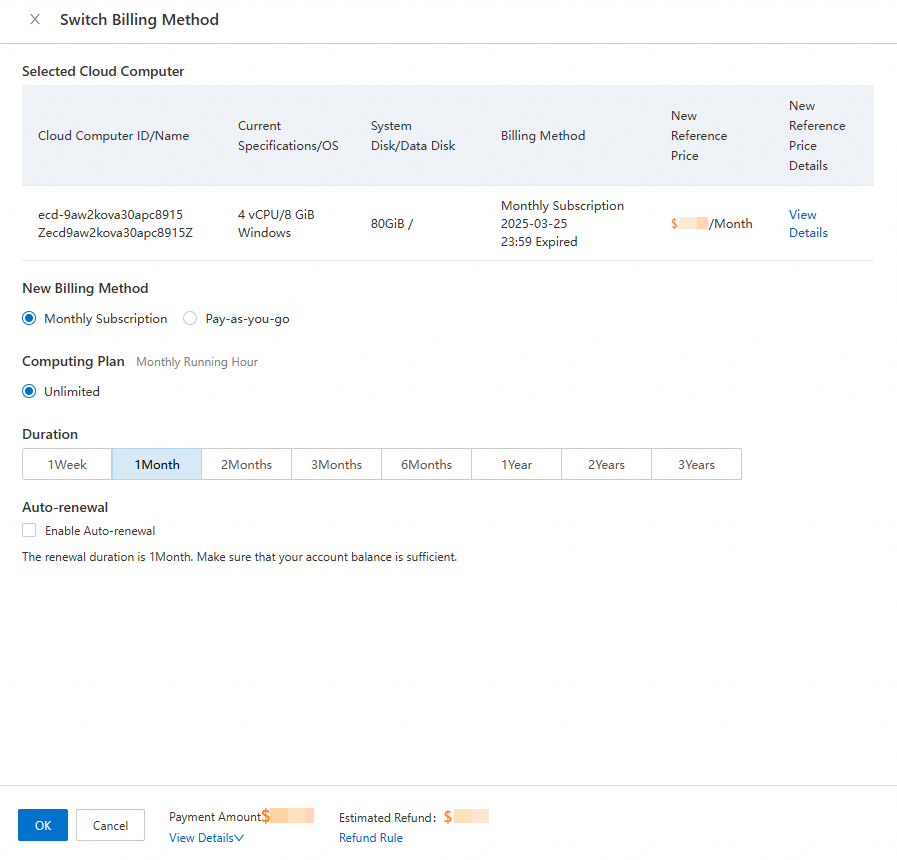
In the Switch Billing Method panel, set New Billing Method to Monthly Subscription, select a computing plan, and click OK. > Note: If the allocated hours are exhausted early, the cloud computer keeps running and incurs additional charges. To prevent this, select When the monthly running hours of a cloud computer are exhausted in advance, the system automatically stops or hibernates the cloud computer....
In the Note message, confirm the refund information and click OK.
Switch from Unlimited to pay-as-you-go
Switching from monthly subscription (Unlimited) to pay-as-you-go does not affect data or usage.
Switching billing methods is not supported for many-to-many shares.
Refund rules
Because monthly subscription requires upfront payment, switching before expiration triggers a refund:
Each switch consumes part of your monthly refundable quota. The quota is calculated in units of 1 vCPU x 1 hour. Example: A cloud computer with 4 vCPUs on a six-month subscription, switched after three months, consumes a quota of 4 x 3 x 30 x 24 = 8,640 units. For details, see Rules for unsubscribing from resources.
Refunds are based on the actual payment amount, excluding coupon discounts, and issued through the original payment channel.
Renewal orders not yet in effect receive a full refund. Effective orders are eligible for a partial refund only.
After switching
After switching to pay-as-you-go, you can switch back to the original billing method at any time. However, switching back to monthly subscription voids the first-purchase discount. For pricing details, see the Pricing page.
Prerequisites
Your monthly refundable quota for the current month must exceed the quota consumed by the switch. Hover over the Estimated Refund parameter in the Switch Billing Method panel to view the remaining quota.
Cloud computers are in the Running or Stopped state.
No unpaid orders exist for the cloud computers. Complete or cancel any pending orders first.
Procedure
Log on to the EDS Enterprise console.
In the left-side navigation pane, choose Resources > Cloud Computers.
In the upper-left corner of the top navigation bar, select a region.
On the Cloud Computers page, find the target cloud computer, click the ⋮ icon in the Actions column, and select Switch Billing Method. > Note: To switch billing methods in batch, select up to 20 cloud computers and choose More > Switch Billing Method in the lower part of the page.
In the Switch Billing Method panel, set New Billing Method to Pay-as-you-go, confirm the estimated refundable amount, and click Switch Billing Method.
In the Confirm Change message, confirm the refund information and click Confirm.
Switch from hour-limited plans to Unlimited
Switch cloud computers from 120 Hours/Month, 250 Hours/Month, or 360 Hours/Month to Unlimited.
Prerequisites
Cloud computers are in the Running or Stopped state.
Procedure
Log on to the EDS Enterprise console.
In the left-side navigation pane, choose Resources > Cloud Computers.
In the upper-left corner of the top navigation bar, select a region.
On the Cloud Computers page, find the target cloud computer, click the ⋮ icon in the Actions column, and select Switch Billing Method. > Note: To switch billing methods in batch, select up to 20 cloud computers and choose More > Switch Billing Method in the lower part of the page.
In the Switch Billing Method panel, set New Billing Method to Monthly Subscription, select Unlimited, specify a subscription duration, and click OK.
In the Note message, confirm the refund information and click OK.
Switch from hour-limited plans to pay-as-you-go
Switch cloud computers from 120 Hours/Month, 250 Hours/Month, or 360 Hours/Month to pay-as-you-go.
Prerequisites
Cloud computers are in the Running or Stopped state.
Procedure
Log on to the EDS Enterprise console.
In the left-side navigation pane, choose Resources > Cloud Computers.
In the upper-left corner of the top navigation bar, select a region.
On the Cloud Computers page, find the target cloud computer, click the ⋮ icon in the Actions column, and select Switch Billing Method. > Note: To switch billing methods in batch, select up to 20 cloud computers and choose More > Switch Billing Method in the lower part of the page.
In the Switch Billing Method panel, set New Billing Method to Pay-as-you-go and click OK.
Refund and unsubscription
Before canceling a subscription, review the following:
Refunds are based on the actual payment amount, excluding coupon deductions.
If you violate applicable laws, regulations, or the terms of the purchased services, you are not eligible for a refund.
Check resource details, terms, and refundable amounts carefully before canceling.
For complete refund policies, see Rules for unsubscribing from resources.