Rebuild a custom image with the latest software and configurations. CloudOps Orchestration Service (OOS) automates the entire update process -- from launching a temporary instance to capturing the new image and cleaning up resources.
How it works
OOS provides the ACS-ECS-UpdateImage public template that automates custom image updates. Specify a source image, an instance type, and a Cloud Assistant script, and OOS handles the rest.
The template runs the following steps in sequence:
Check the image name. Verify that the new image name is unique and meets naming conventions.
Prepare resources. Create a temporary ECS instance from the source image using the specified instance type and security groups. Install Cloud Assistant Agent on the instance.
Update the environment. Run a custom shell, Python, Perl, batch, or PowerShell script through Cloud Assistant to update the application environment on the temporary instance.
Create a custom image. Stop the temporary instance and create a new custom image from it.
Release resources. Release the temporary instance to avoid unnecessary costs.
The update process automatically creates a temporary pay-as-you-go ECS instance. Make sure that your account balance covers the cost of temporary resources. The instance is released after the new image is created.
Prerequisites
Before you begin, make sure that you have:
A custom image to update
Enough account balance for a temporary pay-as-you-go ECS instance
Permissions to call ECS API operations for creating custom images
A virtual private cloud (VPC), vSwitch, and security group for the temporary instance. You can also create these resources on the task creation page.
(Optional) A shell, Python, Perl, batch, or PowerShell script to customize the environment
Procedure
-
Go to ECS console - Images.
-
In the top navigation bar, select the region and resource group of the resource that you want to manage.

On the Images page, click the Custom Images tab.
Find the image to update. In the Actions column, choose
 > Update Image. The OOS console opens with the Create Task Create or Update Images page.
In the General Settings section, configure the following parameters:
Parameter Description Example New Image Name A unique name for the new custom image. image-20230713133609 Permissions The permissions for the update task. Options: Use Existing Permissions of Current Account (default) -- uses your current account permissions. Requires permissions to call ECS API operations for image creation. Specify RAM Role and Use Permissions Granted to This Role -- OOS assumes a Resource Access Management (RAM) role to perform O&M tasks. Use Existing Permissions of Current Account In the Select Image section, verify the source image. The source image is automatically selected. Confirm that this is the custom image you want to update.
In the Configure Immediate Instance section, configure the temporary ECS instance:
Parameter Description Example VPC The ID of the VPC for the temporary instance. vpc-bp1pfyqnwdnvj7b\*\*\*\*\*\* vSwitch The ID of the vSwitch for the temporary instance. The vSwitch and security group must belong to the same VPC. vsw-bp1s5fnvk4gn2tw\*\*\*\*\*\* Security Group The ID of the security group for the temporary instance. sg-bp1azkttqpldxg\*\*\*\*\*\* Instance Type The instance type of the temporary instance. For more information, see Overview of instance families. ecs.g6.xlarge System Disk Type The disk category for the temporary instance. cloud_essd Public Bandwidth The public bandwidth of the temporary instance. 0 (Optional) In the Send Remote Commands section, select a command type and enter the command content. The command runs on the temporary ECS instance to update the application environment.
(Optional) In the Image Distribution section, configure image copying or sharing.
To copy the new image to other regions, enter destination regions.
To share the new image with other Alibaba Cloud accounts, enter their account IDs.
(Optional) In the Scaling Group Configuration section, configure scaling group settings.
(Optional) In the Execution Settings(Optional) section, configure Description, Tags for Execution, Executed Resource Group, or Save as Template based on your requirements.
Click Create. In the Parameter Confirmation dialog, review the settings and click OK.
Verify the result
After you click OK, the execution enters the Running state while the image is being updated.
Monitor the execution status until Execution Status changes to Success.
NoteTo view real-time progress and logs, click Details in the Actions column for the execution, and then click the Log tab.
(Optional) Find the new image:
On the execution details page, check the output section for the new image ID.
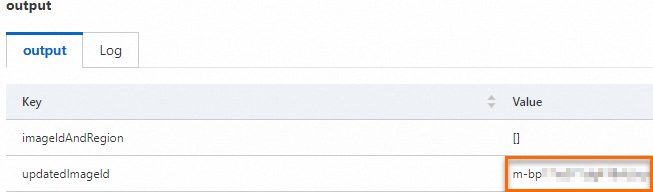
On the Custom Images tab of the Images page in the ECS console, search for the new image by its ID.