You can upgrade an NVIDIA Tesla or GRID driver by uninstalling the current driver and installing the required version. This is necessary when the installed driver version is outdated or an incorrect driver type has made the GPU-accelerated instance unavailable.
Upgrade the Tesla driver
To upgrade the Tesla driver, uninstall the current driver and then install the version that matches your operating system and required driver type.
-
Uninstall the current Tesla driver.
For more information, see Uninstall the Tesla driver.
-
Install a new Tesla driver.
Upgrade the GRID driver
Check if an upgrade is required
Before upgrading the GRID driver, verify whether an upgrade is needed and select the appropriate method for your instance type.
-
vGPU-accelerated instances running Windows (vgn6i-vws, vgn7i-vws, and sgn7i-vws)
-
If the current GRID driver version on the instance is not 474.04, you must upgrade the driver to a Software-Licensed (SWL) driver.
-
If the GRID driver version is 474.04, check its License Status to determine if an upgrade is necessary:
-
Log on to the vGPU-accelerated instance that runs Windows, such as a vgn7i-vws instance.
For more information, see Connect to a Windows instance by using Workbench.
-
Open Command Prompt and run the following commands to check its
License Status.cd C:\Program Files\NVIDIA Corporation\NVSMI nvidia-smi.exe -q | findstr LicenseIf the output matches the example below, the license is valid, and no upgrade is needed. Otherwise, you must upgrade to the SWL driver. For more information, see Upgrade the GRID driver by using Cloud Assistant.
vGPU Software Licensed Product
    License Status          : Licensed (Expiry: N/A)
-
-
-
GPU compute-optimized instances running Windows (gn7i, gn6i, ebmgn7i, and ebmgn6i)
Check the License Status to determine whether an upgrade is needed:
-
Log on to the GPU compute-optimized instance that runs Windows, such as a gn7i instance.
For more information, see Connect to a Windows instance by using Workbench.
-
Open Command Prompt and run the following commands to check the driver's
License Status.cd C:\Program Files\NVIDIA Corporation\NVSMI nvidia-smi.exe -q | findstr License-
If the output matches the example below, the license for the current driver has not expired. Proceed to the next step.
-
If the output differs from the example below, the license has expired, and you must upgrade to the SWL driver. For more information, see Upgrade the GRID driver by using Cloud Assistant.
vGPU Software Licensed Product
    License Status          : Licensed (Expiry: N/A)
-
-
(Optional) Run the following command to check if the license type is NVIDIA RTX Virtual Workstation.
If the current driver's license has not expired, you must also verify that the license type is NVIDIA RTX Virtual Workstation.
nvidia-smi.exe -q | findstr Product-
If the output matches the example below, the license type of the current driver is NVIDIA RTX Virtual Workstation. You do not need to upgrade to the SWL driver.
-
If the output does not match the example below, the license type of the current driver is not NVIDIA RTX Virtual Workstation. You must upgrade to the SWL driver. For more information, see Upgrade the GRID driver by using Cloud Assistant.
    Product Name            : Tesla T4
    Product Brand           : Quadro RTX
vGPU Software Licensed Product
    Product Name            : NVIDIA RTX Virtual Workstation
-
-
-
vGPU-accelerated instances running Linux (vgn6i-vws, vgn7i-vws, and sgn7i-vws)
-
If the installed GRID driver version is not 470.161.03, you must upgrade the driver.
-
If the installed GRID driver version is 470.161.03, check the License Status to determine if an upgrade is required. Perform the following steps:
-
Log on to the vGPU-accelerated instance that runs Linux, such as a vgn7i-vws instance.
For more information, see Connect to a Linux instance by using Workbench.
-
Run the following command to check the driver's License Status.
# nvidia-smi -q |grep -i licenseIf the output matches the example below, the license for the current driver has not expired. You do not need to upgrade to the SWL driver. Otherwise, you must upgrade. For more information, see Upgrade the GRID driver by using Cloud Assistant.
vGPU Software Licensed Product
    License Status          : Licensed (Expiry: N/A)
-
-
-
GPU compute-optimized instances running Linux (gn7i, gn6i, ebmgn7i, and ebmgn6i)
These instances support graphics acceleration without a GRID driver, so you can use a driver from the official NVIDIA website. No upgrade to the SWL driver is required.
Upgrade by using Cloud Assistant
Windows
Applicable instances
Cloud Assistant can upgrade the GRID driver only on the following GPU instance families running Windows:
-
vGPU-accelerated instances: vgn6i-vws, vgn7i-vws, and sgn7i-vws
-
GPU compute-optimized instances: gn7i, gn6i, ebmgn7i, and ebmgn6i
Procedure
This example uses a vgn6i-vws instance (ecs.vgn6i-m4-vws.xlarge) in the China (Hangzhou) region.
-
Log on to the ECS console.
In the left-side navigation pane, choose .
In the upper-left corner of the page, select the region where your target instance is located.

On the ECS Instances tab, find the target instance and click Run Command in the Actions column.

-
Create and run a Cloud Assistant command to upgrade the GRID driver.
In the Create Command panel, configure the parameters in the Command Information section.
The following table describes the main parameters. Keep the default values for the other parameters. For more information, see Command parameters (console operations).
ImportantYou must set the parameters to the values provided in this topic. Otherwise, the Cloud Assistant command may fail.
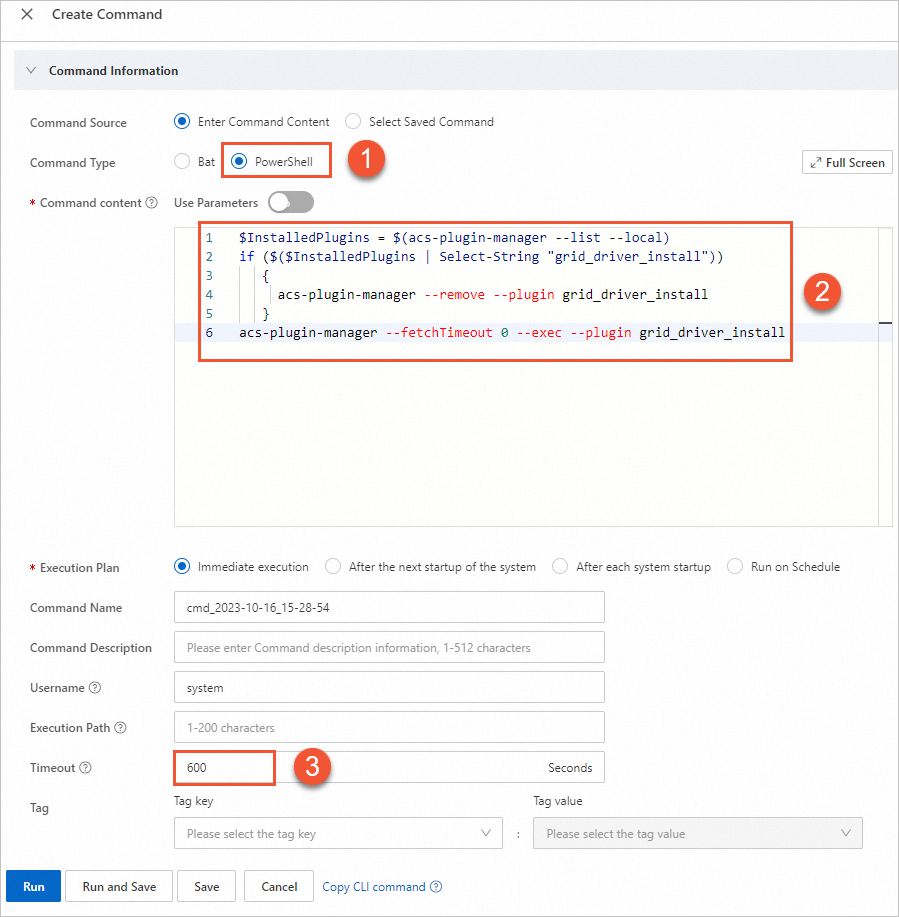
① Command Type: Select PowerShell.
② Command Content: Enter or paste your command.
Cloud Assistant command for vgn6i-vws, vgn7i-vws, and sgn7i-vws instances:
$InstalledPlugins = $(acs-plugin-manager --list --local)
if ($($InstalledPlugins | Select-String "grid_driver_install"))
   {
     acs-plugin-manager --remove --plugin grid_driver_install
   }
acs-plugin-manager --fetchTimeout 0 --exec --plugin grid_driver_install
Cloud Assistant command for sgn8ia, gn8ia, gn8is, gn7i, gn6i, ebmgn8ia, ebmgn8is, ebmgn7i, and ebmgn6i instances:
$InstalledPlugins = $(acs-plugin-manager --list --local)
if ($($InstalledPlugins | Select-String "gpu_grid_driver_install"))
   {
     acs-plugin-manager --remove --plugin gpu_grid_driver_install
   }
acs-plugin-manager --fetchTimeout 0 --exec --plugin gpu_grid_driver_install
③ Timeout: The timeout period for the command execution on the instance. If the command times out, Cloud Assistant stops the command process. Set this parameter to 600.
NoteThe value of timeout must be a positive integer in seconds. The value must be in the range of 10 to 86,400 (24 hours). The default value is 60.
-
Click Run to upgrade the GRID driver.
After the command is run, check the output on the execution details page. If an earlier version of the GRID driver is already installed, it must be uninstalled before the upgrade can proceed.
To uninstall the existing driver, use a Cloud Assistant command, restart the instance, and then run the same command again to complete the upgrade.
ImportantThe uninstallation or reinstallation takes about 5 to 10 minutes.
-
Restart the GPU-accelerated instance.
For more information, see Restart an instance.
-
Run the same Cloud Assistant command again to install the new GRID driver.
After the driver is installed, you can view the result on the execution details page.
The execution details page shows that the command is complete. The output log contains messages such as RemovePlugin success and Install gpu driver done. This confirms that the old driver was uninstalled and the new driver is installed.
-
-
Verify that the upgrade is successful.
-
Restart the GPU-accelerated instance.
For more information, see Restart an instance.
-
Remotely connect to the GPU-accelerated instance.
For more information, see Connect to a Windows instance by using Workbench.
-
On the desktop, right-click and open NVIDIA Control Panel.
If the following information is displayed, the new GRID driver is in effect.
In NVIDIA Control Panel, the product branch is GRID T4-4Q and the version is 474.04.
-
Linux
Applicable instances
Cloud Assistant can upgrade the GRID driver only on the following GPU instance families running Linux: vgn6i-vws, vgn7i-vws, and sgn7i-vws.
Procedure
This example uses a vgn6i-vws instance (ecs.vgn6i-m4-vws.xlarge) in the China (Hangzhou) region.
-
Log on to the ECS console.
In the left-side navigation pane, choose .
-
In the upper-left corner, select the region of the target instance.
-
On the ECS Instance tab, find the target instance and click Run Command in the Actions column.
-
In the Create Command pane, configure the parameters in the Command Information section.
Set the following parameters and keep the defaults for the rest. Full parameter descriptions: Run a command on an instance.
ImportantYou must set the parameters to the exact values provided. Otherwise, the Cloud Assistant command may fail.
-
Command Type: Select Shell.
-
Command Content: Paste the following command. More Shell command examples: View the system configurations of ECS instances.
-
Cloud Assistant command for sgn8ia instances:
if acs-plugin-manager --list --local | grep gpu_grid_driver_install > /dev/null 2>&1 then acs-plugin-manager --remove --plugin gpu_grid_driver_install fi acs-plugin-manager --exec --plugin gpu_grid_driver_install -
Cloud Assistant command for vgn6i-vws, vgn7i-vws, and sgn7i-vws instances:
if acs-plugin-manager --list --local | grep grid_driver_install > /dev/null 2>&1
then
    acs-plugin-manager --remove --plugin grid_driver_install
fi
acs-plugin-manager --exec --plugin grid_driver_install
-
-
Timeout Period: The execution timeout in seconds. Cloud Assistant terminates the command if it exceeds this limit. Set to 600.
NoteThe Timeout Period value must be an integer from 10 to 86,400 (24 hours).
-
-
Click Run to automatically upgrade the GRID driver.
After the command is run, you can view the result on the execution details page.
Important-
If another version of the GRID driver is installed, Cloud Assistant automatically uninstalls the current driver and reinstalls the latest SWL GRID driver.
-
The GRID driver upgrade takes about 5 to 10 minutes.
The execution details page shows that the command is complete and the GRID driver is successfully upgraded.
-
-
Connect to the vGPU-accelerated instance.
-
Run the following command to verify the GRID driver upgrade.
nvidia-smiIf the following output is returned, the GRID driver upgrade is successful.
Mon Oct  9 18:06:28 2023
+-----------------------------------------------------------------------------+
| NVIDIA-SMI 470.161.03    Driver Version: 470.161.03    CUDA Version: 11.4   |
|-------------------------------+----------------------+----------------------+
| GPU  Name        Persistence-M| Bus-Id        Disp.A | Volatile Uncorr. ECC |
| Fan  Temp  Perf  Pwr:Usage/Cap|         Memory-Usage | GPU-Util  Compute M. |
|                               |                      |               MIG M. |
|===============================+======================+======================|
|   0  NVIDIA A10-4Q       On   | 00000000:00:07.0 Off |                  N/A |
| N/A   N/A    P0    N/A /  N/A |    128MiB /  3932MiB |      0%      Default |
|                               |                      |               N/A    |
+-------------------------------+----------------------+----------------------+

+-----------------------------------------------------------------------------+
| Processes:                                                                  |
|  GPU   GI   CI        PID   Type   Process name                  GPU Memory |
|        ID   ID                                                   Usage      |
|=============================================================================|
|  No running processes found                                                 |
+-----------------------------------------------------------------------------+