You can use the Cloud Assistant plug-in to comprehensively diagnose the GPU or GPU driver of your GPU-accelerated instance and efficiently identify common errors that occur when the GPU runs, such as GPU anomalies and driver anomalies. Once anomalies are diagnosed, the system automatically initiates O&M operations. For example, the system sends notifications to you.
Procedure
The procedure in this topic applies to the diagnosis of GPU-accelerated Linux instances. GPU-accelerated Linux instances are automatically pre-installed with the Cloud Assistant plug-in when you create the instances. For more information about Cloud Assistant, see Overview.
Log on to the ECS console.
In the left-side navigation pane, choose .
In the upper part of the page, select the region where the desired GPU-accelerated instance resides.
On the ECS Instances tab, find the instance and click Run Command in the Actions column.
In the Create Command panel, configure parameters in the Command Information section.
The following section describes key parameters. Use default values for other parameters. For more information, see Create a command.
ImportantYou must set the parameters to the values that are provided in the following section. Otherwise, Cloud Assistant may fail to run the command.
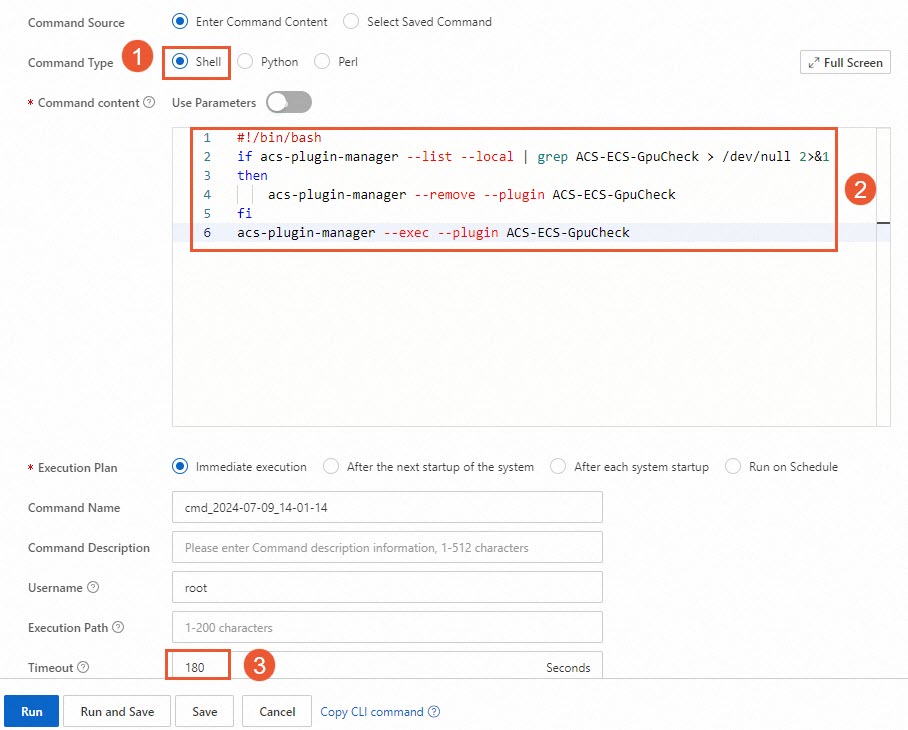
① Command Type: Select Shell.
② Command content: Paste the following command content. For more information about sample shell commands, see View the system configurations of ECS instances.
if acs-plugin-manager --list --local | grep ACS-ECS-GpuCheck > /dev/null 2>&1
then
    acs-plugin-manager --remove --plugin ACS-ECS-GpuCheck
fi
acs-plugin-manager --exec --plugin ACS-ECS-GpuCheck
③ Timeout: Specify the timeout period for running the command. When the command execution times out, Cloud Assistant forcefully terminates the execution process. In this example, the value is set to 180.
NoteThe value of the Timeout parameter must be a positive integer that ranges from 10 to 86400. Unit: seconds. A value of 86400 is equivalent to 24 hours.
Click Run to run the command to diagnose the health status of the GPU-accelerated instance by using Cloud Assistant.
If the execution result shows that each diagnostic item is in the
OKstate, the GPU of the instance is not diagnosed with anomalies.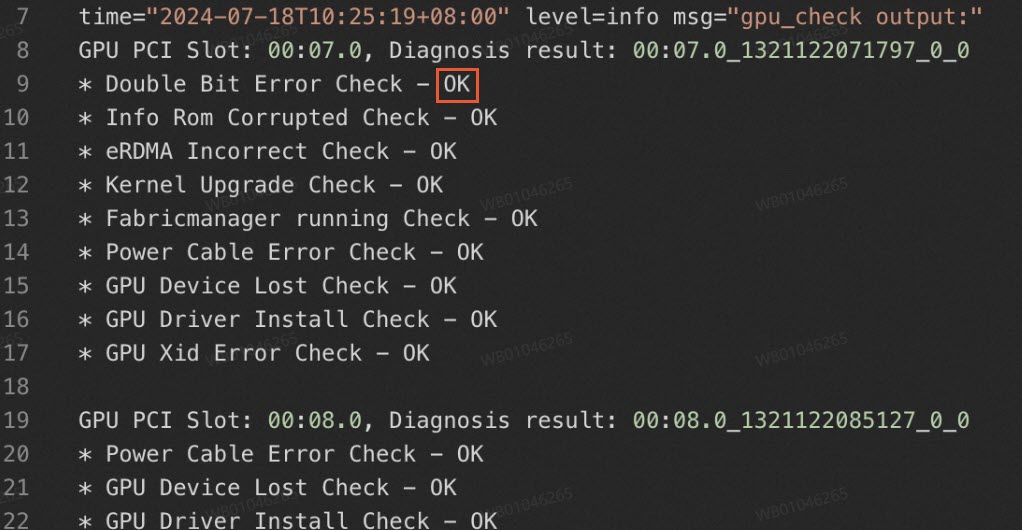
If the execution result shows that one or more diagnostic items, such as
Double Bit Error Check, are in theFailedstate, the GPU of the instance is diagnosed with anomalies.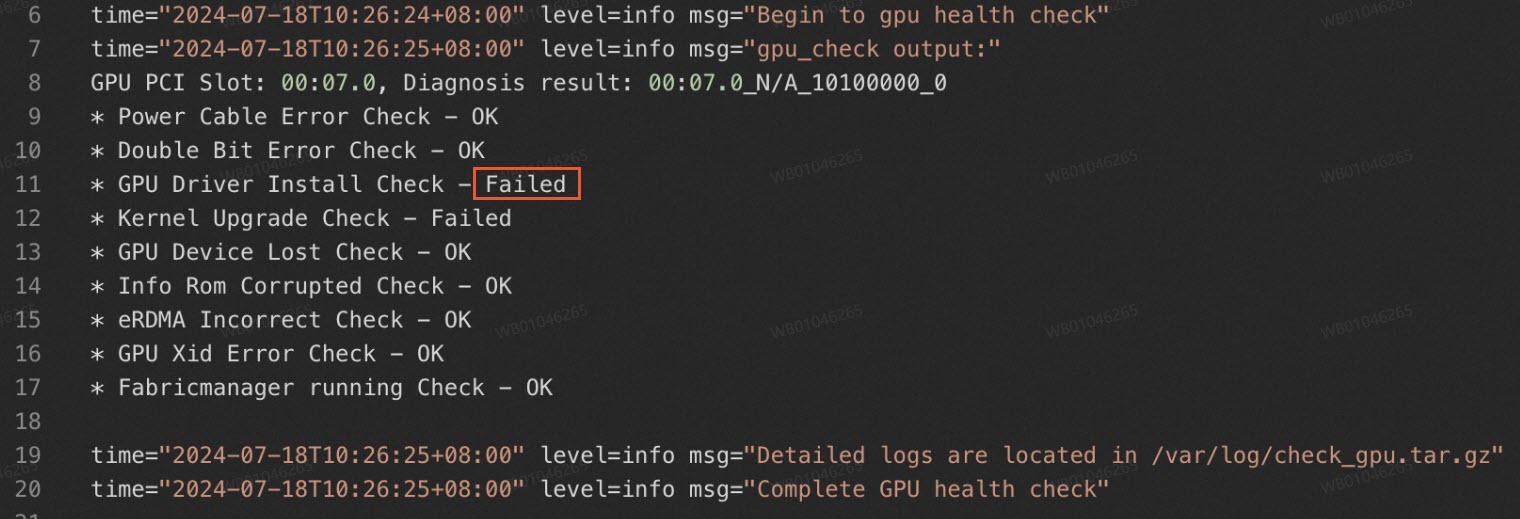
Diagnostic items and troubleshooting methods
The following table describes the diagnostic items involved when you use the Cloud Assistant plug-in to diagnose the GPU status of your GPU-accelerated instance.
Diagnostic item | Description | Troubleshooting method |
Double Bit Error Check | Checks whether double-bit errors exist on the GPU. | Restart the instance based on the number of errors returned by the system. |
Info Rom Corrupted Check | Checks the infoROM information about the GPU. | Perform operations based on the O&M notifications that are sent by the system. |
eRDMA Incorrect Check | Checks the status of the elastic RDMA interface (ERI) of the GPU. | Perform operations based on the O&M notifications that are sent by the system. |
Kernel Upgrade Check | Checks whether driver anomalies caused by kernel updates exist. | Uninstall the current driver and install a new driver. |
Fabricmanager running Check | Checks the running status of the Fabricmanager component. | Install or start the Fabricmanager component. |
Power Cable Error Check | Checks the status of the power cable and power supply of the GPU. | Perform operations based on the O&M notifications that are sent by the system. |
GPU Device Lost Check | Checks whether the GPU can be found. | Perform operations based on the O&M notifications that are sent by the system. |
GPU Driver Install Check | Checks the installation status of the GPU driver. | Install the driver. |
GPU Xid Error Check | Checks whether XID errors exist on the GPU. | Restart the instance based on different XID errors that are reported by the system. |