When you update the kernel of an operating system, such as Alibaba Cloud Linux, Red Hat, CentOS, or Ubuntu, for a GPU-accelerated instance, the Kernel Application Binary Interface (kABI) of the kernel may become different. As a result, the Tesla driver built based on the source kernel cannot be loaded on the new kernel. To resolve this issue, you can select different solutions based on whether the Kernel Application Programming Interface (kAPI) of the kernel is changed after the kernel is updated.
Problem description
When you update the operating system kernel of a GPU-accelerated instance, the GPU (Tesla) driver cannot be loaded on the new kernel. In other words, the NVIDIA Kernel Object (KO) of the source kernel cannot be loaded on the new kernel. As a result, the driver fails to work as expected. The following figure shows the sample error message.

Causes
The kABI of the kernel before the update is different from the kABI of the kernel after the update.
The default KO installation directory of the NVIDIA GPU (Tesla) driver is not
/lib/modules/(uname-r)/extra. No soft link can be created for the kernel package to be installed.
Solutions
Select one of the following solutions based on the preceding causes and the kAPI impact on the kernel:
If the kAPI of the kernel is not affected after the kernel is updated, use Dedicated Key Management Service (DKMS) to automatically build an NVIDIA GPU (Tesla) driver.
If the kAPI of the kernel is changed after the kernel is updated, and the NVIDIA GPU (Tesla) driver cannot be automatically built by using DKMS, you must re-install the NVIDIA GPU (Tesla) driver.
Use DKMS to automatically build an NVIDIA GPU (Tesla) driver
Install DKMS on the NVIDIA GPU (Tesla) driver.
Connect to the GPU-accelerated instance.
In this example, a gn7i instance that runs the Alibaba Cloud Linux 3 operating system is used. For more information, see Connect to a Linux instance by using a password or key.
Install DKMS on the GPU-accelerated instance.
sudo yum install dkmsInstall the NVIDIA GPU (Tesla) driver.
For more information, see Manually install a Tesla driver on a GPU-accelerated compute-optimized Linux instance.
During installation, take note of the following items:
When the following message appears to ask you whether to register the kernel module source code with DKMS, select Yes.

After you select Yes, the NVIDIA GPU may report a registration failure message as shown in the following figure. Ignore the message and click OK.

Determine whether to install the 32-bit NVIDIA compatibility library based on your business requirements.

Run the following command to check the status of DKMS:
sudo dkms statusIf the command output similar to the one shown in the following figure is returned, DKMS is installed.

Run the
lscommand to check whether the NVIDIA GPU (Tesla) driver files exist in the/usr/src/nvidia-${NVIDIA driver version}directory.In this example,
nvidia-${NVIDIA driver version}is set tonvidia-470.141.03. Replace the version with the actual driver version. Note
NoteBy default, the NVIDIA GPU (Tesla) driver stores the related code or files in the
/usr/src/nvidia-${NVIDIA driver version}directory. This allows DKMS to automatically recompile and install the driver kernel module after the kernel is updated.
Installing a new kernel triggers DKMS to automatically build an NVIDIA GPU (Tesla) driver.
In this example, the kernel version is set to
5.10.134-15.al8. Replace the version with the actual kernel version based on your business requirements.ImportantWe recommend that you install the kernel-devel package and the kernel or kernel-core package in sequence. Otherwise, DKMS does not automatically build the NVIDIA GPU (Tesla) driver. The kernel or kernel-core package triggers the DKMS operations, and the kernel-devel package is required to build the NVIDIA GPU (Tesla) driver. In this case, you must manually trigger DKMS to build the NVIDIA GPU (Tesla) driver. For more information, see Step 3 of this topic.
Run the following command to install the kernel-devel package of the new kernel:
sudo rpm -ivh kernel-devel-5.10.134-15.al8.x86_64.rpm --force
Install the kernel or kernel-core package.
In this example, the kernel package is installed. For the Alibaba Cloud Linux 3 operating system, you must install the kernel-core package and run the
sudo rpm -ivh kernel-core-5.10.134-15.al8.x86_64.rpm --forcecommand.sudo rpm -ivh kernel-5.10.134-15.al8.x86_64.rpm --force
Run the following command to check whether the NVIDIA GPU (Tesla) driver is built for the new kernel:
find /lib/modules/5.10.134-15.al8.x86_64/ -name *nvidia*
Run the
sudo dkms statuscommand to check whether DKMS information contains the new kernel version number.
(Conditionally required) If you install the kernel or kernel-core package and then install the kernel-devel package, you must manually trigger DKMS to build an NVIDIA GPU (Tesla) driver.
Run the following command to build an NVIDIA GPU (Tesla) driver:
sudo dkms build -m nvidia -v ${NVIDIA driver version} -k ${New kernel version} --forceTake note of the following parameters:
${NVIDIA driver version}: Replace the version with the actual version number of the NVIDIA GPU (Tesla) driver. Example:470.141.03.${New kernel version}: Replace the version with the actual version number of the new kernel. Example:5.10.134-15.al8.x86_64.
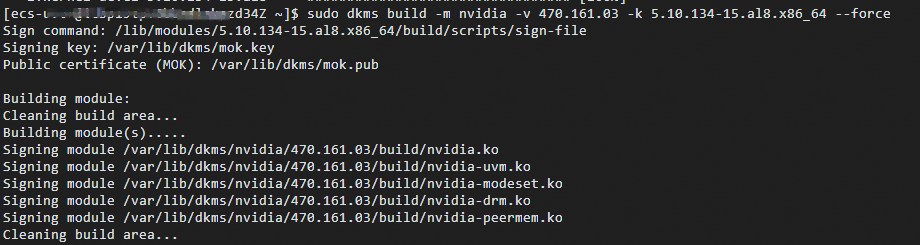
Run the following command to install the NVIDIA GPU (Tesla) driver:
sudo dkms install -m nvidia -v ${NVIDIA driver version} -k ${New kernel version} --force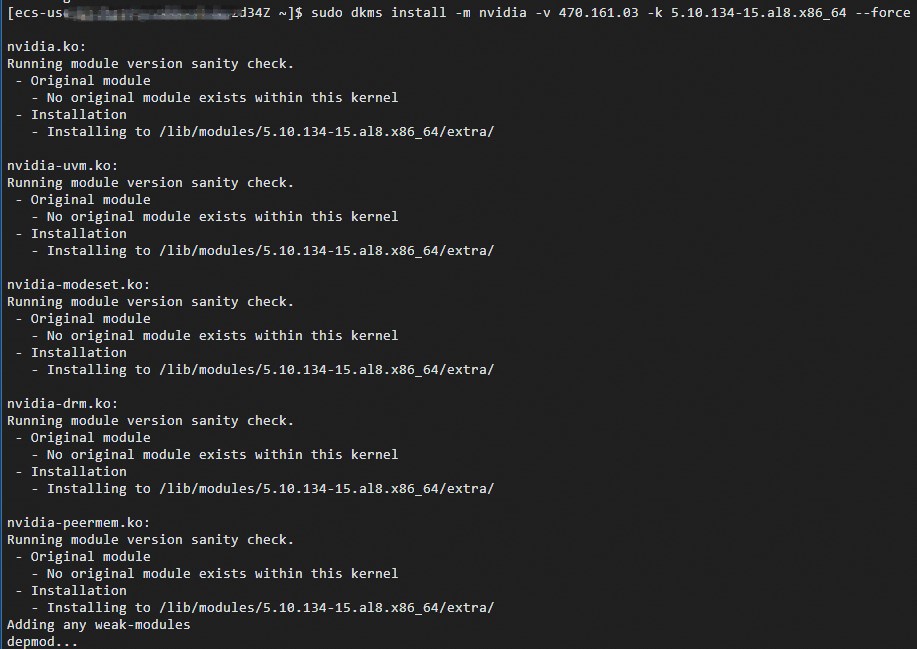
Run the following command to check whether the NVIDIA GPU (Tesla) driver is installed in the new kernel installation directory:
find /lib/modules/5.10.134-16.3.al8.x86_64/ -name *nvidia*
Run the
sudo dkms statuscommand to check whether DKMS information contains the new kernel version number.
Re-install the NVIDIA GPU (Tesla) driver
If the kAPI of the kernel changes after the kernel is updated, DKMS cannot automatically build or install the NVIDIA GPU (Tesla) driver. In this case, you must re-install the NVIDIA GPU (Tesla) driver. For more information, see Manually install a Tesla driver on a GPU-accelerated compute-optimized Linux instance.