The cGPU isolates GPU resources, allowing multiple containers to share a single GPU card. It is a component of Container Service for Kubernetes (ACK) designed for high performance computing (HPC) workloads, such as machine learning, deep learning, and scientific computing. It helps you accelerate computing tasks by using GPU resources more efficiently. This topic describes how to install and use the cGPU.
Because cGPU isolation does not support Unified Virtual Memory (UVM), you cannot call cudaMallocManaged() to allocate GPU memory. Instead, call cudaMalloc(). For more information, see the NVIDIA documentation.
Prerequisites
Ensure that your GPU-accelerated instance meets the following requirements:
-
The instance family is one of the following: gn7i, gn6i, gn6v, gn6e, gn5i, gn5, ebmgn7i, ebmgn6i, ebmgn7e, ebmgn6e.
-
The operating system is one of the following: CentOS, Ubuntu, or Alibaba Cloud Linux.
-
Tesla driver 418.87.01 or later is installed.
-
Docker 19.03.5 or later is installed.
Install cGPU
We recommend that you install and use cGPU in the ACK Docker runtime.
Installing cGPU version 1.5.7 may cause a deadlock (where concurrently running processes block each other) in the cGPU kernel driver, which can lead to a Linux Kernel Panic. To avoid kernel errors in new workloads, we recommend that you install cGPU 1.5.8 or later, or gradually upgrade earlier versions to 1.5.8 or later.
-
Create a cluster.
For more information, see Create an ACK managed cluster.
On the Clusters page, click the name of your cluster. In the left navigation pane, click .
-
In the Basic capabilities section, select Scheduling Policy Extension (Batch Task Scheduling, GPU Sharing, Topology-aware GPU Scheduling).
-
At the bottom of the page, click Deploy Cloud-native AI Suite.
After installation, the ack-ai-installer component appears in the component list on the Cloud-native AI Suite page.
On the Cloud-native AI Suite page, click Deploy.
Use cGPU
This topic demonstrates how two containers on an ecs.gn6i-c4g1.xlarge instance can share a single GPU.
Running containers with cGPU
-
Run the following commands to create containers and set the GPU memory visible to each container.
In this example, the
ALIYUN_COM_GPU_MEM_CONTAINERandALIYUN_COM_GPU_MEM_DEVenvironment variables are set to specify the GPU memory visible to the container and the total GPU memory of the device.-
gpu_test1: allocates 6 GiB of GPU memory.
sudo docker run -d -t --gpus all --shm-size=1g --ulimit memlock=-1 --ulimit stack=67108864 --name gpu_test1 -v /mnt:/mnt -e ALIYUN_COM_GPU_MEM_CONTAINER=6 -e ALIYUN_COM_GPU_MEM_DEV=15 nvcr.io/nvidia/tensorflow:19.10-py3 -
gpu_test2: allocates 8 GiB of GPU memory.
sudo docker run -d -t --gpus all --shm-size=1g --ulimit memlock=-1 --ulimit stack=67108864 --name gpu_test2 -v /mnt:/mnt -e ALIYUN_COM_GPU_MEM_CONTAINER=8 -e ALIYUN_COM_GPU_MEM_DEV=15 nvcr.io/nvidia/tensorflow:19.10-py3
NoteThe commands use the TensorFlow container image
nvcr.io/nvidia/tensorflow:19.10-py3as an example. Replace it with your own container image. For more information about how to use a TensorFlow image to build a TensorFlow deep learning framework, see Deploy an NGC environment for deep learning development. -
-
Run the following command to view the container's GPU information, such as the GPU memory.
sudo docker exec -i gpu_test1 nvidia-smiFor example, the GPU memory visible to the gpu_test1 container is 6,043 MiB, as shown in the following output:
NVIDIA-SMI 440.33.01    Driver Version: 440.33.01    CUDA Version: 10.2
+-----------------------------------------------------------------------------+
| GPU  Name        Persistence-M| Bus-Id        Disp.A | Volatile Uncorr. ECC |
| Fan  Temp  Perf  Pwr:Usage/Cap|         Memory-Usage | GPU-Util  Compute M. |
|=============================================================================|
|   0  Tesla T4            On   | 00000000:00:08.0 Off |                    0 |
| N/A   29C    P8     9W /  70W |      0MiB /  6043MiB |      0%      Default |
+-----------------------------------------------------------------------------+
+-----------------------------------------------------------------------------+
| Processes:                                                       GPU Memory |
|  GPU       PID   Type   Process name                             Usage      |
|=============================================================================|
|  No running processes found                                                 |
+-----------------------------------------------------------------------------+
Viewing cGPU information with procfs nodes
When cGPU is running, it generates and automatically manages multiple proc filesystem (procfs) nodes in the /proc/cgpu_km directory. You can use these procfs nodes to view and configure cGPU information.
-
Run the following command to view information about the procfs nodes.
ls /proc/cgpu_km/The following output is returned:
0 default_memsize inst_ctl upgrade version -
Run the following command to view the contents of the GPU directory.
This example uses GPU 0.
ls /proc/cgpu_km/0The following output is returned:
012b2edccd7a 0852a381c0cf free_weight major max_inst policy prio_ratio -
Run the following command to view the contents of a container's directory.
This example uses the container
012b2edccd7a.ls /proc/cgpu_km/0/012b2edccd7aThe following output is returned:
highprio id meminfo memsize weight -
(Optional) Run the following commands to configure cGPU.
You can use the procfs nodes to run commands on the GPU-accelerated instance to switch the scheduling policy, modify weights, and perform other operations. The following table provides command examples.
Command
Effect
echo 2 > /proc/cgpu_km/0/policy
Switches the scheduling policy to weight-based preemptive scheduling.
cat /proc/cgpu_km/0/free_weight
Views the available weight on the GPU. If
free_weight=0, a newly created container is assigned a weight of 0. The container cannot obtain GPU computing power.cat /proc/cgpu_km/0/$dockerid/weight
Views the weight of a specified container.
echo 4 > /proc/cgpu_km/0/$dockerid/weight
Modifies the computing power weight for a container.
Viewing cGPU containers with cgpu-smi
You can use cgpu-smi to view information about cGPU containers, including container IDs, GPU utilization, computing power limits, used GPU memory, and total allocated GPU memory.
cgpu-smi is a monitoring example for cGPU. When you deploy applications in Kubernetes (k8s), you can use or adapt the cgpu-smi tool for custom integrations.
|  Alibaba Cloud cGPU1.0                cGPU Version:  1.0.2
+---+----------------+----------+----------------+-----------------------+
|GPU|       pod      | highprio | GPU-Util/Limit | GPU Memory Usage/Total|
+===+================+==========+================+=======================+
|  0| 7db8fff70a0d   |    0     |     41/ 50     |           9459/11463  |
|  0| 91b1e19795ee   |    0     |     30/ 50     |           9457/11463  |
+---+----------------+----------+----------------+-----------------------+
Upgrade or uninstall cGPU
Upgrade cGPU
cGPU supports both cold updates and hot updates.
-
Cold update
To perform a cold update when Docker is not using cGPU:
-
Stop all running containers:
sudo docker stop $(docker ps -a | awk '{ print $1}' | tail -n +2) -
Upgrade cGPU to the latest version:
sudo sh upgrade.sh
-
-
Hot update
If Docker is using cGPU, you can perform a hot update of the cGPU kernel driver. However, this update method is subject to version restrictions. Contact the Alibaba Cloud after-sales support team for assistance.
Uninstall cGPU
To uninstall a previous version of cGPU from a node, see Upgrade node cGPU version.
cGPU usage examples
Computing power scheduling
When cGPU loads the cgpu_km module, it sets time slices (in milliseconds) for each GPU based on the maximum number of containers (max_inst). These time slices, referred to as Slice 1, Slice 2, and Slice N in this topic, are used to allocate GPU computing power to containers. The following examples demonstrate different scheduling policies.
-
Fair-share scheduling (policy=0)
When you create containers, cGPU allocates a time slice to each one. The scheduler starts with Slice 1, submits a task to the physical GPU for one time slice, and then switches to the next time slice. Each container receives an equal share of computing power, which is
1/max_inst, as shown in the following figure.
-
Preemptive scheduling (policy=1)
When you create containers, cGPU allocates time slices to them. The scheduler starts with Slice 1. However, if no process in a container is accessing the GPU, the scheduler skips that container's time slice and moves to the next.
Example:
-
You create a single container, Docker 1, which is allocated Slice 1. If you run two TensorFlow processes in Docker 1, the container can use the computing power of the entire physical GPU.
-
You then create a second container, Docker 2, which is allocated Slice 2. If no process in Docker 2 is accessing the GPU, the scheduler skips its time slice (Slice 2).
-
When a process in Docker 2 starts accessing the GPU, both Slice 1 and Slice 2 are included in the scheduling cycle. Docker 1 and Docker 2 can each receive up to half of the physical GPU's computing power, as shown in the following figure.

-
-
Weight-based preemptive scheduling (policy=2)
If you set
ALIYUN_COM_GPU_SCHD_WEIGHTto a value greater than 1 when you create a container, cGPU automatically uses this policy. cGPU divides the physical GPU's computing power intomax_instportions. IfALIYUN_COM_GPU_SCHD_WEIGHTis greater than 1, cGPU combines multiple time slices into a larger slice for that container.Example configuration:
-
Docker 1: ALIYUN_COM_GPU_SCHD_WEIGHT=m
-
Docker 2: ALIYUN_COM_GPU_SCHD_WEIGHT=n
Scheduling behavior:
-
If only Docker 1 is running, it preempts the computing power of the entire physical GPU.
-
If Docker 1 and Docker 2 are both running, they receive computing power at a theoretical ratio of m:n. Unlike preemptive scheduling, Docker 2 consumes n time slices even if no process in it is using the GPU.
NotePerformance differs when the m:n ratio is set to 2:1 versus 8:4. In the 2:1 case, the number of time slice switches per second is four times higher than in the 8:4 case.

Weight-based preemptive scheduling sets a theoretical maximum limit on the GPU computing power that a container can use. However, for powerful GPUs such as the NVIDIA V100, a short compute task might finish within a single time slice. In this scenario, if the m:n ratio is 8:4, the GPU is idle for the remaining time slices, rendering the limit ineffective.
-
-
Fixed scheduling (policy=3)
You can allocate a fixed percentage of computing power by specifying a ratio of
ALIYUN_COM_GPU_SCHD_WEIGHTtomax_inst. -
Soft scheduling (policy=4)
When you create containers, cGPU allocates time slices to them. This policy provides weaker isolation than preemptive scheduling. For more information, see Preemptive scheduling (policy=1).
-
Native scheduling (policy=5)
This policy only isolates GPU memory and relies on the native scheduling method of the NVIDIA GPU driver.
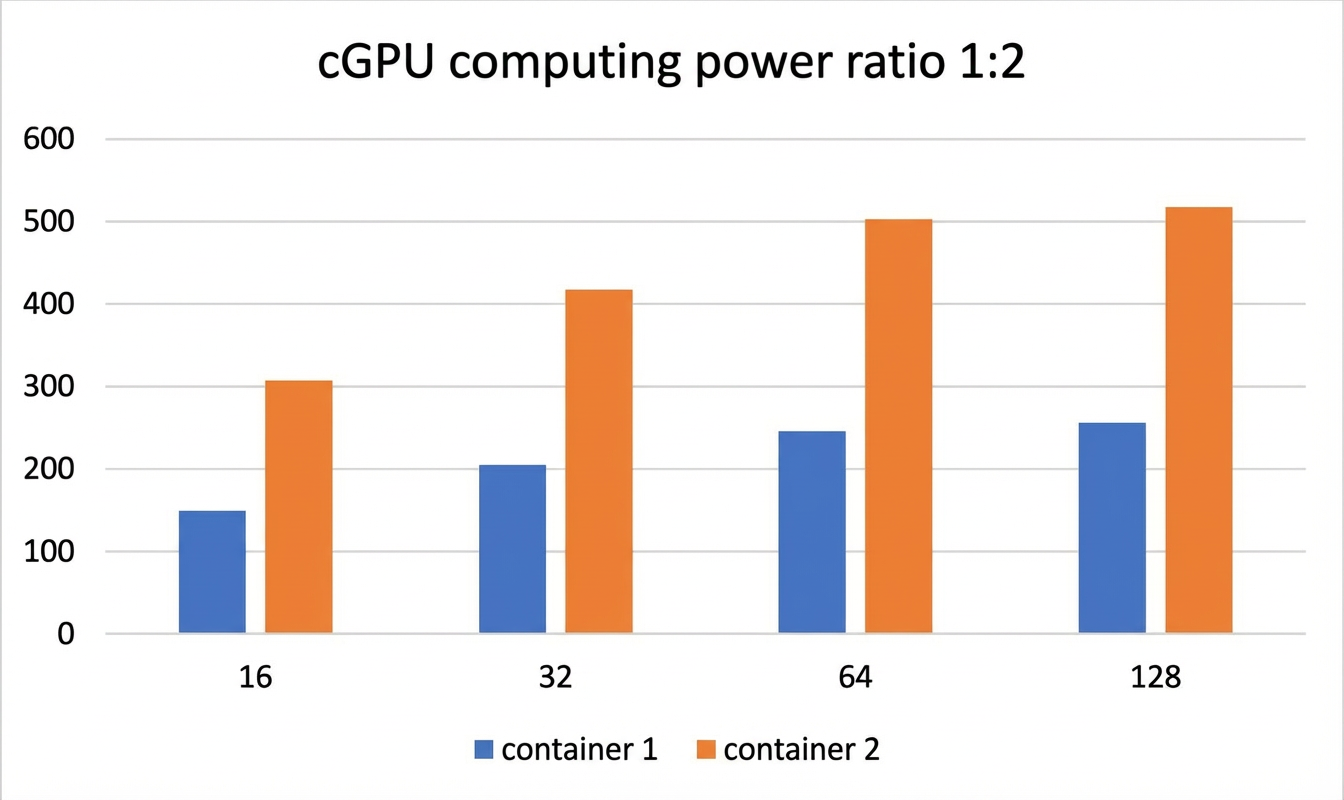
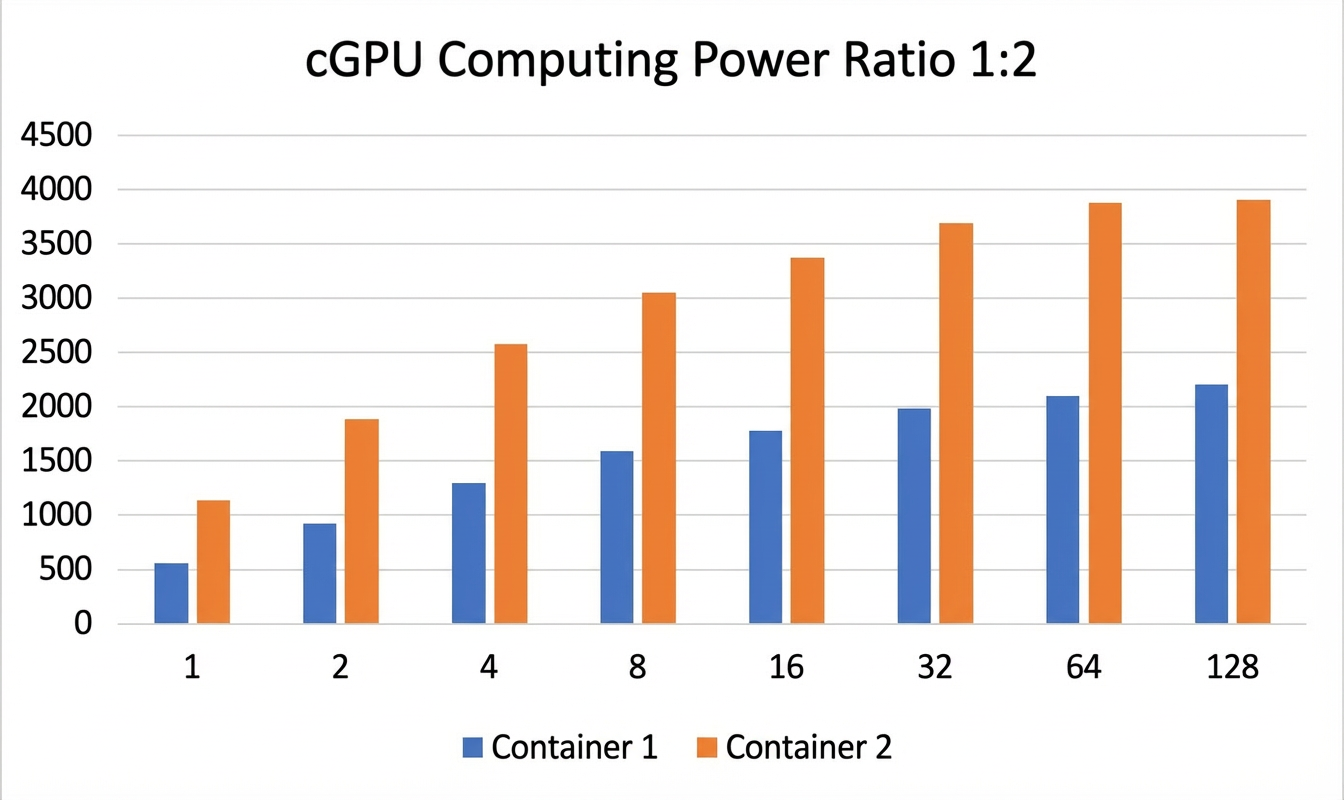
The computing power scheduling policies support all Alibaba Cloud heterogeneous GPU-accelerated instances and their NVIDIA GPUs, including Tesla P4, Tesla P100, Tesla T4, Tesla V100, Tesla A10, . The following tests use two containers that share a single-GPU instance with a Tesla A10 GPU. The computing power ratio between the containers is 1:2, and the GPU memory is split evenly, with each container receiving 12 GB.
The following performance test results are from a lab environment and are for reference only.
-
Test 1: Compares performance for a ResNet50 model trained on the TensorFlow framework with FP16 precision across different
batch_sizevalues. The results are shown below:Framework
Model
batch_size
Precision
Images/sec (Docker 1)
Images/sec (Docker 2)
TensorFlow
ResNet50
16
FP16
151
307
TensorFlow
ResNet50
32
FP16
204
418
TensorFlow
ResNet50
64
FP16
247
503
TensorFlow
ResNet50
128
FP16
257
516
-
Test 2: Compares performance for a ResNet50 model trained on the TensorRT framework with FP16 precision across different
batch_sizevalues. The results are shown below:Framework
Model
batch_size
Precision
Images/sec (Docker 1)
Images/sec (Docker 2)
TensorRT
ResNet50
1
FP16
568.05
1132.08
TensorRT
ResNet50
2
FP16
940.36
1884.12
TensorRT
ResNet50
4
FP16
1304.03
2571.91
TensorRT
ResNet50
8
FP16
1586.87
3055.66
TensorRT
ResNet50
16
FP16
1783.91
3381.72
TensorRT
ResNet50
32
FP16
1989.28
3695.88
TensorRT
ResNet50
64
FP16
2105.81
3889.35
TensorRT
ResNet50
128
FP16
2205.25
3901.94
Multi-GPU memory partitioning
This example shows how to partition memory across four GPUs, allocating 3 GB to GPU 0, 4 GB to GPU 1, 5 GB to GPU 2, and 6 GB to GPU 3. The sample code is as follows:
docker run -d -t --runtime=nvidia  --name gpu_test0123 --shm-size=1g --ulimit memlock=-1 --ulimit stack=67108864 -v /mnt:/mnt -e ALIYUN_COM_GPU_MEM_CONTAINER=3,4,5,6 -e ALIYUN_COM_GPU_MEM_DEV=23 -e NVIDIA_VISIBLE_DEVICES=0,1,2,3 nvcr.io/nvidia/tensorflow:21.03-tf1-py3
docker exec -i gpu_test0123   nvidia-smi
The command output shows the memory details of the four GPUs.
NVIDIA-SMI 510.39        Driver Version: 510.39       CUDA Version: 11.6
-------------------------------+----------------------+----------------------+
 GPU  Name        Persistence-M| Bus-Id        Disp.A | Volatile Uncorr. ECC |
 Fan  Temp  Perf  Pwr:Usage/Cap|         Memory-Usage | GPU-Util  Compute M. |
                               |                      |               MIG M. |
===============================+======================+======================+
   0  NVIDIA A10           On  | 00000000:61:00.0 Off |                    0 |
  0%   31C    P8    15W / 150W |      0MiB /  3003MiB |      0%      Default |
                               |                      |                  N/A |
+-------------------------------+----------------------+----------------------+
   1  NVIDIA A10           On  | 00000000:6B:00.0 Off |                    0 |
  0%   31C    P8    16W / 150W |      0MiB /  4004MiB |      0%      Default |
                               |                      |                  N/A |
+-------------------------------+----------------------+----------------------+
   2  NVIDIA A10           On  | 00000000:CA:00.0 Off |                    0 |
  0%   30C    P8    15W / 150W |      0MiB /  5006MiB |      0%      Default |
                               |                      |                  N/A |
+-------------------------------+----------------------+----------------------+
   3  NVIDIA A10           On  | 00000000:E3:00.0 Off |                    0 |
  0%   31C    P8    16W / 150W |      0MiB /  6007MiB |      0%      Default |
                               |                      |                  N/A |
+-------------------------------+----------------------+----------------------+
The following table describes the ALIYUN_COM_GPU_MEM_CONTAINER parameter for multi-GPU configurations.
|
Value |
Description |
|
ALIYUN_COM_GPU_MEM_CONTAINER=3 |
Sets the GPU memory of all four GPUs to 3 GB. |
|
ALIYUN_COM_GPU_MEM_CONTAINER=3,1 |
Sets the GPU memory of the four GPUs to 3 GB, 1 GB, 1 GB, and 1 GB, respectively. |
|
ALIYUN_COM_GPU_MEM_CONTAINER=3,4,5,6 |
Sets the GPU memory of the four GPUs to 3 GB, 4 GB, 5 GB, and 6 GB, respectively. |
|
ALIYUN_COM_GPU_MEM_CONTAINER is not specified |
Disables cGPU. |
|
ALIYUN_COM_GPU_MEM_CONTAINER=0 |
|
|
ALIYUN_COM_GPU_MEM_CONTAINER=1,0,0 |