To access Functions and Pages through a custom domain, configure a domain name as an entry point. Edge Security Acceleration (ESA) offers two methods to direct HTTP/HTTPS requests to Functions and Pages: Custom Domains and Routes.
Prerequisites
Both Custom Domains and Routes require an active site in your account.
An active site has a purchased plan and is connected using an NS or CNAME record.
Choose a configuration method
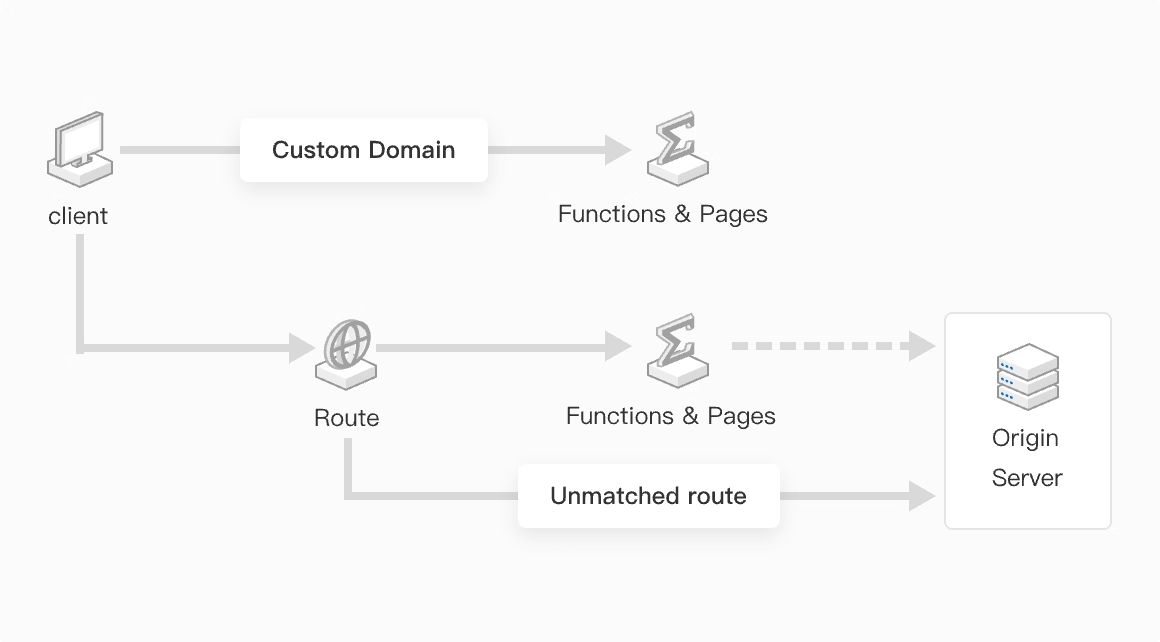
Feature | Custom Domains | Routes |
Core purpose | Forwards all requests from a specified domain, such as | Routes only requests that match a predefined path, such as |
Scope | All traffic for the domain. | Only traffic that matches the rule. |
Configuration | Simple, one-step process. | Flexible. Requires configuring matching rules. |
Use cases |
|
|
Bind a custom domain
Use Custom Domains to direct all traffic from a domain to a single Functions and Pages instance.
Link Functions and Pages to your site domain. After binding, access Functions and Pages through the custom domain. The domain bound to Functions and Pages must belong to an available site. ESA automatically adds a DNS record for the bound domain.

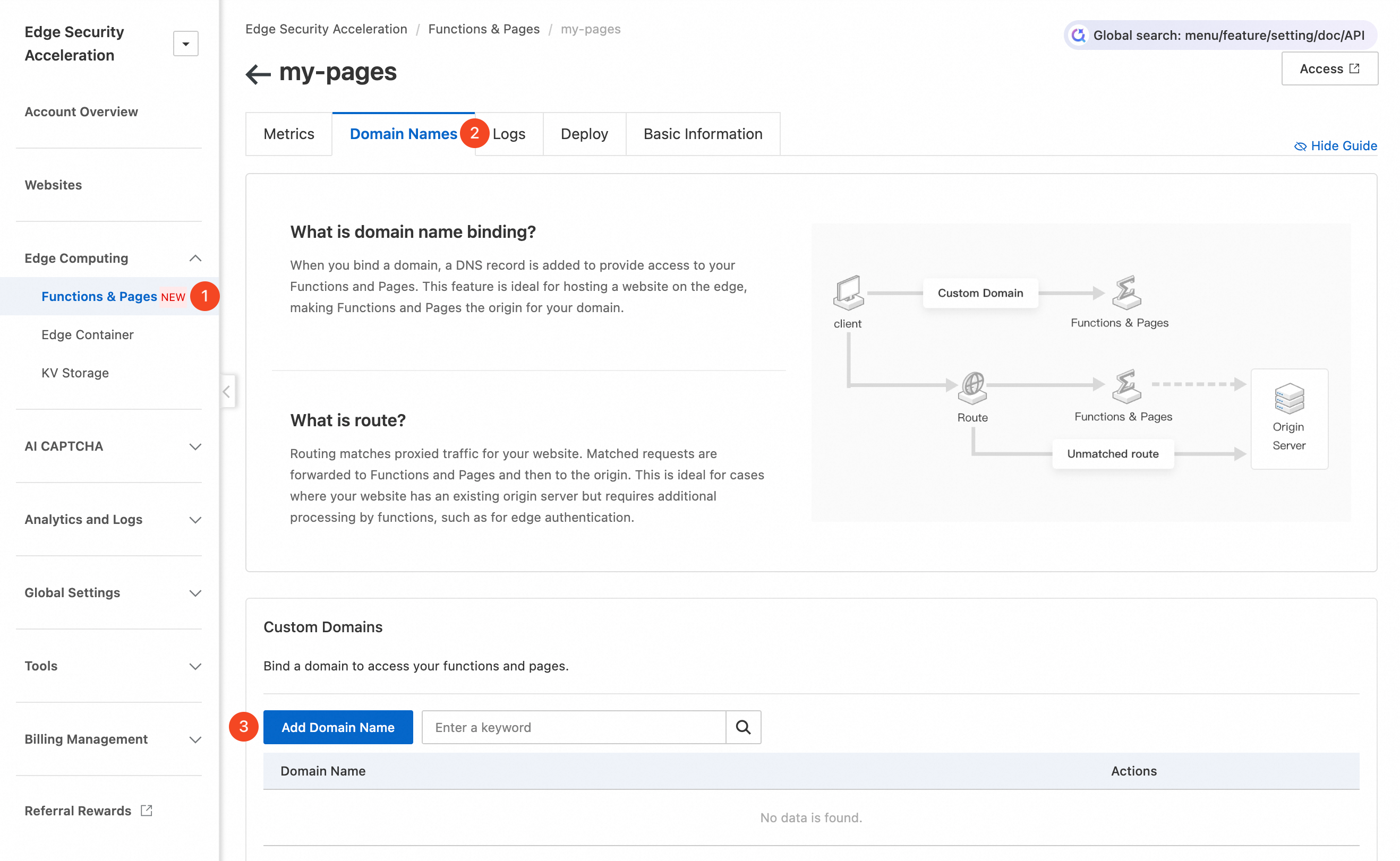
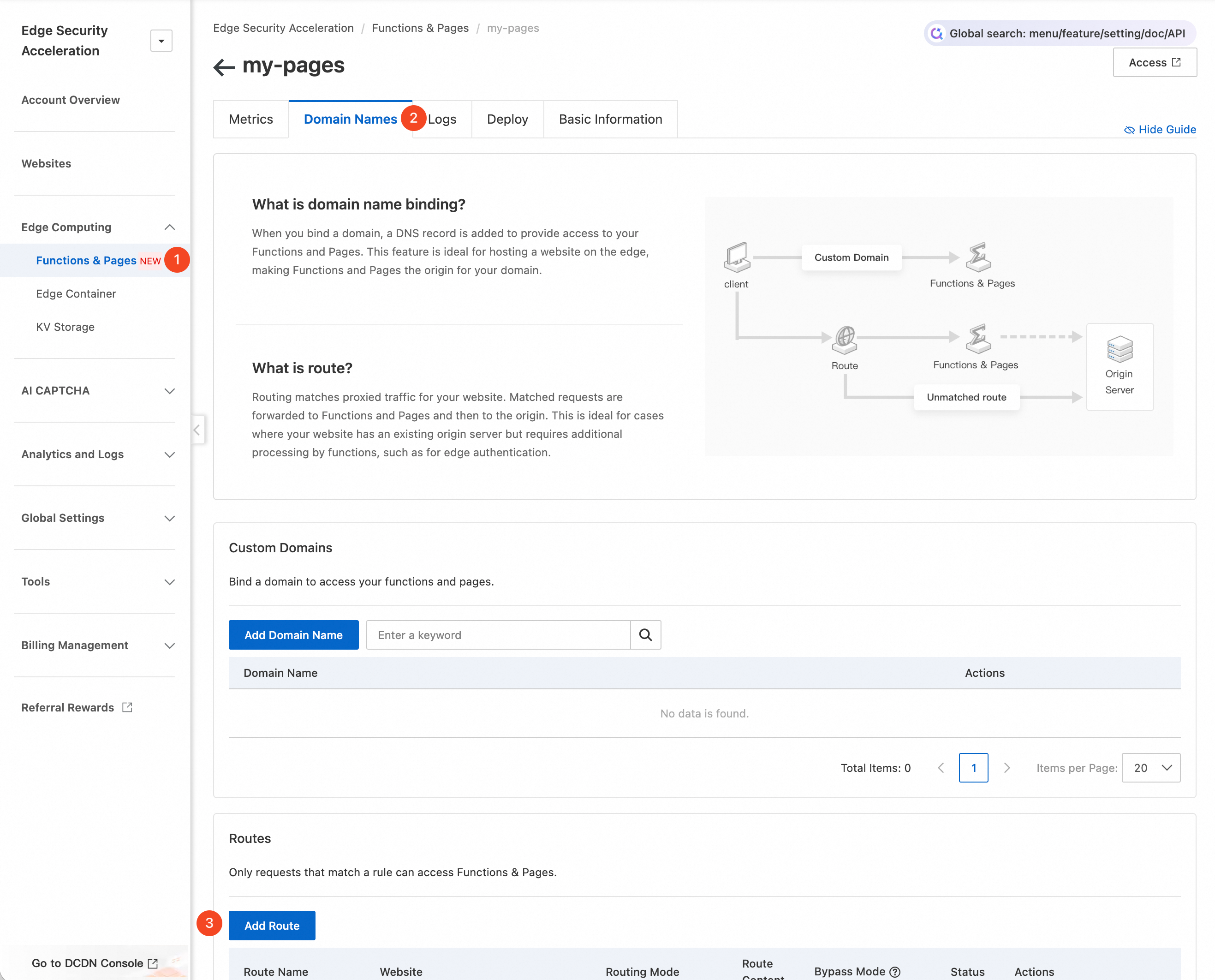
Log on to the ESA console, and in the navigation pane on the left, choose . Click the target Functions and Pages instance.
Click the Domain Names tab. In the Custom Domains section, click Add Domain Name.
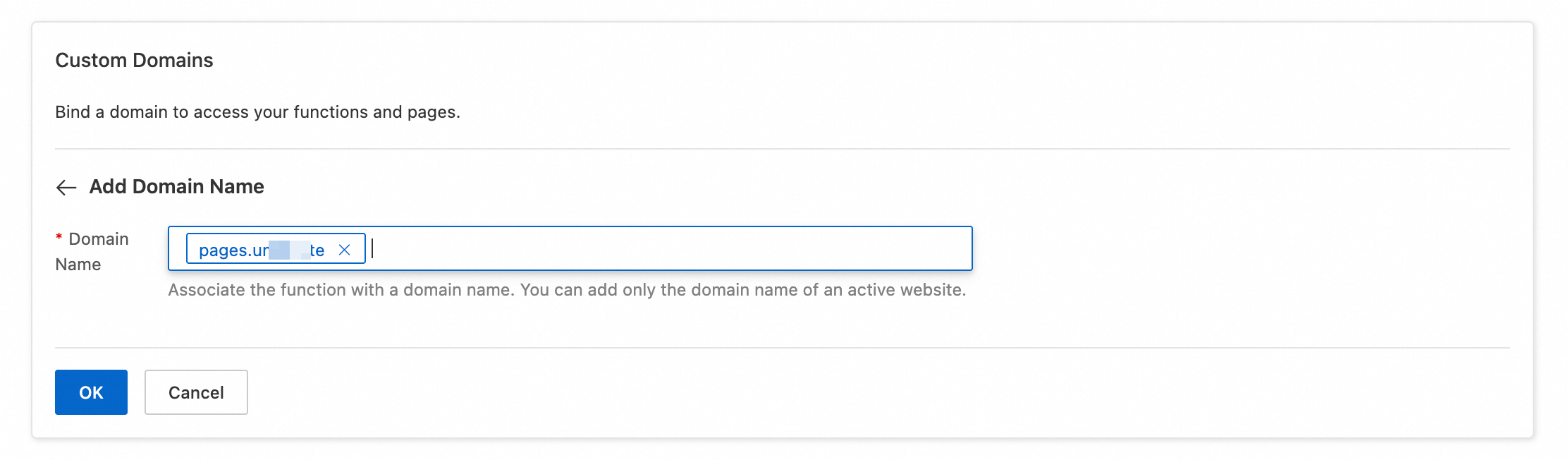
Enter the domain name to bind to your Functions and Pages instance, such as
pages.example.com. ESA automatically creates a DNS record for the domain on the corresponding site.NoteA new domain inherits its site's configuration. If the site lacks an SSL/TLS certificate, the domain cannot be accessed over HTTPS. Configure SSL/TLS to enable HTTPS access.
Complete the next steps based on your site's connection method.
NS record
If your site uses an NS record, wait about one minute for the DNS record to take effect. Then, open a browser and visit the custom domain, such as
pages.example.com, to view the result.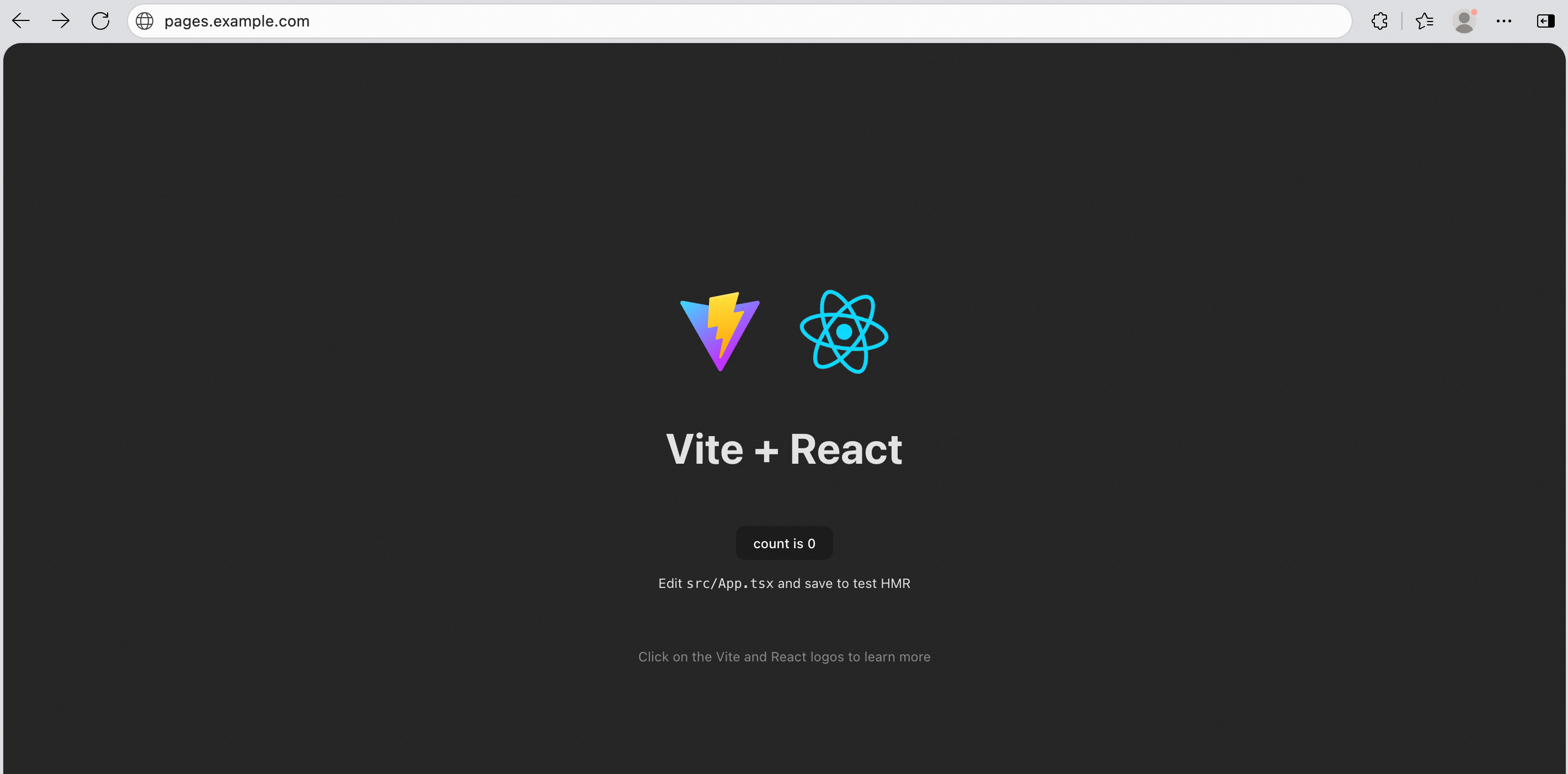
CNAME record
If your site uses a CNAME record, add a CNAME record at your DNS provider to activate the domain.
In the list of custom domains, find your new domain and click View DNS Records.
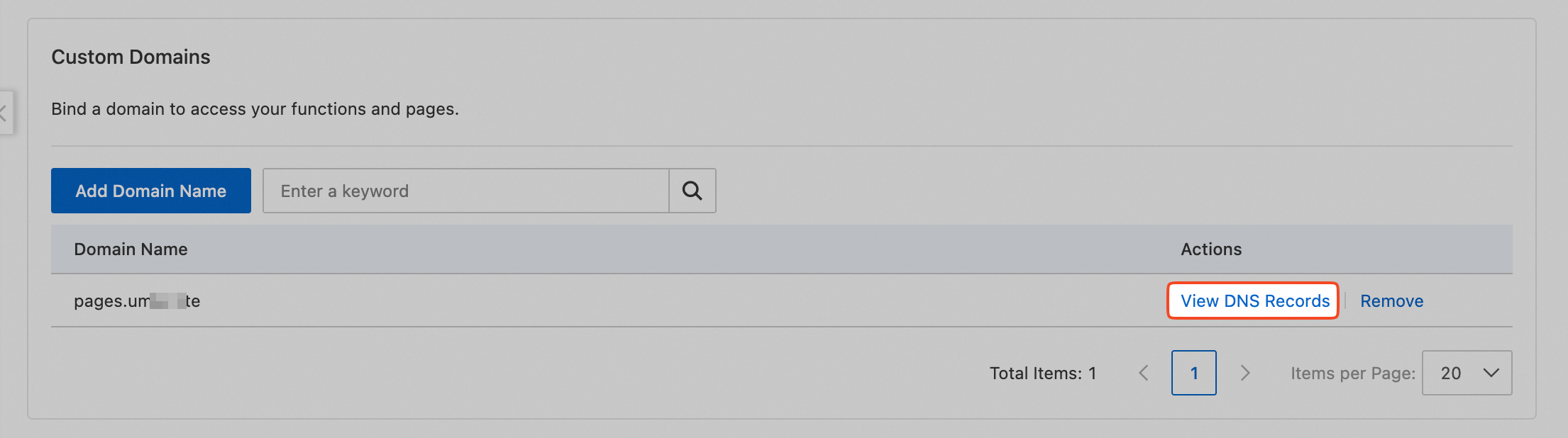
Copy the CNAME value that ESA generated.
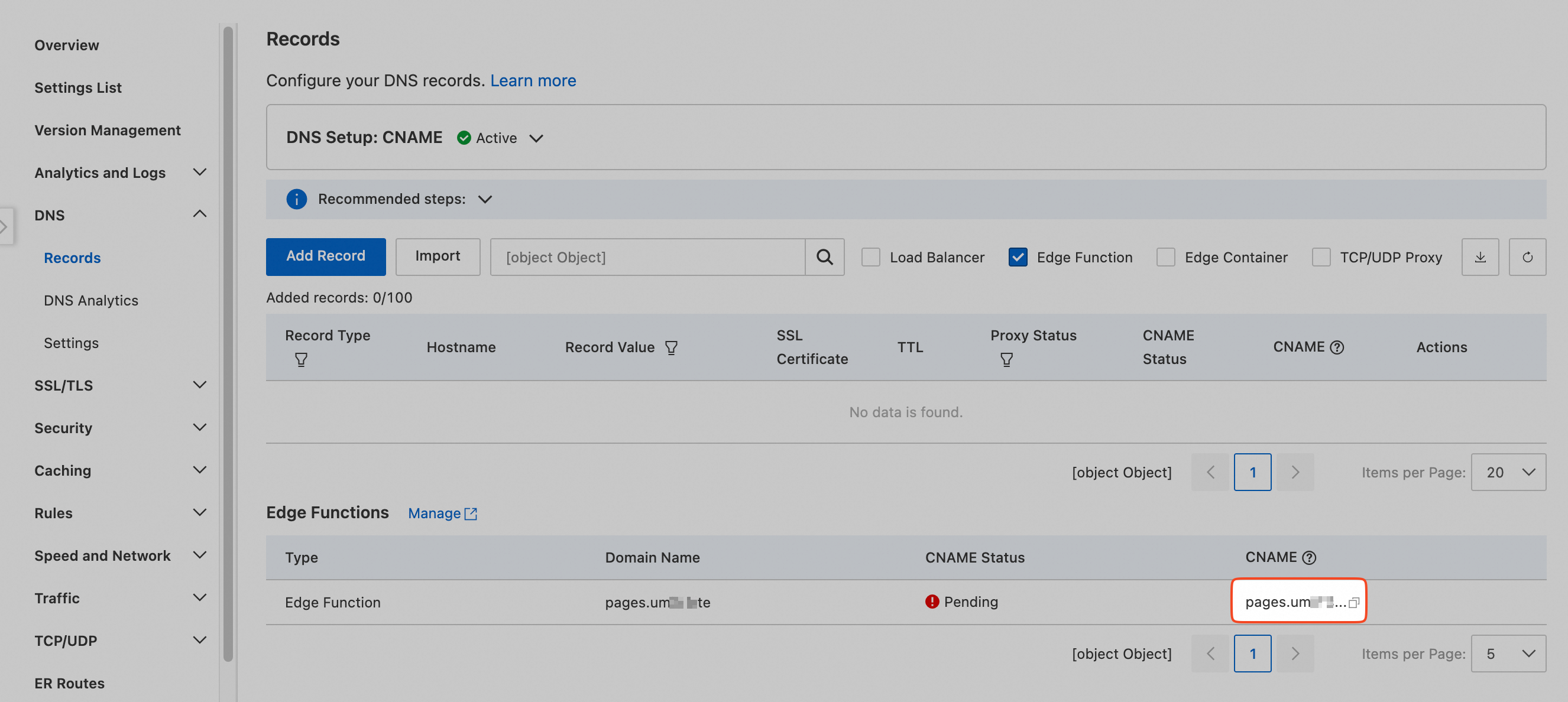
Go to your DNS provider's website and add a CNAME record with the following information:
Host Record: Enter the prefix of the custom domain. For this example, enter
pages.Record Type: Select
CNAME.Record Value: Paste the CNAME value you copied in the previous step.
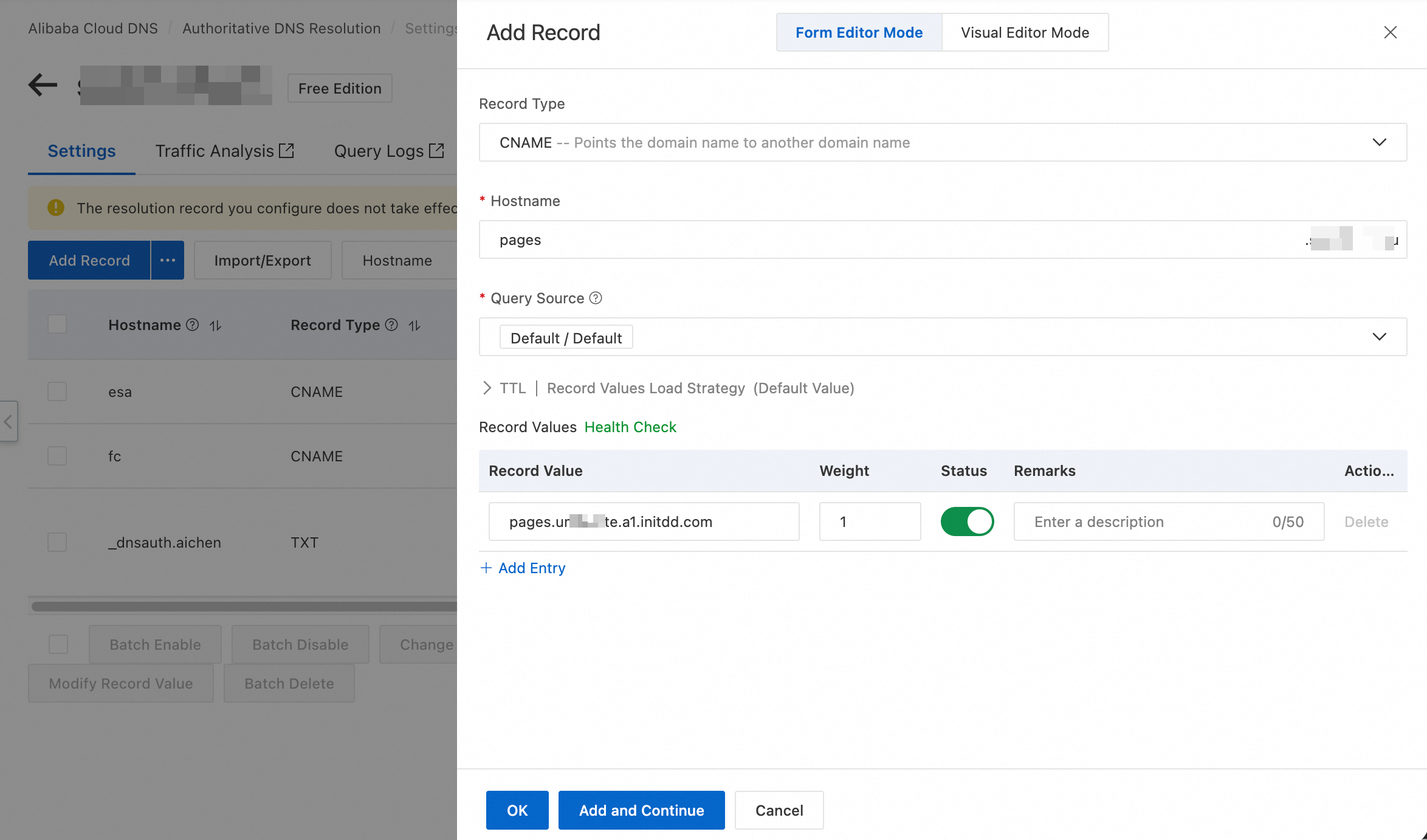
Return to the ESA console and wait for the CNAME Status to show Configured.
 You can then view the page by visiting the custom domain that you just bound, such as
 pages.example.com, in a browser.
Configure routes
Route requests matching specific URL paths to a Functions and Pages instance for fine-grained traffic control. Matching requests are processed by Functions and Pages; non-matching requests continue through the standard ESA acceleration and caching flow. For example, a route for example.com/a* on the example.com site sends requests to /a, /a1, and /a2 to Functions and Pages, while requests to /b, /c, and /d go to the origin or cache.

Log on to the ESA console, and in the navigation pane on the left, choose . Click the target Functions and Pages instance.
Click the Domain Names tab. In the Routes section, click Add Route.
Enter a Route Name. From the Select Website list, select the target site, such as
example.com.Select a Route Mode.
Simple Mode: Matches requests based only on the URL (hostname and path). For example, you can configure a rule to route all requests with the URL prefix
pages.example.comto your Functions and Pages instance.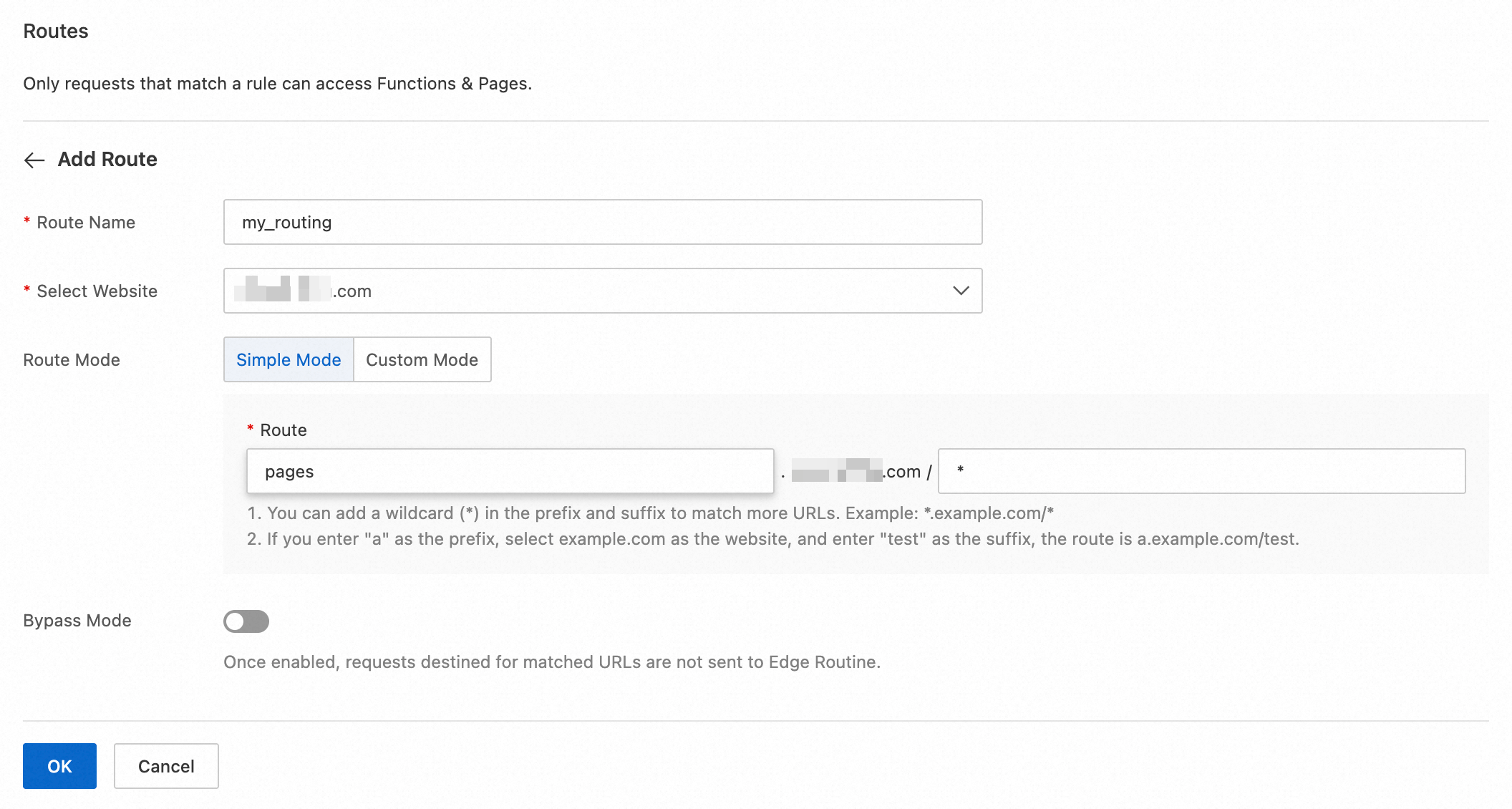
Custom Mode: Combine multiple conditions such as request headers, cookies, and request methods for complex matching. Set the logical relationship between conditions (All/Any). For example, forward a request to Functions and Pages only when the
Hostnameequalswww.example.comand theUser-Agentrequest header containsMobile: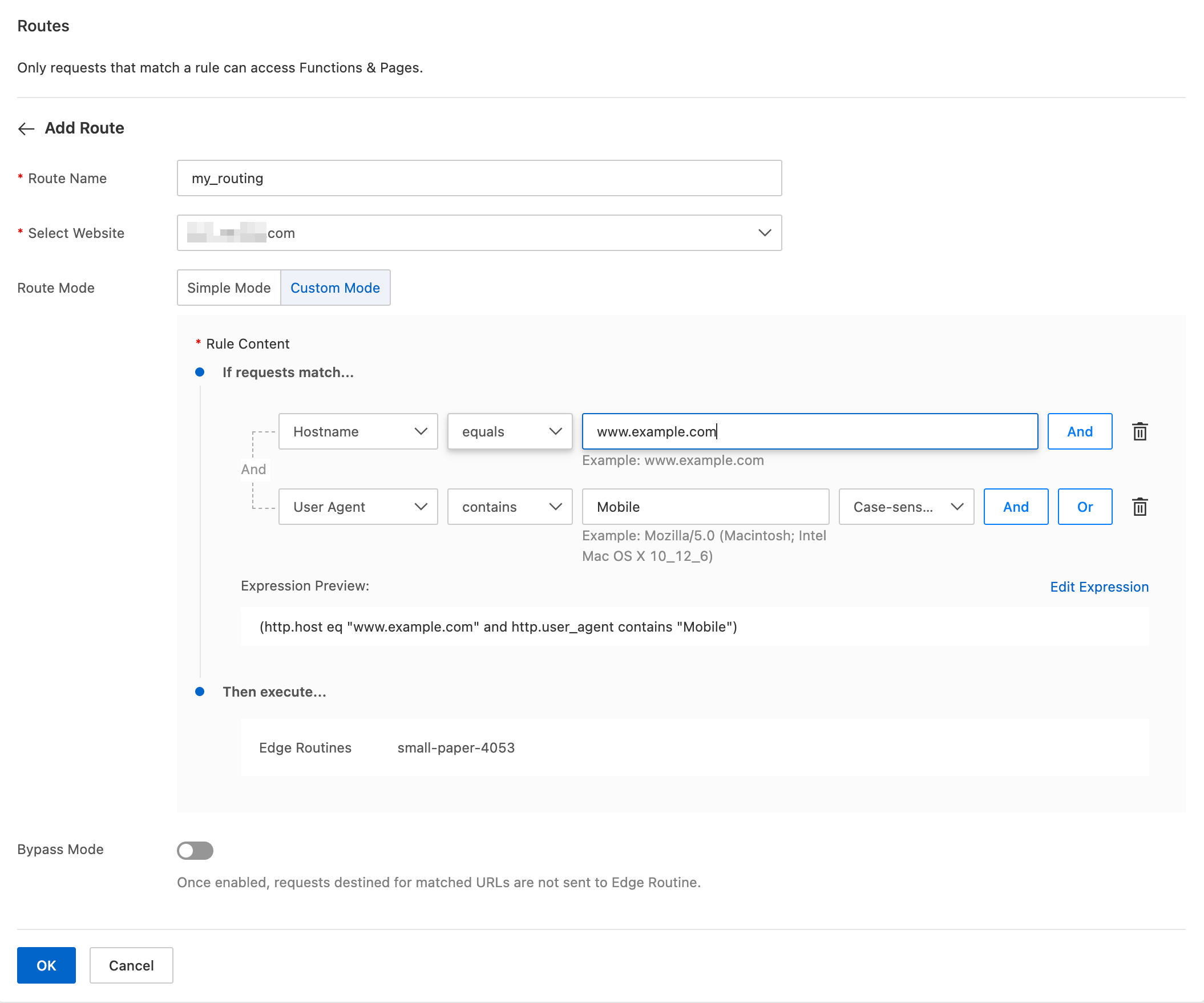
In a browser, visit a URL that matches the route to see the result.
If you use Simple Mode and enter a domain with a prefix, such as
*.example.comorwww.example.com, a corresponding DNS record must exist in the ESA console, or you must manually add a record. Otherwise, requests to the domain will fail.If you have multiple routes, they are evaluated in order from top to bottom. The first matching route is applied, and all others are ignored.
Matching rules
A route must include both a hostname and a path. Routes with only a path, such as
/path, are not supported.Add a wildcard
*at the beginning or end of a route to match more requests. The wildcard*matches zero or more characters. For example,example.com/*matches all requests toexample.com.Routes are case-sensitive. For example,
example.com/aandexample.com/Aare two different routes.Wildcards (
*) cannot appear in the middle of a path, and query parameters are not supported in patterns. For example, patterns likeexample.com/*/pathandexample.com/path?param=1are invalid.If a request matches multiple routes, the first matching route in the list takes precedence.
Bypass mode
Enabling Bypass Mode for a route sends matching requests to the Functions and Pages service as subrequests. Use this mode for authentication or logging without interrupting the main request flow to the origin:
 |  |
A client sends a request to an ESA point of presence (POP).
The request matches a route and is forwarded to Functions and Pages for operations like logging or authentication. In bypass mode, the request body is not forwarded to Functions and Pages.
If Functions and Pages returns a
200status code, the request continues to the next step. If it returns any other status code, ESA stops processing and returns a403status code to the client.The request proceeds through the standard ESA flow, where it is checked against cache policies or forwarded to the origin server.
The response from a cache hit or the origin server is returned to the ESA node. At this point, the response is no longer processed by Functions and Pages.
The response is sent to the client.
Use cases
Logging: Use bypass mode to forward specific requests to Functions and Pages and define custom logging logic in your function.
Authentication for large file downloads: Forwarding large responses through a function consumes significant CPU time and increases costs. Use bypass mode to authenticate with Functions and Pages first, avoiding the large file transfer through the function.