SaaS Manager onboards your customers' custom domain names, such as app.customer.com, to an Edge Security Accelerator (ESA) site that you already own. The security and acceleration capabilities of the site then extend to your customers' domain names, and you manage SSL certificates and security policies for all customer domain names in one place.
Benefits
SaaS Manager provides the following capabilities for the customer domain names that you onboard to an ESA site:
Flexible service scaling — Configure a dedicated custom domain name for each customer so that your Software as a Service (SaaS) platform delivers services under your customers' own brands.
Unified security management — Customer domain names inherit the security policies of the ESA site, including WAF protection, bot management, and access control. You manage security risks for all customer domain names centrally.
Content acceleration — Customer domain names are delivered through the Alibaba Cloud global edge node network.
Multiple certificate options — Select the certificate source for each customer domain name when you enable SSL/TLS.
Automated verification — Verify ownership of each custom domain name by using a DNS record that your customer adds at their DNS provider.
Status visibility — Check the status of each SaaS Manager entry in real time to troubleshoot and govern customer domain names.
ICP filing check — For services in the Chinese mainland, SaaS Manager checks the ICP filing status of your site and of the customer's custom domain name.
Scenarios
SaaS Manager applies to the following scenarios:
Multi-tenant domain name hosting for a SaaS platform — A CRM provider gives its enterprise customers dedicated subdomains, such as
customer-a.crm-platform.com, and requires these domain names to support HTTPS encryption and attack protection. With SaaS Manager, the provider configures origins, certificates, and security policies for all customer domain names in one place.Acceleration for branded customer portals — An e-commerce SaaS provider builds customized storefront pages for its customers, such as
shop-client.example-store.com, and requires CDN acceleration and SSL encryption. With SaaS Manager, the platform completes the deployment without changing the customer's DNS structure.Secure proxy for third-party application integration — A developer tools platform provides API gateway services to plug-in developers and lets them bind their own domain names. With SaaS Manager, the platform applies unified authentication, throttling, and traffic scrubbing to every onboarded domain name.
Default site records take precedence over SaaS Manager. Use SaaS Manager for customer domain names that no record of an activated site covers. If a record of an activated site covers the same domain name, the SaaS Manager entry cannot serve traffic. For details, see SaaS Manager statuses.
How it works
SaaS Manager associates the custom domain name of an end customer with an existing site in ESA by using a CNAME record, so that traffic to the customer's custom domain name is routed to ESA. The following objects are involved:
Custom domain name — The domain name that your customer owns and that end users access, such as
custom.site.com. You add one SaaS Manager entry for each custom domain name.ESA site — A site that you have onboarded to ESA, such as
example.com. The configurations of the site, including its security policies, apply to the custom domain names that you add under it.Provider DNS record — A DNS record of the ESA site through which you serve your platform, such as
origin.example.com. You bind each SaaS Manager entry to one provider DNS record.CNAME address — The address that SaaS Manager provides for the entry. Your customer points the DNS resolution of the custom domain name to this address.
After ownership verification is complete and the CNAME record takes effect, requests to the custom domain name reach the Alibaba Cloud edge nodes and are served under the configurations of your ESA site.
Prerequisites
One of your own sites is onboarded to ESA.
The site has a provider DNS record that you can bind the SaaS Manager entry to.
Your customer can add TXT records and CNAME records for the custom domain name at their DNS provider.
For a site whose acceleration region is the Chinese mainland or Global (including the Chinese mainland), your site and the customer's custom domain name have completed ICP filing.
Your ESA plan has quota available for an additional SaaS Manager entry. For details, see Quotas.
Configure a custom domain name for a SaaS customer
The following example shows how to configure a custom domain name for a SaaS customer with zero downtime.
Example environment
SaaS provider A has onboarded the site example.com to ESA and serves it through the domain name origin.example.com. Provider A now wants to add custom.site.com, the domain name of its customer A, under the site to improve the security and performance of the customer's website.
Process overview
Complete the following steps in order. Steps 2 and 3 each depend on a DNS record that your customer adds for the custom domain name.
Add the custom domain name — You add a SaaS Manager entry for
custom.site.comto your ESA site.Verify ownership of the custom domain name — You send the verification information to your customer. Your customer adds a TXT record at their DNS provider. You then verify the domain name in the ESA console.
Configure a CNAME record to route traffic to ESA — You send the CNAME address to your customer. Your customer points the DNS resolution of the custom domain name to this address.
Verify that the configuration takes effect — You check the certificate status and then access the custom domain name.
Step 1: Add the custom domain name
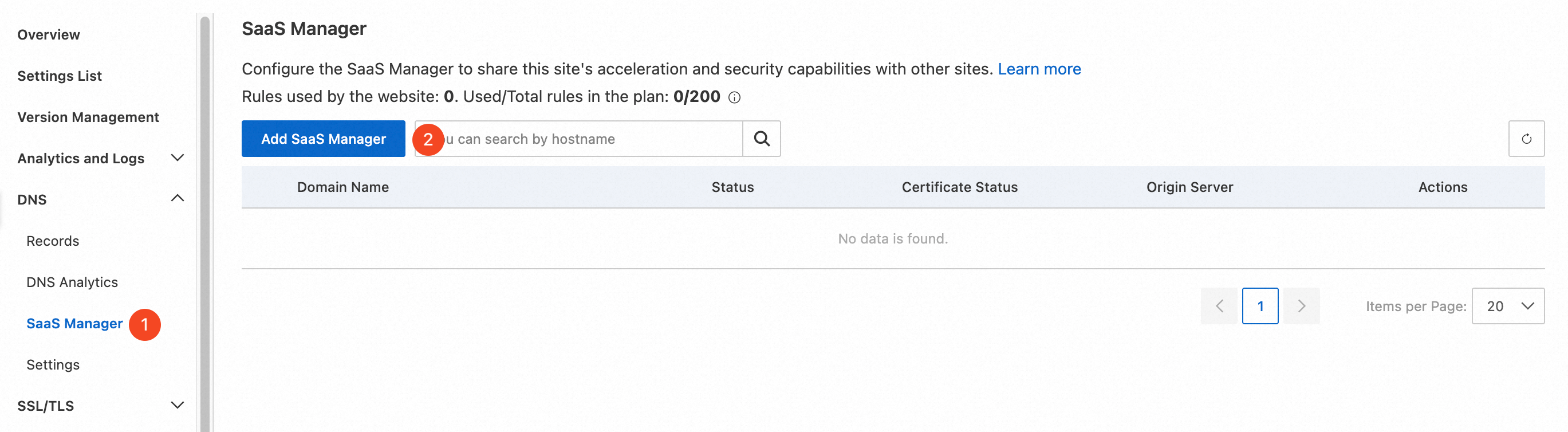
In the ESA console, choose Websites, and then click the target site in the Website column.
In the left-side navigation pane, choose DNS > SaaS Manager.
Click Add SaaS Manager.
On the Add SaaS Manager page, set the following parameters:
Domain Name: Enter the customer's custom domain name. In this example, enter
custom.site.com.SSL/TLS: Enable SSL/TLS for the customer's custom domain name. After you enable it, you can select a certificate type.
Certificate Type: Select the certificate source for the customer's custom domain name. You can use a free certificate that Let's Encrypt issues automatically, upload a custom certificate, or reference a certificate from Alibaba Cloud SSL Certificate. In this example, select Free certificate, for which ESA can automatically configure an edge certificate.
DNS Record: Select the provider DNS record that you want to bind. In this example, select
origin.example.com.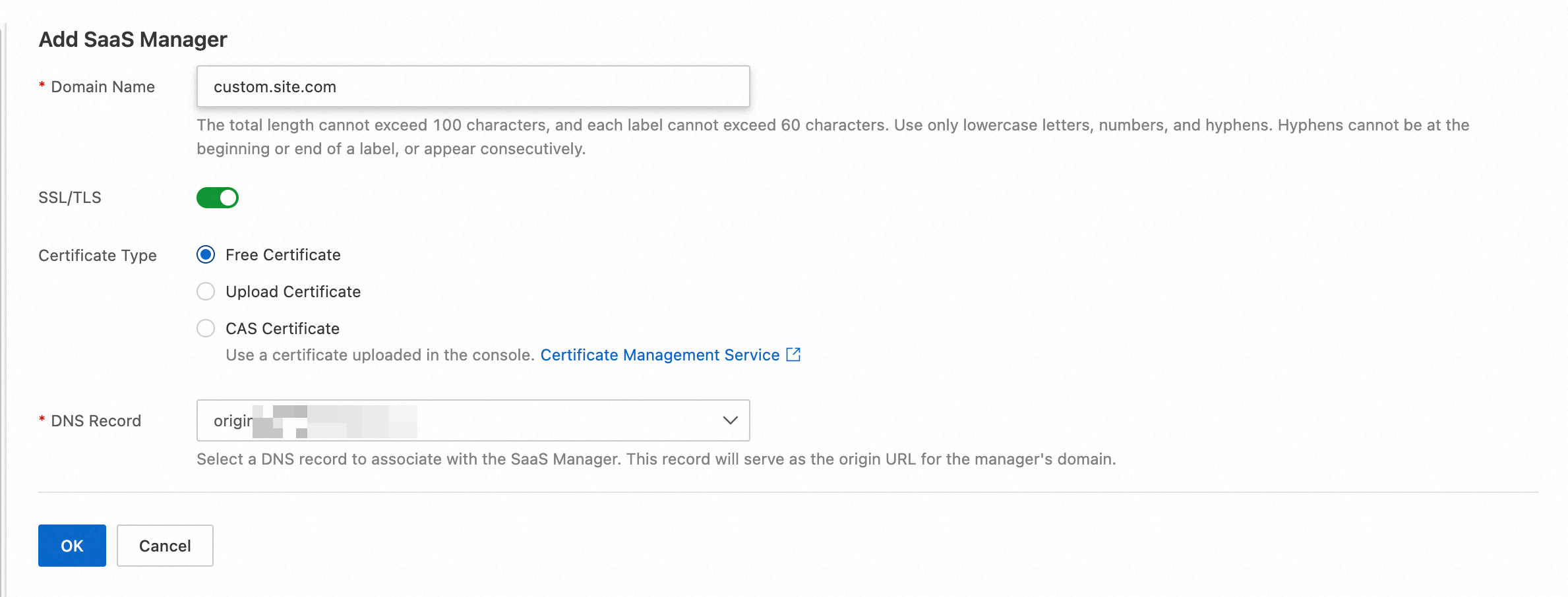
Step 2: Verify ownership of the custom domain name
ESA verifies ownership of a custom domain name by using either a CNAME record or a DNS TXT record. This example uses a TXT record.
On the SaaS Manager page, click
 to the left of the custom domain name that you added to expand the verification information, and then copy the Hostname Verify TXT Name and the Hostname Verify TXT Value.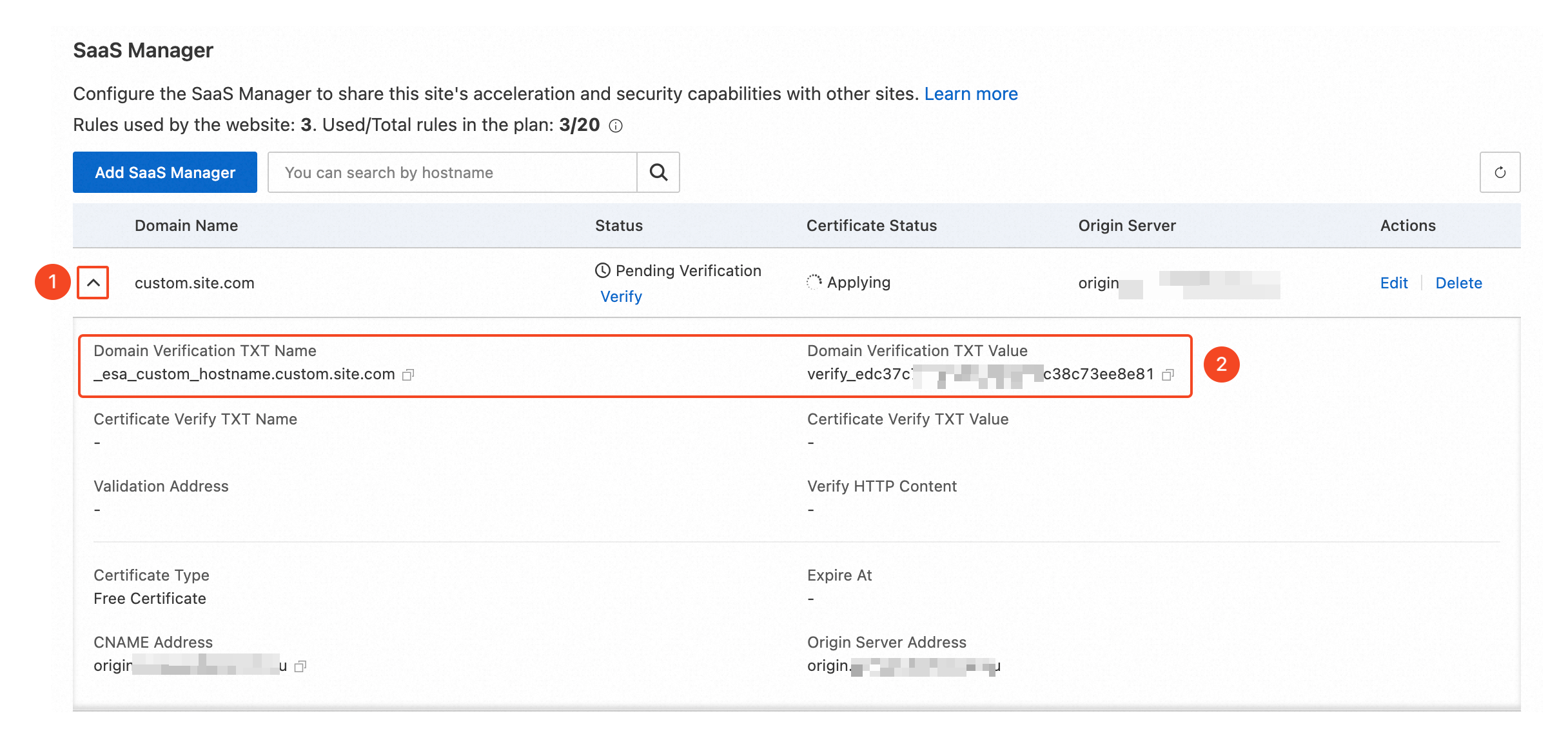
At the DNS provider of the customer's custom domain name, add a DNS record of the TXT type by using the Hostname Verify TXT Name and Hostname Verify TXT Value that you copied in the previous step.
After you add the record and the DNS record takes effect, return to the ESA console and click Verify.

Wait until the Status column displays Activated.
Step 3: Configure a CNAME record to route traffic to ESA
On the SaaS Manager page, click
to the left of the custom domain name that you added to expand the verification information, and then copy the CNAME Address.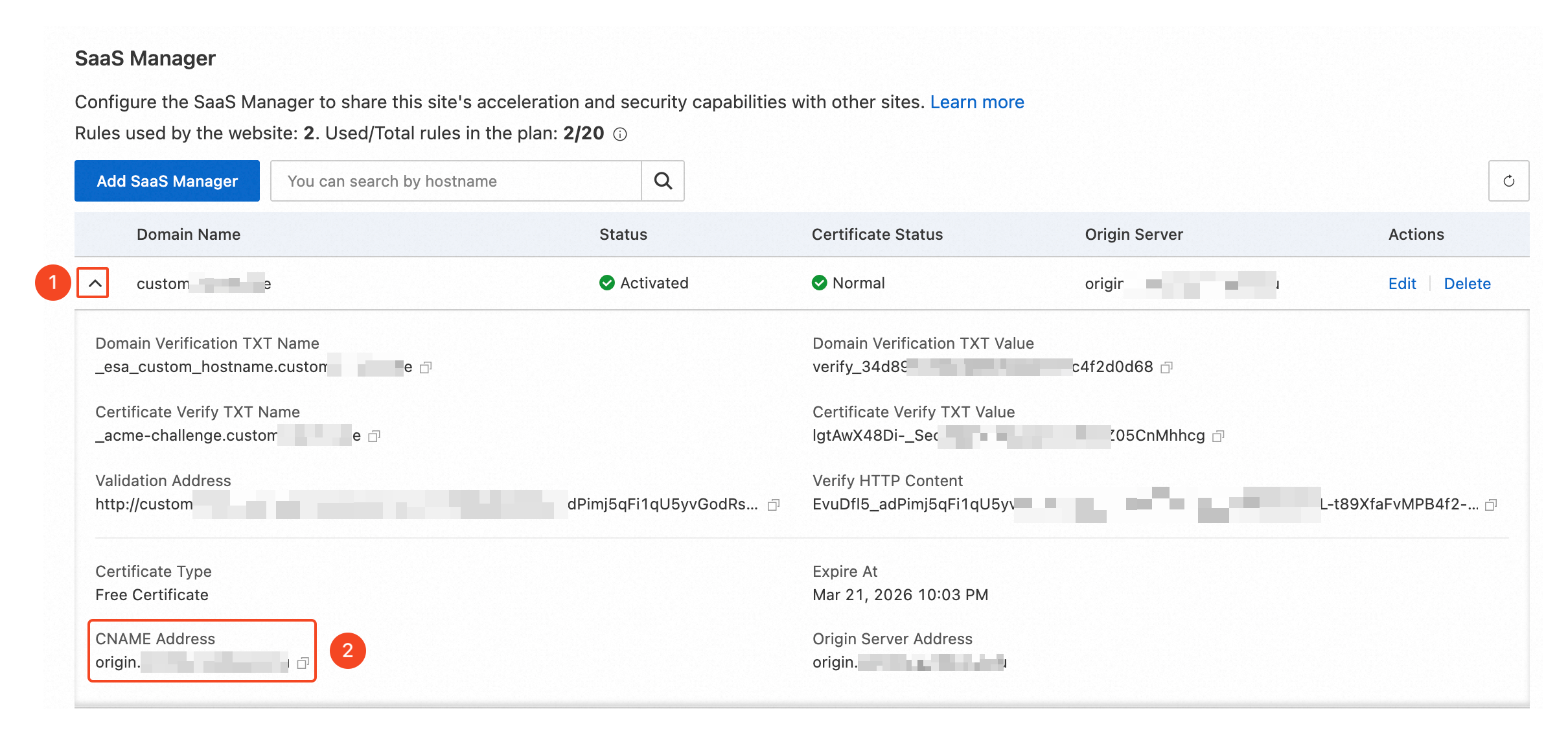
At the DNS provider of the custom domain name, add a DNS record of the CNAME type by using the CNAME Address that you copied in the previous step:
Host Record: Enter the prefix of the customer's custom domain name, which is
customin this example.Record Type: Select CNAME.
Record Value: Enter the CNAME Address that you just copied.
Step 4: Verify that the configuration takes effect
Wait until Certificate Status displays Normal. Before the certificate application is complete, you can visit
http://custom.site.comto test the configuration.
Visit
If a SaaS Manager entry does not serve traffic as expected, check the status of the entry and take the required action. For details, see SaaS Manager statuses.https://custom.site.comin a browser. If the website opens as expected, the customer's custom domain name is onboarded and served by ESA.
SaaS Manager statuses
The following table describes the status of a SaaS Manager entry and the action required for each status.
| Status | Description | Required action |
| Pending Verification | Ownership verification for the customer's custom domain name is not complete. | Complete the configuration as described in the domain name ownership verification procedure, and then click Verify so that the system verifies the domain name again. |
| Activated | The SaaS Manager entry serves traffic normally. | No action required. |
| Deactivated | A domain name is deactivated in either of the following cases: (1) The system detects non-compliant business on the customer's custom domain name and blocks the domain name. The SaaS Manager entry then enters the deactivated state. (2) For a site whose acceleration region is the Chinese mainland or Global (including the Chinese mainland), your site or the customer's custom domain name has not completed ICP filing. | After ICP filing is complete, click Verify so that the system verifies the domain name again and restores service. |
| Conflicted | Default site records take precedence over SaaS Manager. A domain name in the activated state enters the conflicted state and cannot serve traffic in either of the following cases: (1) An activated site adds an A/AAAA or CNAME record that conflicts with the domain name. (2) The conflict occurs in an origin address pool or a load balancing configuration. Example: The activated domain name customer.example.com and the activated site example.com both exist. After you add a customer.example.com or *.example.com record, the status of the domain name changes to Conflicted. | Delete the conflicting record, and then click Verify so that the system verifies the domain name again. |
Quotas
The number of SaaS Manager entries that you can configure depends on your ESA plan.
| Feature | Entrance | Pro | Premium | Enterprise |
| Number of SaaS Manager entries that you can configure | 100 | 100 | 100 | Contact sales for custom pricing |