Edge Security Acceleration (ESA) supports HTTPS secure acceleration. To encrypt requests between clients and ESA points of presence (POPs), deploy an SSL/TLS certificate to ESA and enable the SSL/TLS feature.
Configure a certificate
Certificate types
ESA supports free and custom certificates. The system automatically issues and renews free certificates from trusted certification authorities (CAs), such as Let's Encrypt; With custom certificates, you can upload your own enterprise certificates, such as those from GlobalSign, for branding and compliance. You need to manage the renewal of custom certificates.
If your business is a small or medium-sized enterprise (SME) site or a personal blog with a single exact-match domain name, request a free certificate.
If you need a certificate from a more trusted certification authority, or if you already have a domain name certificate, upload a custom certificate.
Certificate type | Let's Encrypt free certificate | DigiCert free certificate | Custom certificate |
Renewal method | Automatic | Automatic | Manual |
Certificate type | DV | DV | DV, OV, EV |
Certificate algorithm | RSA | RSA | RSA, ECC |
Domain name type | Exact-match domain name, wildcard domain name | Single exact-match domain name | Single exact-match domain name, wildcard domain name |
You can configure both free and custom certificates for the same site. All certificates form a certificate pool. When a POP receives a client request, it automatically selects the optimal certificate from the pool to return to the client.
Request a free certificate
The free certificate feature provides a convenient way to issue and manage certificates. You can enter a domain name to automatically request, validate, renew, and deploy a certificate.
Free certificates cannot be downloaded.
During the certificate request process, ESA automatically completes the domain control validation. You do not need to confirm it manually. For more information, see Automatic domain control validation for free certificates.
ESA automatically renews free certificates 15 days before they expire. If the renewal fails, you will be notified by text message and email. You must then manually upload a custom certificate to avoid service interruptions.
In the ESA console, select Websites. In the Website column, click the target site.
In the navigation pane on the left, choose .
In the Certificate Management area, click Apply for Free Certificate. Select a Certificate Authority and enter the Domain Name:
Let's Encrypt (No SLA): Each free certificate can include up to 50 domain names. You can enter single domain names and wildcard domain names (which must start with
*). The domain names must match the site. A certificate forexample.comcovers only that domain name. It does not cover subdomains such aswww.example.com. To cover a subdomain such aswww.example.com, you must add the subdomain separately or request a separate wildcard certificate (*.example.com).DigiCert: For a DigiCert single-domain certificate, you can select only one site domain name. After you request a certificate for
example.com, the issued certificate will include bothexample.comandwww.example.com.
Click OK and wait for the request to complete. After the certificate is issued, the Status column displays Normal.

Upload a custom certificate
You can request a certificate from Alibaba Cloud Certificate Management Service (formerly Alibaba Cloud Security) or a third-party provider, and then deploy it to ESA.
To purchase a certificate, you can purchase an advanced certificate in the SSL Certificate console.
If your certificate is issued by a third-party provider, it must meet the format requirements. For more information, see Certificate format requirements.
You can view the certificate details, but you cannot view the private key because it is sensitive information. You must keep your private key secure.
In the ESA console, select Websites. In the Website column, click the target site.
In the navigation pane on the left, choose .
In the Certificate Management area, click Upload Custom Certificate.
If you have purchased a certificate from Alibaba Cloud Certificate Management Service, set Certificate Source to Certificate Purchased by Using Certificate Management Service and select your purchased certificate from the Certificate Name list.
NoteIf you cannot select your purchased certificate, check whether the domain name attached to the certificate is the same as the accelerated domain name.
If you are using a certificate from a third-party provider, set Certificate Source to Custom Certificate. After you set the Certificate Name, upload the Certificate (Public Key) and Private Key. The certificate is then saved in Certificate Management Service. You can view it in SSL Certificate Management.
Parameter
Description
Certificate Name
Set a name for the certificate you want to upload.
The name can contain letters, periods (.), digits, underscores (
_), and hyphens (-).NoteThe certificate name must be unique. You can view existing certificates in SSL Certificate Management.
If the system indicates that the certificate is a duplicate, change the certificate name and upload it again.
Certificate (Public Key)
Enter the content of the certificate file in PEM format.
You can use a text editor to open the PEM-formatted certificate file, copy its content, and paste it into this text box.
Private Key
Enter the content of the private key file in PEM format.
You can use a text editor to open the PEM-formatted private key file, copy its content, and paste it into this text box.
Click OK to upload the certificate.
Enable SSL/TLS
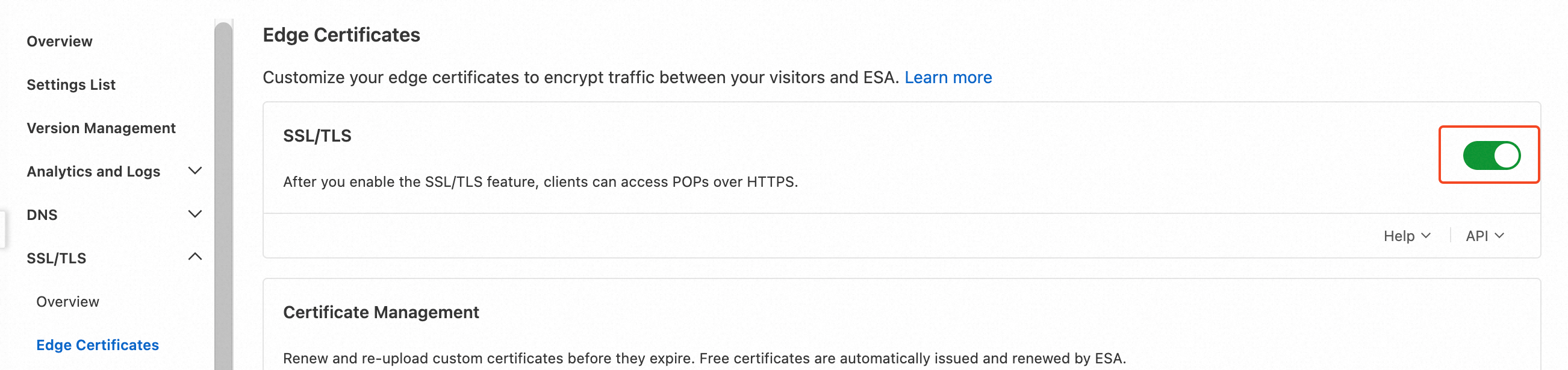
After you deploy an SSL/TLS certificate, you must enable the SSL/TLS feature. This allows clients to establish encrypted communication with POPs over HTTPS. The system also automatically intercepts plaintext HTTP requests and redirects them to HTTPS. This process ensures end-to-end data encryption and tamper-proofing, helps you meet security compliance requirements, and improves your site's credibility.
In the ESA console, select Websites. In the Website column, click the target site.
In the navigation pane on the left, choose .
Turn on the SSL/TLS switch.
NoteThis configuration applies to all domain names under the site. If you want to enable SSL/TLS encryption for only specific domain names, you can add a rule. For more information, see SSL/TLS Rules.
Verify the HTTPS configuration
After you configure the certificate and enable SSL/TLS, you can verify the configuration by accessing a resource over HTTPS in a browser. If a lock icon appears next to the URL, this indicates that HTTPS acceleration is active.

Update a custom certificate
ESA does not support automatic renewal for custom certificates. To prevent service interruptions from an expired certificate, you must log on to the console to update it before it expires. You will receive a reminder by email 30 days before the expiration date. Allow sufficient time for the update to ensure business continuity.
Update an existing certificate
In the ESA console, select Websites. In the Website column, click the target site.
In the navigation pane on the left, choose .
In the Certificate Management area, find the certificate you want to update and click Modify in the Actions column.
Modify the certificate content as needed, and then click OK.
Configure a new certificate
In the ESA console, select Websites. In the Website column, click the target site.
In the navigation pane on the left, choose .
In the Certificate Management area, click Upload Custom Certificate. Provide the required information based on your Certificate Source, and then click OK.
After the new certificate is uploaded, find the expiring certificate and click Delete in the Actions column. Follow the on-screen instructions to delete the certificate.
Related topics
Automatic domain control validation for free certificates
To ensure the legitimacy of domain name ownership, the certification authority (CA) requires applicants to complete validation in one of the following ways:
DNS validation (for sites connected via NS records): After you request a free certificate, ESA automatically adds a TXT DNS record to the site for domain control validation.
HTTP validation (for sites connected via CNAME records): After you request a free certificate, the system validates your control over the domain name by checking whether you can place a specific file on the web server of the specified domain.
When you request a free certificate for a site that is successfully connected and activated, ESA hosts the DCV for your site.
Certificate selection priority
You can configure both free and custom certificates for the same site. All certificates form a certificate pool. When an POP receives a client request, it automatically selects the optimal certificate from the pool to return to the client. The selection priority is as follows:
Certificates in an active state (for example, within the validity period and with a matching Server Name Indication (SNI)) are prioritized.
More recently configured certificates are prioritized over older ones.
Support by subscription plan
Certificate type | Entrance | Pro | Premium | Enterprise |
Let's Encrypt free certificate | 10 | 50 | 70 | 100 |
DigiCert free certificate | 10 | 20 | 50 | |
Custom certificate | 5 | 10 | 20 | 50 |