When Edge Security Acceleration (ESA) points of presence (POPs) receive a resource from an origin server, they check for a cache tag, which is marked in the Cache-Tag header by default. By configuring custom cache tags, you can change the cache tag name and ignore the case of tag values.
Introduction
How filter interaction works
When you submit a Purge cache by tag task, ESA refreshes cached content based on the cache tags and the case-sensitivity setting. The refresh process is as follows:
The origin server response must include a cache tag. Otherwise, this feature does not work.
-
Check whether the origin server response includes a cache tag
-
No cache tag: You cannot use the purge-by-tag feature.
-
Cache tag present: Proceed to check the site's cache tag configuration.
-
-
Check the site's cache tag configuration
-
No custom name configured
-
The origin server response includes the default cache tag (
Cache-Tag):-
Case-insensitive mode is disabled: Resources cached at ESA nodes are tagged with
Cache-Tag: Cat,Dog. You can use the tag values Cat or Dog to refresh the cache. -
If case-insensitivity is enabled, a resource cached on ESA nodes is assigned the tag
Cache-Tag: cat,dog, and you can use the tag value cat or dog to refresh the cache.
-
-
If a response from the origin server contains a custom cache tag, such as
Edge-Cache-Tag, you cannot use the cache refresh by tag feature because the tag is not added when the resource is cached on an ESA node.
-
-
Custom name configured (for example,
Edge-Cache-Tag)-
Resources in the origin server's response carry the default cache tag (
Cache-Tag). When these resources are cached on ESA nodes, this tag is not added. Because the tag is not added, you cannot use the refresh cache by tag feature. -
The origin server response includes the custom-named cache tag (for example,
Edge-Cache-Tag):-
Case-insensitive matching is disabled: When resources are cached on ESA nodes, the system adds the tag
Edge-Cache-Tag: Cat,Dog. You can use the tag values Cat or Dog to refresh the cache. -
Case-insensitive mode is enabled: When resources are cached on ESA nodes, the tag
Edge-Cache-Tag: cat,dogis added, allowing you to use the tag values cat or dog to refresh the cache.
-
-
-
Key configuration settings
Cache tags have the following parameters:
Cache tag name
-
The default name is
Cache-Tag. -
A custom cache tag name must be 1 to 64 characters long.
-
A custom cache tag name can contain uppercase letters (
A–Z), lowercase letters (a–z), digits (0–9), and hyphens (-).
Ignore Case
-
This feature is disabled by default, so ESA treats
CATandcatas different values during a cache refresh operation. -
After you enable this feature, ESA converts cache tag values in origin responses to lowercase and treats
CATandcatas identical values during a Refresh Cache operation.
Configure cache tags
Procedure
-
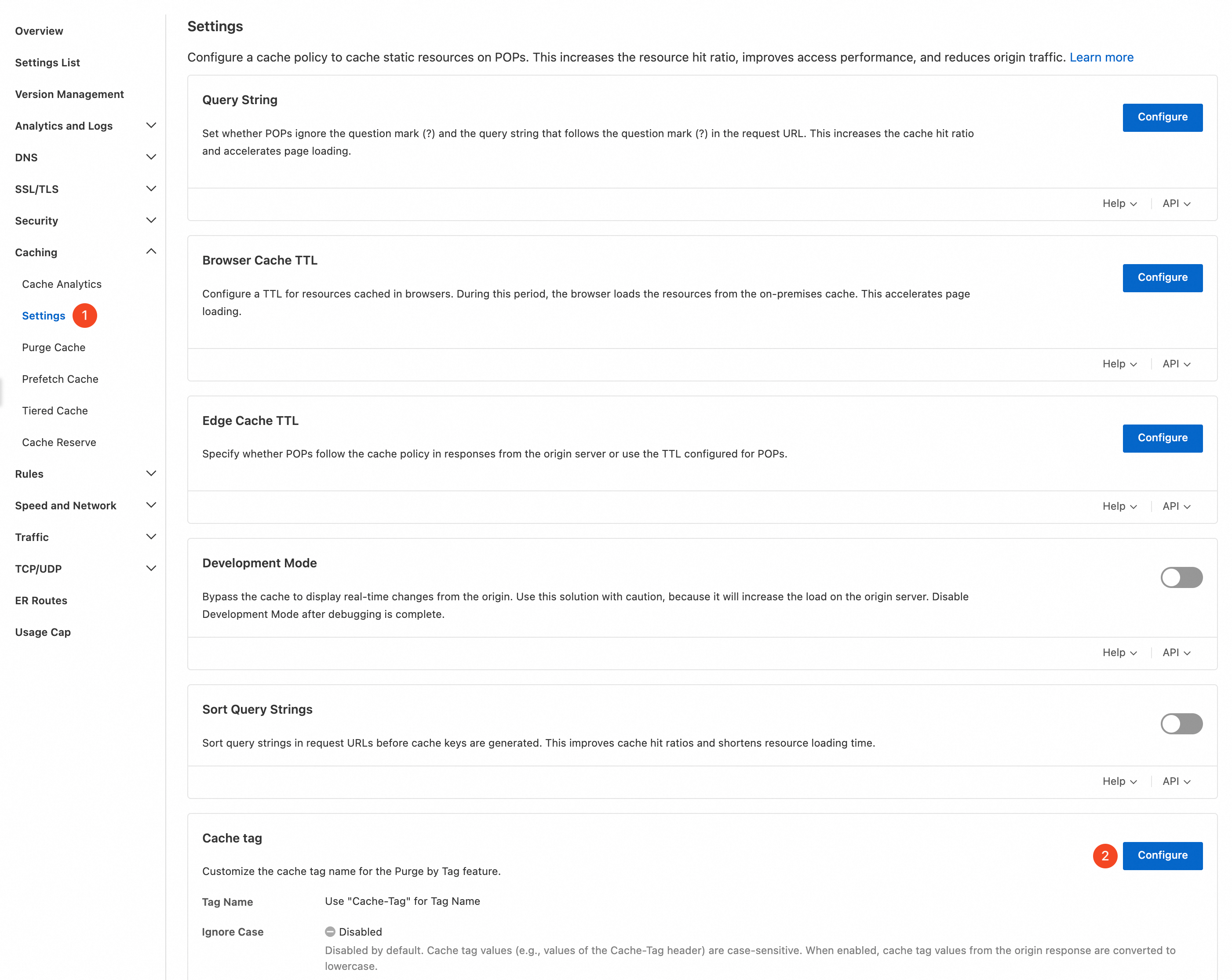
In the ESA console, choose Websites. In the Website column, click the target site.
-
In the navigation pane on the left, choose .
-
In the Cache Tag section, click the Configuration button on the right.
-
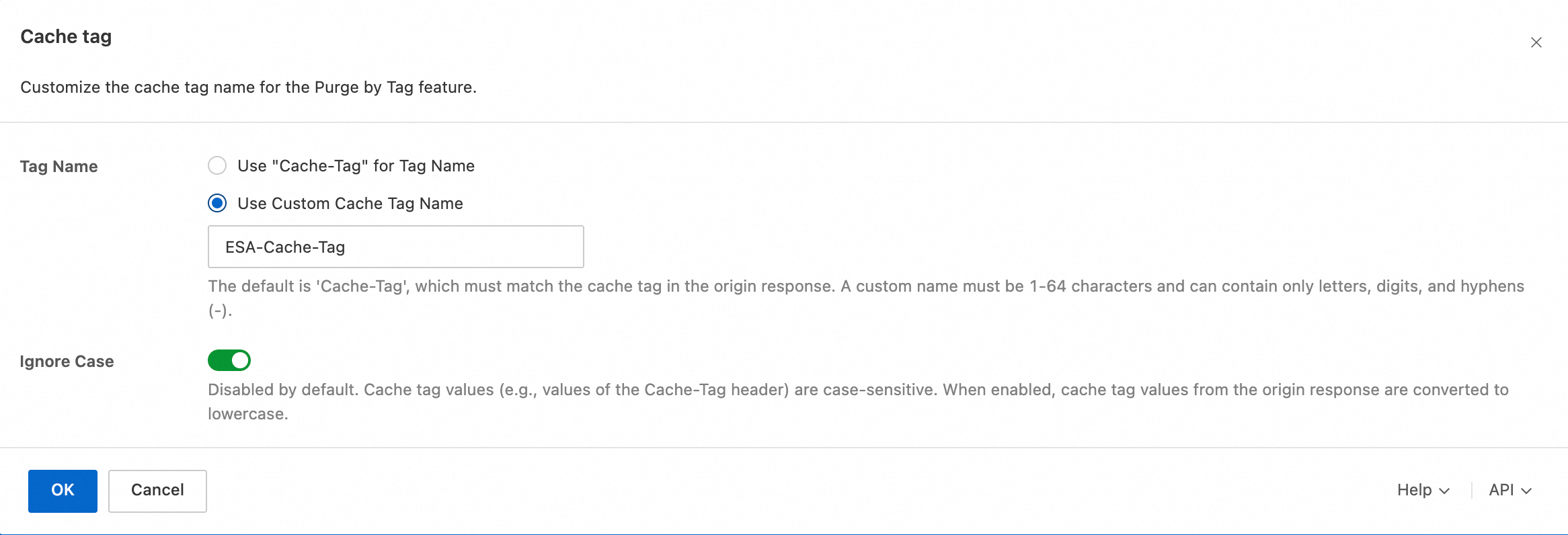
Configure the Tag Name and the tag value case-insensitive parameter:
-
Tag Name: Select Use Custom Cache Tag Name and enter the custom tag name
ESA-Cache-Tag. -
Ignore Case: Enable or disable this setting as needed.
-
Examples
When you update images or pages on an e-commerce website, you may need to purge the corresponding ESA cache. For images with multiple cropped versions, enumerating each variant is impractical—instead, batch-purge the ESA cache for all variants by image name. Similarly, when iterating on event pages, purge all related ESA cache by version tag:
Purge by image name
Scenario
The following three images are cropped versions of dog.jpg. The origin adds the tag ESA-Cache-Tag:dog.jpg to all three:
-
dog_100_200.jpg -
dog_200_200.jpg -
dog_300_200.jpg
The following three images are cropped versions of cat.jpg. The origin adds the tag ESA-Cache-Tag:cat.jpg to all three:
-
cat_100_200.jpg -
cat_200_200.jpg -
cat_300_200.jpg
Delete the original images to purge all cached variants at the same time.
Configuration example
-
In the ESA console, choose Site Management. In the Website column, click your target site.
-
In the navigation pane on the left, choose .
-
In the Cache Tag section, click the Configuration button on the right.
-
Configure the Tag Name and the tag value case-insensitive parameter:
-
Tag Name: Select Use Custom Cache Tag Name and enter the custom tag name
ESA-Cache-Tag. -
Ignore Case: Enable or disable this setting as needed.
-
-
In the navigation pane on the left, choose .
-
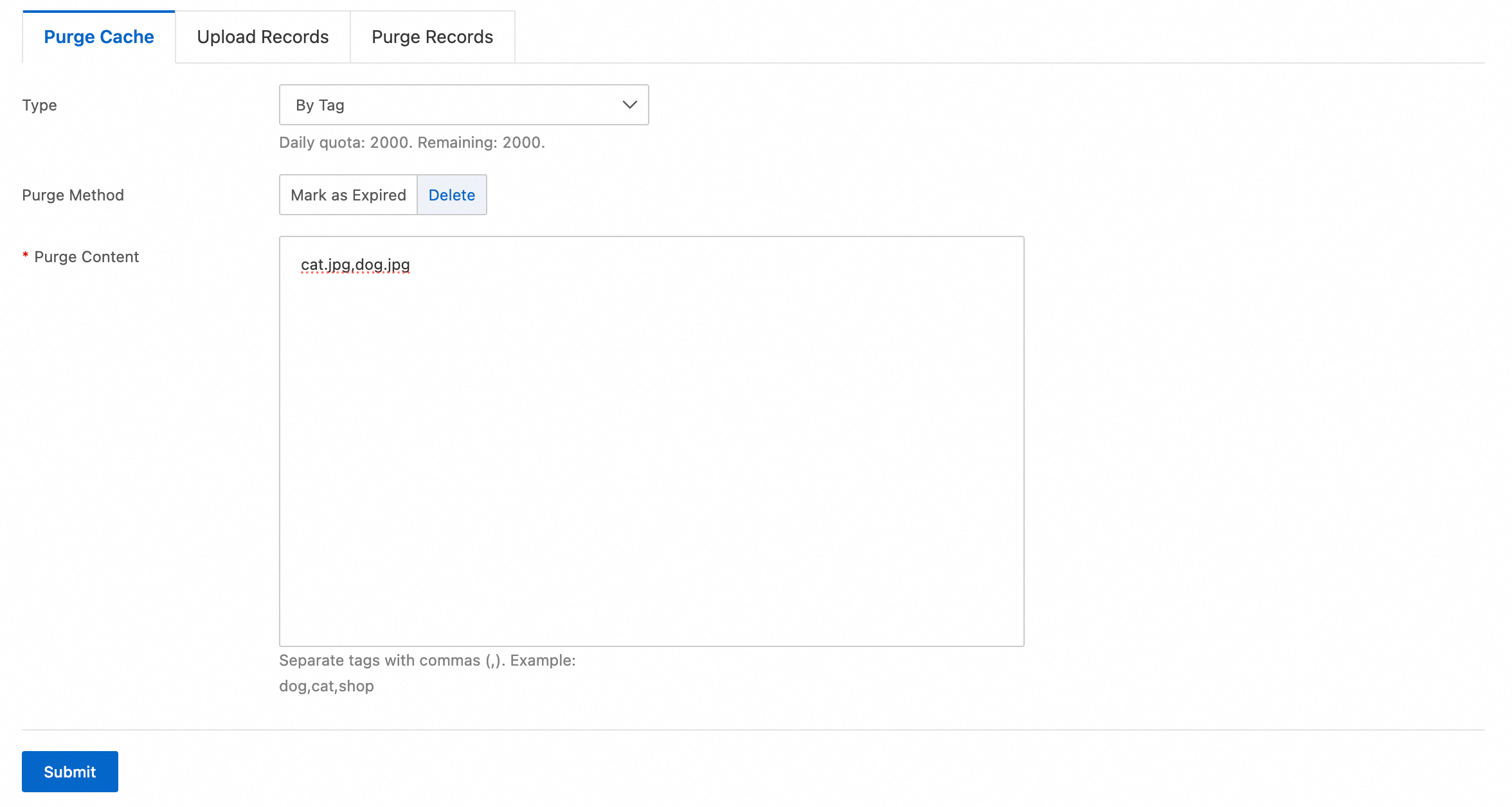
On the Purge Cache tab, configure the purge rule and click Submit:
-
Type: Select By Tag.
-
Purge Method: Select Delete.
-
Purge Content: Enter the tag values to purge:
cat.jpg,dog.jpg.
-
Purge by version number
Scenario
The following six images were generated for version v0820. The origin adds the tag ESA-Cache-Tag:v0820 to all six:
-
dog_100_200_v0820.jpg -
dog_200_200_v0820.jpg -
dog_300_200_v0820.jpg -
cat_100_200_v0820.jpg -
cat_200_200_v0820.jpg -
cat_300_200_v0820.jpg
Configuration example
-
In the ESA console, choose Site Management. In the Website column, click your target site.
-
In the navigation pane on the left, choose .
-
In the Cache Tag section, click the Configuration button on the right.
-
Configure the Tag Name and the tag value case-insensitive parameter:
-
Tag Name: Select Use Custom Cache Tag Name and enter the custom tag name
ESA-Cache-Tag. -
Ignore Case: Enable or disable this setting as needed.
-
-
In the navigation pane on the left, choose .
-
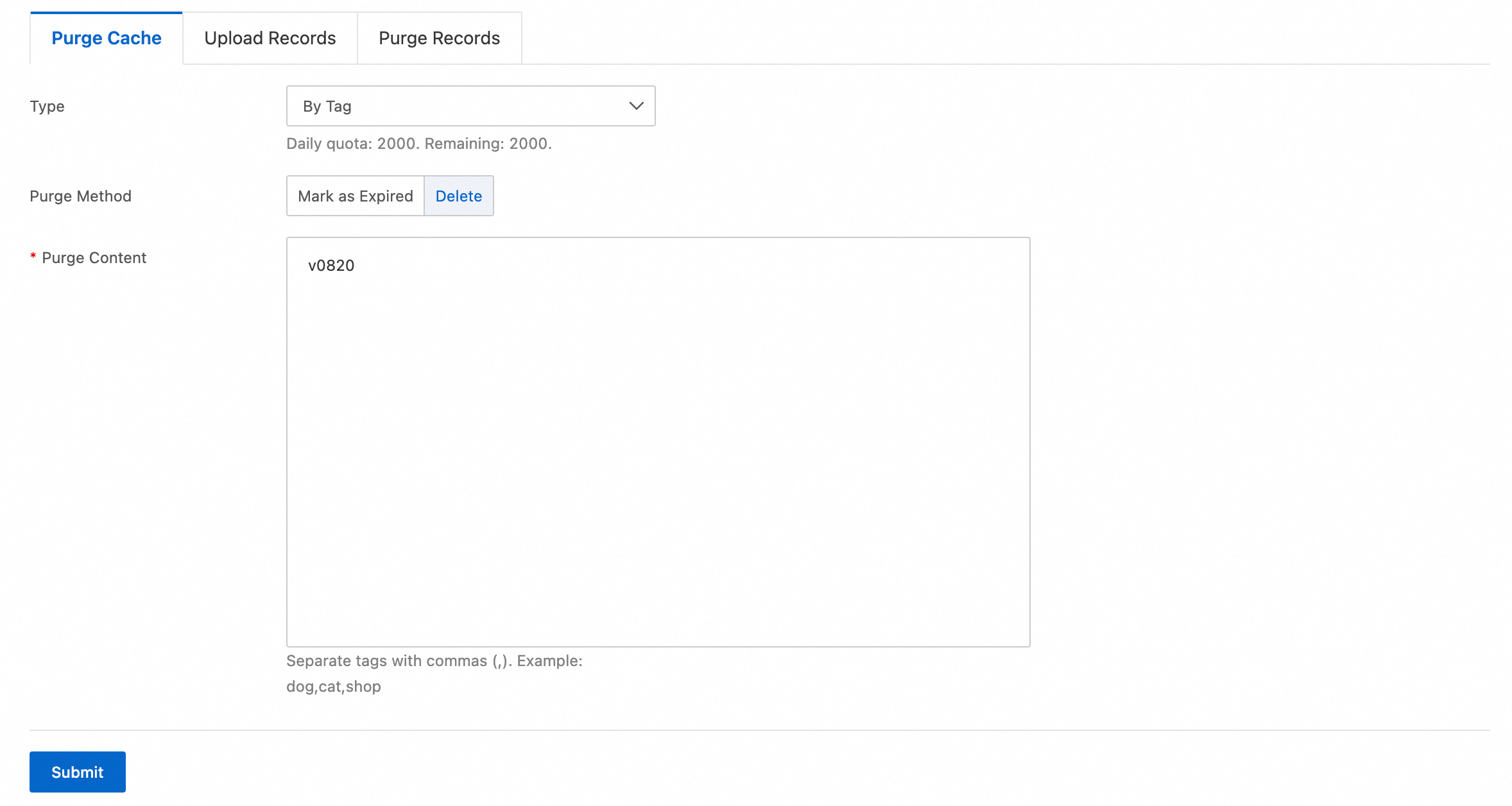
On the Purge Cache tab, configure the purge rule and click Submit:
-
Type: Select By Tag.
-
Purge Method: Select Delete.
-
Purge Content: Enter the tag value to purge:
v0820.
-