Pages lets you quickly configure build information and customize routing behavior for different scenarios using the esa.jsonc file.
Build Pages with esa.jsonc
Create an esa.jsonc file in the root directory of your project in GitHub. The .jsonc file lets you define and override the project's default settings for more flexible configuration.
Why use it
Infrastructure as code: Your configuration is version-controlled with your code, making every change traceable.
Easy team collaboration: All team members share the same configuration file, ensuring consistency between local development and cloud Deployments.
Convenient rollbacks: You can roll back to any commit, precisely reproducing its build environment.
Configuration priority
Settings in the esa.jsonc file take precedence over settings in the console:
If your project does not have an
esa.jsoncfile:Adjust build options on the project's details page in the console. See Modify basic configuration in the console.
The console configuration is used for the current and subsequent deployments.
If your project has an
esa.jsoncfile:The system automatically detects the file and uses it as the sole configuration source.
To modify the configuration, edit the
esa.jsoncfile and push the changes to your GitHub repository.On the project's details page in the console, any settings managed by
esa.jsoncare ignored.
Configuration example
Add an esa.jsonc file to your Pages repository in GitHub. Here is an example configuration:
{
  "name": "vite-react-template",
  "entry": "./src/index.js",
  "installCommand": "npm install",
  "buildCommand": "npm run build",
  "assets": {
    "directory": "./dist",
    "notFoundStrategy": "singlePageApplication"
  }
}
Parameter | Description |
name | The target project for the deployment. If the project does not exist, a new one is automatically created with this name. |
entry | The entrypoint file path for the edge function. Example: |
installCommand | Configure a custom installation command, such as |
buildCommand | Configure a custom build command, such as |
assets | The static assets hosting feature supports your website's frontend. Configure one asset directory per project. The
|
Routing for static assets
After you configure the esa.jsonc file, request URLs are routed to files in the static asset directory based on the following use cases:
Default
If notFoundStrategy is not configured in esa.jsonc, such as:
{
  "name": "vite-react-template",
  "entry": "./src/index.js",
  "assets": {
    "directory": "./dist"
  }
}
ESA routes requests according to the following flow:

When a request reaches a point of presence (POP), the system checks for a matching static asset. If it does, the asset is served. If not, the process continues to step 2.
The system checks if an edge function script exists. If it does, the script is executed. If not, it returns a
404 Not Foundresponse.
Single-page application
When you build a single-page application, set notFoundStrategy to singlePageApplication in esa.jsonc, for example:
{
  "name": "vite-react-template",
  "entry": "./src/index.js",
  "assets": {
    "directory": "./dist",
    "notFoundStrategy": "singlePageApplication"
  }
}
ESA routes requests according to the following flow:

When a client request URL reaches a POP, the system checks for a corresponding static asset. If a match is found, the static file is returned. If a match is not found, the process continues to step 2.
The system checks if the request is a navigation request (containing the
Sec-Fetch-Mode: navigateRequest Header). If not, the process continues to step 3. If it is, the request is routed to the/index.htmlfile, and the process continues to step a:a. The system checks if an
index.htmlpage exists. If it does, it returns the content of/index.htmlwith a200 OKstatus. If not, the process continues to step 3.The system checks if a function script exists. If it does, the script is executed. If not, it returns a
404 Not Foundresponse.
Build a static site
When you build a static site, set notFoundStrategy to 404Page in esa.jsonc, for example:
{
  "name": "vite-react-template",
  "entry": "./src/index.js",
  "assets": {
    "directory": "./dist",
    "notFoundStrategy": "404Page"
  }
}
ESA routes requests according to the following flow:

When a client request URL reaches an edge node, the system checks for a corresponding static asset. If a match is found, the static file is returned directly. If a match is not found, the process continues to step 2.
The system checks if the request is a navigation request (containing the
Sec-Fetch-Mode: navigateRequest Header). If not, the process continues to step 3. If it is, the request is routed to the/index.htmlfile, and the process continues to step a:a. The system checks if an
index.htmlpage exists. If it does, it returns the content of/index.htmlwith a200 OKstatus. If not, the process continues to step 3.The system checks if a function script exists. If it does, the script is executed. If not, it returns a
404 Not Foundresponse.
Modify basic configuration in the console
Log on to the ESA console. In the left navigation pane, choose .
On the Functions and Pages page, find the function that you want to manage, and click the routine name or Actions column's View Details.
Select the Basic Information tab and click Modify for the Build Information.
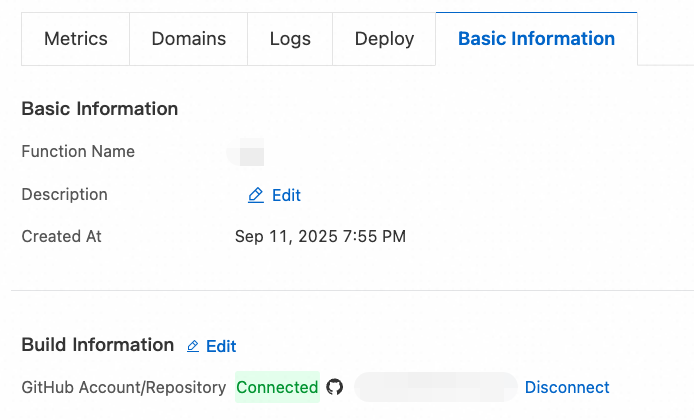
Change the Build Information as needed.
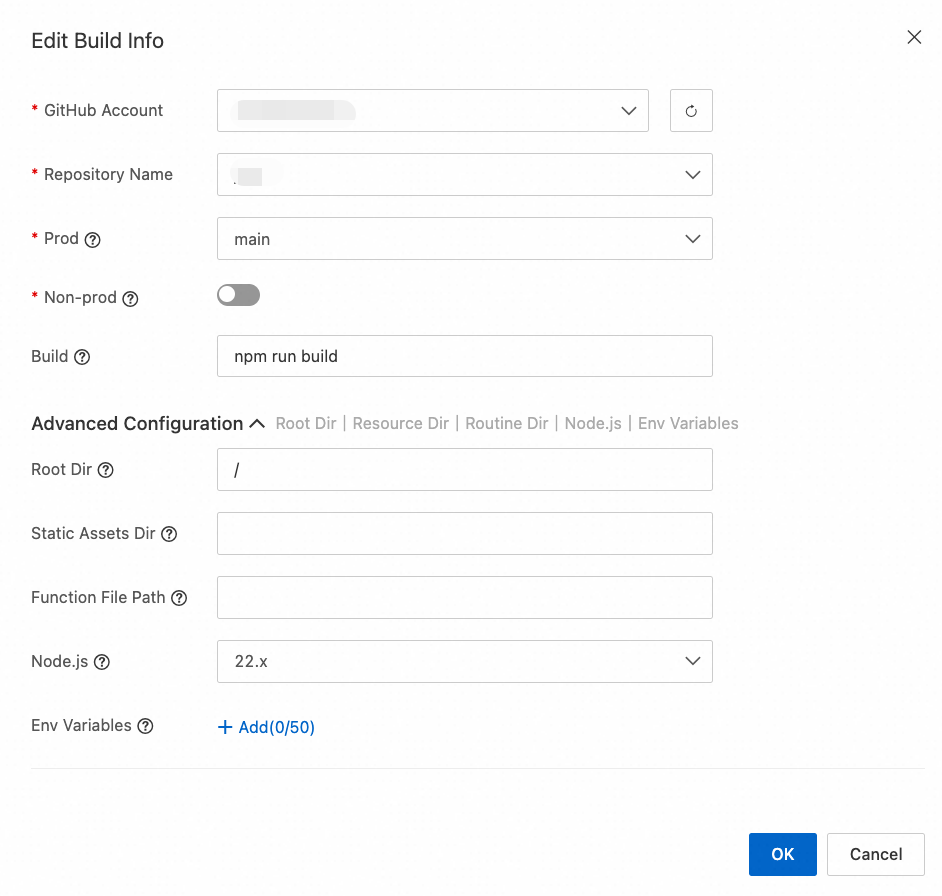
Parameter
Description
Root Dir
The build command runs in this directory. Default:
/. If you use amonorepo, enter the path of the subproject to build (for example,/frontendor/packages/web).Static Asset Dir
The directory in the build output to be served as static assets. Examples:
./public,./dist, or./build. Theassets.directorysetting inesa.jsonchas higher priority and will override this setting.Function File Path
The entrypoint file path for the function. Example:
./src/index.ts. Theentrysetting inesa.jsonchas higher priority and will override this setting.Node.js
The Node.js version used for the build. Trigger a new build for any changes to take effect. You can also specify the major Node.js version in the
engines.nodefield of yourpackage.jsonfile. Thepackage.jsonsetting has higher priority and will override this setting.Env Variables
Set environment variables available during the build. Access them through the global
process.envobject.