Forward and redirect HTTP requests at the edge by using an ESA edge routine. Processing requests on points of presence (POPs) instead of the origin server reduces latency, bandwidth consumption, and compute load.
How it works

ESA schedules each user request to the optimal POP and processes it with an edge routine.
The edge routine evaluates the request against custom rules.
If the request matches a redirect rule, the routine returns the redirect URL directly to the client.
If the request matches a forwarding rule, the routine fetches the response from the target origin server and returns it to the client.
Prerequisites
Before you begin, ensure that you have:
An Alibaba Cloud account with an active ESA plan, or the ability to purchase one
A domain name that you own (for example,
example.com)Access to the DNS management console for your domain (for example, Alibaba Cloud DNS)
Procedure
Step 1: Add a website
In the ESA console, choose Websites and click Add Website.
Enter your domain name, such as
example.com, and click Next.On the Select Location and DNS Setup page, select the region in the Region for Acceleration and Protection section. Select CNAME in the DNS Setup section, and then click Next.
On the Select Plan page, either purchase a plan on the New Plans tab or select an existing plan on the Purchased Plans tab. Follow the on-screen instructions to complete the purchase. #### Purchase a new plan On the New Plans tab, select a plan that suits your needs. #### Bind an existing plan If you already have a plan, select it on the Purchased Plans tab.


Verify domain ownership:
In the ESA console, click Websites, and then click your website. On the Overview page, copy the Record Value of the TXT record.

In the Alibaba Cloud DNS console, choose Public Zone in the left navigation pane. Find your domain name and click Settings.
Click Add Record. Configure the following fields and click OK.
Configuration Example value Record Type TXTHostname _esaauthRecord Value verify_a186***be8(the value provided in the ESA console)Time to Live (TTL) 10 minutes Return to the ESA console. On the Overview page of your website, click Verify.
Confirm the result:
Verification successful-- Proceed to the next step.Verification failed-- Check the DNS record settings, correct any errors, and click Verify again.
Step 2: Create the edge routine
In the ESA console, choose Edge Computing > Functions & Pages in the left navigation pane.
On the Functions & Pages page, click Create.
Select Function Templates, choose a template provided by ESA, and then click Next.

Configure the basic information and click Submit.
Parameter Description Function Name A name for the function. Must start with a lowercase letter and can contain lowercase letters, digits, and hyphens ( -). Cannot end with a hyphen. Length: 2-41 characters. Example:function-name. The name cannot be changed after creation.Description (Optional) A description of the function. Code Preview A preview of the function code. 
Step 3: Configure the trigger
A trigger defines how an edge routine is invoked. Binding a domain name to the routine routes all requests to that domain through the edge routine.
For example, if you added the site example.com in ESA and bind function.example.com to the edge routine, requests to function.example.com, function.example.com/user, and function.example.com/login are all handled by the edge routine.
In the left navigation pane, choose Edge Computing > Functions & Pages. On the Functions & Pages list page, find the target function and click Details in the Actions column.
On the function details page, switch to the Domains tab and click Add Domain Name. Enter
function.example.comand click OK.In the domain name binding area, find the domain name you just created. In the Actions column, click View DNS Records. Copy the CNAME value for the edge routine domain name.
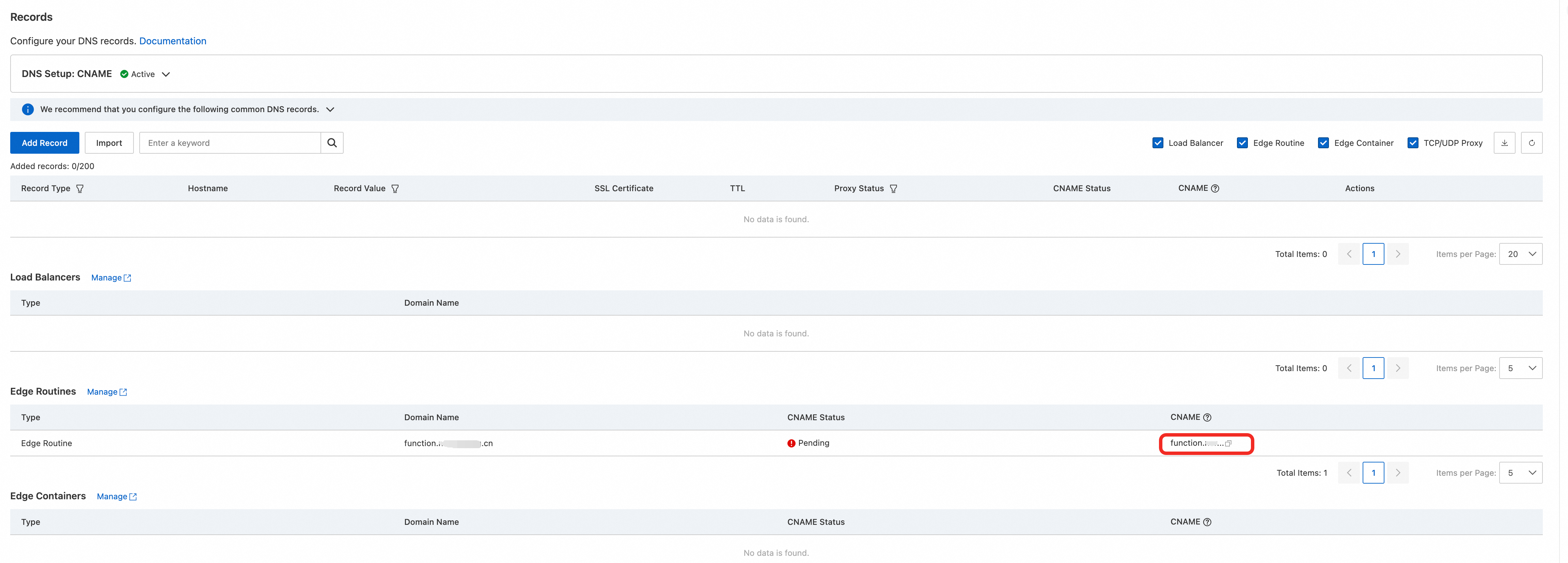
In the Alibaba Cloud DNS console, choose Public Zone in the left navigation pane. Find your domain name and click Settings.
Click Add Record. Configure the following fields and click OK.
Configuration Description Example value Record Type The type of DNS record. CNAME Hostname The subdomain prefix. function Record Value The CNAME value from the ESA console. function.example.com.a1.initmm.com TTL The DNS update interval. Keep the default value. 10 minutes Refresh the DNS record page and verify that the CNAME status for the edge routine domain name changes from To Be Configured to Configured.
NoteThe CNAME record may take several minutes to propagate. If the status does not update immediately, wait and refresh again.
Step 4: Debug and publish the edge routine
In the ESA console, choose Edge Computing > Functions & Pages in the left navigation pane.
On the Functions & Pages page, click the function and select the Code tab.
Paste the following code into the editor:
   // Scenario: Implement the following features:
   // 1. If the request path starts with "/esa/" and ends with ".html", forward the request to the official ESA website.
   // 2. If the request path starts with "/product", redirect the user request to the Alibaba Cloud product page.
   // 3. If the request does not match the rules above, redirect it to the Alibaba Cloud home page.


   // Define a regular expression: The path starts with "/esa/" and ends with ".html".
   const productPageRegex = /^\/esa\/.*\.html$/;

   function handleRequest(request) {
     const url = new URL(request.url);
     const pathName = url.pathname;

      // If the path starts with "/esa/" and ends with ".html", forward the request to the ESA product page.
     if(productPageRegex.test(pathName)) {
       const newUrl = 'https://www.aliyun.com/product/esa';
       return fetch(new Request(newUrl, request));
     }

     // If the path starts with "/product", redirect to the Alibaba Cloud product page.
     if (pathName.startsWith('/product')) {
       const newUrl = 'https://www.aliyun.com/product/list';
       return Response.redirect(newUrl, 301);
     }

     // If the request does not match the rules above, redirect to the Alibaba Cloud home page.
     const newUrl = 'https://www.aliyun.com/';
     return Response.redirect(newUrl, 301);
   }

   export default {
     fetch(request) {
       return handleRequest(request);
     }
   }
Click Save. In the debugging area to the right of the code editor, construct an HTTP request by specifying the method, request header, and request body. Click Request to send the request. The console returns the response after the routine processes the request.
After debugging, click Generate Version.
Click the Deploy tab and choose Release. Select the version you generated and click Release. Choose to publish to either the staging environment or the Production Environment.
NotePublish to the staging environment first. After you verify that the routine works correctly, publish it to the Production Environment.
Verify the result
In the following examples, replace function.example.com with the domain name you bound in Step 3.
Verify forwarding
Open your browser and go to http://function.example.com/esa/info.html. The browser displays the Alibaba Cloud ESA home page while the address bar remains unchanged. This confirms that the forwarding rule works correctly.
Verify redirection
Open your browser and go to
http://function.example.com/product. The browser redirects tohttps://www.aliyun.com/product/list, and the address bar updates to the new URL.Open the browser developer tools and inspect the request for
http://function.example.com/product. Confirm the following: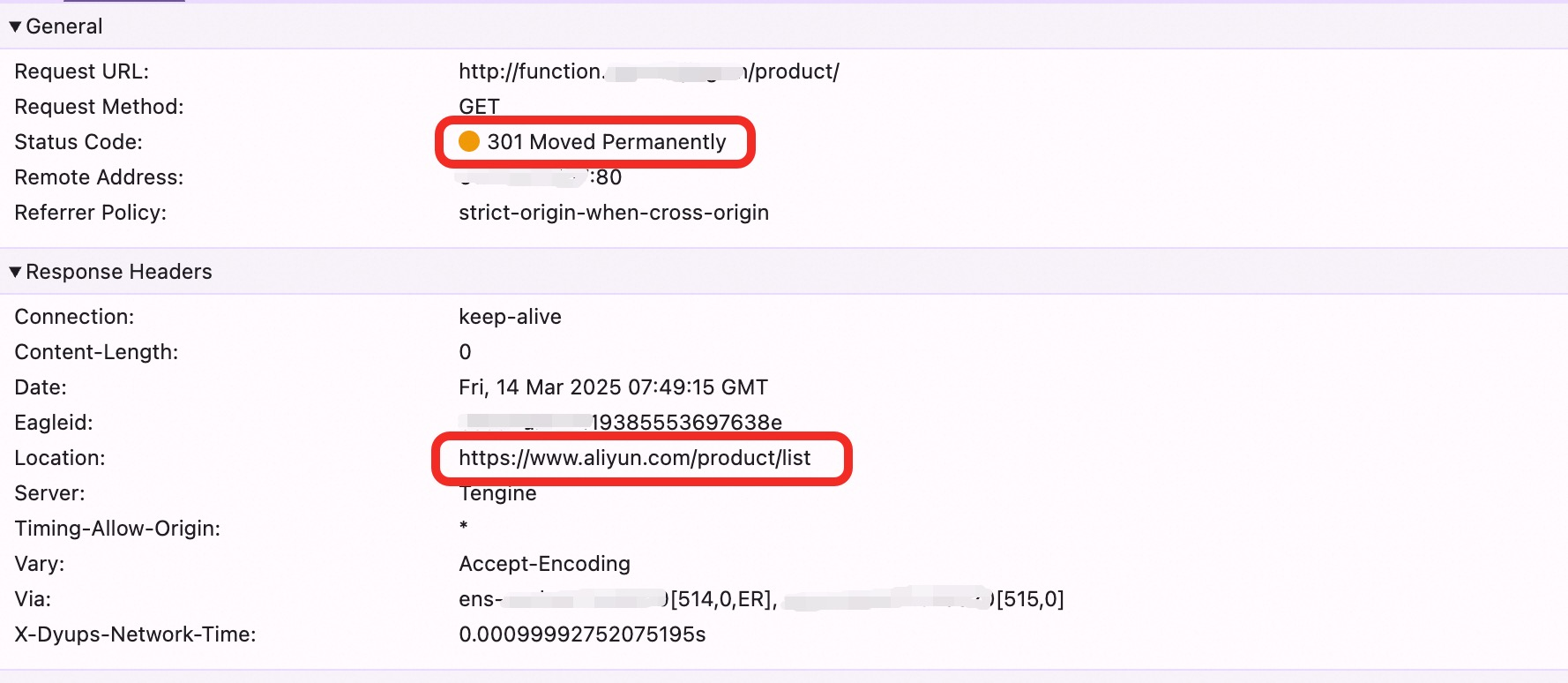
Status Code:
301 Moved PermanentlyLocation header:
https://www.aliyun.com/product/list
Clean up resources
After testing, delete the resources you created to avoid unnecessary charges.
Delete the website from ESA. In the ESA console, click Websites in the left navigation pane. Find your website and click Delete in the Actions column.
Delete the edge routine. In the ESA console, choose Edge Computing > Functions & Pages in the left navigation pane. Click the target function. On the Basic Information page, click Delete in the Actions column.
Delete the DNS record. In the Alibaba Cloud DNS console, choose Public Zone. Find your domain name and click Settings. Locate the host record you configured in Step 3 and click Delete.