Deploy a 2048 game to ESA Functions and Pages globally in one minute by using ESA MCP Server with an LLM-powered AI programming tool.
Solution advantages

Solution overview
To quickly create and deploy the 2048 game, follow these steps:
Activate ESA Functions and Pages service: ESA Functions and Pages provides a serverless edge runtime with global deployment, ultra-low latency, and automatic scaling.
Configure Cline: Connect your IDE to the LLM through Cline, then use ESA MCP Server to deploy code to ESA points of presence (POPs).
Configure ESA MCP Server: Model Context Protocol (MCP) is a protocol that enables bidirectional communication between an LLM and external systems, allowing the LLM to access context and call platform APIs for remote operations.
ESA MCP Server is an open API service that integrates with LLMs. Developers can create, update, and publish Functions and Pages applications through the ESA MCP Server.
Generate and deploy the game code: Use a single prompt to have the LLM generate the game code and deploy it globally through the ESA MCP Server.
Activate ESA Functions and Pages
The service starts in free mode. You can switch to pay-as-you-go on demand. Billing information.
Open the ESA console and go to the Functions and Pages page.
If you are a new user, click Activate Now and follow the on-screen instructions.
Configure Cline
Request an API key
This API key authenticates Cline's calls to Model Studio LLMs. Model Studio offers a free trial for new users. After the trial, standard billing rules for large language model products apply.
Go to the My API-KEY page and click Create My API KEY.
In the Actions column for the API key you created, click View to obtain the API KEY.

Install and configure Cline in VS Code
In VS Code, open Extensions, search for Cline, and install it.

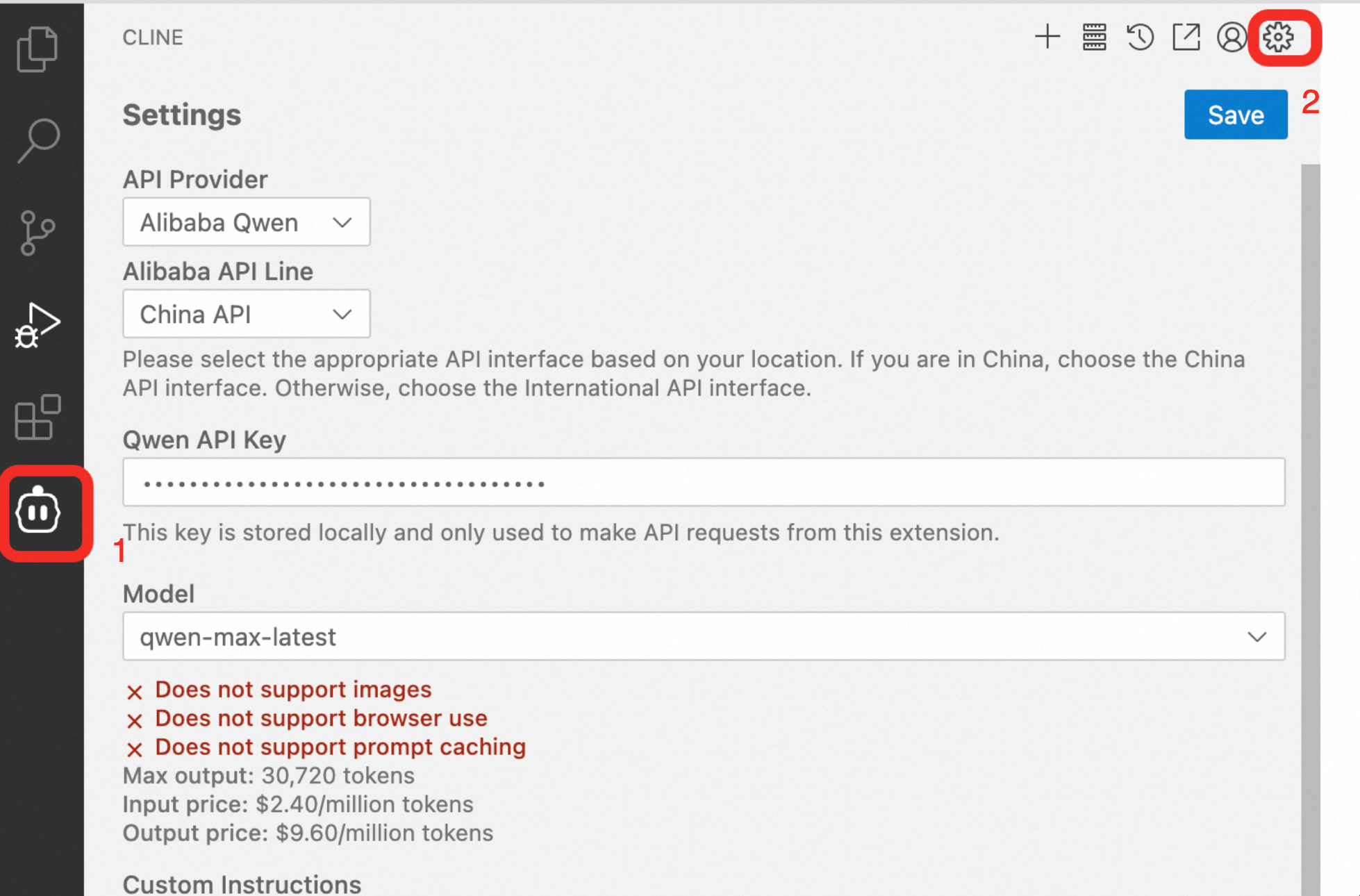
Open the Cline settings page and configure the following required fields. Keep default values for other settings.
API Provider:
Alibaba QwenAlibaba API Line:
International APIQwen API key: The API key that you obtained in the previous step.
Model: Use
qwen-max-latest(recommended).
Configure ESA MCP Server
Create an AccessKey pair for a RAM user
The AccessKey pair authenticates ESA MCP Server calls to ESA Functions and Pages.
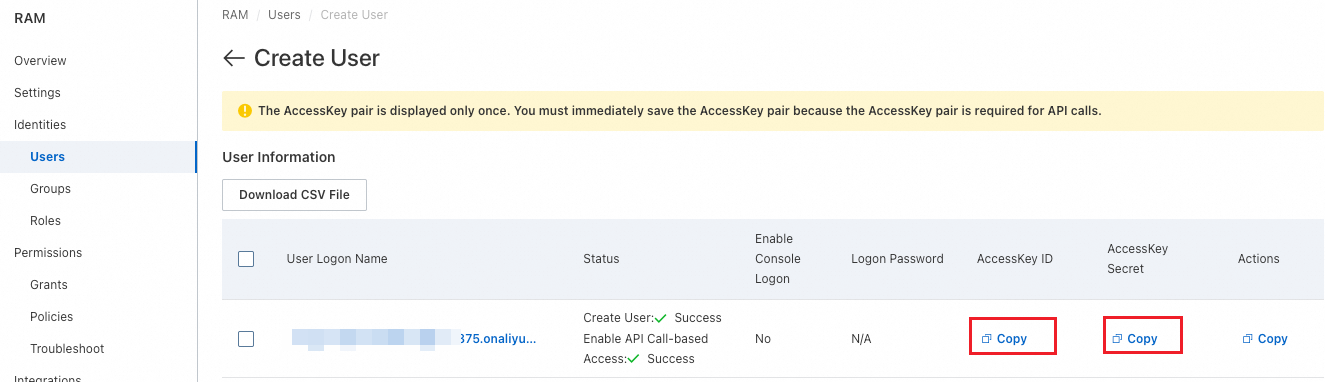
Go to the RAM console, and create a new RAM user.
Save the AccessKey ID and AccessKey Secret immediately. You cannot retrieve them after closing this page.
Configure RAM account permissions
Grant this RAM user only ESA permissions (least privilege principle).
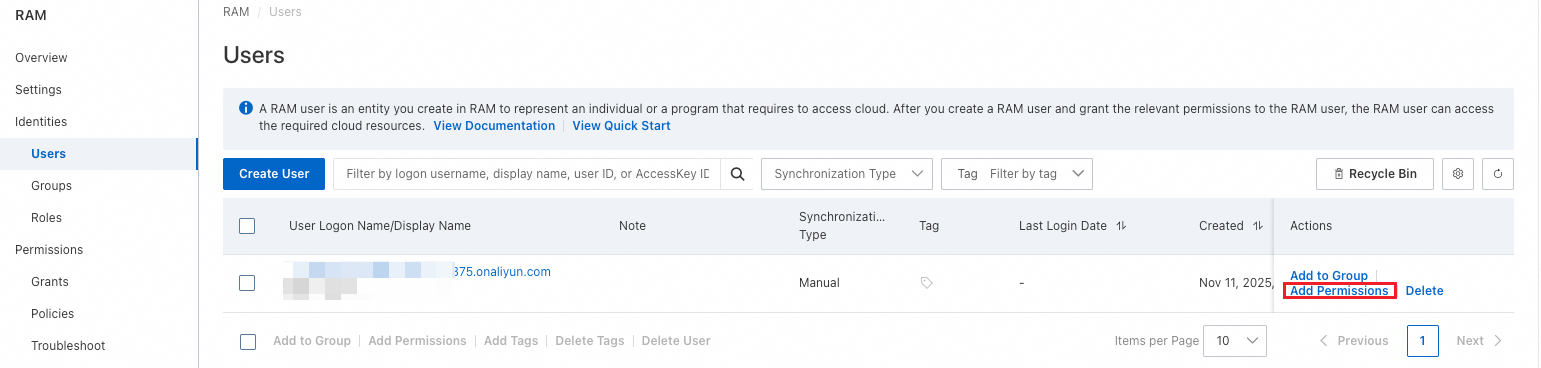
Find the RAM user you created and click Add Permissions.
On the Permissions tab, click Grant Permission.
In the Select Policy section of the Grant Permission panel, select
AliyunESAFullAccess, and then click OK.
Configure ESA MCP Server in Cline
Open the
cline_mcp_settings.jsonfile in Cline.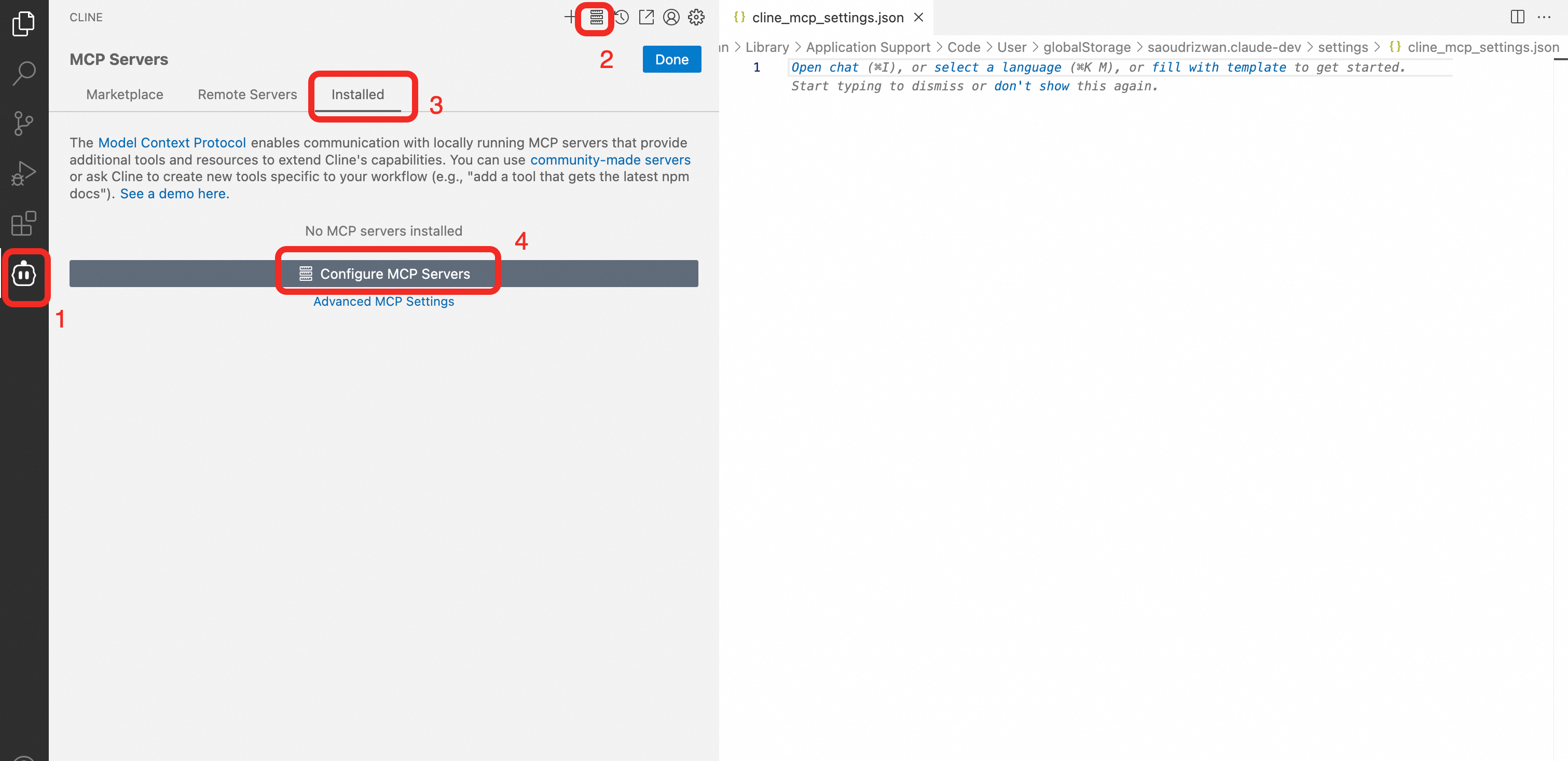
Copy the following configuration into
cline_mcp_settings.json. ReplaceALIBABA_CLOUD_ACCESS_KEY_IDandALIBABA_CLOUD_ACCESS_KEY_SECRETwith your actual values, then save the file (Ctrl+S/Command+S).{ "mcpServers": { "esa-mcp-server": { "command": "npx", "args": ["-y", "mcp-server-esa"], "env": { "ALIBABA_CLOUD_ACCESS_KEY_ID": "your AccessKey ID", "ALIBABA_CLOUD_ACCESS_KEY_SECRET": "your AccessKey Secret" } } } }
After you save the file, wait 3–5 seconds. The
esa-mcp-serverservice appears with a green status in theInstalledlist underMCP Serverin Cline, confirming that ESA MCP Server is configured.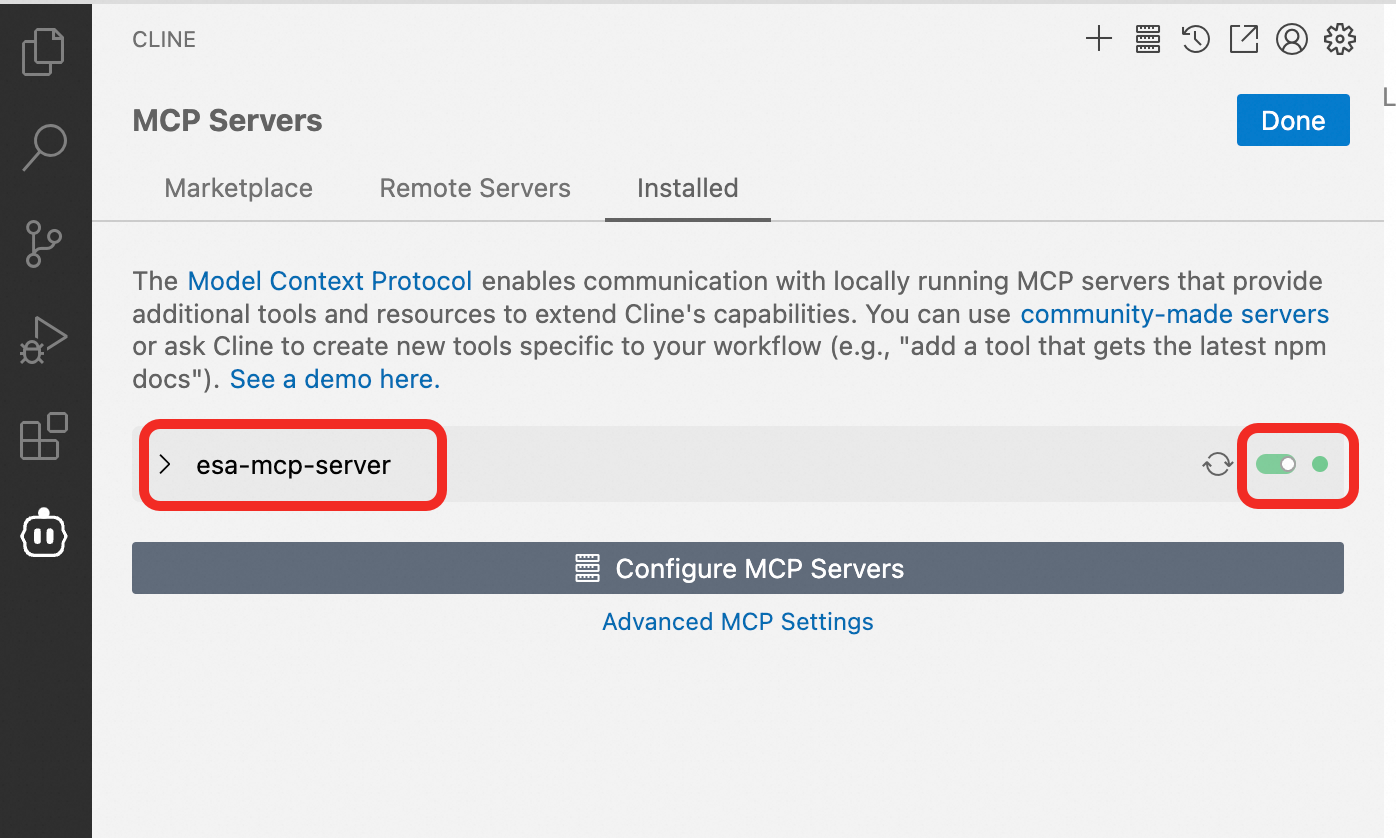
Generate and deploy the game code
Submit the following prompt to Cline:
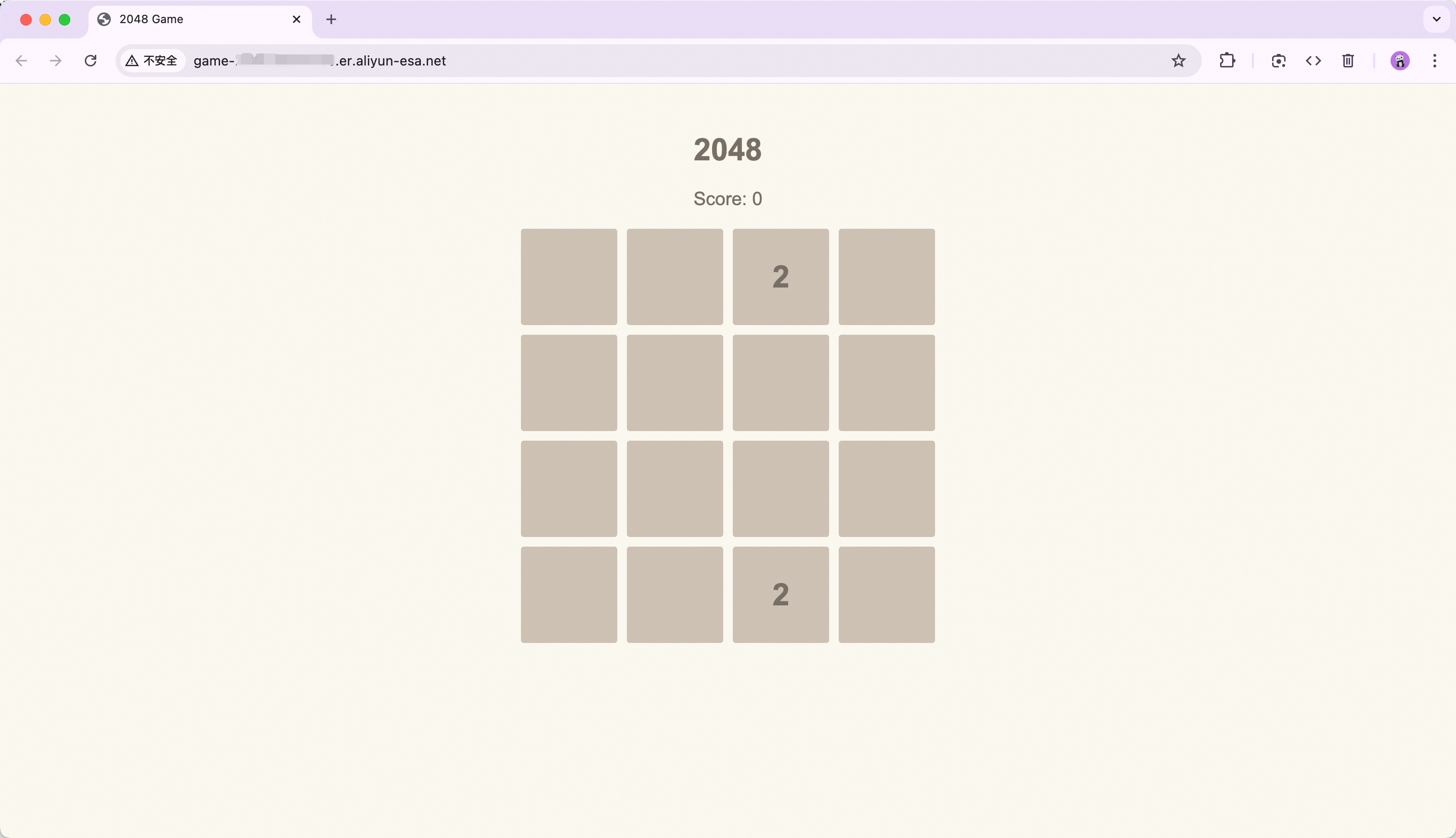
Please help me write a 2048 game and deploy it on an Alibaba Cloud ESA routine, displaying the default access URL provided by ER.The LLM calls ESA MCP Server tools to create functions, submit code, and deploy globally, then returns a publicly accessible URL.
After deployment, access the game through the domain provided by ESA. The entire process takes minutes.
Learn more
MCP overview

MCP is an open protocol that standardizes how applications provide context to LLMs. Like USB-C for devices, MCP provides a standard way to connect AI models to data sources and tools. Three transport types are available:
STDIO
SSE
Streamable HTTP
This topic uses the STDIO method, where the server runs locally. Remote MCP servers using SSE and Streamable HTTP will be available in the future.