Create alert rules to monitor DCDN domain names. When resource metrics meet the alert conditions, CloudMonitor automatically sends notifications so you can detect anomalies and take quick action.
Prerequisites
-
You have added a domain name to DCDN. For more information, see Add a domain name.
CloudMonitor is activated. To activate CloudMonitor, visit the CloudMonitor product page.
Procedure
-
Go to the CloudMonitor console.
-
Method 1:
-
Log on to the DCDN console.
-
In the left-side navigation pane, click Domain Names.
-
On the Domain Names page, click Alert Settings in the upper-right corner to open the CloudMonitor console.
-
-
Method 2: Log on to the CloudMonitor console.
-
In the left-side navigation pane, choose .
-
Navigate to the DCDN monitoring page.
Click Create Alert Rule.
-
In the Create Alert Rule panel, configure the parameters described in the following table, and use the default settings for other parameters. For more information about other parameters, see Create an alert rule.
Parameter
Description
Product
Select DCDN.
resource range
The resources that the alert rule monitors. Valid values:
-
All Resources: The alert rule applies to all DCDN domain names, including newly added ones.
-
Application Group: The alert rule applies to all domain names in the specified DCDN application group, including newly added ones.
-
Instance: The alert rule applies to a specific DCDN domain name.
rule description
The content of the alert rule. The parameters in this section specify the conditions that trigger an alert. To specify the rule description, perform the following steps:
-
Click Add Rule and select a metric type.
-
In the Configure Rule Description panel, enter a Alert Rule, then define the rule conditions.
-
Simple Metric: Select a metric, then set its threshold and alert level.
-
Combined Metrics: Select an alert level, then define an alert condition using two or more metrics.
NoteMulti-metric alert rules require the target resource to report data for every included metric. For example, if the rule includes a public network metric but the ECS instance has no public IP address, the alert does not trigger.
-
Expression: Select an alert level, then define an alert expression.
-
Dynamic Threshold: Smart threshold details: Overview | Create a smart threshold alert rule.
-
NoteFor more information about how to specify complex alert conditions, see Alert rule expressions.
Mute For
The interval at which CloudMonitor resends alert notifications before an alert is cleared. Valid values: 5 Minutes, 15 Minutes, 30 Minutes, 60 Minutes, 3 Hours, 6 Hours, 12 Hours, and 24 Hours.
If a metric value reaches the threshold, CloudMonitor sends an alert notification. If the metric value reaches the threshold again within the mute period, CloudMonitor does not resend an alert notification. If the alert is not cleared after the mute period ends, CloudMonitor resends an alert notification.
For example, if the Mute For parameter is set to 12 Hours and the alert is not cleared, CloudMonitor resends an alert notification after 12 hours.
Effective Period
The period during which the alert rule is effective. CloudMonitor sends alert notifications based on the alert rule only within the effective period.
NoteIf an alert rule is not effective, no alert notification is sent. However, the alert history is still displayed on the Alert History page.
alert contact group
The alert contact groups to which alert notifications are sent.
The alert notifications of the application group are sent to the alert contacts that belong to the selected alert contact groups. An alert contact group can contain one or more alert contacts.
For more information about how to create an alert contact and an alert contact group, see Create an alert contact or an alert contact group.
-
-
Click Confirm.
Configuration examples
The following examples show how to configure alert rules for DCDN domain names to identify and address data anomalies.
Single metric
For example, if the lower threshold of outbound traffic for a specific domain name is greater than or equal to 500 Mbit/s and the alert condition is met for 3 consecutive cycles, a Critical alert is triggered. If the upper threshold of outbound traffic is greater than or equal to 300 Mbit/s and the alert condition is met for 3 consecutive cycles, a Warn alert is triggered. The following figure shows the recommended configurations for the resource range and rule description.
Resource Range: Instances.
-
Associated Resources: Select
example.aliyundoc.com.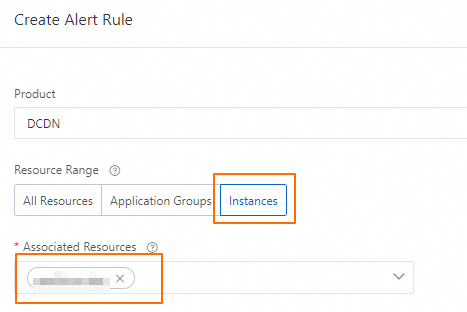
Rule Description
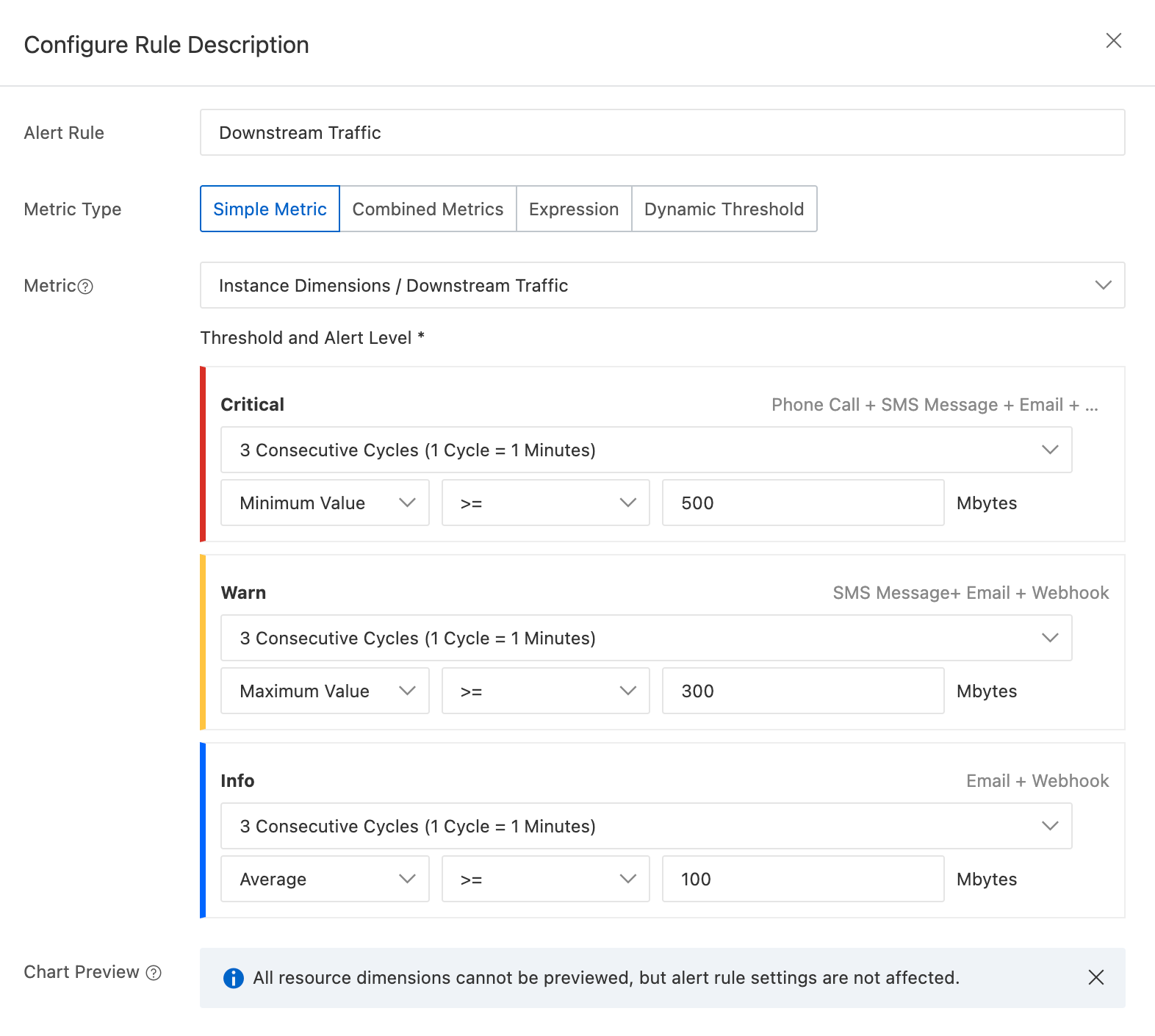
Parameter
Example
Metric Type
Select Simple Indicators.
Metric
Threshold and Alert Level
Select 3 Consecutive Cycles (1 Cycle = 1 Minutes) for all levels.
Set the lower threshold for the Critical level to greater than or equal to 500 Mbit/s.
Set the upper threshold for the Warn level to greater than or equal to 300 Mbit/s.
Set the average threshold for the Info level to greater than or equal to 100 Mbit/s.
Multiple metrics
For example, if the lower threshold of outbound traffic for a specific domain name is greater than or equal to 500 Mbit/s and the alert condition is met for 3 consecutive cycles, a Critical alert is triggered. If the upper threshold of outbound traffic is greater than or equal to 300 Mbit/s and the alert condition is met for 3 consecutive cycles, a Warn alert is triggered. The following figure shows the recommended configurations for the resource range and rule description.
Resource Range: Instances.
-
Associated Resources: Select
example.aliyundoc.com. Rule Description
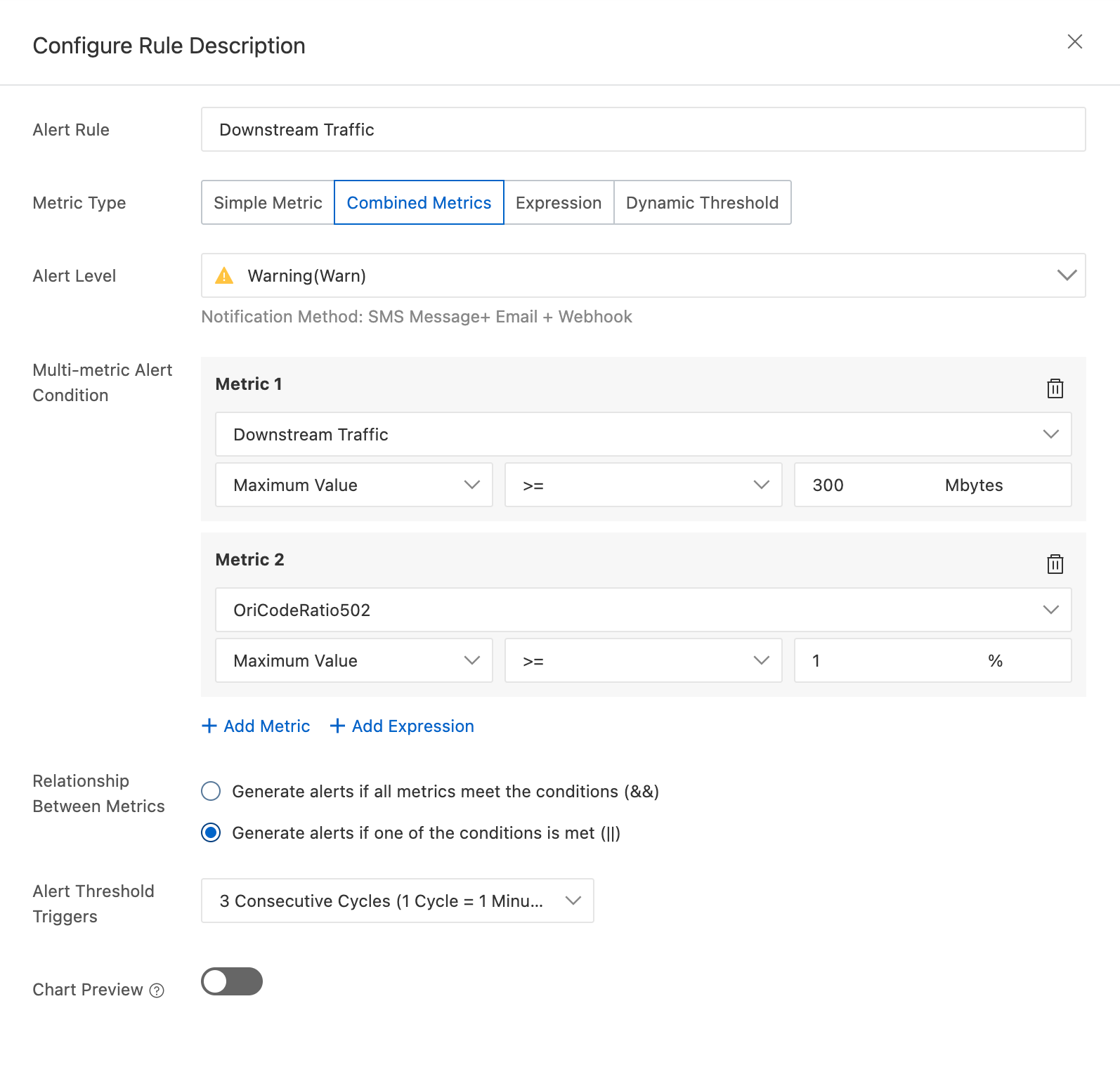
Parameter
Example
Metric Type
Combined indicators
Alert Level
Warning(Warn)
Multi-metric Alert Condition
Click Add Metric. In the Metric drop-down list, choose .
Set the upper threshold to greater than or equal to 300 Mbytes.
Follow the preceding steps to add the metric and set the upper threshold to greater than or equal to 1%.
NoteFor more information about how to specify complex alert conditions, see Alert rule expressions.
Relationship Between Metrics
Generate alerts if one of the conditions is met (||)
Select the number of times the threshold is reached before an alert is triggered
3 Consecutive Cycles (1 Cycle = 1 Minutes)