This topic describes how to use Alibaba Cloud SDK for Java to query the domain names covered by Dynamic Content Delivery Network (DCDN) in an account and the status of the domain names.
Step 1: Read the API documentation
Before you call an API operation, we recommend that you read the documentation about the API operation to learn about the parameters and permissions that are required to call the API operation. For more information, see List of operations by function.
Step 2: Create a RAM user and grant permissions to the RAM user
An Alibaba Cloud account has access permissions on all API operations. We recommend that you use a Resource Access Management (RAM) user to call API operations or perform routine O&M.
If you have created a RAM user and granted permissions to the RAM user, skip this step.
Log on to the RAM console with your Alibaba Cloud account.
Create a RAM user.
In the left-side navigation pane, choose .
On the Users page, click Create User.
On the Create User page, set Logon Name and Display Name, select Console Access and OpenAPI Access for Access Mode, and then click OK.
ImportantThe AccessKey secret is displayed only during creation. You cannot query the AccessKey secret in subsequent operations. Download the CSV file that stores the key information and keep it confidential.
After the RAM user is created, record the username and password of the RAM user. When you call API operations, you must use the RAM user to log on to OpenAPI Explorer and use the AccessKey pair for code debugging.
Grant permissions to the RAM user.
NoteAfter you create the RAM user, the RAM user does not have the permissions to perform operations on DCDN. You must attach the required system policy AliyunDCDNFullAccess or AliyunDCDNReadOnlyAccess or custom policy to the RAM user. In this example, the AliyunDCDNReadOnlyAccess policy is attached to the RAM user. This policy grants the RAM user read-only permissions on DCDN resources.
On the Users page, find the RAM user to which you want to grant permissions and click Add Permissions in the Actions column.
In the Grant Permission panel, search for the AliyunDCDNFullAccess system policy and click Grant permissions.
Confirm the authorization result and click Close.
(Optional) Step 3: Call the API operation
Log on to the Alibaba Cloud OpenAPI Explorer as the created RAM user.
Select Dynamic Route for CDN.
In the top navigation bar, choose Tools > API Debugging.
In the left-side navigation pane, search for and click DescribeDcdnUserDomains. Select China (Hangzhou) for Region and enter the domain name that you want to query in the DomainName field. If you do not specify this parameter, information about all domain names covered by DCDN in your account is displayed.
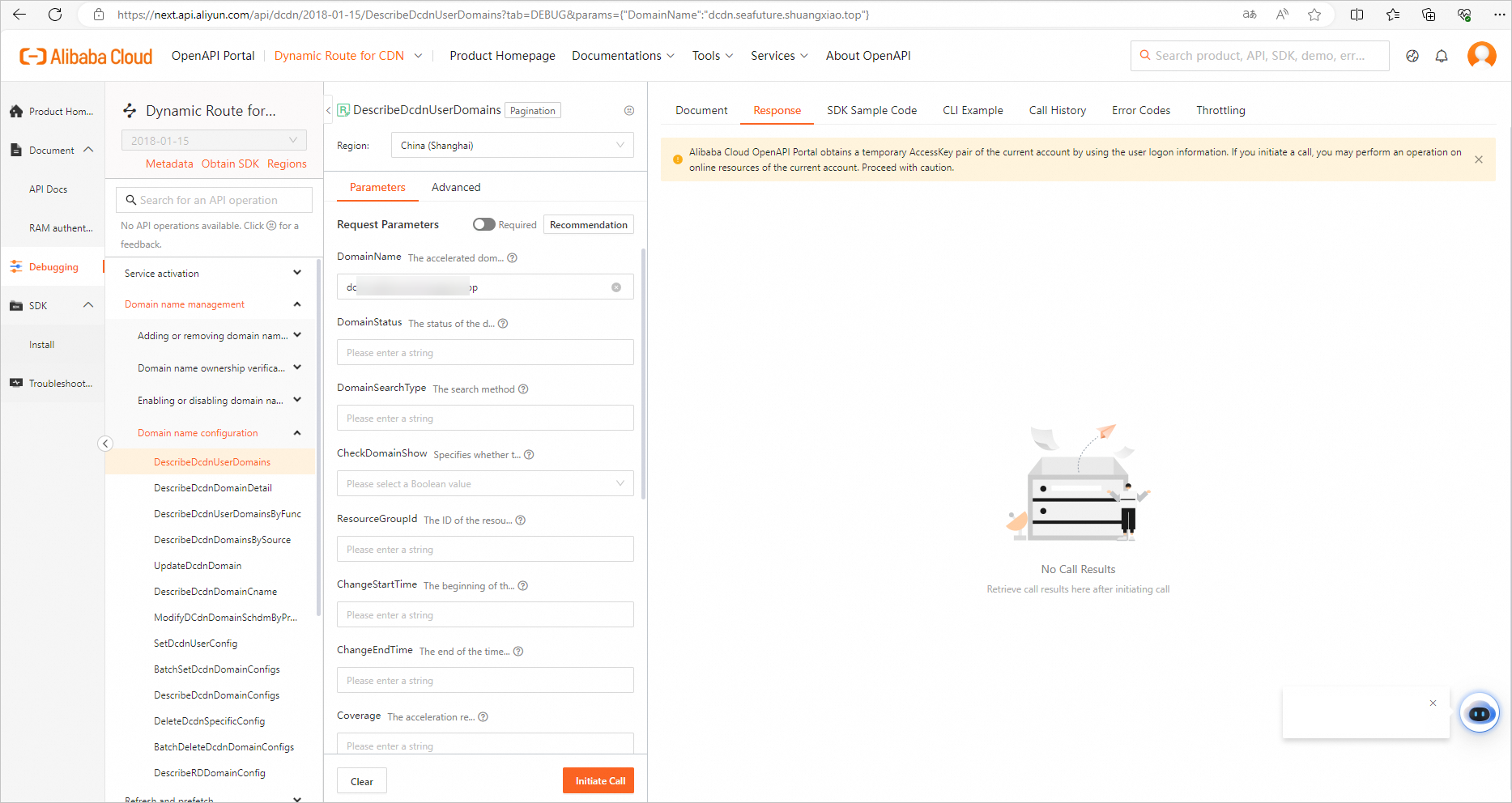
Click Initiate Call.
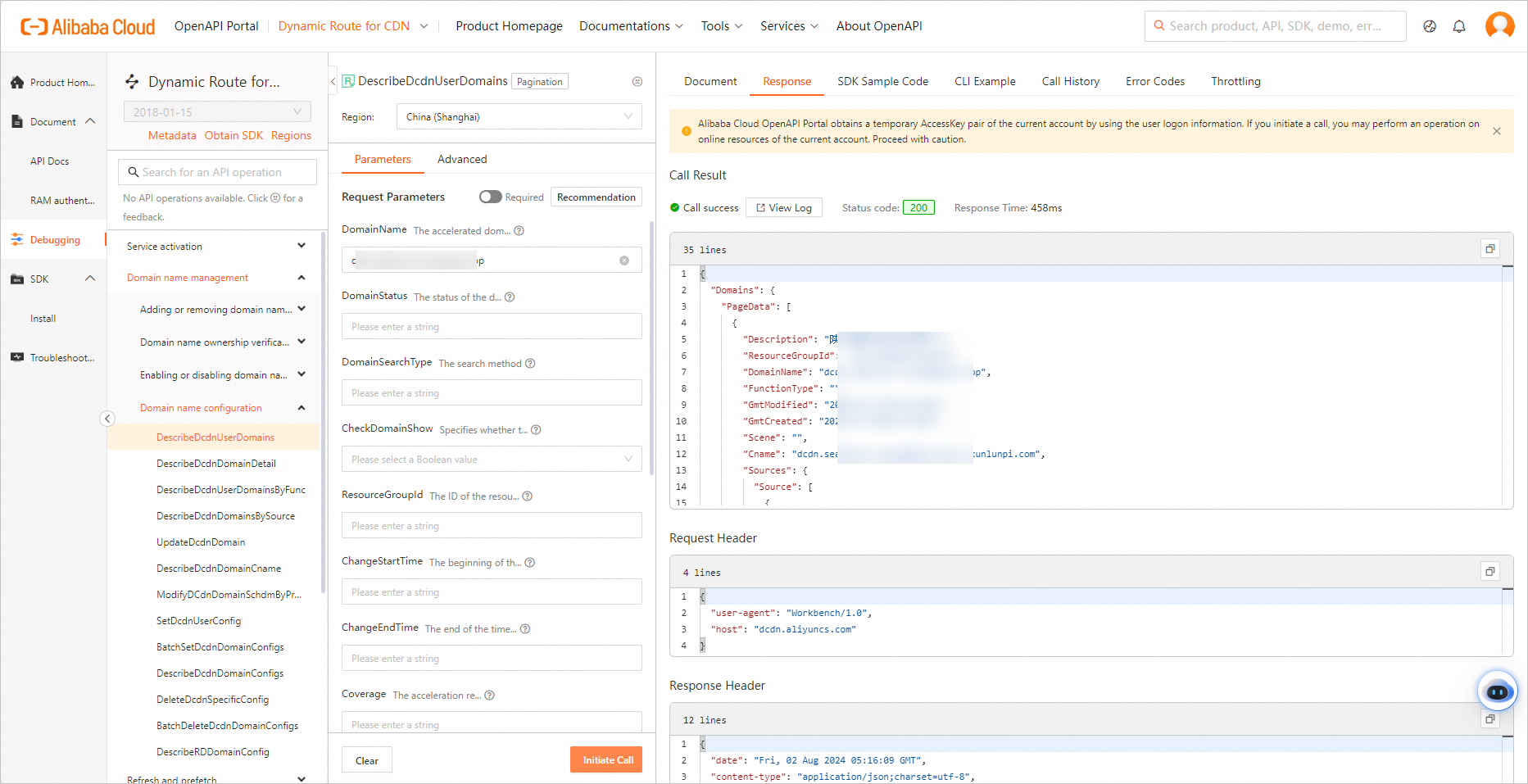
In the Call Result section, you can view the results including Request Header and Response Header. A status code of 200 indicates that the call is successful.
Step 4: Obtain the SDK sample code
OpenAPI Explorer provides SDKs for multiple programming languages, including Java, Go, Python, Node.js, TypeScript, PHP, and C++. You can integrate SDKs into your applications to directly call API operations. SDKs encapsulate information such as the signature logic, timeout mechanism, and retry mechanism and return structured response objects based on specifications. This facilitates development.
This step describes how to obtain the sample code of the SDK for Java. The same method applies to obtaining the sample code of SDK for other programming languages.
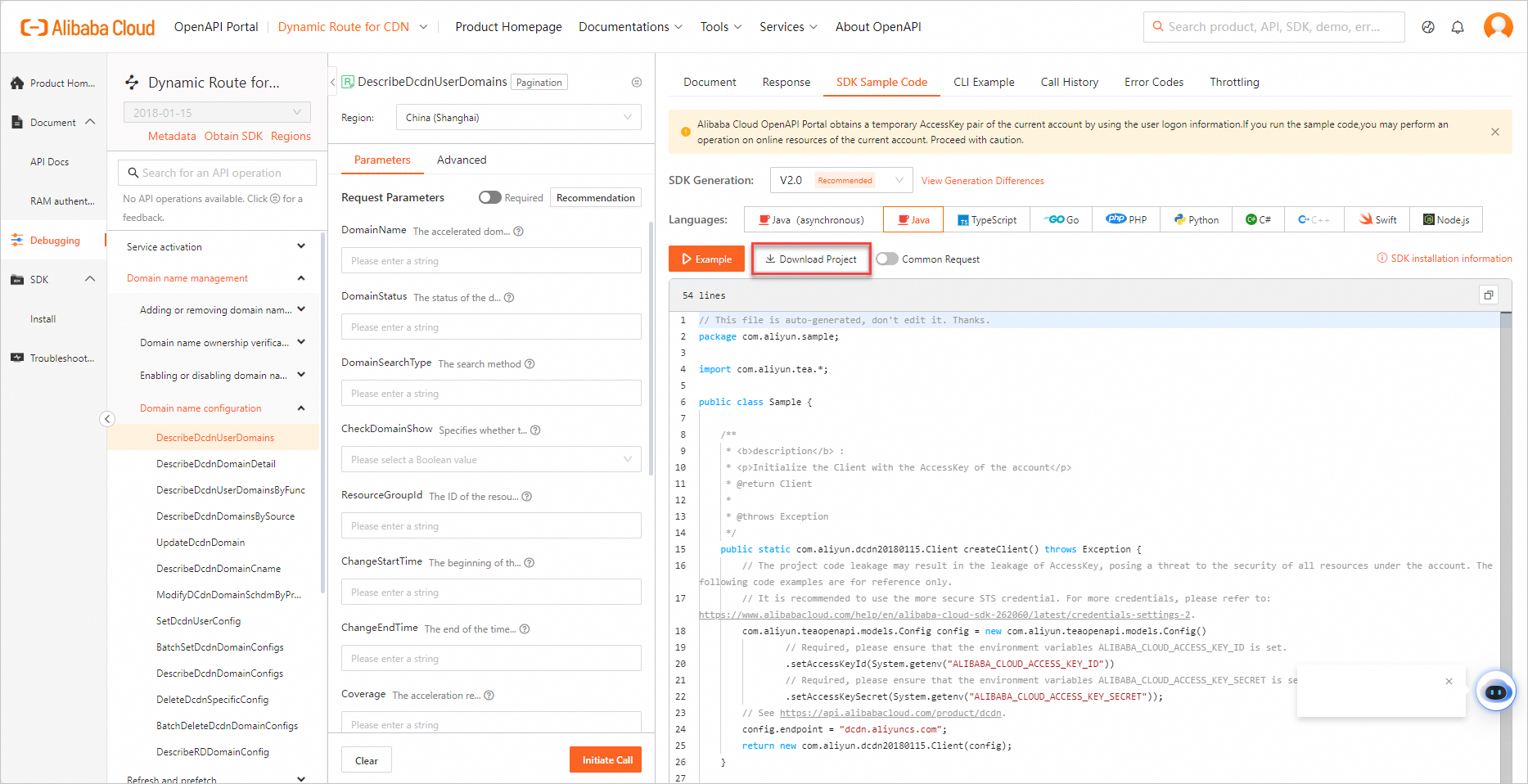
On the SDK Sample Code tab, select an SDK version and language. We recommend that you select V2.0. For information about the differences between V2.0 and V1.0, see Alibaba Cloud SDK V1.0 and V2.0.
Click Download Project to download the complete SDK project. Then, decompress the downloaded package.
NoteIn the upper-right corner of the code editor, you can click the
 icon to copy the SDK sample code.
 You can click SDK installation information to obtain basic SDK information such as the SDK package name, SDK package version, SDK package management platform, and SDK installation command for integration and development.
Step 5: Run the SDK sample code
This step describes how to run the sample code of the SDK for Java.
Open IntelliJ IDEA, choose File > Open in the top navigation bar, select the decompressed project folder, and wait for Maven to automatically install the dependency.
Before you call the operation, you must obtain an AccessKey pair as the access credential. We recommend that you use the AccessKey pair of the created RAM user. For more information, see Create an AccessKey pair for a RAM user.
ImportantAfter you obtain the AccessKey pair of a RAM user, you must configure the AccessKey pair in environment variables. For more information, see Configure environment variables in Linux, macOS, and Windows.
Run the sample code.
Double-click Sample. Confirm that no error is thrown and run the sample code.
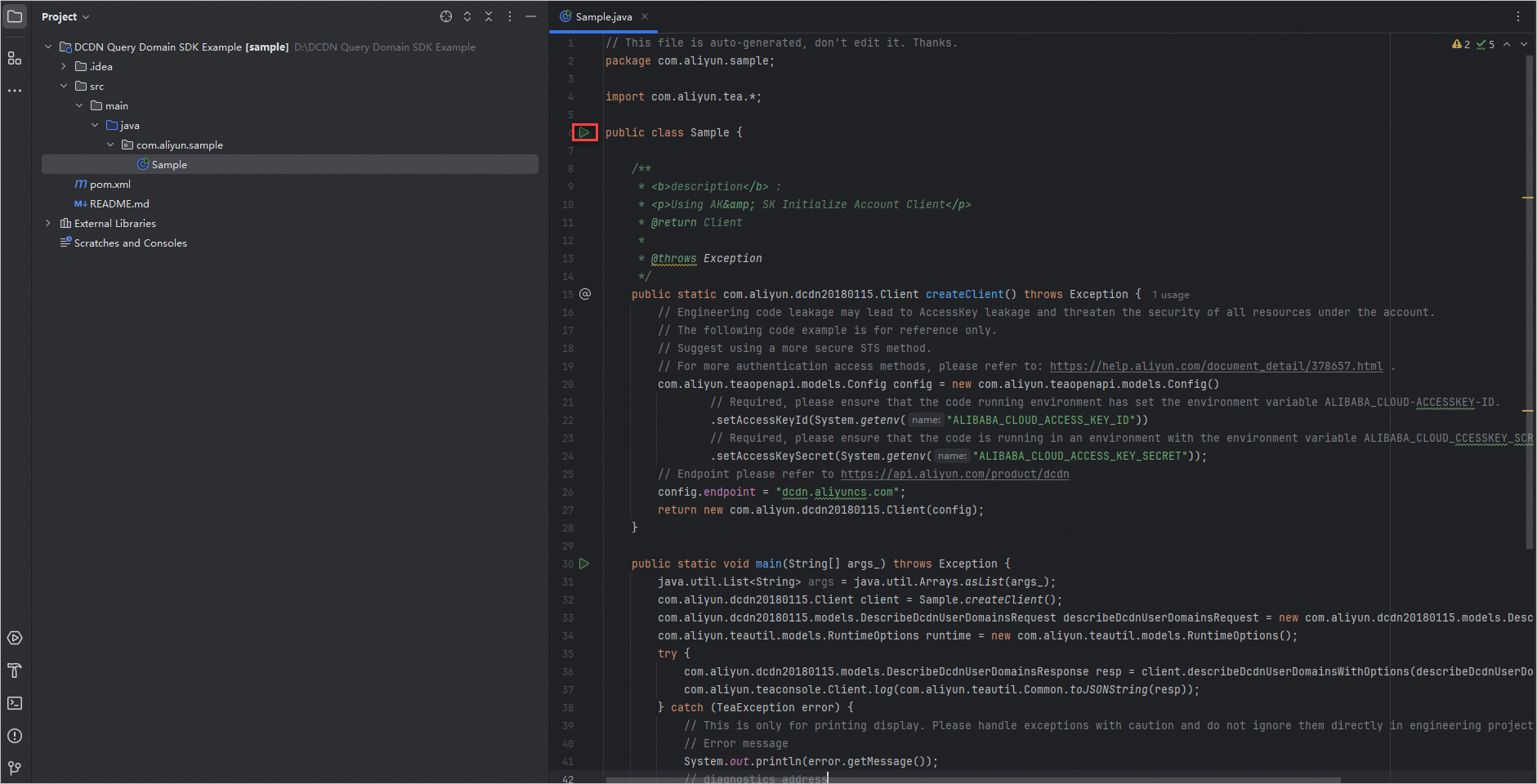
View the result. Click anywhere in the Run window and press
Ctrl+Fto search forstatusCode. If"statusCode":200is displayed, the call is successful.