When troubleshooting incidents or analyzing recurring issues, you need a centralized view of all past alert events. The Alert Event History page in Enterprise Distributed Application Service (EDAS) lists every alert event generated for your applications, regardless of current status. Use this page to filter, search, and drill into event details including monitoring data charts.
Prerequisites
Before you begin, make sure that:
EDAS is activated after 00:00:00 on April 30, 2021. The alert management feature is unavailable for accounts that activated EDAS before this date.
Go to the Alert Event History page
Log on to the EDAS console.
In the left-side navigation pane, choose Application Management > Applications.
In the top navigation bar, select a region. In the upper part of the page, select a namespace.
From the Cluster Type drop-down list, select Container Service or Serverless Kubernetes Cluster.
Find the target application and click its name.
In the left-side navigation pane, choose Alert Management > Alert Event History. The Events page appears, listing all alert events.
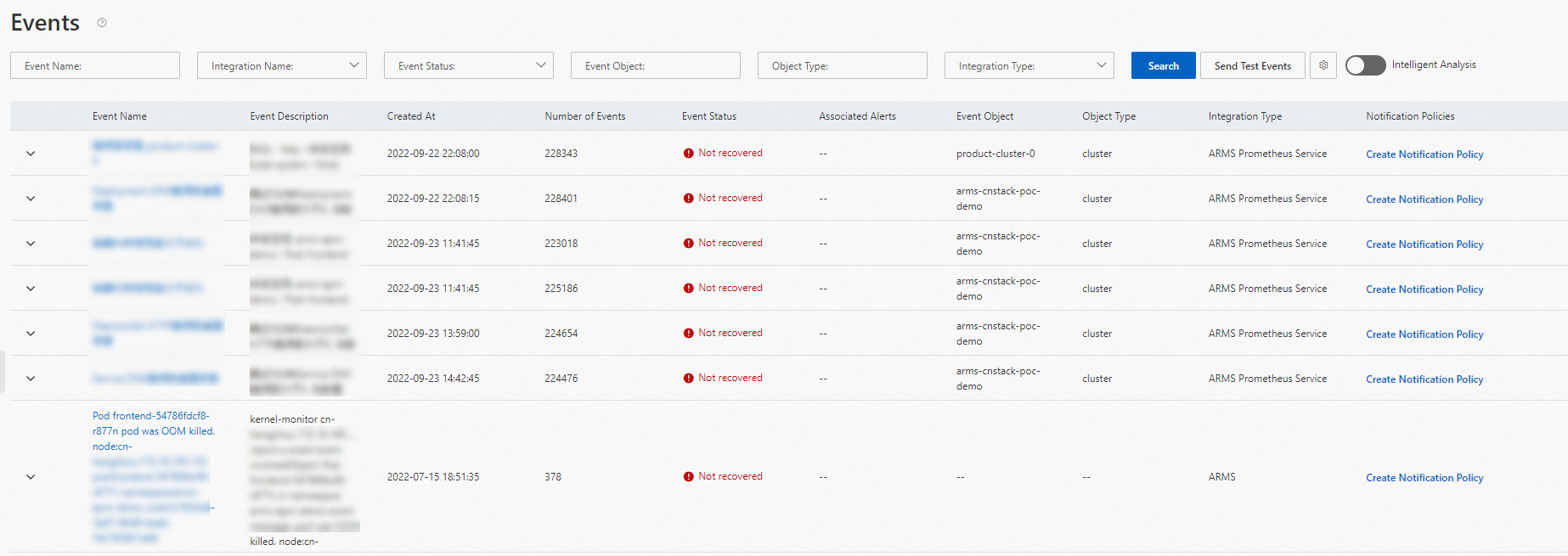
Filter alert events
Narrow down the event list by specifying one or more filter conditions on the Events page.
Specify filter conditions:
Parameter
Description
Event Name
Name of the alert rule that triggered the event.
Event Status
Current status of the alert event. Valid values: Not Cleared, Silence, Recovered. For definitions, see Event status definitions.
(Optional) Turn on More to display additional filters:
Parameter Description Event Object Name of the monitored object, such as a monitoring task or cluster. Object Type Type of the monitored object, such as browser monitoring, application monitoring, or Prometheus monitoring. Click Search.
Event status definitions
| Status | Meaning |
|---|---|
| Not Cleared | An alert is generated every time the event is detected. |
| Silence | Within the specified time range, an alert is generated only on the first detection. Subsequent detections within that range do not trigger additional alerts. |
| Recovered | Within the specified time range, no alerts are generated when the event is detected. |
View event details
Each alert event on the Events page displays the following attributes: event name, notification policy, trigger time, number of events with the same name, status, target object, and object type.
To view full details of a specific event:
On the Events page, click the target alert event. The Event Details page displays the basic information, monitoring data, and extended fields of the alert event.
In the Monitoring data section, select a time range from the drop-down list to display data before and after the alert triggered.
Time range option Description 6 hours Displays monitoring data within a 6-hour window around the alert. 12 hours Displays monitoring data within a 12-hour window around the alert. 24 hours Displays monitoring data within a 24-hour window around the alert. (Optional) Drag across the chart to zoom into a specific time range. Click Reset to restore the original view.
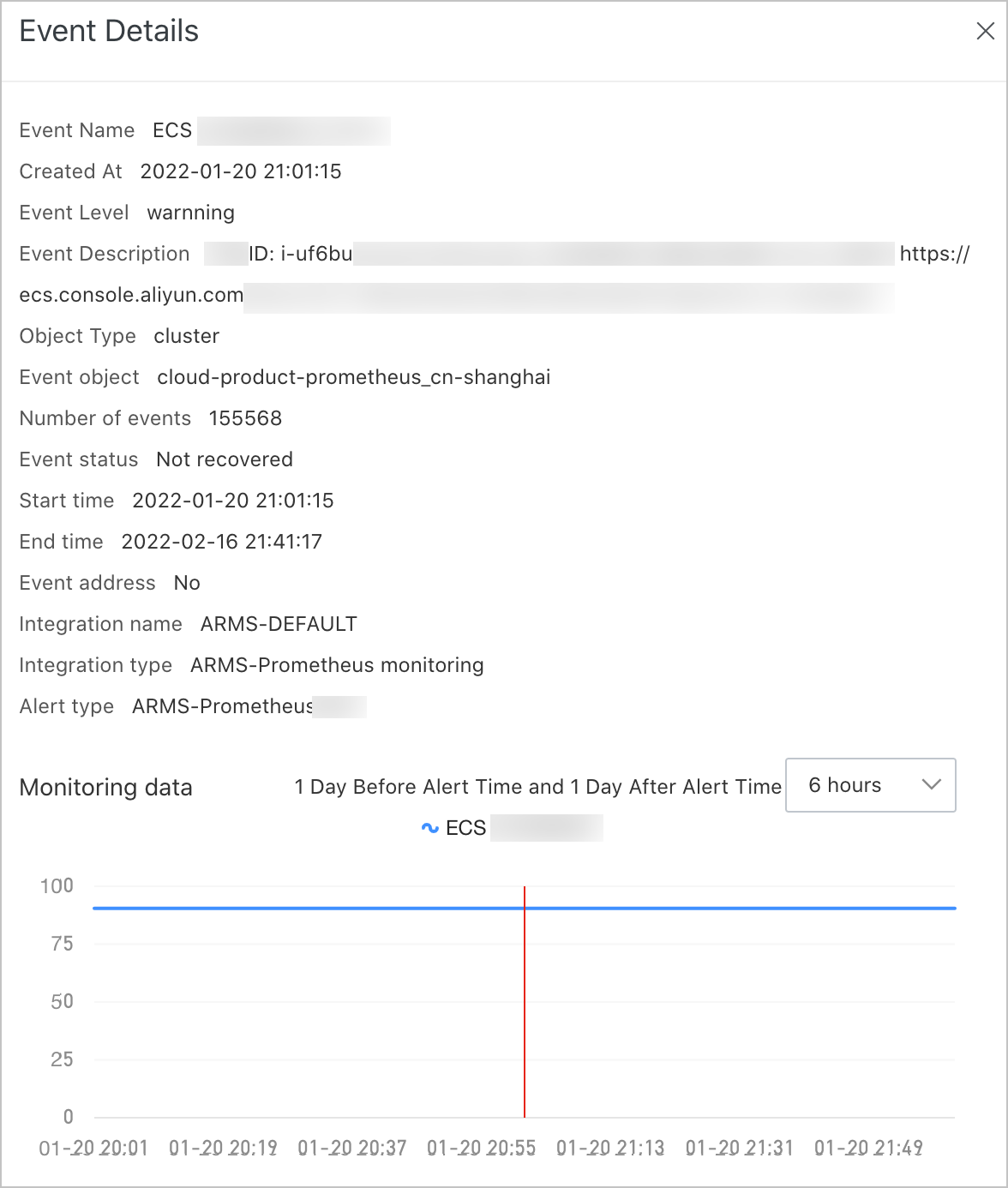
Send test events
To verify your alert integration, send a test alert event from the Events page.
Click Send test events in the upper part of the page.
In the dialog box, configure the following parameters:
Parameter Description Integration Name Select the target integration. Event Content Enter the test event content. Click OK.