When you deploy containerized applications on Kubernetes, settings like JVM heap memory, JVM properties, and Java agent parameters often change between environments. Configuration items let you store these non-confidential settings as key-value pairs and inject them into containers at deployment time -- without rebuilding images.
How configuration items work
A configuration item holds one or more key-value pairs that EDAS passes to the target containers when you create or deploy an application. Two consumption methods are available:
| Method | Description |
|---|---|
| Environment variables | Inject key-value pairs as container environment variables. See Configure environment variables. |
| Volume mounts | Mount key-value pairs as files in a specified directory. See Configure mount directories. |
After you modify a configuration item, redeploy the application that uses it. Changes do not take effect until redeployment.
Prerequisites
Before you begin, make sure that you have:
A Kubernetes cluster created in the Container Service for Kubernetes (ACK) console:
Standard cluster: Create a managed Kubernetes cluster or Create an ACK dedicated cluster
Serverless cluster: Create an ASK cluster
The cluster imported into EDAS
Create a configuration item
Log on to the EDAS console.
In the left-side navigation pane, choose Configuration Management > Kubernetes Configurations > Configuration Items.
In the top navigation bar, select a region.
On the Configuration Items page, click Create configuration item.
In the Create configuration item panel, configure the following parameters:
Parameter Description Name A unique name for the configuration item. Use lowercase letters, digits, and hyphens (-). Must start with a letter and cannot end with a hyphen. Maximum length: 63 characters. Cluster Name The target Kubernetes cluster. Select a cluster from the drop-down list. k8sNameSpace The Kubernetes namespace for the cluster. Valid values: default -- the default namespace, used when no namespace is specified for an object. kube-system -- the namespace for objects created by the system. kube-public -- an automatically created namespace that is readable by all users, including unauthenticated users. 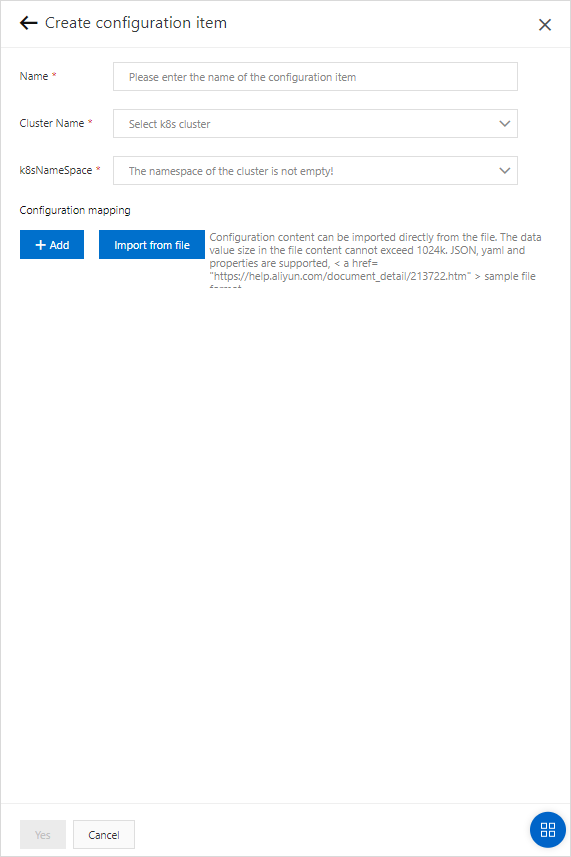
Add key-value pairs using one of the following methods, then click Yes:
Add manually -- Click Add, then enter a Key and Value. Repeat to add more pairs. Keys can contain letters, digits, underscores (\_), hyphens (-), and periods (.).
Import from a file -- Choose Import Configuration > Import From File and select a JSON, YAML, or .properties file. EDAS parses the file and extracts the key-value pairs automatically. Supported file formats:
JSON
{
  "key1": "value1",
  "key2": "value2"
}
YAML
key1: value1
key2: value2
.properties
key1=value1
key2=value2
After creation, the new configuration item appears in the list on the Configuration Items page.
View a configuration item
Log on to the EDAS console.
In the left-side navigation pane, choose Configuration Management > Kubernetes Configurations > Configuration Items.
In the top navigation bar, select a region. On the Configuration Items page, select a microservices namespace.
Find the target configuration item and click Details. > Tip: Filter the list by ConfigName, Cluster, Cluster Id, or k8sNamespace to locate a specific item.
On the details page, review the basic information and key-value pairs.
Modify a configuration item
Log on to the EDAS console.
In the left-side navigation pane, choose Configuration Management > Kubernetes Configurations > Configuration Items.
In the top navigation bar, select a region. On the Configuration Items page, select a microservices namespace.
Find the target configuration item and click Edit. > Tip: Filter the list by ConfigName, Cluster, Cluster Id, or k8sNamespace to locate a specific item.
In the editing panel, update the keys and values, then click Yes.
If an application uses this configuration item, redeploy the application after modification. Otherwise, the changes do not take effect.
Delete a configuration item
Log on to the EDAS console.
In the left-side navigation pane, choose Configuration Management > Kubernetes Configurations > Configuration Items.
In the top navigation bar, select a region. On the Configuration Items page, select a microservices namespace.
Find the target configuration item and click Delete. > Tip: Filter the list by ConfigName, Cluster, Cluster Id, or k8sNamespace to locate a specific item.
In the confirmation dialog box, click Yes.
Do not delete a configuration item that is in use by an application. Doing so causes the application to fail after restart or redeployment.
What's next
Configure environment variables -- Inject configuration item key-value pairs as container environment variables.
Configure mount directories -- Mount configuration item key-value pairs as files in your containers.