Resolve connection failures to a Windows ECS instance when the default RDP port 3389 is changed.
Problem description
Remote Desktop and Workbench fail to connect to a Windows ECS instance on the default port 3389.
Cause
The Remote Desktop Services port on the instance was changed from the default 3389 to another port.
Changing the Remote Desktop Services port reduces malicious RDP attacks and scans on the instance.
Solution
-
Connect to the instance with VNC.
-
Choose , enter regedit, and press Enter to open Registry Editor.
-
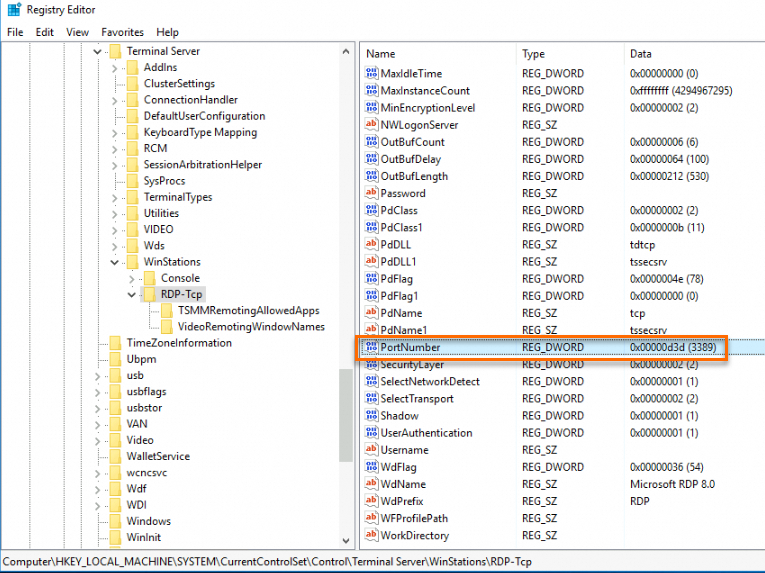
In the address bar, enter HKEY_LOCAL_MACHINE\SYSTEM\CurrentControlSet\Control\Terminal Server\WinStations\RDP-Tcp and press
Enter. Find the PortNumber value.In this example, PortNumber is 3388, which means the Remote Desktop Services port is 3388.
-
If this is the expected port, specify it when you connect to the instance.
-
If the port is not the expected port, go to Step 4.
-
-
Change the Remote Desktop Services port.
-
Right-click PortNumber and select Modify...

-
In the dialog box, set Base to Decimal and Value data to the desired port number, such as 3389.

-
Click OK.
-
-
Restart the instance for the change to take effect.
-
Reconnect to the instance with the port specified in Step 4. A successful connection confirms the issue is resolved.