Deploy software such as Docker and MySQL to ECS instances with Workbench, using AI Agent or OOS extension packages.
Usage notes
-
RAM users must have the required permissions to connect to an ECS instance with Workbench.
-
Available only in Workbench 2.0. How do I know if I am using Workbench 2.0?
Install with AI Agent
AI Agent converts natural language requests into executable commands using large language models.
The instance must have public network access to download installation packages from software sources.
-
At the top of the terminal, click the
 icon. The Install Software dialog box appears.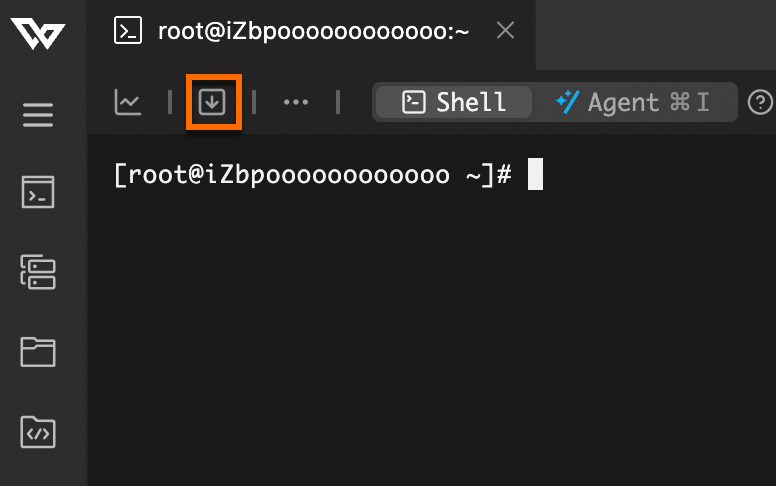
-
In the Install Software dialog box, click the Agent mode installation tab. Describe your requirements in the input box. For best results, use the
Software Name + Version + Additional Actionformat. For example:Install the latest stable version of Nginx. After installation, start the service and enable it to start on boot. -
Click Run or press
Enter. A new terminal opens in AI Agent mode. Follow the AI guidance to complete the installation. See How to use AI Agent mode.ImportantAI-generated content is for reference only. Confirm all operations and assume the associated risks.
-
Verify the software status after installation.
For example, verify that Nginx is installed:
# Check the service status. The expected output is "active (running)".
systemctl status nginx
Install with OOS extension packages
OOS provides verified extension packages for controllable, standardized installation. See Supported extensions and limits.
-
At the top of the terminal, click the
icon. The Install Software dialog box appears. -
In the Install Software dialog box, click the Package Installation tab. Configure the following:
-
Extensions to install: Select the software from the drop-down list, such as Docker Community Edition.
-
Extension version: Use the default version.
-
Parameters in the command: Configure as prompted. Required parameters vary by extension.
-
-
Click Install and follow the on-screen instructions.
After you click Install, the installation progress appears in the lower-right corner.
FAQ
How do I determine whether I am using Workbench 1.0 or 2.0? How do I switch to 2.0?
Identify the version by the UI. Workbench 2.0 shows the Workbench icon  in the upper-left corner, while Workbench 1.0 shows WORKBENCH. The left-side navigation pane also differs.
To switch versions, click New Version in the upper-right corner for 2.0, or click Previous Version for 1.0.