ECS Insight allows you to view the overall profile of Elastic Compute Service (ECS) usage evaluation and helps you understand the details of different evaluation items across different dimensions. You can handle risks related to low-scoring items at the earliest opportunity by following the optimization suggestions based on best practices.
Apply to use ECS Insight
The first time you go to the ECS Insight tab, click Apply to submit an application. The application will be approved within one to two business days. After the application is approved, ECS Insight automatically generates an ECS Insight report for your account.
If you do not have ECS instances in your account, you cannot apply to use ECS Insight. You must create ECS instances and use the instances for a period of time before you can apply to use ECS Insight. For information about how to create an ECS instance, see Create an instance on the Custom Launch tab.
If your account does not demonstrate long-term, consistent use of ECS instances, the application may be denied.
After the application is approved, you cannot use ECS Insight if you do not have ECS instances in your account.
View the ECS Insight report
Log on to the ECS console.
On the Overview page, click the ECS Insight tab.
View the ECS Insight report.
The ECS Insight report displays the overall profile of ECS usage evaluation in your account. You can click tabs of different dimensions to view the description, score status, and best practices of each evaluation item.
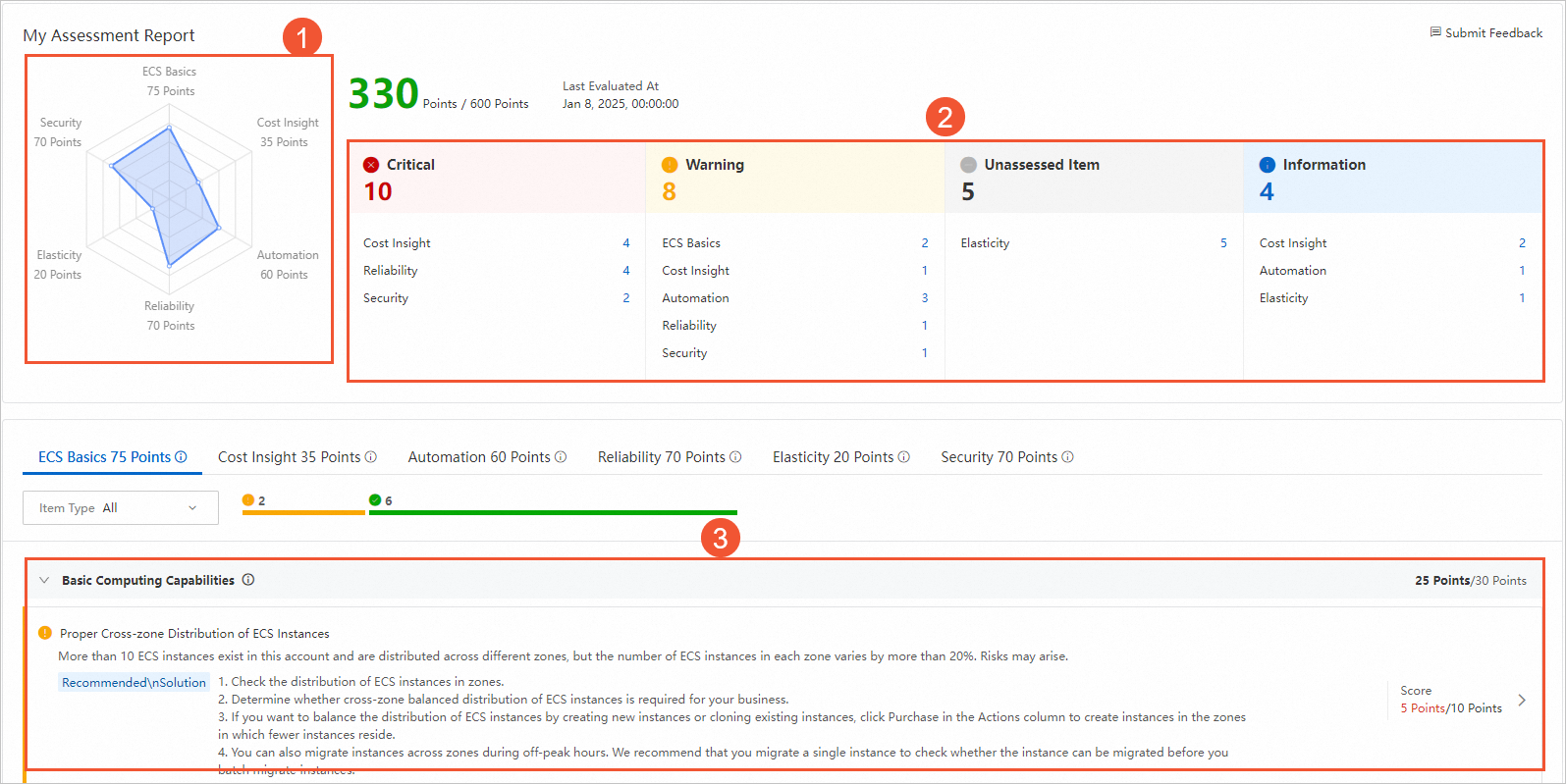
①: displays the overall profile of ECS usage evaluation in your account, including the total score of all dimensions, the score of each dimension, and the score distribution across dimensions.
②: displays the total number of risks at different severity levels and the distribution of the number of risks at different severity levels across dimensions. You can click a specific dimension in a severity level section to view risks and suggestions for handling the risks.
③: displays the issues and risks related to an evaluation item and provides solutions. You can click an evaluation item to view the risk details.
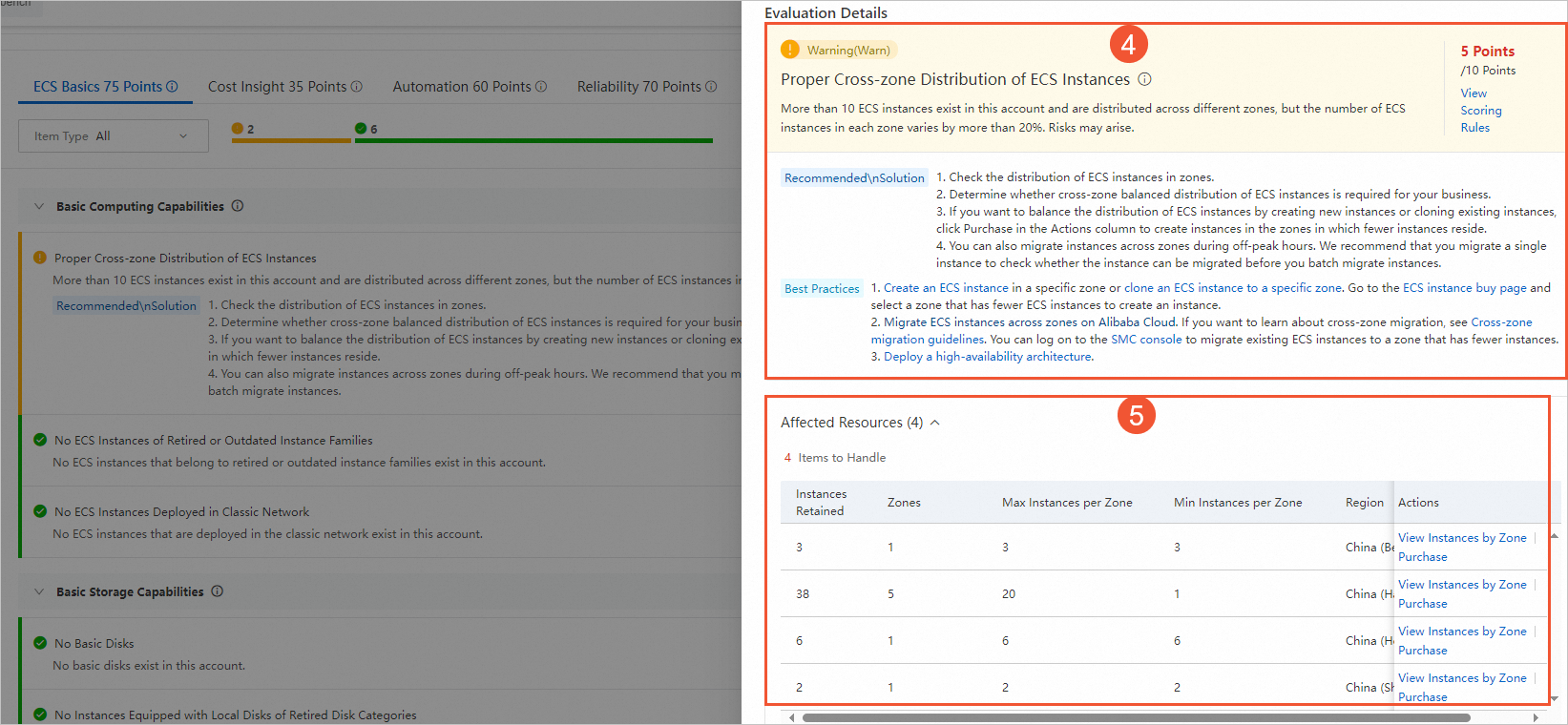
④: displays the details of an evaluation item, including the scoring rules, recommended solutions, and best practices.
⑤: displays the affected resources. You can click a link in the Actions column that corresponds to each resource and handle the risks as prompted.
ImportantECS Insight automatically calculates the score and updates the evaluation results based on the resource usage in your account the next day. You cannot manually update the evaluation results. If the ECS resources in your account change, such as when ECS instances are created or released, you can view the updated evaluation report the next day. The updated evaluation report contains score changes due to changing metrics.