Switch between Vim modes, use basic editing commands, and perform common tasks such as searching, replacing, and commenting code.
Installation
Vim is pre-installed on most Linux systems. Run vim --version to check the installed version. This topic uses Vim 8.0 as an example. Commands and features may differ in other versions.
VIM - Vi IMproved 8.0 (2016 Sep 12, compiled Aug 10 2022 11:26:47)
Included patches: 1-1763
Modified by OpenAnolis Community
Compiled by OpenAnolis Community
Enormous version without GUI.  Features included (+) or not (-):
+acl               +farsi             +mouse_sgr         -tag_any_white
 ......
Switching modes
Run vim filename to open a file in Normal mode. If the file does not exist, Vim creates it. The following table describes each mode and how to switch between them.

|
Mode |
Function |
Mode switching |
|
Normal mode (Normal Mode) |
Copy, paste, and delete characters or lines. |
|
|
Insert mode (Insert Mode) |
Insert characters at the cursor position. |
In Normal mode, press Note
When Insert mode is active, |
|
Replace mode (Replace Mode) |
Overwrite characters at the cursor position. |
In Normal mode, press Note
When Replace mode is active, |
|
Visual mode (Visual Mode) |
Select text. Commands such as copy, replace, and delete apply only to the selected text. |
In Normal mode, press Note
When Visual mode is active, |
|
Command mode (Command Mode) |
Find and replace strings, show line numbers, save changes, and exit. |
In Normal mode, press |
Basic commands
Opening files
-
vim filename: Opens a file in Normal mode. If the file does not exist, Vim creates it. -
vim filename1 filename2: Opens multiple files.-
Vim opens `filename1` first. Save with
:w, then run:bnto switch to `filename2`. Save `filename2` with:w. -
:bp: Switches to the previous file. -
:ls: Lists all open files.
-
-
:open filename3: Opens a new file in Command mode. Save the current file with:wfirst.
Moving the cursor
-
In Normal mode
-
Up arrow /
k: Move up. -
Down arrow /
j: Move down. -
Left arrow /
h: Move left. -
Right arrow /
l: Move right.
-
-
In Insert mode
-
Use arrow keys only.
-
Inserting content
In Normal mode, press i,I,a,A,o,O to enter Insert mode:
-
i: Insert before the cursor. -
I: Insert at the beginning of the line. -
a: Insert after the cursor. -
A: Insert at the end of the line. -
o: Open a new line below. -
O: Open a new line above.
Copying and pasting
In Normal mode:
-
yy: Copies the current line. Paste withp. -
nyy: Copies `n` lines starting from the current line. For example,2yycopies two lines. -
p: Pastes below the cursor. -
P: Pastes above the cursor.
Deleting
-
In Normal mode
-
x: Deletes the character at the cursor. -
dd: Deletes the current line. Paste withp. -
dk: Deletes the current line and the line above. -
dj: Deletes the current line and the line below. -
dG: Deletes from the current line to the end of the file. -
nx: Deletes `n` characters starting from the cursor. -
ndd: Deletes `n` lines starting from the current line. Paste withp.
-
-
In Insert mode
-
Use
Deleteto delete characters.
-
Searching
In Normal mode
-
/text: Searches for `text`. By default, the search is case-sensitive. Press Enter to highlight matches.-
For case-insensitive search, run
:set ignorecase. To restore case-sensitive search, run:set noignorecase.
-
-
n: Next match. -
N: Previous match.
Replacing
-
In Normal mode
-
r: Replaces the character at the cursor. -
R: Enters Replace mode for continuous replacement. PressEscto exit. -
cc: Deletes the current line and enters Insert mode. -
:%s/oldtext/newtext/g: Replaces all occurrences of `oldtext` with `newtext`. Without/g, only the first match per line is replaced.
-
-
In Insert mode
-
Delete the old content and type the new content.
-
Undoing and redoing
In Normal mode
-
u: Undoes the last change. -
U: Undoes all changes on the current line. -
Ctrl+r: Redoes the last undone change.
Indenting and alignment
-
In Normal mode
-
>>: Indents the current line right. Default indent: 8 spaces (one tab). -
<<: Indents the current line left.
-
-
In Command mode
-
:ce: Center-aligns the line. -
:le: Left-aligns the line. -
:ri: Right-aligns the line.
-
Commenting code
-
Back up the file before large-scale replacements, or use the undo command (
u) to revert mistakes. For example, runsudo cp /etc/text.txt /etc/text.txt.bakto back up a file. -
Understand Vim's regular expression syntax to avoid accidentally deleting content. In Vim regex,
/must be escaped as\/. Practice with tools such as Regex101. -
Adjust the comment symbol based on the programming language.
-
In Visual mode
-
Comment out multiple consecutive lines of code
-
Select the lines to comment out by moving the cursor up or down.
-
Press
:to enter Command mode. Vim auto-fills:'<,'>, which targets the selected range. -
Enter the replacement command. For example, to add
#to the beginning of each line, enters/^/#/and pressEnter.
-
-
Comment out all code:
:%s/^/#/gadds#to the beginning of every line.
-
-
In Insert mode
Manually type comment symbols to comment out code.
Saving and exiting
-
Save:
:w -
Exit:
:q -
Save and exit:
:wq,:x, orZZ -
Force exit without saving:
:q! -
Force save and exit:
:wq!
Encrypting documents
-
vim -x filename: Opens a file with encryption. Set a password, then save the file for encryption to take effect. Subsequent opens require the password. -
Cancel encryption:
-
Run
:set key=to clear the encryption key. -
Save and exit with
:wq. -
Reopen the file with
vim filename. No password prompt appears.
-
Executing shell commands
-
!pwd: Shows the current working directory. -
!ls: Lists files in the current directory.
Multi-window editing
-
vim -o filename1 filename2: Opens two files in separate windows. Exit each window individually. -
:n: Next window. -
:N: Previous window.
Help
-
Run
vim --helpin the terminal to view Vim command syntax. -
In Normal mode
-
:help: Opens the Vim help document (read-only). Exit with:q. -
:help i: Shows help fori. -
:help yy: Shows help foryy. -
:set nu: Shows line numbers.
-
Usage examples
Modify a configuration file
Insert Location on the first line of example.conf:
-
Run
vim example.confto open the file. -
Place the cursor on the first character and press
ito enter Insert mode. -
Enter
Locationand press Enter to start a new line. -
Press
Escto return to Normal mode. -
Enter
:wqto save and exit.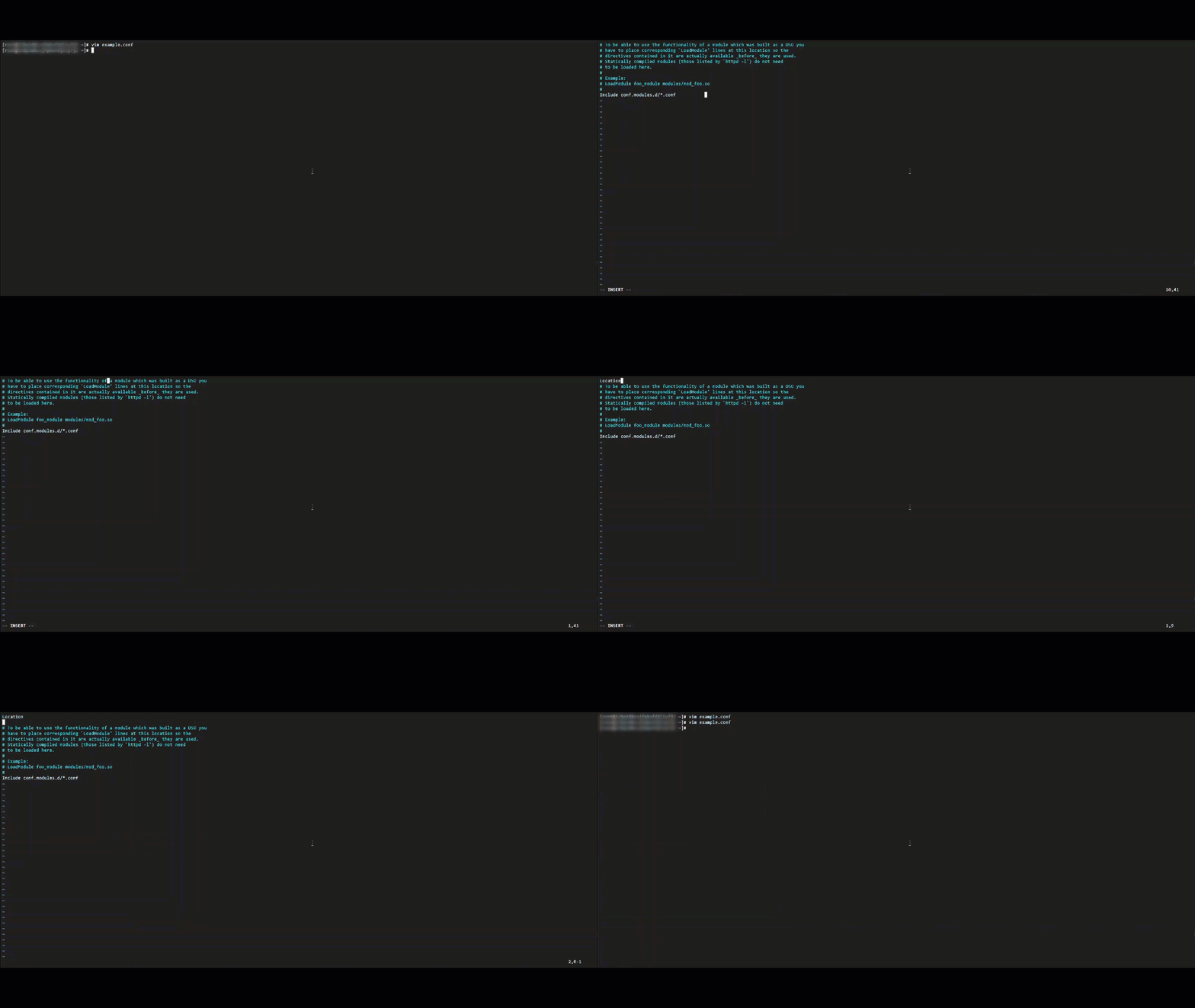
Insert content on a target line
Insert # at the beginning of line 10 in example.conf:
-
Run
vim example.confto open the file. -
Run
:10to move the cursor to line 10. -
Press
ito enter Insert mode. -
Enter
#. -
Press
Escto return to Normal mode. -
Enter
:wqto save and exit.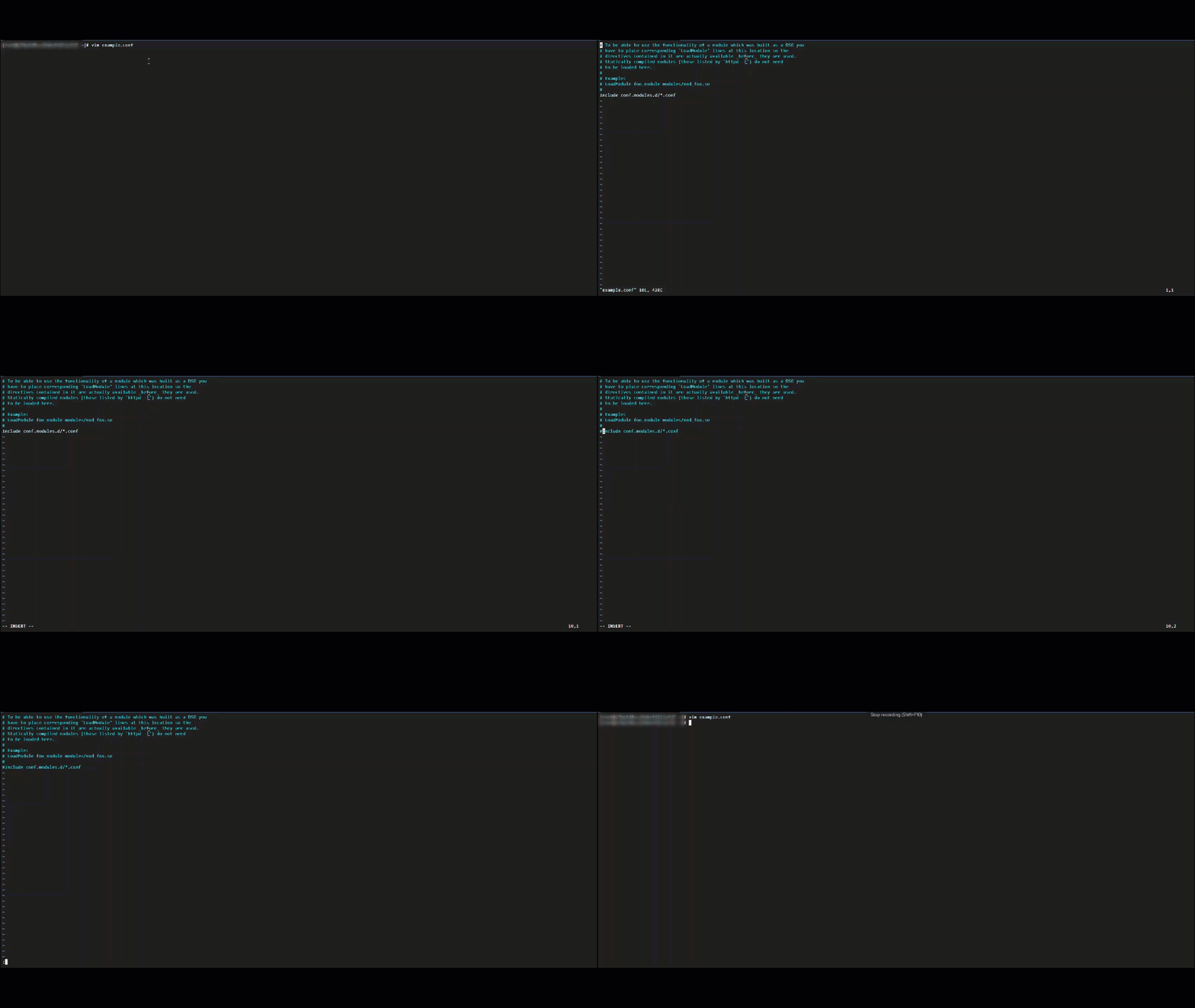
Find and insert content
In example.conf, insert LoadModule rewrite_module modules/mod_rewrite.so after Include conf.modules.d/*.conf:
-
Run
vim example.confto open the file. -
Search for the target line:
/Include conf.modules.d/*.conf -
Press
ito enter Insert mode. -
Enter
LoadModule rewrite_module modules/mod_rewrite.so. -
Press
Escto return to Normal mode. -
Enter
:wqto save and exit.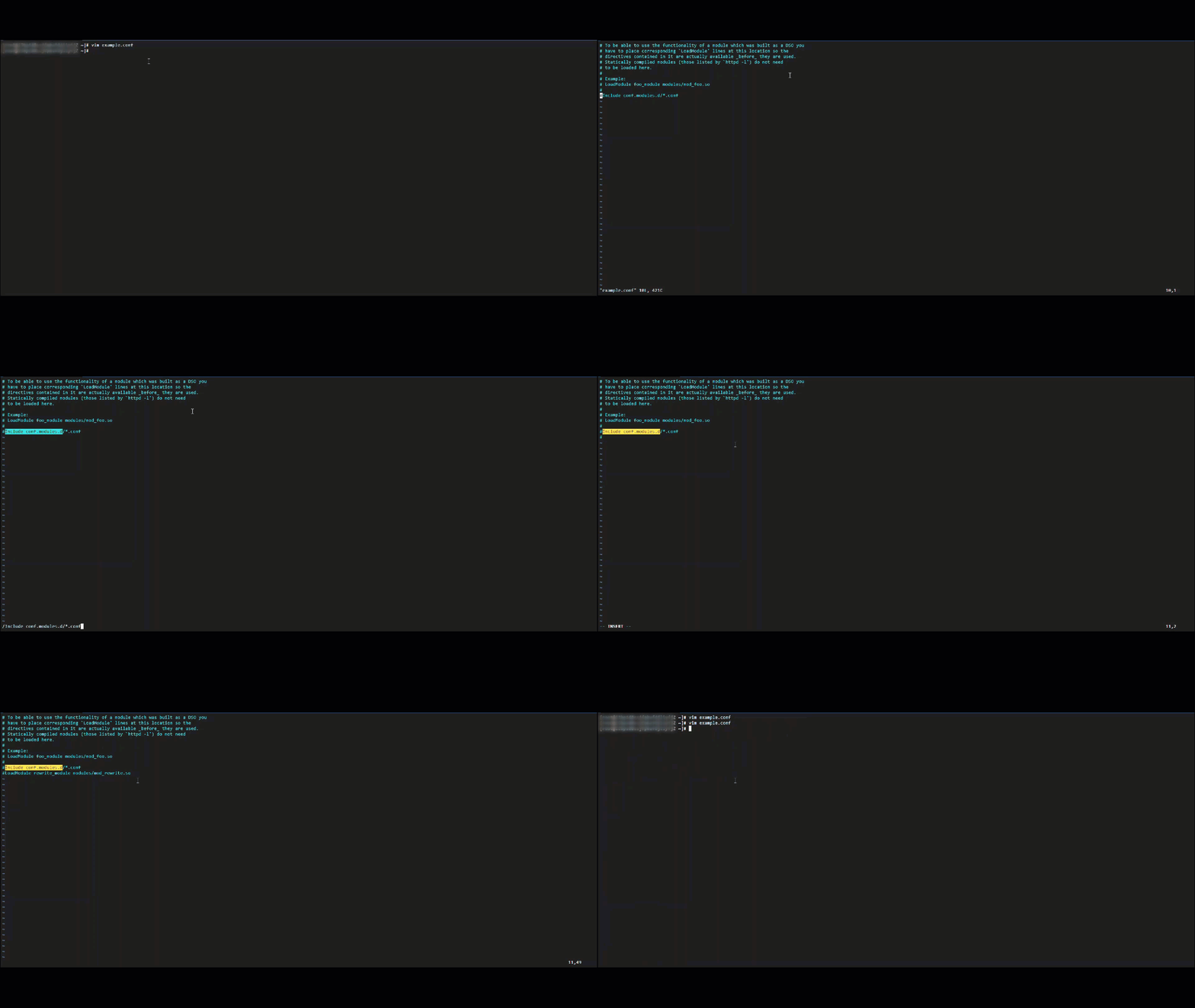
Delete content
In example.conf, delete # from the beginning of the #Listen 12.34.XX.XX:80 line and delete the Listen 80 line:
-
Run
vim example.confto open the file. -
Search for the target line:
/#Listen 12.34.XX.XX:80. The cursor lands on#. -
Press
xto delete#. -
Move the cursor to the Listen 80 line and press
ddto delete it. -
Enter
:wqto save and exit.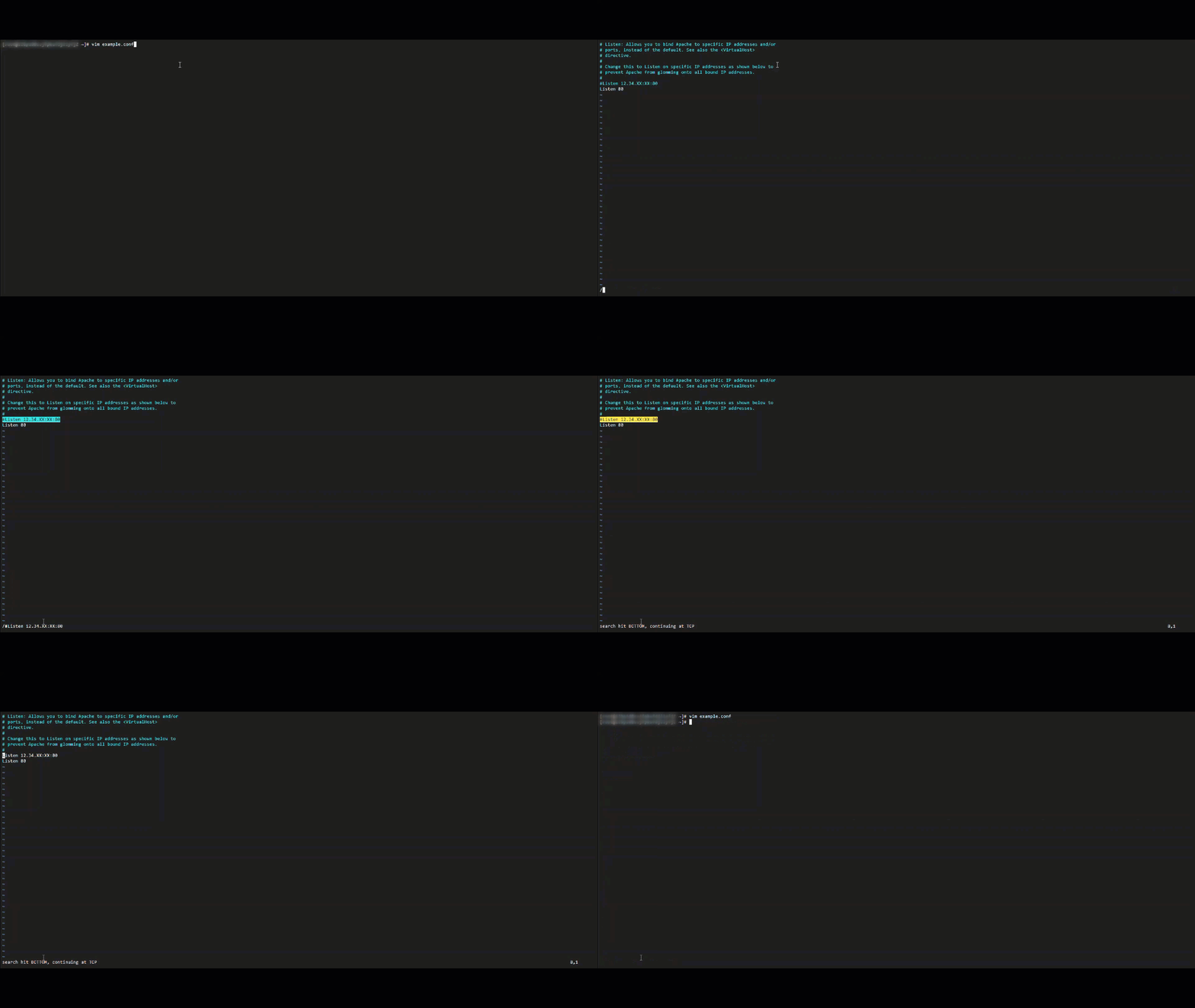
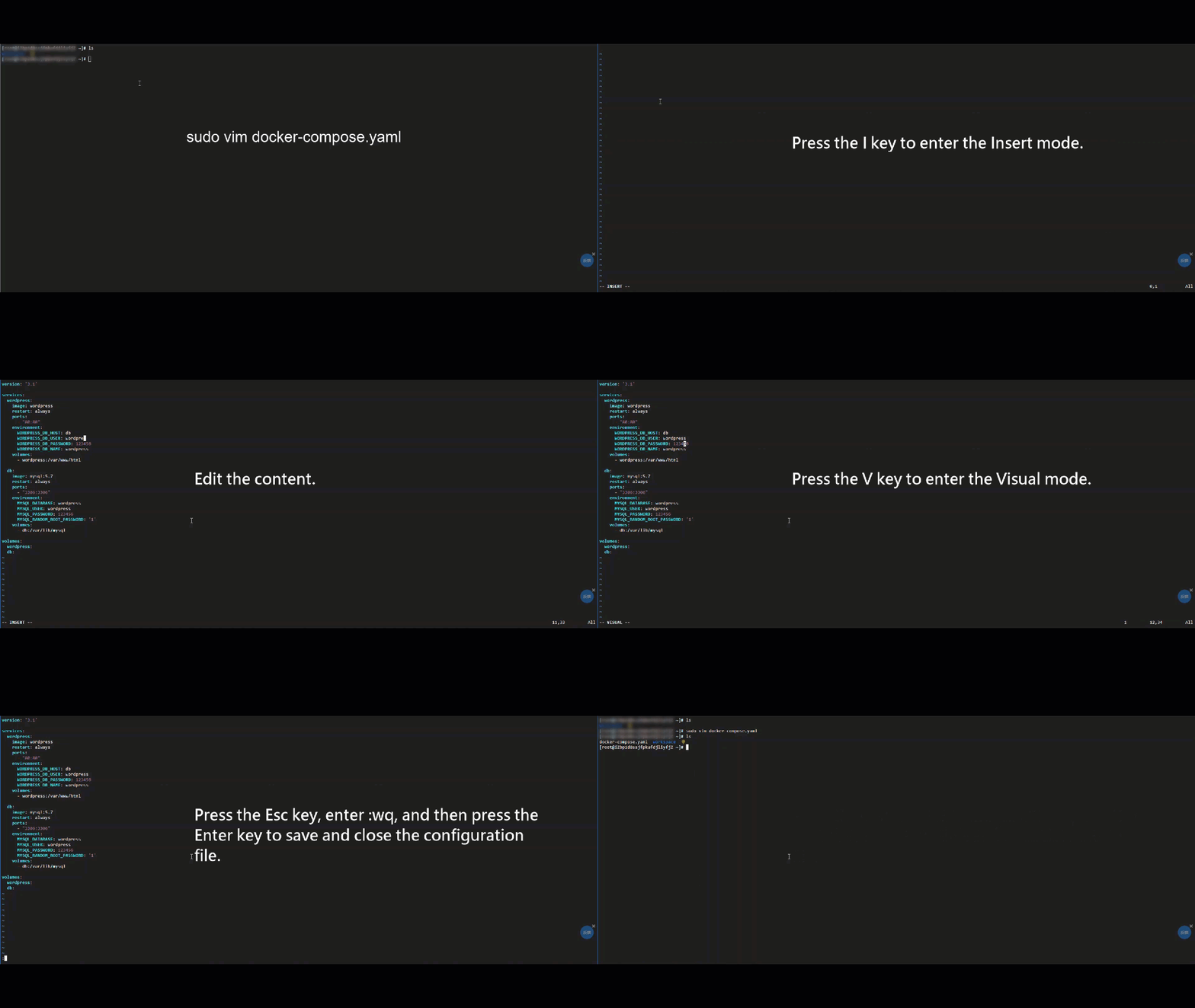
Edit Docker.yaml
Create and edit docker-compose.yaml:
Remove multi-line comments
-
Assume
#is at the beginning of a line, possibly preceded by spaces or indentation:# This is a comment # Another comment # Yet another comment -
Remove the comments:
:%s/^\s*#\s\?//Pattern breakdown:
-
^: Beginning of line. -
\s*: Any whitespace (handles indentation). -
#: Comment symbol. -
\s\?: One optional space after#. -
//: Replaces the match with nothing (deletes it).
This command processes the entire file. Result:
This is a comment Another comment Yet another comment -
Upgrade Vim
If your Vim version does not meet your needs, upgrade it with the following commands.
Alibaba Cloud Linux 3 and 2
sudo yum update vimCentOS 7 and 8
sudo yum update vimFedora
sudo yum update vimUbuntu and Debian
sudo apt upgrade vimopenSUSE
sudo zypper update vimTroubleshooting
-
"No write since last change" on exit:
-
Cause: The file was modified but not saved.
-
Solution: Save and exit with
:wq, or discard changes with:q!.
-
-
Cannot enter text:
-
Cause: You may be in a non-Insert mode, such as Visual mode.
-
Solution: Press
Escto return to Normal mode, then enter Insert mode.
-
-
Cannot save the file:
-
Cause: The current user lacks write permissions. System configuration files such as
/etc/hostsand/etc/nginx/nginx.confrequire superuser permissions. -
Solution 1: Open the file with
sudo vim example.conf. -
Solution 2: Save with elevated permissions using
:w !sudo tee %. Alternatively, change file permissions or ownership withsudo chownorsudo chmod.
-
-
A ".swp" file exists:
-
Cause: The file is open in another Vim session.
-
Solution: Confirm no other terminal is editing the file. If none, find and delete the
.swpfile withll -a, then reopen the file. Alternatively, run:recoverto restore from the swap file.
-