Unencrypted disks for Elastic Computing Service (ECS) instances can pose data breach threats. To meet high security and compliance requirements, some enterprises require all Resource Access Management (RAM) users to use encryption for data protection. This topic describes how to use a custom RAM policy to prevent RAM users from creating unencrypted disks.
Background information
Data on disks can include sensitive information, such as business secrets, user data, or financial details. If unencrypted, this data can be stolen or leaked during storage or transfer. Encrypting disks helps prevent data theft from attacks on the hypervisor or physical layer. Even if someone physically obtains the disk, they cannot read the data. This protects data from being altered in storage, ensures data integrity and authenticity, and protects user privacy.
Many industries, such as finance, healthcare, and government, have strict data protection regulations that require sensitive data to be encrypted. Encrypting disks helps enterprises meet compliance auditing requirements and demonstrate that their data storage methods meet security standards.
Procedure
The following example shows how to require a RAM user named Alice to encrypt disks when creating an ECS instance or when creating a disk separately.
-
Create a RAM user named Alice in the RAM console.
For more information, see Create a RAM user.
-
In the RAM console, create a custom policy named ecs-disk-encrypt-control. In the script editor, enter the following policy content.
NoteThis policy denies the creation of an ECS instance or a standalone disk if the disk is unencrypted.
{ "Version": "1", "Statement": [ { "Action": [ "ecs:RunInstances", "ecs:CreateInstance" ], "Resource": "*", "Condition": { "StringLike": { "ecs:IsDiskEncrypted": "*false*" } }, "Effect": "Deny" }, { "Action": [ "ecs:RunInstances", "ecs:CreateInstance" ], "Resource": "*", "Condition": { "StringEquals": { "ecs:IsSystemDiskEncrypted": "false" } }, "Effect": "Deny" }, { "Action": "ecs:CreateDisk", "Resource": "*", "Condition": { "StringLike": { "ecs:IsDiskEncrypted": "*false*" } }, "Effect": "Deny" } ] } -
Create another custom policy named ecs-admin. In the script editor, enter the following policy content.
NoteThis policy grants permissions to manage ECS, such as purchasing, managing, and viewing ECS instances. In this example, the policy is intended for a user who acts as an ECS administrator. You can modify the policy as needed.
{ "Version": "1", "Statement": [ { "Effect": "Allow", "Action": [ "ecs:*", "ecs-workbench:*", "vpc:CheckCanAllocateVpcPrivateIpAddress", "vpc:DescribeVpcs", "vpc:DescribeVSwitches", "bss:ModifyAgreementRecord", "bss:DescribeOrderList", "bss:DescribeOrderDetail", "bss:PayOrder", "bss:CancelOrder" ], "Resource": "*" } ] } -
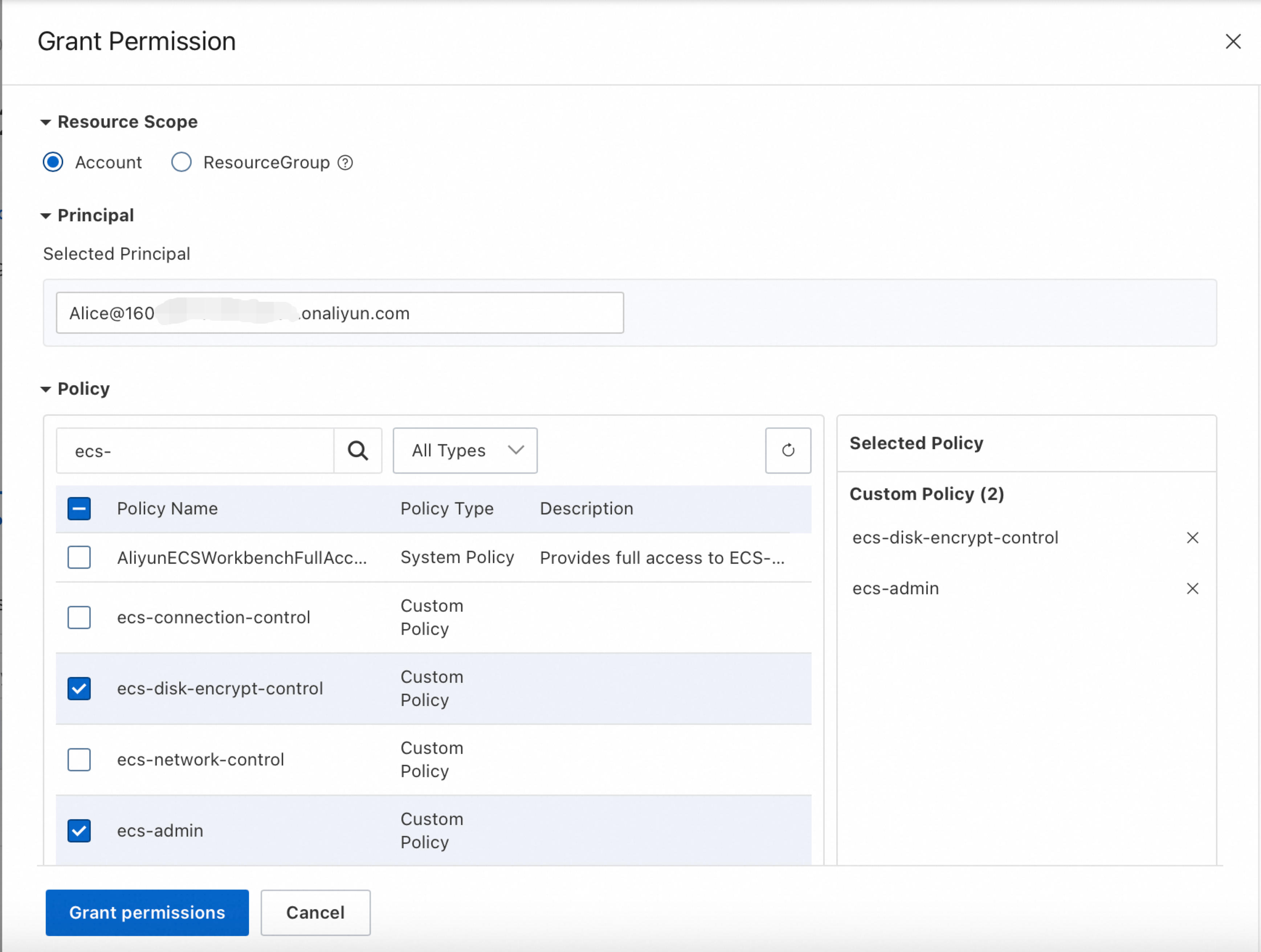
In the RAM console, grant permissions to the RAM user Alice.
Set Authorization Scope to Account Level. Set Principal to the RAM user Alice. For Policy, select the custom policies that you created: ecs-disk-encrypt-control and ecs-admin. For more information, see Manage permissions for a RAM user.
Verify the results
Log on to the Alibaba Cloud Management Console as the RAM user (Alice).
For specific steps, see Log on to the Alibaba Cloud Management Console as a RAM user.
-
Go to the instance purchase page.
-
Click the Custom Purchase tab.
-
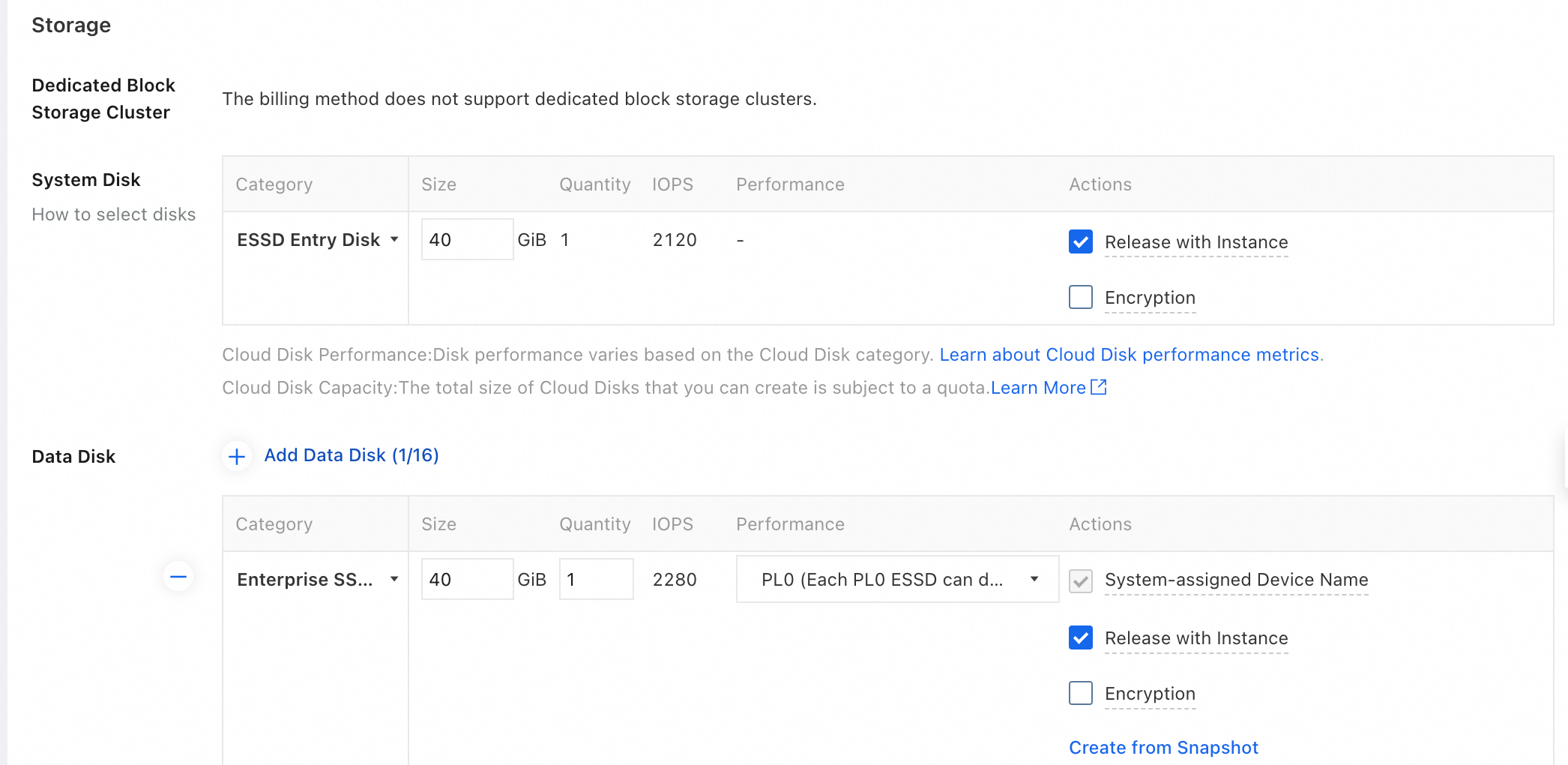
Select configurations such as the billing method, region, instance type, and image. Do not select Encrypt for the System Disk and Data Disk. For more information, see Create an instance using the wizard.
-
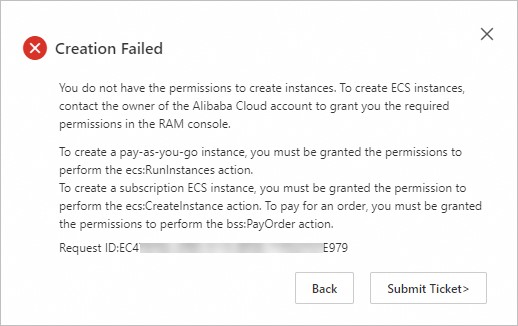
After you confirm the order, the creation fails and an error message appears.
Go to ECS console - Block Storage.
-
On the Disks tab, click Create Disk.
-
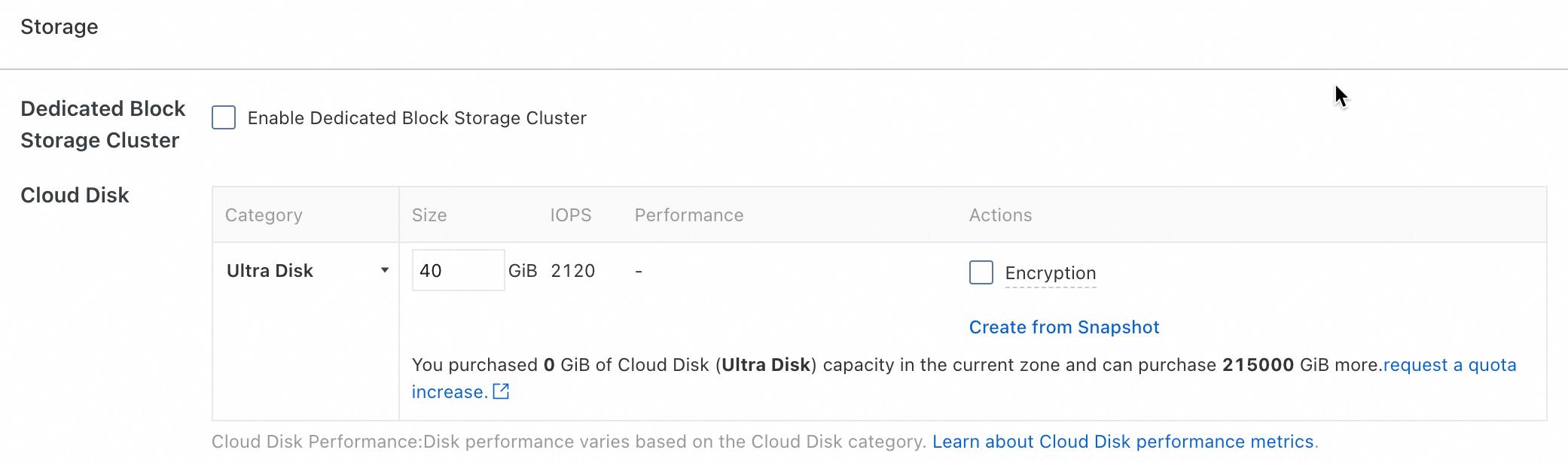
On the Create Disk page, configure the disk parameters. Do not select Encrypt. For more information, see Create an empty data disk.
-
After you confirm the order, the creation fails and an error message appears.