In Linux, software repositories typically store software packages. After adding a software repository, you can use a package management tool to find, install, or update its packages. This process simplifies system O&M and supports application development. This topic explains how to manage and use software repositories on various Linux distributions, using Alibaba Cloud's repositories as an example.
Background
A software repository's access speed depends on factors like its geographical region and distance. The Alibaba Cloud open source image website leverages Alibaba Cloud's infrastructure to provide a free, high-speed, all-in-one mirror service. This service includes software repository mirrors for mainstream Linux distributions, such as CentOS, Debian, Ubuntu, Fedora, and openSUSE. The repository is free for both Alibaba Cloud and non-Alibaba Cloud users.
By default, software repositories in public images from Alibaba Cloud use the private repository addresses for ECS from the Alibaba Cloud mirror site. ECS users can use these repositories directly without manual configuration. If you need to manually add or fix a software repository for your Linux distribution, refer to this topic.
This topic uses the public repository address
http://mirrors.aliyun.com, which is for Linux systems with an internet connection. If your server is an Alibaba Cloud ECS instance, use the private repository address for ECS,http://mirrors.cloud.aliyuncs.com, for faster downloads.
Add an Alibaba Cloud software repository
Connect to the Linux instance
For more information, see Log in to a Linux instance by using Workbench. The login example in this topic uses the ecs-user. You can also use other login methods.
Add the Alibaba Cloud software repository
NoteThe following sections describe how to add the Alibaba Cloud software repository for several common Linux distributions. Follow the instructions for your operating system version.
Alibaba Cloud Linux 3/2
Run the following command to back up the original software repository.
sudo mv /etc/yum.repos.d/AliYun.repo /etc/yum.repos.d/AliYun.repo.backupRun the following command to add the new software repository.
Alibaba Cloud Linux 3
sudo rpm -Uvh --reinstall https://mirrors.aliyun.com/alinux/3/updates/x86_64/Packages/alinux-repos-3.2104.12-1.al8.x86_64.rpmAlibaba Cloud Linux 2
sudo rpm -Uvh --reinstall https://mirrors.aliyun.com/alinux/2/updates/x86_64/Packages/alinux-release-2.1903-11.al7.x86_64.rpmRun the following command to generate a local cache to accelerate software package searches and installations.
sudo yum clean all && sudo yum makecache
CentOS 8/7/6
Run the following command to back up the original software repository.
sudo mv /etc/yum.repos.d/CentOS-Base.repo /etc/yum.repos.d/CentOS-Base.repo.backupRun the following command to add the Alibaba Cloud software repository.
CentOS 8
url=https://mirrors.aliyun.com/repo/Centos-vault-8.5.2111.repo;if [ -f /usr/bin/curl ];then sudo curl -sSo /etc/yum.repos.d/Centos-vault-8.5.2111.repo $url;else sudo wget -O /etc/yum.repos.d/Centos-vault-8.5.2111.repo $url; fiCentOS 7
url=https://mirrors.aliyun.com/repo/Centos-7.repo;if [ -f /usr/bin/curl ];then sudo curl -sSO $url;else sudo wget -O /etc/yum.repos.d/Centos-7.repo $url; fiCentOS 6
url=https://mirrors.aliyun.com/repo/Centos-vault-6.10.repo;if [ -f /usr/bin/curl ];then sudo curl -sSL -o /etc/yum.repos.d/Centos-vault-6.10.repo $url;else sudo wget -O /etc/yum.repos.d/Centos-vault-6.10.repo $url; fiRun the following command to generate a local cache to accelerate software package searches and installations.
sudo yum clean all && sudo yum makecache
Ubuntu
Run the following command to back up the original software repository.
sudo mv /etc/apt/sources.list /etc/apt/sources.list.backupRun the following command to create and open the configuration file.
sudo vim /etc/apt/sources.listPress
ito enter insert mode and add the repository configuration for your Ubuntu version to the file.Ubuntu 24.04
deb https://mirrors.aliyun.com/ubuntu/ noble main restricted universe multiverse
deb-src https://mirrors.aliyun.com/ubuntu/ noble main restricted universe multiverse

deb https://mirrors.aliyun.com/ubuntu/ noble-security main restricted universe multiverse
deb-src https://mirrors.aliyun.com/ubuntu/ noble-security main restricted universe multiverse

deb https://mirrors.aliyun.com/ubuntu/ noble-updates main restricted universe multiverse
deb-src https://mirrors.aliyun.com/ubuntu/ noble-updates main restricted universe multiverse

# deb https://mirrors.aliyun.com/ubuntu/ noble-proposed main restricted universe multiverse
# deb-src https://mirrors.aliyun.com/ubuntu/ noble-proposed main restricted universe multiverse

deb https://mirrors.aliyun.com/ubuntu/ noble-backports main restricted universe multiverse
deb-src https://mirrors.aliyun.com/ubuntu/ noble-backports main restricted universe multiverse
Ubuntu 23.04
deb https://mirrors.aliyun.com/ubuntu/ lunar main restricted universe multiverse
deb-src https://mirrors.aliyun.com/ubuntu/ lunar main restricted universe multiverse

deb https://mirrors.aliyun.com/ubuntu/ lunar-security main restricted universe multiverse
deb-src https://mirrors.aliyun.com/ubuntu/ lunar-security main restricted universe multiverse

deb https://mirrors.aliyun.com/ubuntu/ lunar-updates main restricted universe multiverse
deb-src https://mirrors.aliyun.com/ubuntu/ lunar-updates main restricted universe multiverse

# deb https://mirrors.aliyun.com/ubuntu/ lunar-proposed main restricted universe multiverse
# deb-src https://mirrors.aliyun.com/ubuntu/ lunar-proposed main restricted universe multiverse

deb https://mirrors.aliyun.com/ubuntu/ lunar-backports main restricted universe multiverse
deb-src https://mirrors.aliyun.com/ubuntu/ lunar-backports main restricted universe multiverse
Ubuntu 22.04
deb https://mirrors.aliyun.com/ubuntu/ jammy main restricted universe multiverse
deb-src https://mirrors.aliyun.com/ubuntu/ jammy main restricted universe multiverse

deb https://mirrors.aliyun.com/ubuntu/ jammy-security main restricted universe multiverse
deb-src https://mirrors.aliyun.com/ubuntu/ jammy-security main restricted universe multiverse

deb https://mirrors.aliyun.com/ubuntu/ jammy-updates main restricted universe multiverse
deb-src https://mirrors.aliyun.com/ubuntu/ jammy-updates main restricted universe multiverse

# deb https://mirrors.aliyun.com/ubuntu/ jammy-proposed main restricted universe multiverse
# deb-src https://mirrors.aliyun.com/ubuntu/ jammy-proposed main restricted universe multiverse

deb https://mirrors.aliyun.com/ubuntu/ jammy-backports main restricted universe multiverse
deb-src https://mirrors.aliyun.com/ubuntu/ jammy-backports main restricted universe multiverse
Ubuntu 20.04
deb https://mirrors.aliyun.com/ubuntu/ focal main restricted universe multiverse
deb-src https://mirrors.aliyun.com/ubuntu/ focal main restricted universe multiverse

deb https://mirrors.aliyun.com/ubuntu/ focal-security main restricted universe multiverse
deb-src https://mirrors.aliyun.com/ubuntu/ focal-security main restricted universe multiverse

deb https://mirrors.aliyun.com/ubuntu/ focal-updates main restricted universe multiverse
deb-src https://mirrors.aliyun.com/ubuntu/ focal-updates main restricted universe multiverse

# deb https://mirrors.aliyun.com/ubuntu/ focal-proposed main restricted universe multiverse
# deb-src https://mirrors.aliyun.com/ubuntu/ focal-proposed main restricted universe multiverse

deb https://mirrors.aliyun.com/ubuntu/ focal-backports main restricted universe multiverse
deb-src https://mirrors.aliyun.com/ubuntu/ focal-backports main restricted universe multiverse
Ubuntu 18.04
deb https://mirrors.aliyun.com/ubuntu/ bionic main restricted universe multiverse
deb-src https://mirrors.aliyun.com/ubuntu/ bionic main restricted universe multiverse

deb https://mirrors.aliyun.com/ubuntu/ bionic-security main restricted universe multiverse
deb-src https://mirrors.aliyun.com/ubuntu/ bionic-security main restricted universe multiverse

deb https://mirrors.aliyun.com/ubuntu/ bionic-updates main restricted universe multiverse
deb-src https://mirrors.aliyun.com/ubuntu/ bionic-updates main restricted universe multiverse

# deb https://mirrors.aliyun.com/ubuntu/ bionic-proposed main restricted universe multiverse
# deb-src https://mirrors.aliyun.com/ubuntu/ bionic-proposed main restricted universe multiverse

deb https://mirrors.aliyun.com/ubuntu/ bionic-backports main restricted universe multiverse
deb-src https://mirrors.aliyun.com/ubuntu/ bionic-backports main restricted universe multiverse
Press
Esc, enter:wq, and then pressEnterto save and close the configuration file.Run the following command to update the local package index.
sudo apt update
Debian
Run the following command to back up the original software repository.
sudo mv /etc/apt/sources.list /etc/apt/sources.list.backupRun the following command to create and open the configuration file.
sudo vim /etc/apt/sources.listPress
ito enter insert mode and add the repository configuration for your Debian version to the file.Debian 11.x
deb http://mirrors.cloud.aliyuncs.com/debian/ bullseye main non-free contrib
deb-src http://mirrors.cloud.aliyuncs.com/debian/ bullseye main non-free contrib
deb http://mirrors.cloud.aliyuncs.com/debian-security/ bullseye-security main
deb-src http://mirrors.cloud.aliyuncs.com/debian-security/ bullseye-security main
deb http://mirrors.cloud.aliyuncs.com/debian/ bullseye-updates main non-free contrib
deb-src http://mirrors.cloud.aliyuncs.com/debian/ bullseye-updates main non-free contrib
Debian 10.x
deb http://mirrors.cloud.aliyuncs.com/debian-archive/debian/ buster main non-free contrib
deb http://mirrors.cloud.aliyuncs.com/debian-archive/debian-security buster/updates main
deb http://mirrors.cloud.aliyuncs.com/debian-archive/debian/ buster-updates main non-free contrib
deb-src http://mirrors.cloud.aliyuncs.com/debian-archive/debian/ buster main non-free contrib
deb-src http://mirrors.cloud.aliyuncs.com/debian-archive/debian-security buster/updates main
deb-src http://mirrors.cloud.aliyuncs.com/debian-archive/debian/ buster-updates main non-free contrib
Debian 9.x
deb http://mirrors.cloud.aliyuncs.com/debian-archive/debian stretch main contrib non-free
#deb http://mirrors.cloud.aliyuncs.com/debian-archive/debian stretch-proposed-updates main non-free contrib
#deb http://mirrors.cloud.aliyuncs.com/debian-archive/debian stretch-backports main non-free contrib
deb http://mirrors.cloud.aliyuncs.com/debian-archive/debian-security stretch/updates main contrib non-free
deb-src http://mirrors.cloud.aliyuncs.com/debian-archive/debian stretch main contrib non-free
#deb-src http://mirrors.cloud.aliyuncs.com/debian-archive/debian stretch-proposed-updates main contrib non-free
#deb-src http://mirrors.cloud.aliyuncs.com/debian-archive/debian stretch-backports main contrib non-free
deb-src http://mirrors.cloud.aliyuncs.com/debian-archive/debian-security stretch/updates main contrib non-free
Debian 8.x
deb http://mirrors.cloud.aliyuncs.com/debian-archive/debian/ jessie main non-free contrib
deb-src http://mirrors.cloud.aliyuncs.com/debian-archive/debian/ jessie main non-free contrib
Press
Esc, enter:wq, and then pressEnterto save and close the configuration file.Run the following command to update the local package index.
sudo apt update
Fedora
Run the following commands to back up the original software repositories.
sudo mv /etc/yum.repos.d/fedora.repo /etc/yum.repos.d/fedora.repo.backup
sudo mv /etc/yum.repos.d/fedora-updates.repo /etc/yum.repos.d/fedora-updates.repo.backup
Run the following command to add the Alibaba Cloud Fedora software repository.
url=http://mirrors.aliyun.com/repo/fedora.repo;if [ -f /usr/bin/curl ];then sudo curl -sSO $url;else sudo wget -O /etc/yum.repos.d/fedora.repo $url; fiRun the following command to add the Alibaba Cloud fedora-updates software repository.
url=http://mirrors.aliyun.com/repo/fedora-updates.repo;if [ -f /usr/bin/curl ];then sudo curl -sSO $url;else sudo wget -O /etc/yum.repos.d/fedora-updates.repo $url; fiRun the following command to generate a local cache to accelerate software package searches and installations.
sudo yum clean all && sudo yum makecache
openSUSE 15.6
Run the following command to back up the original software repositories.
sudo rename '.repo' '.repo.backup' /etc/zypp/repos.d/openSUSE*.repoRun the following commands to add the Alibaba Cloud software repositories.
sudo zypper addrepo -f http://mirrors.aliyun.com/opensuse/distribution/leap/15.6/repo/oss/ openSUSE-15.6-Oss
sudo zypper addrepo -f http://mirrors.aliyun.com/opensuse/distribution/leap/15.6/repo/non-oss/ openSUSE-15.6-Non-Oss
sudo zypper addrepo -f http://mirrors.aliyun.com/opensuse/update/leap/15.6/oss/ openSUSE-15.6-Update-Oss
sudo zypper addrepo -f http://mirrors.aliyun.com/opensuse/update/leap/15.6/non-oss/ openSUSE-15.6-Update-Non-Oss
Run the following command to refresh the repositories.
sudo zypper ref
Manage software with package managers
On Linux, you can use a package management tool to manage software packages available in a software repository. Common package management tools include yum, dnf, apt, and zypper. This topic shows how to use these tools to search for, install, update, and remove software on different operating systems. In the examples, replace the sample package name with the one you need.
Software packages in a Linux distribution receive continuous updates to add new features, fix bugs, and provide security updates. Update packages to their latest versions as needed.
Alibaba Cloud Linux / CentOS / Fedora
Search for a software package
Run the following command to find software packages with the yum package management tool.
sudo yum search <package-keyword>For example, to search for packages containing the
nginxkeyword, run the following command.sudo yum search nginxInstall a software package
Run the following command to install a software package using the yum package management tool.
sudo yum install <package-name>For example, to install the
nginxpackage, run the following command.sudo yum install nginxReinstall a software package
Run the following command to reinstall the installed software packages with the yum package management tool.
sudo yum reinstall <package-name>For example, to reinstall the
nginxpackage, run the following command.sudo yum reinstall nginxUpdate a software package
Run the following command to update software packages using the yum package management tool.
sudo yum update <package-name>For example, to update the
nginxpackage, run the following command.sudo yum update nginxRemove a software package
Run the following command to remove the software package using the yum package management tool.
sudo yum remove <package-name>For example, to remove the
nginxpackage, run the following command.sudo yum remove nginx
Ubuntu / Debian
Search for a software package
Run the following command to search for a software package using the
aptpackage management tool.sudo apt search <package-keyword>For example, to search for packages containing the
nginxkeyword, run the following command.sudo apt search nginxInstall a software package
Run the following command to install the software package with the apt package management tool.
sudo apt install <package-name>For example, to install the
nginxpackage, run the following command.sudo apt install nginxReinstall a software package
Run the following command to reinstall the installed software packages with the apt package management tool.
sudo apt install --reinstall <package-name>For example, to reinstall the
nginxpackage, run the following command.sudo apt install --reinstall nginxUpdate a software package
Run the following command to update software packages using the
aptpackage management tool.sudo apt upgrade <package-name>For example, to update the
nginxpackage, run the following command.sudo apt upgrade nginxRemove a software package
Run the following command to remove the software package using the
yumpackage management tool.sudo apt remove <package-name>For example, to remove the
nginxpackage, run the following command.sudo apt remove nginx
openSUSE
Search for a software package
Run the following command to search for software packages by using the
zypperpackage management tool.sudo zypper search <package-keyword>For example, to search for packages containing the
nginxkeyword, run the following command.sudo zypper search nginxInstall a software package
Run the following command to install the software package using the
zypperpackage management tool.sudo zypper install <package-name>For example, to install the
nginxpackage, run the following command.sudo zypper install nginxReinstall a software package
Run the following command to reinstall installed software packages by using the zypper package management tool.
sudo zypper install --force <package-name>For example, to reinstall the
nginxpackage, run the following command.sudo zypper install --force nginxUpdate a software package
Run the following command to update software packages using the zypper package management tool.
sudo zypper update <package-name>For example, to update the
nginxpackage, run the following command.sudo zypper update nginxRemove a software package
Run the following command to remove the software package with the zypper package management tool.
sudo zypper remove <package-name>For example, to remove the
nginxpackage, run the following command.sudo zypper remove nginx
FAQ
"Failed to fetch" error
Symptom
When you run the following command to install the openjdk-7-jre-headless software package on an ECS instance running Ubuntu 14.04, a "Failed to fetch" error occurs.
apt-get install openjdk-7-jre-headlessThe system displays output similar to the following.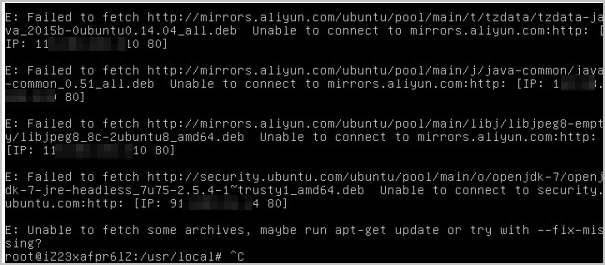
Cause
The ECS instance is connected to an external software repository, which prevents the installation of OpenJDK.
Resolution
Connect to the Linux instance.
For more information, see Connect to a Linux instance by using a password or key.
Run the following command to reinstall OpenJDK:
apt-get install openjdk-7-jre-headless --fix-missing
"File contains no section headers" error
"Error processing package install-info"
"Segmentation fault" error
"Reading package lists" error
Symptom
When you use apt-get to install software on an ECS instance running Ubuntu, an error message similar to the following appears:
Reading package lists... Error! E: Encountered a section with no Package: header E: Problem with MergeList /var/lib/apt/lists/AZ.archive.ubuntu.com_ubuntu_dists_natty_main_i18n _Translation-en E: The package lists or status file could not be parsed or opened.Cause
The software package list is corrupted, causing the software installation to fail.
Resolution
Follow these steps to clear the corrupted list and regenerate the update list.
Run the following command to clear the corrupted list from the directory:
rm -rf /var/lib/apt/lists/*Run the following command to regenerate the update list:
apt-get update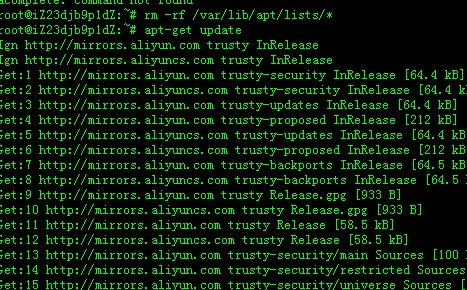
Install the software again. If the error message no longer appears, the issue is resolved.
Apt-get "404 Not Found" error
KEYEXPIRED error
Symptom
When you run the apt-get update command on an ECS instance running Ubuntu, the following message appears:
The following signatures were invalid: KEYEXPIRED 1544811256Cause
The update fails because the signature for the software repository has expired.
Resolution
Follow these steps to update the expired key.
Connect to the Ubuntu instance.
For more information, see Connect to a Linux instance by using a password or key.
Run the following command to obtain the expired key:
sudo apt-key list | grep -A 1 expired
Run the following command to update the expired key:
apt-key adv --keyserver hkp://keyserver.ubuntu.com:80 --recv-keys [$Key]NoteReplace
[$Key]with the expired key from the previous step.Run the following command again to update the APT software repository:
apt-get update
Third-party YUM repository failure
Symptom
On an ECS instance that runs Alibaba Cloud Linux 2 and meets the following conditions, the installation of the Docker package fails and the following error is reported when you run the yum install docker-ce command by using the third-party docker-ce and epel YUM repositories for CentOS 7.
Image: Alibaba Cloud Linux 2.1903 LTS 64-bit.
Image ID:
aliyun_2_1903_x64_20G_alibase_20210325.vhdor an earlier version.
Loaded plugins: fastestmirror, langpacks, update-motd
Loading mirror speeds from cached hostfile
  * epel: mirror.sjtu.edu.cn
https://mirrors.aliyun.com/docker-ce/linux/centos/2.1903/x86_64/stable/repodata/repomd.xml: [Errno 14] HTTPS Error 404 - Not Found
Trying other mirror.
Downloading packages:
docker-ce-20.10.6-3.el7.x86_64 FAILED
https://mirrors.aliyun.com/docker-ce/linux/centos/2.1903/x86_64/stable/Packages/docker-ce-20.10.6-3.el7.x86_64.rpm: [Errno 14] HTTPS Error 404 - Not Found
Trying other mirror.
docker-ce-rootless-extras-20.1 FAILED
https://mirrors.aliyun.com/docker-ce/linux/centos/2.1903/x86_64/stable/Packages/docker-ce-rootless-extras-20.10.6-3.el7.x86_64.rpm: [Errno 14] HTTPS Error 404 - Not Found
 Trying other mirror.


Error downloading packages:
  3:docker-ce-20.10.6-3.el7.x86_64: [Errno 256] No more mirrors to try.
  docker-ce-rootless-extras-20.10.6-3.el7.x86_64: [Errno 256] No more mirrors to try.
Cause
Third-party YUM repositories are designed only for the CentOS 7 distribution. The $releasever value of the Alibaba Cloud Linux 2 operating system differs from that of the CentOS 7 operating system. This discrepancy causes YUM to resolve to an invalid address, preventing the software package from being downloaded.
When you install the docker-ce software package by using YUM, YUM first obtains the system's version number, which is the $releasever value. It then replaces the $releasever variable in the baseurl address of the corresponding YUM repository with this value. YUM then fetches data from the resulting address. Because the $releasever value is 7 for the CentOS 7 operating system and 2.1903 for the Alibaba Cloud Linux 2 operating system, which uses the $releasever value, the resolved baseurl address is not the expected address. As a result, YUM cannot fetch data from this incorrect address.
Resolution
Choose one of the following solutions based on your requirements.
Resolve the issue by manually modifying the value of the
$releasevervariable.Install the
yum-plugin-releasever-adapterplug-in.
The following examples use the docker-ce repository. The solutions are similar for other YUM repositories.
Solution 1: Manually modify the variable
Connect to the Linux instance.
For more information, see Connect to a Linux instance by using a password or key.
Run the following command to edit the
/etc/yum.repos.d/docker-ce.repoconfiguration file:vim /etc/yum.repos.d/docker-ce.repoPress the
ikey to enter edit mode. In the docker-ce.repo file, find all sources where enabled=1 and change the$releasevervariable in thebaseurladdress to7. The modified content is as follows.
After the modification is complete, press the
Esckey, enter:wq, and then press the Enter key to save and close the configuration file. You can then reinstall the software package.
Solution 2: Install a plug-in
Install the yum-plugin-releasever-adapter plug-in to automatically convert the $releasever value from 2.1903 to 7.
Check whether your instance supports the
yum-plugin-releasever-adapterplug-in.The plug-in version and the third-party repositories it supports by default are listed in the following table.
Plug-in version
Supported repositories
Plug-in limitations
1.0-1.3
docker-ce.repo, epel.repo
Use this plug-in only if the following conditions are met:
The operating system is Alibaba Cloud Linux 2.
Run the following command to confirm that the
plusrepo exists in the system:cat /etc/yum.repos.d/AliYun.repo |grep -A3 plusAn output similar to the following indicates that the
plusrepo exists.
Connect to the Linux instance.
For more information, see Connect to a Linux instance by using a password or key.
Run the following command to install the yum-plugin-releasever-adapter plug-in, which by default automatically converts the
$releasevervalue in the docker-ce and epel third-party YUM repositories.yum install yum-plugin-releasever-adapter --disablerepo=* --enablerepo=plusIf you do not need to convert other YUM repositories, you can now install the software. Otherwise, follow these steps to configure additional repositories:
Run the following command to navigate to the specified directory:
cd /etc/yum/pluginconf.d/Run the following command to edit the
releasever-adapter.confconfiguration file. If you need to add other YUM repositories, append their.repofilenames to the includes field, separated by commas.vim releasever-adapter.confThe system displays an output similar to the following:
[main] enabled=1 hostfilepath=timedhosts.txt [releasevermapping] release_dict={'2.1903':'7', '3':'8'} [reposlist] includes=docker-ce.repo, epel.repoNoteThe following describes the parameters in the file:
[main]: This is the main control section of the plug-in. It controls whether the plug-in is enabled. If enabled=1, the plug-in is enabled. If enabled=0, the plug-in is disabled.[releasevermapping]: The mapping for the
$releasevervariable, where 2.1903 is mapped to 7 and 3 is mapped to 8.[repolist]: The list of sources to modify. To add other sources, add the names of their
.repofiles after theincludefield and separate them with commas.
A
.repofile can contain multiple repositories. Each repository is identified by a name, which must be unique on the system. For example, thedocker-ce.repofile contains repositories such as[docker-ce-stable]and[docker-ce-stable-debuginfo].Ensure that the name of a source file added to the
releasever-adapter.confconfiguration file is a prefix for all repository names within that file. For example, the repository namesdocker-ce-stableanddocker-ce-stable-debuginfoin thedocker-ce.reposource file both usedocker-ceas a prefix.
Save the configuration file. Run the following command to install the software package by using the
docker-ceandepelthird-party YUM repositories:yum install docker-ce
Third-party DNF repository failure
Symptom
On an ECS instance that runs Alibaba Cloud Linux 3 and meets the following conditions, the dnf install docker-ce command fails to install the container software package, and the following error is reported.
A third-party DNF repository designed for the CentOS 8 system is used.
The image is
aliyun_3_x64_20G_alibase_20210425.vhdor an earlier version.
The system displays an error message similar to the following:
Docker CE Stable - x86_64
Failed to download metadata for repo 'docker-ce-stable'
Error: Failed to download metadata for repo 'docker-ce-stable'
Cause
Third-party DNF repositories are compatible only with the CentOS 8 distribution, and because the system's $releasever variable has a different value in Alibaba Cloud Linux 3, DNF resolves to an invalid address and fails to download RPM packages.
When DNF installs docker-ce, it first obtains the version number from the system, which is the value of the $releasever variable. It then replaces the corresponding $releasever variable in the baseurl of the repository. After the replacement, DNF retrieves relevant data from the new baseurl. Because the value of the $releasever variable is 8 for CentOS 8 and 3 for Alibaba Cloud Linux 3, the resolved baseurl is not the expected address. Therefore, DNF cannot install software packages from this incorrect address.
Resolution
Choose one of the following solutions based on your requirements.
You can fix this by manually modifying the
$releasevervariable value.Install the
dnf-plugin-releasever-adapterplug-in.
This example uses the docker-ce repository. The solutions are similar for other DNF repositories.
Solution 1: Manually modify the variable
Connect to the Linux instance.
For more information, see Connect to a Linux instance by using a password or key.
Run the following command to open the
/etc/yum.repos.d/docker-ce.repoconfiguration file:vim /etc/yum.repos.d/docker-ce.repoPress the
ikey to enter edit mode, find all sources in thedocker-ce.repofile containing enabled=1, and replace the$releasevervariable with 8 in thebaseurlof those sources.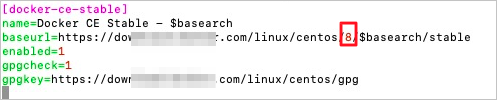
Press the
Esckey, enter:wq, and press theEnterkey to save and close the configuration file. You can then reinstall.
Solution 2: Install a plug-in
You can install the dnf-plugin-releasever-adapter plug-in to automatically convert the $releasever variable from 3 to 8.
Check whether your instance supports the
dnf-plugin-releasever-adapterplug-in.The current version of the dnf-plugin-releasever-adapter plug-in and the third-party repos that it supports by default are listed in the following table.
Plug-in version
Supported repositories
Plug-in limitations
New version: 1.0-2
Old version: 1.0-1.3
NoteThe new and old versions of the plugin are incompatible. The configuration file for the new version is named
releasever_adapter.conf, and the file for the old version is namedreleasever-adapter.conf. Upgrading the plugin deletes the original configuration file. Therefore, after you upgrade, if you need to support third-party sources other than docker-ce and epel, you must modify the include field in the new configuration file. All other settings remain unchanged.docker-ce.repo, epel.repo
You can use this plug-in only if the following conditions are met:
The operating system is Alibaba Cloud Linux 3.
Run the following command to confirm that the
alinux3-plusrepo exists in the system:cat /etc/yum.repos.d/AliYun.repo |grep -A3 alinux3-plusAn output similar to the following indicates that the
alinux3-plusrepo exists.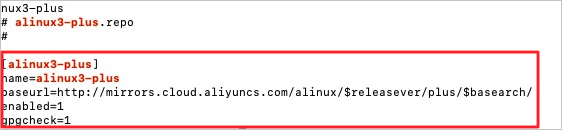
Connect to the Linux instance.
For more information, see Connect to a Linux instance by using a password or key.
Run the following command to install the
dnf-plugin-releasever-adapterplug-in:NoteCurrently, the plug-in by default automatically converts the
$releasevervariable in the docker-ce and epel sources.dnf install dnf-plugin-releasever-adapter --repo alinux3-plusIf no other DNF repositories need conversion, you can install the software directly after the plug-in is installed. If other DNF repositories require conversion, configure them by following these steps:
Run the following command to enter the
/etc/yum/pluginconf.d/directory.cd /etc/yum/pluginconf.d/Run the following command to edit the
releasever_adapter.confconfiguration file.vim releasever_adapter.confPress the
ikey to switch to edit mode. If you need to add other DNF repositories, add the.repofilenames after the include field and separate them with commas.NoteA DNF repository's
.repofile is typically found in the/etc/yum.repos.d/directory.The system displays an output similar to the following:
[main] enabled=1 [releasevermapping] 2.1903 = 7 3 = 8 [reposlist] include=docker-ce.repo, epel.repoNoteThe following describes the parameters in the file:
[main]: This is the main control section of the plug-in. It controls whether the plug-in is enabled. If enabled=1, the plug-in is enabled. If enabled=0, the plug-in is disabled.[releasevermapping]: This section specifies the mapping for
$releasever, where 2.1903 is mapped to 7 and 3 is mapped to 8.[repolist]: This section is a list of sources to be modified. If you need to add other sources, add the names of the
.repofiles after the include field and separate them with commas.
In general, a
.repofile defines multiple repositories. Each repository has a name that must be unique on the system. For example, the docker-ce.repo file contains repositories such as[docker-ce-stable]and[docker-ce-stable-debuginfo].
After you finish editing, press the
Esckey, enter:wq, and press Enter to save and close the configuration file.Run the following command to install the docker-ce software by using the
docker-ce,epel, and your newly added repositories:dnf install docker-ce