Elastic Compute Service (ECS) Scheduled Maintenance Window is a feature that helps you define a schedule for when to perform system O&M operations on ECS instances. The feature allows you to configure off-peak hours as system maintenance windows. You can perform O&M operations, such as instance restarts and redeployments, within the windows to minimize the impacts of the operations on your business and improve the system stability.
Considerations
When you use the ECS Scheduled Maintenance Window feature, we recommend that you do not configure maintenance windows for instance maintenance attributes.
The start time and end time of each time range in the schedules of ECS scheduled maintenance windows are in UTC. For a weekly (Every Week) schedule of an ECS scheduled maintenance window, the earliest start time is 00:00 on Sunday, and the end time of each time range must be later than the start time.
The total duration of each ECS scheduled maintenance window must be at least 2 hours.
You can associate an ECS scheduled maintenance window with only one of the following types of targets (ECS instances): All ECS instances in your account, ECS instances in a specific resource group, or ECS instances that have specific tags.
How does an ECS scheduled maintenance window work?
O&M tasks related to events are executed based on ECS scheduled maintenance windows. If the execution schedule of a scheduled O&M event matches the schedule of an ECS scheduled maintenance window, the O&M task related to the event is executed based on the maintenance window.

ECS scheduled maintenance windows do not take effect. If the execution schedule of a scheduled O&M event does not match the schedules of ECS scheduled maintenance windows, the O&M task related to the event is executed based on the execution schedule of the event. We recommend that you specify multiple time ranges in the schedule of an ECS scheduled maintenance window.

Maintenance actions of ECS scheduled maintenance windows
ECS scheduled maintenance windows support the Redeploy Instance and Restart Instance maintenance actions and use a mechanism where the high-priority maintenance action (Redeploy Instance) overrides the low-priority maintenance action (Restart Instance). When an ECS scheduled maintenance window that supports the high-priority maintenance action (Redeploy Instance) takes effect, O&M tasks related to SystemMaintenance.Reboot (Instance Restart Due to System Maintenance) events that match this maintenance window are automatically executed based on the maintenance window.
By default, scheduled ECS O&M events expire after 48 hours. To change the expiration period to 7 days, submit a ticket.
Maintenance action | Instance | Affected O&M event | Operation on the instance |
Restart Instance | All ECS instances | SystemMaintenance.Reboot (Instance Restart Due to System Maintenance) | ECS instances are restarted. |
Redeploy Instance Note If ECS instances that have and do not have local disks coexist in the scope of targets specified for an ECS scheduled maintenance window, select a maintenance action based on your business requirements for the ECS instances that have local disks. | ECS instances that do not have local disks | SystemMaintenance.Reboot (Instance Restart Due to System Maintenance) | ECS instances are restarted. |
ECS instances that have local disks (d series or i series instances) | SystemMaintenance.Reboot (Instance Restart Due to System Maintenance) | ECS instances are restarted. | |
SystemMaintenance.Redeploy (Instance Redeployment Due to System Maintenance) | ECS instances are redeployed, and data on the local disks of the instances is lost. To ensure data security, we recommend backing up important data or migrate the data to cloud disks in advance, such as Enterprise SSDs (ESSDs) and standard SSDs. Note Before you can match the SystemMaintenance.Redeploy events with ECS scheduled maintenance windows, you must authorize the system to perform the Redeploy Instance action in response to the events by using one of the following methods:
|
Create an ECS scheduled maintenance window
Go to ECS console - Events.
In the left-side navigation pane of the Events page, click Scheduled Maintenance Windows.
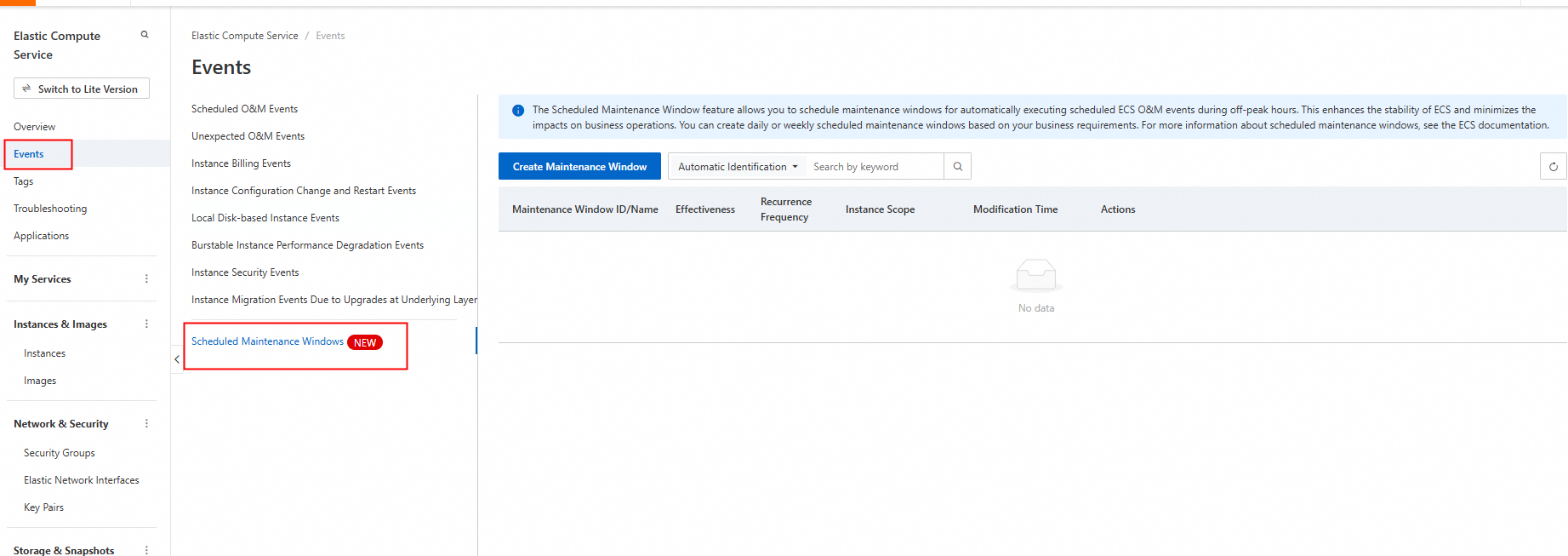
Click Create Maintenance Window.
In the Create Maintenance Window dialog box, configure the parameters described in the following table.
Parameter
Description
Example
Window Name
Specify a name for the ECS scheduled maintenance window. The name must be 2 to 200 characters in length and can contain letters, digits, colons (:), underscores (_), periods (.), and hyphens (-).
To ensure that the full name is displayed, we recommend limiting the name to be 2 to 64 characters.
Duplicate names are allowed. To facilitate the management of the maintenance windows, we recommend keeping the window names unique.
Redis maintenance window
Resource Scope
Select the scope of targets (ECS instances) with which to associate the ECS scheduled maintenance window. Each ECS scheduled maintenance window can be associated with only one type of targets. Valid values of this parameter:
All: all ECS instances in your account.
By Resource Group: all ECS instances in a specific resource group.
By Instance Tags: all ECS instances that have specific tags in all regions in your account.
All
Recurrence Frequency
Specify a daily or weekly schedule for the ECS scheduled maintenance window.
Every Day: daily schedule.
Every Week: weekly schedule.
Every Week
Time Range
Define one or more time ranges in the schedule of ECS scheduled maintenance window.
NoteSpecify one or more time ranges in the daily or weekly schedule. The start time and end time of each time range must be at least 2 hours apart.
Every Week:
Start Time: Monday 0:00
End Time: Monday 4:00
Every Day:
Start Time: 0:00
End Time: 4:00
Maintenance Action
Select a maintenance action that can be performed in response to events within the ECS scheduled maintenance window.
Restart Instance: restarts ECS instances within the ECS scheduled maintenance window. The Restart Instance action can be performed in response to only SystemMaintenance.Reboot (Instance Restart Due to System Maintenance) events.
Redeploy Instance: redeploys and restarts ECS instances within the ECS scheduled maintenance window. The Redeploy Instance action can be performed in response to SystemMaintenance.Reboot (Instance Restart Due to System Maintenance ) and SystemMaintenance.Redeploy (Instance Redeployment Due to System Maintenance) events.
Restart Instance
Effectiveness
Enable or disable the ECS scheduled maintenance window.
Turn on the switch to enable the ECS scheduled maintenance window.
Turn off the switch to disable the ECS scheduled maintenance window.
Turn on the switch
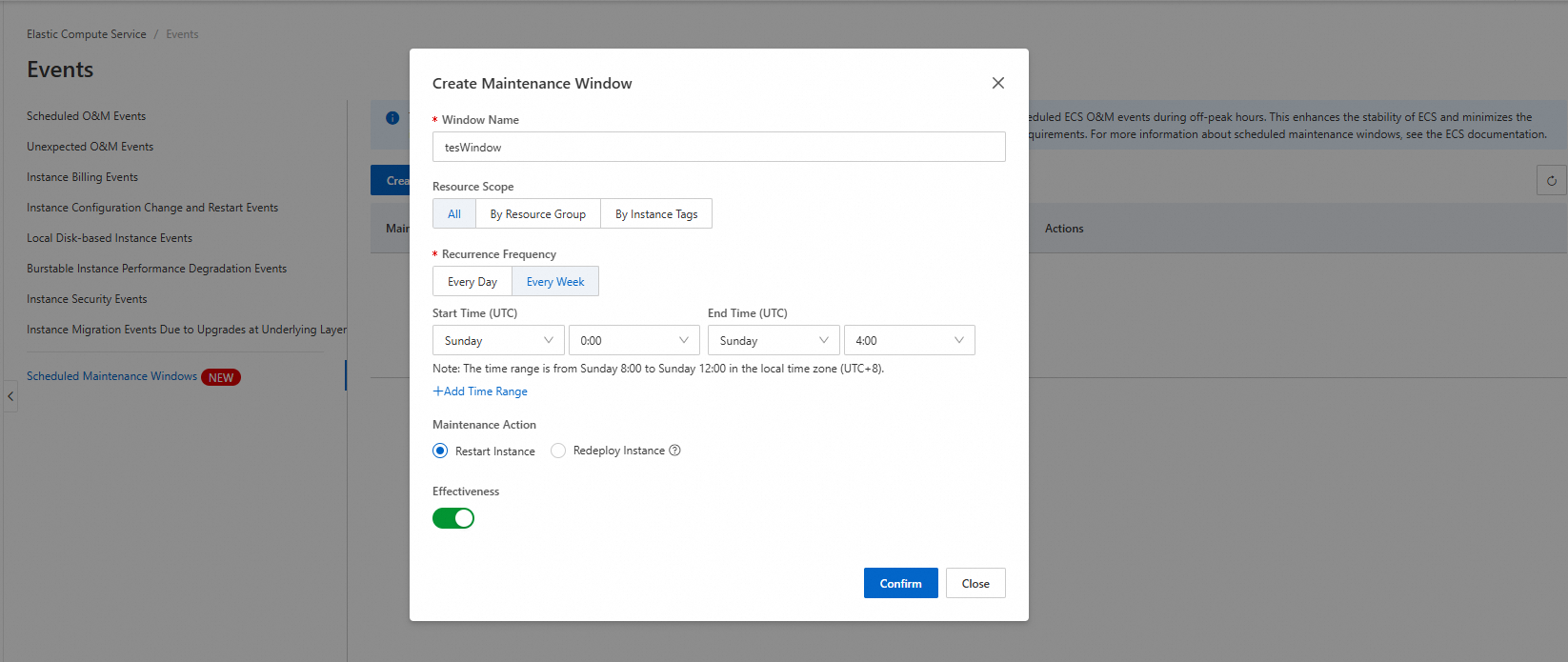
Click Confirm.
Manage ECS scheduled maintenance windows
View ECS scheduled maintenance windows. You can view the list of ECS scheduled maintenance windows on the Scheduled Maintenance Windows page, or click View Details in the Actions column to view the details of an ECS scheduled maintenance window.
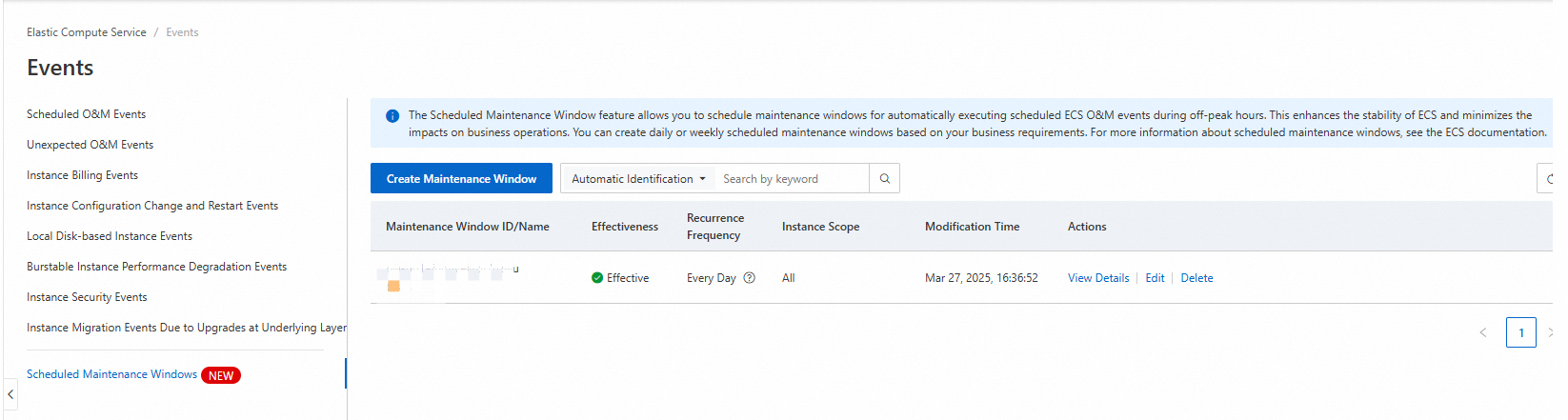
Modify an ECS scheduled maintenance window. Find the ECS scheduled maintenance window that you want to modify, click Edit in the Actions column, and then modify the configurations of the maintenance window based on your business requirements.
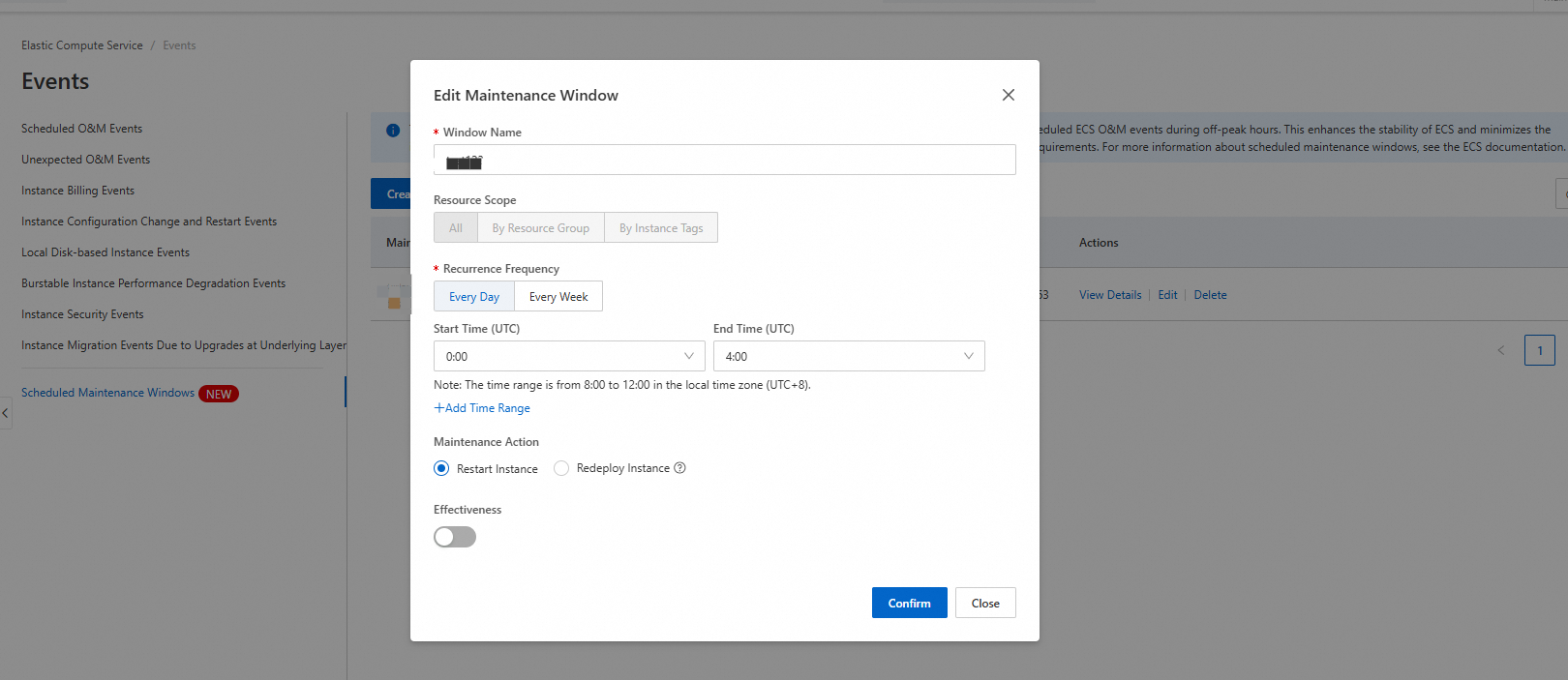
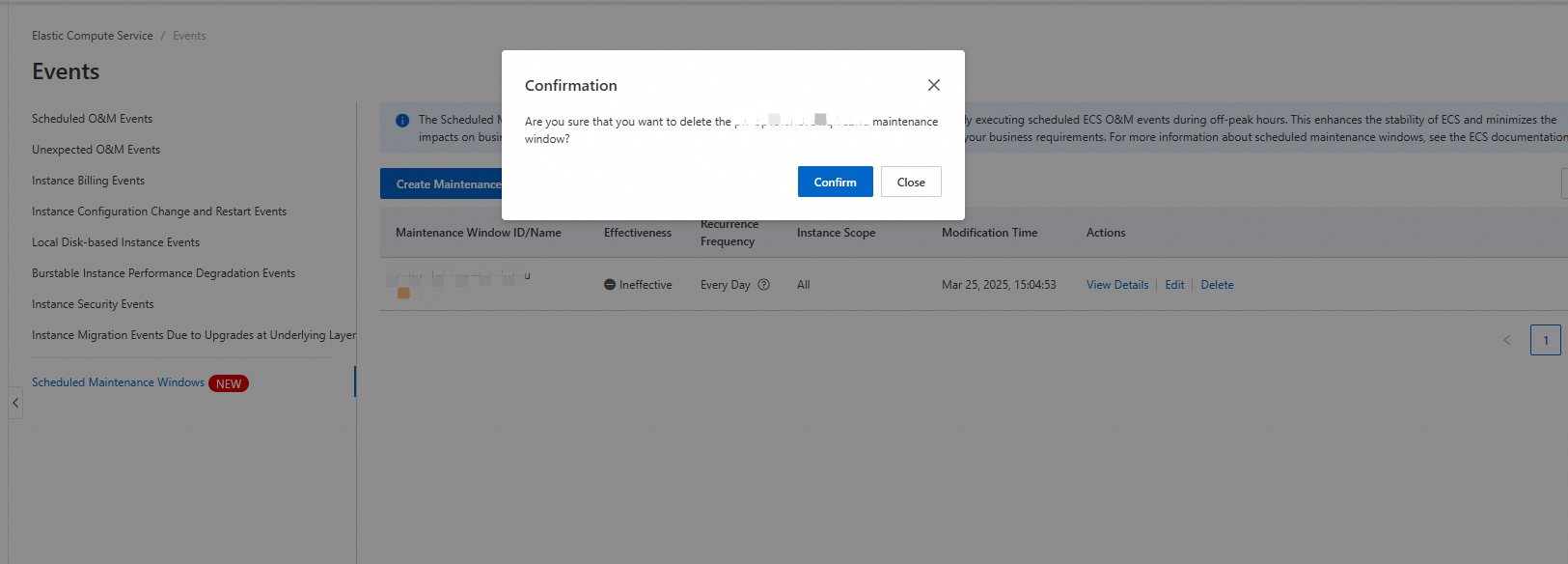
Delete an ECS scheduled maintenance window. If you no longer require specific ECS scheduled maintenance windows or the schedules of multiple ECS scheduled maintenance windows overlap, delete redundant or unnecessary maintenance windows. Find the ECS scheduled maintenance window that you want to delete and click Delete in the Actions column.