Check whether two cloud endpoints can reach each other over a specified protocol and port, and identify what blocks the path.
Use ECS Network Connectivity Diagnostics to:
-
Troubleshoot connectivity issues caused by misconfigured security groups, route tables, or network ACLs.
-
Verify that your network configuration allows the traffic your application needs.
-
Re-run a diagnosis after a configuration change to confirm the fix.
ECS Network Connectivity Diagnostics inspects network configurations only. Its results do not indicate whether actual network communication is allowed or denied.
Prerequisites
Make sure that:
-
Each instance or ENI used as a diagnostic object is in the Running state.
-
Each secondary ENI used as a diagnostic object is bound to an instance.
-
To also check OS configurations, the instance must meet the following requirements:
Architecture Supported OS versions Required configuration x86_64-bit Windows Server 2008 or later; Alibaba Cloud Linux 2 or 3; AlmaLinux 8.x; Anolis OS 7.x/8.2; CentOS 7.x/8.x; CentOS Stream 8; Debian 8.x/9.x/10.x; Fedora 33/34; OpenSUSE 15.x/42.x; Rocky Linux 8.x; SUSE Linux 12.x/15.x; Ubuntu 20.04 Python 2.7 or Python 3.6–3.9 installed; Cloud Assistant Agent installed
Limitations
| Item | Limit |
|---|---|
| Maximum paths per region | 100 |
| Maximum diagnostic tasks per region | 1,000 |
| Maximum concurrent diagnostic tasks per region | 5 |
These limits cannot be raised.
How it works
A path stores the full configuration for a connectivity check: the VPC, source and destination objects, and the target protocol and port. A diagnostic task runs that check and produces a result of Normal or Unconnectable.
The workflow has three stages:
-
Create or clone a path — define the source, destination, protocol, and port.
-
Run a diagnostic task — the system runs one automatically when a path is created or cloned. Run additional tasks at any time.
-
Review the results — view the result in the path list or drill into task details to see which component blocks traffic.
When you create a path and run a diagnostic task, the system checks whether the AliyunServiceRoleForECSNetworkInsights service-linked role exists and creates it if needed. See Manage the service-linked role for ECS Network Connectivity Diagnostics.
Create a path
-
In the top navigation bar, select a region and resource group.

-
Click the Network Connectivity Diagnostics tab, then click Create Path.
-
Configure the parameters and click Create.
Parameter Description Path Name 2–128 characters. Allowed: letters, digits, periods ( .), underscores (_), hyphens (-), and colons (:). Cannot start with a special character, a digit,http://, orhttps://.VPC Select a VPC. At least one diagnostic object must be an instance or ENI in this VPC. Source and destination Select an object type and specify the source and destination. Valid types: ECS Instance (cannot be the same instance), NIC (cannot be the same ENI or ENIs on the same instance), Public IP Address (source and destination cannot both be public IPs). Destination port and protocol Select the protocol and port. For Custom TCP or Custom UDP, choose a preset port — SSH (22), Telnet (23), HTTP (80), HTTPS (443), MS SQL (1433), Oracle (1521), MySQL (3306), RDP (3389), PostgreSQL (5432), or Redis (6379) — or enter a custom port. For All ICMP(IPv4) or All GRE, the port is set to -1 automatically.
After the path is created, the system starts a diagnostic task automatically. View the result in the path list or on the path details page.
Clone a path
Clone an existing path to reuse its configuration with a different source, destination, or port.
-
In the top navigation bar, select a region and resource group.
-
Click the Network Connectivity Diagnostics tab, then click Clone in the Actions column for a path.
-
Update the parameters as needed and click Create. See Create a path for parameter descriptions.
After the path is cloned, the system starts a diagnostic task automatically.
Run a diagnostic task
Each path allows only one ongoing diagnostic task. Run a new task after updating your network configuration to verify the change.
-
In the top navigation bar, select a region and resource group.
-
Click the Network Connectivity Diagnostics tab, click Diagnose in the Actions column for a path, then click Continue.
Manage diagnostic tasks
The path list shows the latest result for each path. To investigate an Unconnectable result, view the task details to identify the blocking component.
The number of diagnostic task records per path is limited. Regularly delete tasks you no longer need.
-
In the top navigation bar, select a region and resource group.
-
Click the Network Connectivity Diagnostics tab and find the path you want to manage.
-
Perform one of the following operations:
-
Run a new task: Click Diagnose, then click Continue.
-
View task details: Click the path ID, find the task in the Diagnosis List section, then click the
 icon.
icon. -
Delete a task: Click the path ID, find the task in the Diagnosis List section, click Delete in the Actions column, then click Continue.
-
See Diagnostic items of ECS Network Connectivity Diagnostics for details on each check.
Figure 1. Details of a sample diagnostic task with a Normal result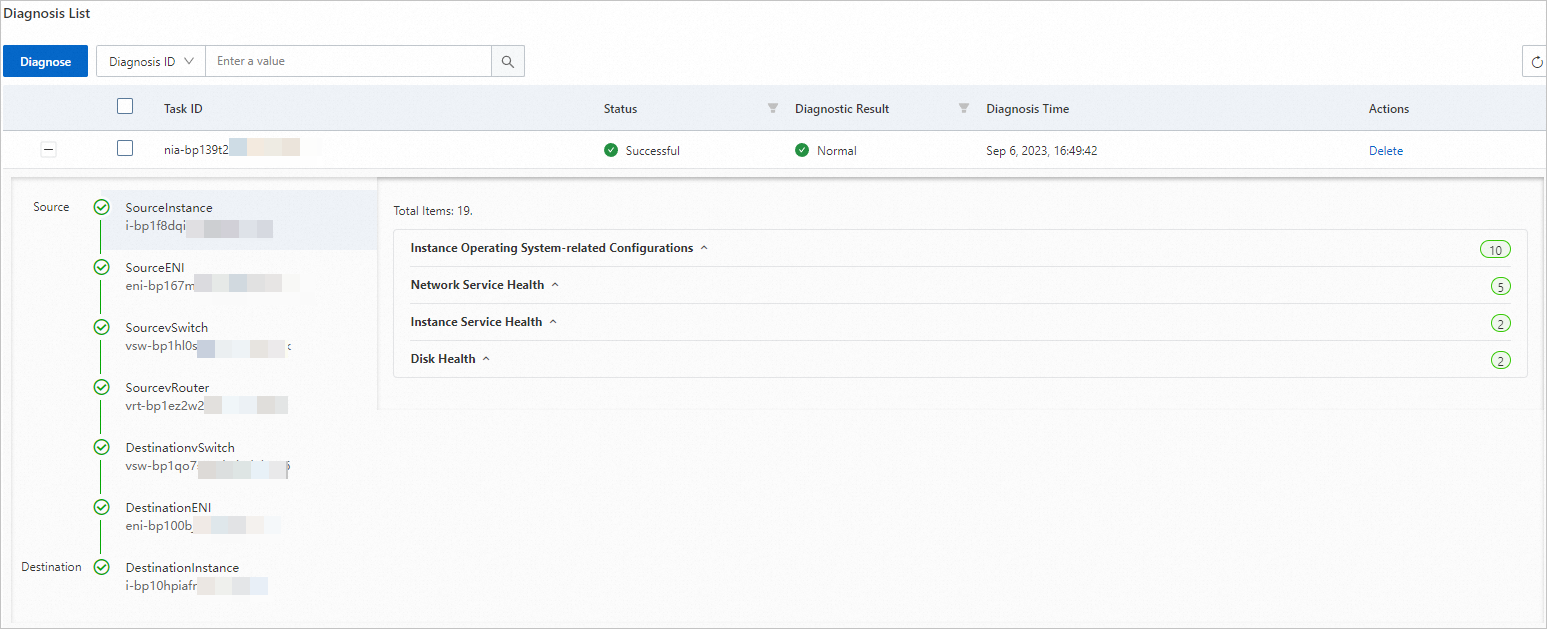
Figure 2. Details of a sample diagnostic task with an Unconnectable result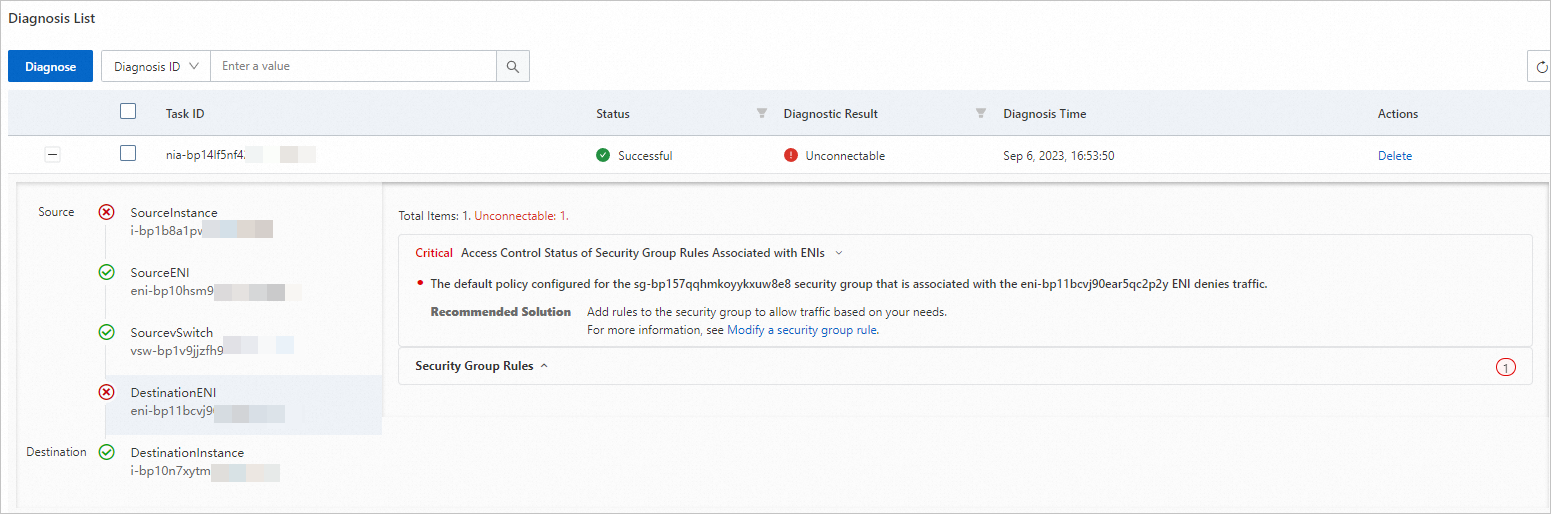
Delete a path
-
In the top navigation bar, select a region and resource group.
-
Click the Network Connectivity Diagnostics tab, click Delete in the Actions column for a path, then click Continue.
Next steps
-
Diagnostic items of ECS Network Connectivity Diagnostics — understand what each check covers and how to interpret results.
-
Manage the service-linked role for ECS Network Connectivity Diagnostics — view permissions granted to the role.