Windows safe mode is a special startup mode for the operating system. In safe mode, Windows only loads the basic drivers and services required to run the operating system, without starting third-party software and non-core services. Therefore, safe mode is generally used for common troubleshooting operations such as removing viruses, resolving driver conflicts, and recovering system settings. This topic explains how to enter safe mode for Windows Elastic Compute Service (ECS) instances.
Procedure
This topic takes the Windows Server 2022 system as an example. Interfaces may vary based on the Windows version. The information displayed on your interface shall prevail.
Connect to the Windows instance.
For more information, see Connect to a Windows instance by using a password or key.
Type
Runin the Windows search bar and open Run dialog box. Enter themsconfigcommand, and click OK.
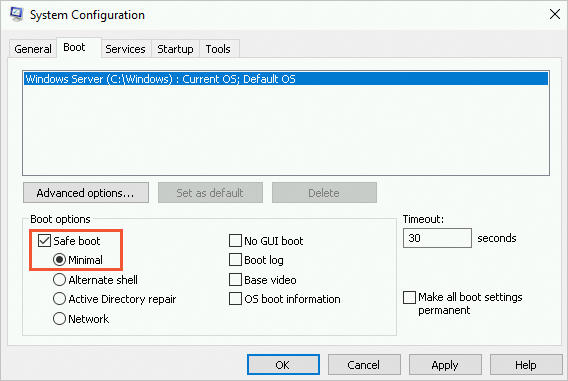
In the System Configuration dialog box, click the Boot tab. Check Safe boot in the Boot options area, select the required safe boot options according to the actual situation, and click OK.
Restart the instance to apply the changes.
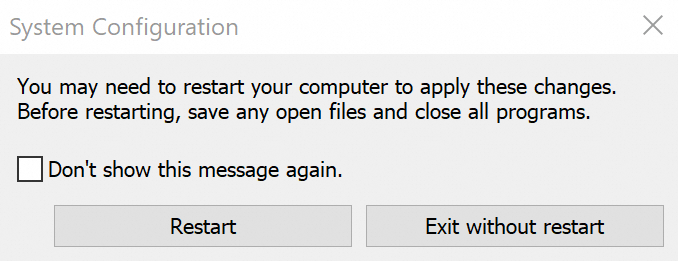
If you need to restart the instance later, see Restart an instance.
Log on to the Windows instance through Virtual Network Computing (VNC). For more information, see Connect to an instance by using VNC.
After you log on, the Windows desktop displays the words Safe Mode, indicating that it has entered safe mode.

Exit safe mode.
Uncheck Safe boot, click OK, and restart the instance.