Resolve a Windows ECS instance stuck in the Getting ready state after installing updates or adding roles and features, by uninstalling pending packages with a repair disk.
Problem description
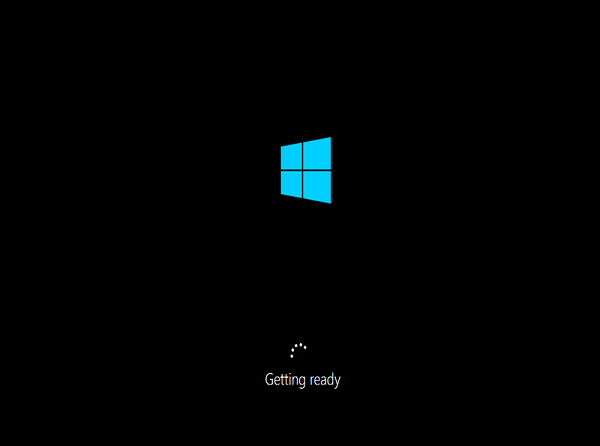
After you install Windows updates or add roles and features on a Windows ECS instance and restart it, the instance remains in the Getting ready or Getting Windows ready state.

Cause
The instance has pending update packages, such as system patches or new features, that prevent the operating system from starting.
Solution
Attach a repair disk to the instance and uninstall the pending packages. In this example, the repair disk drive letter is D.
-
Run a diagnostic for the operating system startup failure.
-
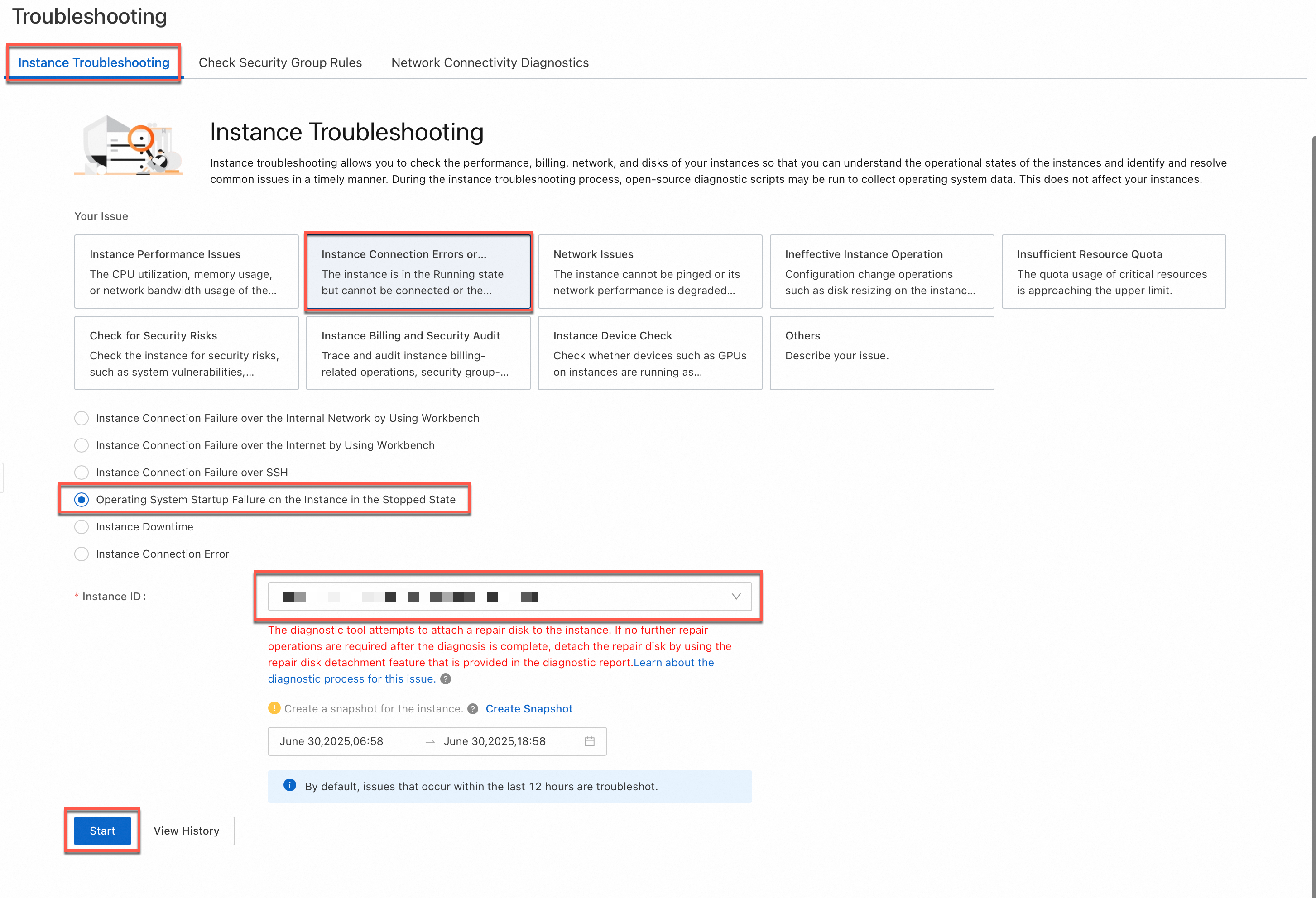
Go to the ECS console - Troubleshooting page. Select a region and a resource group.
-
In the Instance Start/Stop Abnormality card, click Initiate Diagnosis. In the Create Diagnostic Task dialog box, select the instance ID to diagnose and a time range, then click Initiate Diagnosis.
NoteThe instance must be in the Stopped state. See Stop an instance.
After the diagnostic completes, the instance enters the Running or Repairing state.

-
-
Connect to the faulty instance.
On the Diagnostic Result page, click VNC Connection. Enter the Administrator username and password from the diagnostic report to log on to the ECS instance with the repair disk attached. See Connect to an instance by using VNC.
-
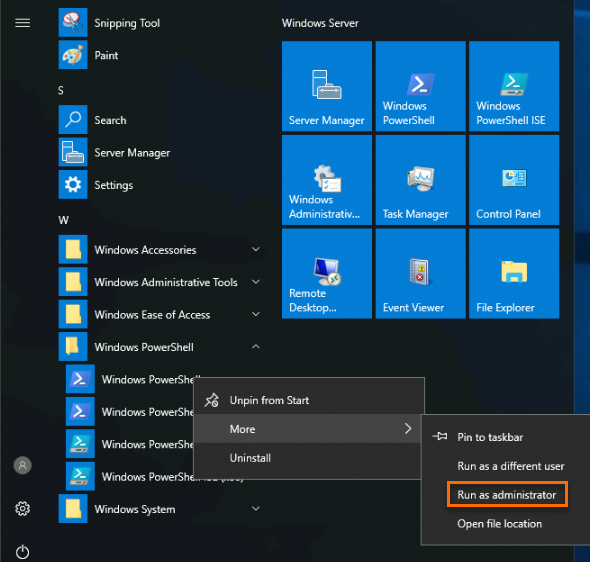
Run Windows PowerShell as an administrator.
-
Find the pending packages.
$pendingPackages = Get-WindowsPackage -Path D:\ | Where-Object {$_.PackageState -match 'InstallPending'} -
Uninstall the pending packages.
$pendingPackages | Remove-WindowsPackage -
On the Instance page, move the pointer over the Fixing state that corresponds to the instance and click Detach Repair Disk.
-
Restart the instance for the changes to take effect.
See Restart an instance.
-
Connect to the ECS instance. If the connection succeeds, the issue is resolved.