ECI pods in a Kubernetes cluster run on virtual nodes, which means disks are associated with pods, not nodes. This requires pod-level disk monitoring. This topic explains how to use ARMS Prometheus to monitor ECI pod disks and create a custom disk monitoring dashboard in Grafana.
Prerequisites
-
You have created an ACK Serverless cluster and connected the cluster to ARMS Prometheus. For more information, see Connect to Prometheus Monitoring.
-
You have created a dedicated (non-shared) Grafana workspace, completed data migration, and integrated Alibaba Cloud services. For more information, see Create a Grafana workspace and Integrate Alibaba Cloud services.
Important-
By default, ARMS Prometheus uses a shared Grafana workspace, which does not support custom dashboards.
-
The steps may differ for other Grafana versions.
-
Procedure
-
Log on to the ARMS console.
-
Open the Grafana page.
-
In the left navigation pane, choose Managed Service for Grafana > Workspace Management.
-
Find your workspace and click its URL to open the Grafana logon page.
-
-
Enter your credentials to log on to Grafana.
Use the admin credentials you configured when creating the workspace, or use a different account.
-
In the upper-left corner of the Grafana page, click the
 icon, and select Dashboards.
 -
On the Dashboards page, click New in the upper-right corner and select Import.
-
Click Upload dashboard JSON file and select your file.
The JSON file contains the dashboard configuration. Sample file: ECI_Pod_Disk.
-
Select a folder for the dashboard and choose your cluster as the data source.
-
Click Import.
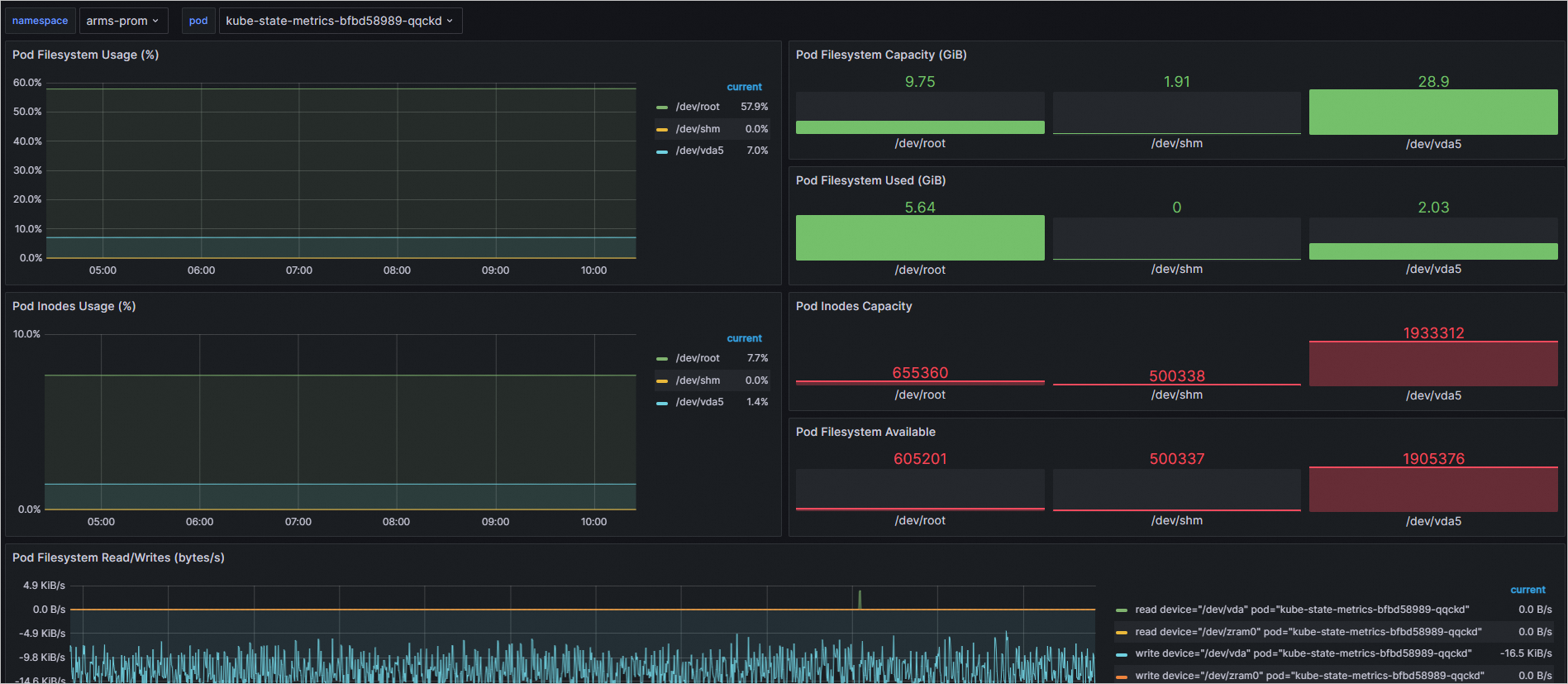
After the dashboard is imported, it displays disk monitoring data for your ECI pods.
-
(Optional) To filter monitoring data by Deployment or StatefulSet, you can either copy the relevant panel to a different dashboard or modify the current dashboard's settings directly.
To add filter variables by modifying the dashboard's settings, follow these steps:
-
In the disk monitoring dashboard in Grafana, click the
 icon in the upper-right corner.
 -
On the Settings page, choose Variables in the left navigation pane.
-
Click New variable, configure the settings in the General and Query Options sections, and then click Apply.
The following table provides the queries required to create
deploymentandstatefulsetvariables.Type
Query type
Label *
Metric
deployment
Label_values
deployment
kube_deployment_created{namespace=~"$namespace"}
statefulset
Label_values
statefulset
kube_statefulset_created{namespace=~"$namespace"}
-
Click the pod variable, modify the Query, and then click Apply.
Modify the query for the pod variable to filter based on the variable you just created. The following table provides the required queries.
Type
Query type
Query
deployment
Query_result
kube_pod_info{namespace=~'$namespace',pod=~"$deployment.*"} >= 1
statefulset
Query_result
kube_pod_info{namespace=~'$namespace',pod=~"$statefulset.*"} >= 1
-
Move the new
deployment(orstatefulset) variable so it appears above thepodvariable.NoteYou can click and hold the
 icon to drag the variable to a new position.
The following code block shows the final order and definitions for the variables.
Variable Definition namespace label_values(kube_pod_info, namespace) deployment label_values(kube_deployment_created{namespace=~"$namespace"},deployment) pod query_result(kube_pod_info{namespace=~'$namespace',pod=~"$deployment.*"} >= 1) -
In the upper-right corner, click Save dashboard, enter a description of your changes, and click Save.
-
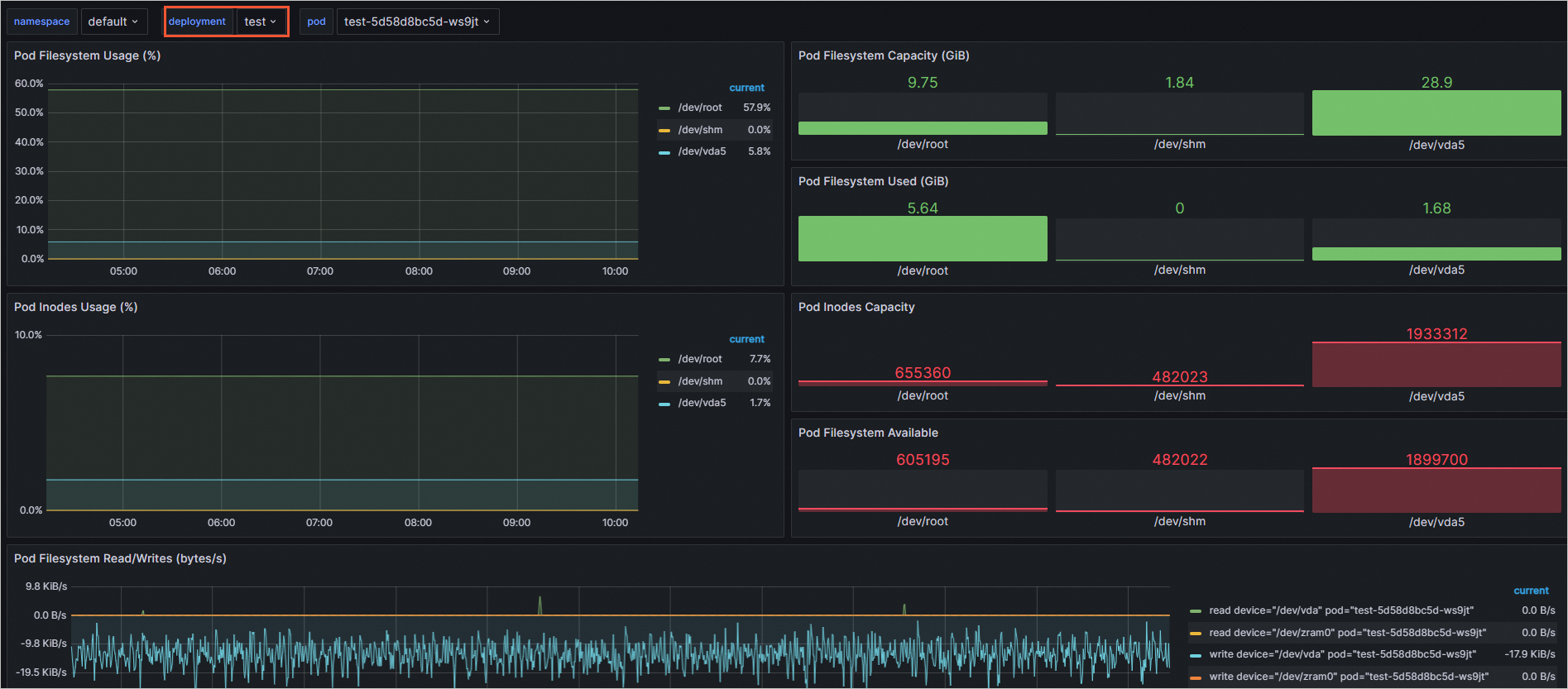
Return to the dashboard to verify that the filter works.
The following figure shows the Deployment-level filter:
-