To implement fine-grained access control and improve account security, you can use Resource Access Management (RAM) to grant management permissions on domain names to RAM users. Then, the authorized RAM users can manage domain names. This topic describes how to authorize a RAM user to manage domain names.
Prerequisites
A RAM user is created. For more information, see Create a RAM user.
Background information
RAM is a resource access control service provided by Alibaba Cloud. You can use RAM to authorize RAM users to manage domain names. By default, RAM supports system policies and custom policies. The only system policy for Domain Names is AliyunDomainFullAccess, which grants full domain name management permissions. If the system policy does not meet your requirements, create a custom policy for fine-grained permission control.
This topic describes two custom policies, which are used to grant a RAM user the read-only permissions on all domain names and the management permissions on a single domain name. For more information about how to create other custom policies, see Create custom policies.
Grant the read and write permissions to a RAM user by attaching a system policy
In the RAM console, attach the AliyunDomainFullAccess system policy to a RAM user to authorize domain name management. This policy grants the highest-level permissions. The authorized RAM user can manage all domain names in the Alibaba Cloud account.
Log on to the RAM console with your Alibaba Cloud account.
In the left navigation pane, choose .
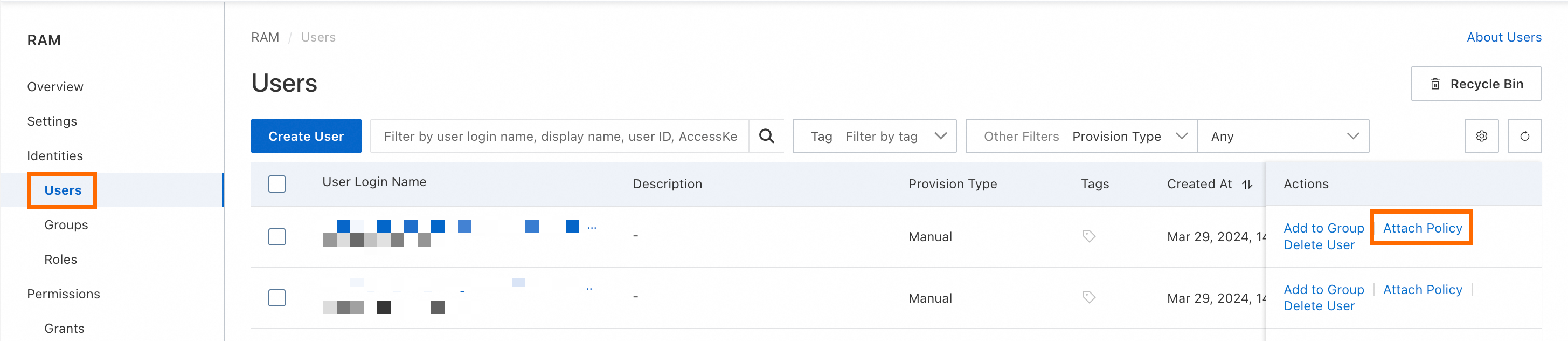
On the Users page, find the RAM user in the User Login Name column. Click Attach Policy in the Actions column.
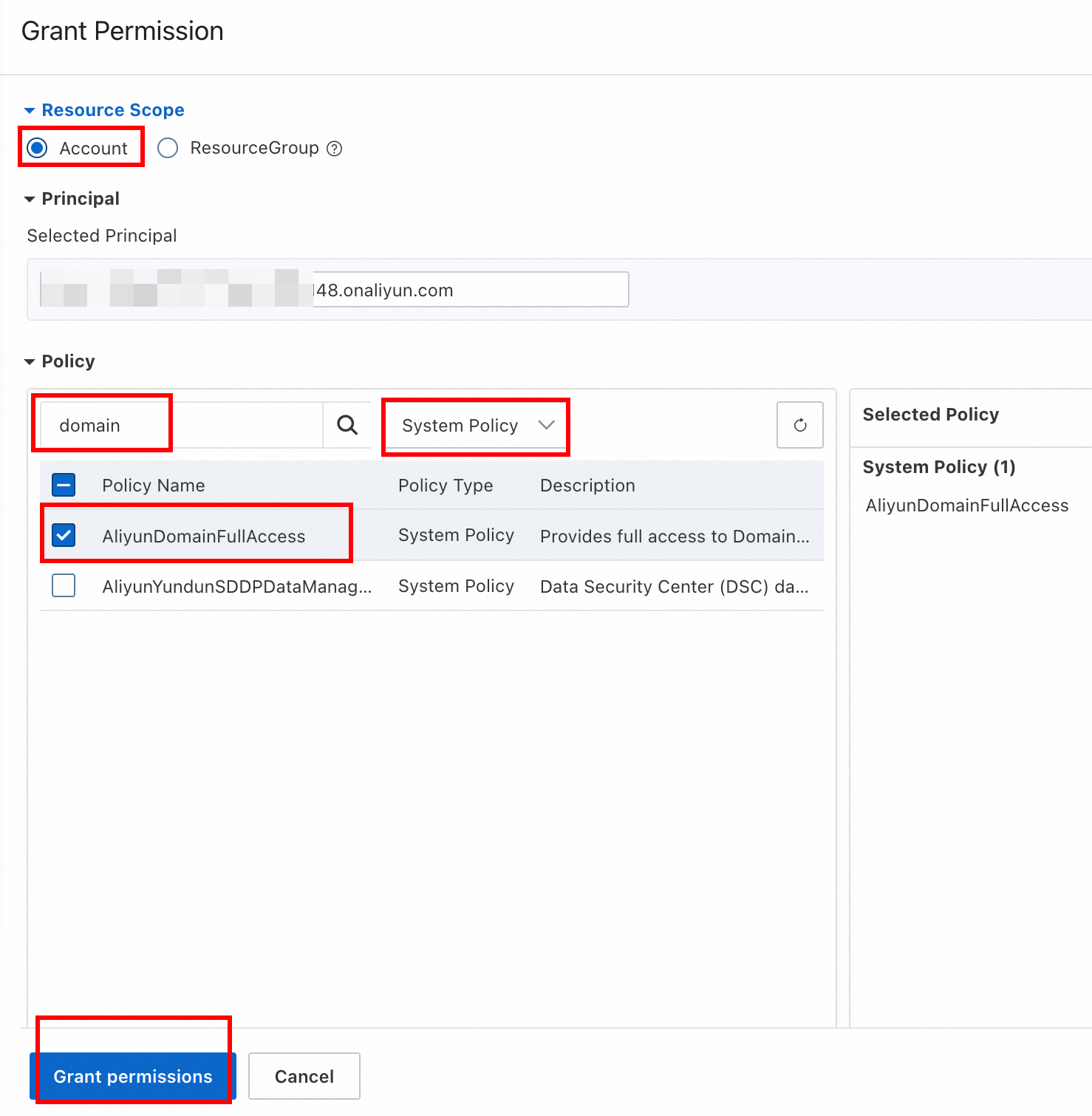
In the Attach Policy panel, configure the authorization settings.
Set Resource Scope to Account.
NoteThe system automatically fills in the Principal field.
Select System Policy.
Enter domain in the search box. The system policies related to domain names are displayed in the list.
Select
AliyunDomainFullAccess.Click OK.
Grant the read-only permissions to a RAM user by creating a custom policy
You can create a custom policy in the RAM console to grant the read-only permissions to a RAM user. The authorized RAM user can view domain names within the Alibaba Cloud account but cannot manage these domain names.
In the left navigation pane, choose .
On the Policies page, click Create Policy.
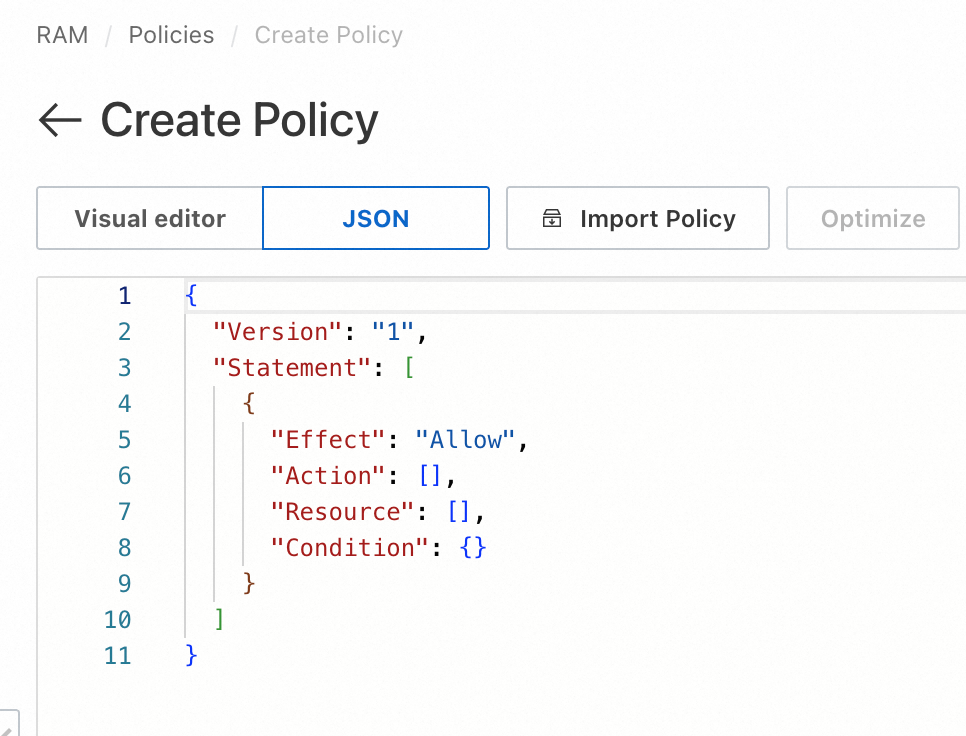
On the Create Policy page, click the JSON Editor tab.
In the code editor, enter the following custom policy script. Click OK.
{
   "Version": "1",
   "Statement": [
     {
       "Action": [
         "domain:Query*"
       ],
       "Resource": "acs:domain:*:*:*",
       "Effect": "Allow"
     }
    ]
}
In the dialog box, set Policy Type and Description (optional).
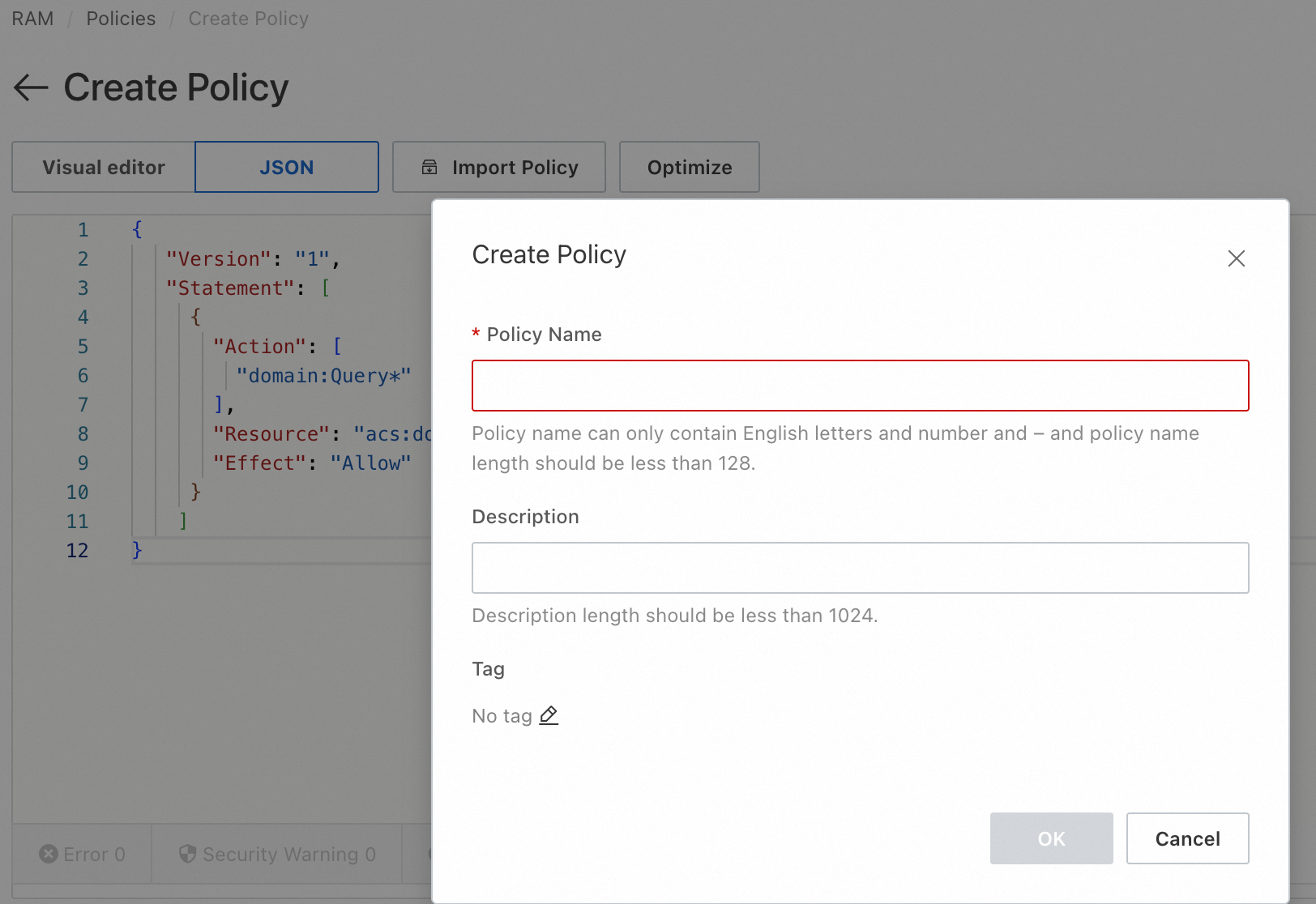
For more information about related configurations, see Create Custom Policies by Using Script Edit Mode.
Click OK.
You can use one of the following methods to view the created custom policy:
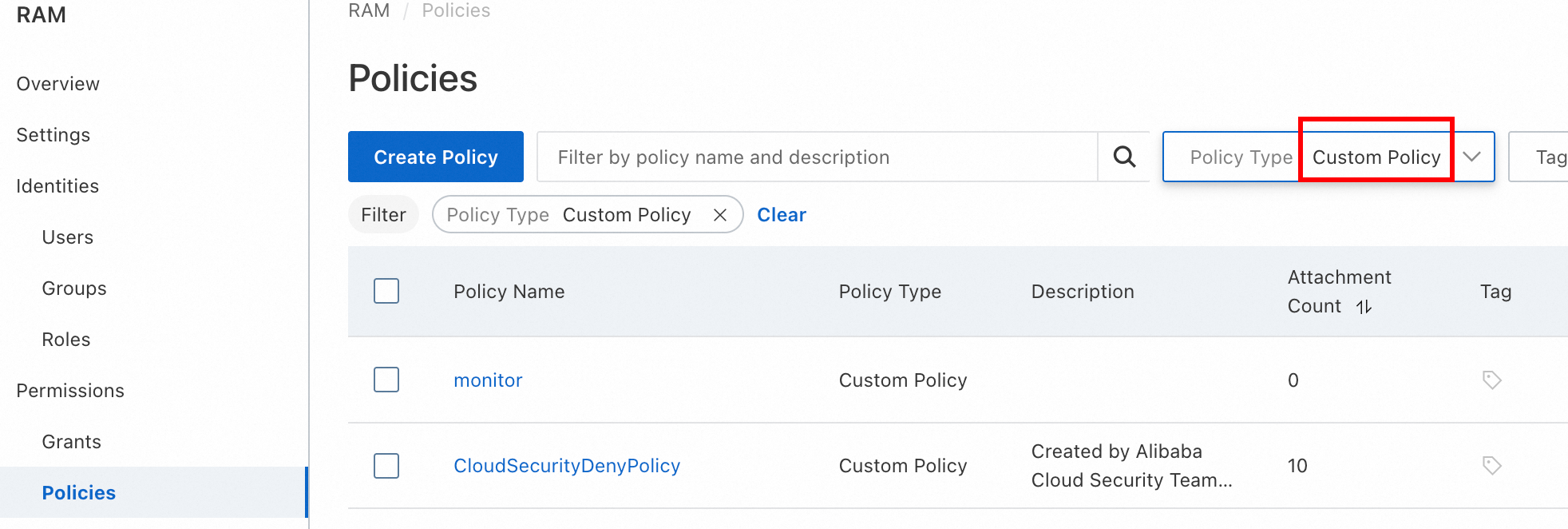
Method 1: On the Policies page, select Policy Type from the drop-down list and choose Custom Policy.
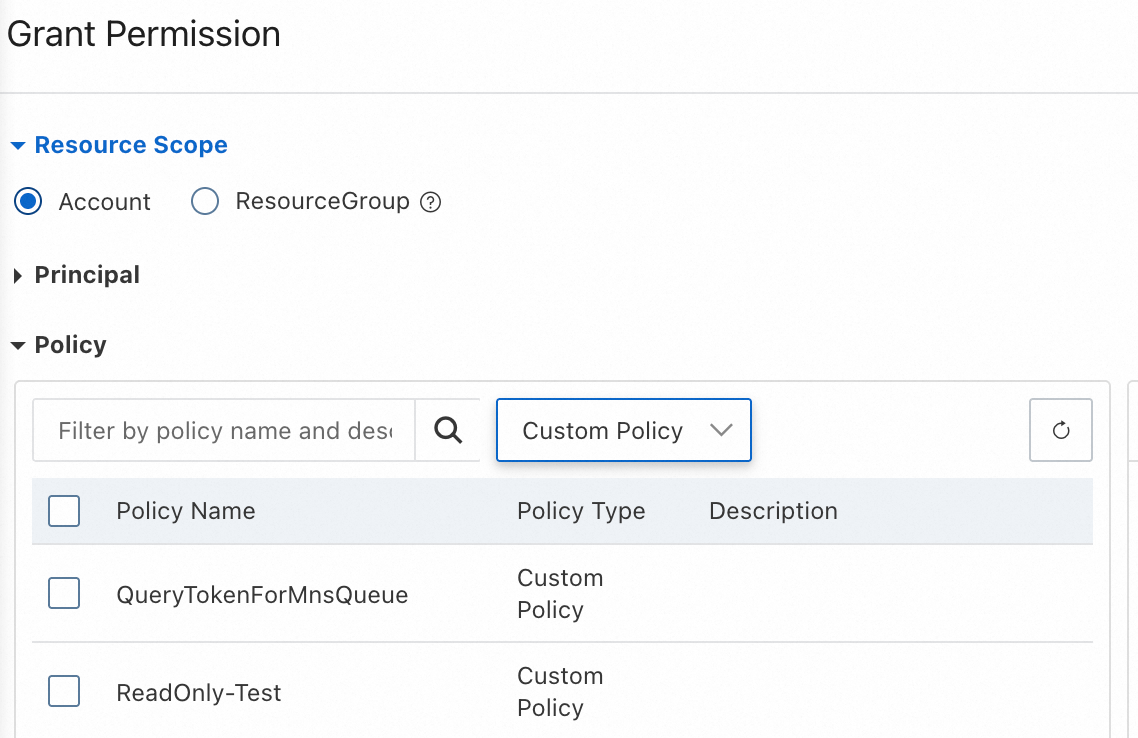
Method 2: In the Attach Policy panel, select Custom Policy from the Policy drop-down list.
Authorize a RAM user to manage a single domain name by creating a custom policy
Create a custom policy in the RAM console to authorize a RAM user to manage a single domain name. For example, authorize a RAM user to manage the example.com domain name. Follow the steps below.
Only some of the operations on a domain name can be authorized. For more information about the authorization rules of each operation, see Authentication rules for the Domains API.
After you attach the custom policy to a RAM user, the RAM user can log on to the Alibaba Cloud Domain Names console to view all domain names in the Alibaba Cloud account. However, the RAM user can manage only the domain name specified in the custom policy.
In the left navigation pane, choose .
On the Policies page, click Create Policy.
On the Create Policy page, click the JSON Editor tab.
In the code editor, enter the following custom policy script. Replace
example.comwith your target domain name. Click OK.{ "Version": "1", "Statement": [ { "Action": [ "domain:DnsModification", "domain:SecuritySetting", "domain:RealNameVerificationOperation", "domain:DnsHostModification", "domain:CreateOrderActivate", "domain:CreateOrderRenew", "domain:CreateOrderRedeem", "domain:CreateOrderTransfer", "domain:DomainTransferInOperation", "domain:DomainTransferOutOperation", "domain:QualificationAuditOperation", "domain:EnsSetting", "domain:DnsSecSetting", "domain:SaveArtExtension", "domain:CreateOrderPendingDelete" ], "Resource": "acs:domain:*:*:domain/example.com", "Effect": "Allow" }, { "Action": [ "domain:Query*" ], "Resource": "acs:domain:*:*:*", "Effect": "Allow" } ] }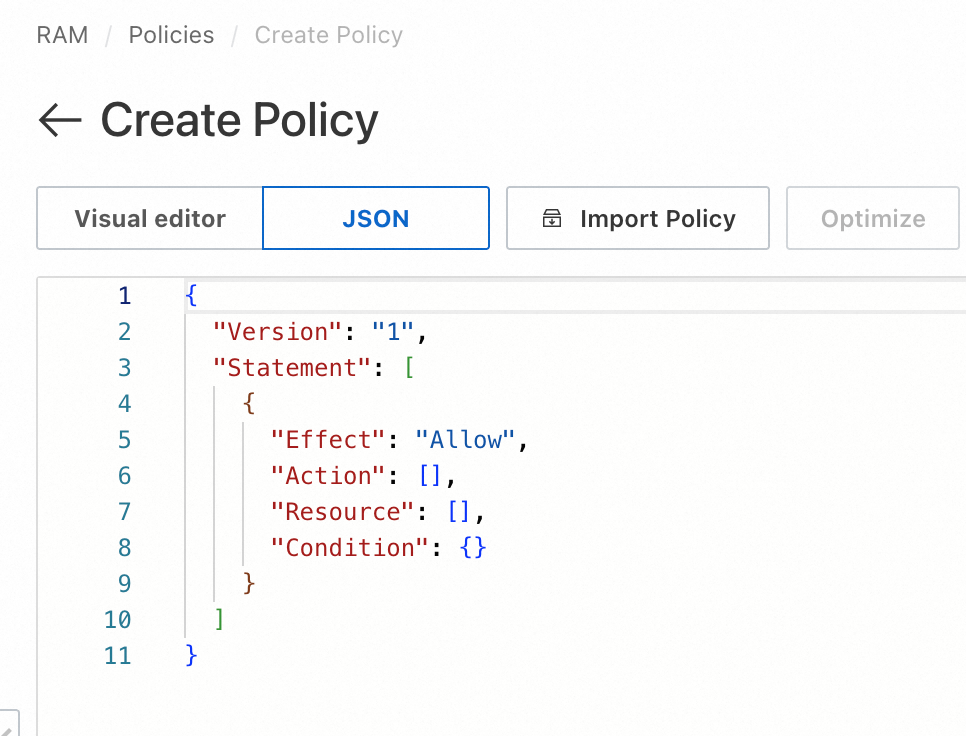
In the dialog box, set Policy Type and Description (optional).
For more information about related configurations, see Create Custom Policies by Using Script Edit Mode.
Click OK.
You can use one of the following methods to view the created custom policy:
Method 1: On the Policies page, select Policy Type from the drop-down list and choose Custom Policy.
Method 2: In the Attach Policy panel, select Custom Policy from the Policy drop-down list.
What to do next
Log on to the Alibaba Cloud Domain Names console as the authorized RAM user. For more information, see Log on to the Alibaba Cloud Management Console as a RAM user.