This topic shows how to use the ETL feature to analyze real-time orders.
Use cases
This feature is being deprecated and is available for free only to users who have previously used it. New users can no longer access this feature. We recommend that you configure ETL tasks within a data synchronization or data migration instance. For more information, see Configure an ETL task in a DTS data migration or synchronization task.
To meet enterprise requirements for real-time data processing, the ETL feature provides stream data extraction, transformation, and loading capabilities. It efficiently integrates massive amounts of real-time data, supports drag-and-drop operations, and uses a low-code development approach. This helps enterprises analyze business decisions, accelerate reporting, and compute real-time data. During digital transformation, common use cases for real-time data processing include:
Real-time consolidation of multi-region or heterogeneous data: Store data from multiple regions or heterogeneous sources in a single database in real time to facilitate centralized, efficient management and decision support.
Accelerated reporting: Build a real-time reporting system that significantly improves report generation efficiency and supports more real-time analysis scenarios, meeting the high demands for reporting efficiency during digital transformation.
Real-time computing: Cleanse and process streaming business data in real time to generate feature values and tags. This supports online business models, such as user profiling, risk control, and recommendation systems, as well as real-time dashboards and other stream computing scenarios.
Background
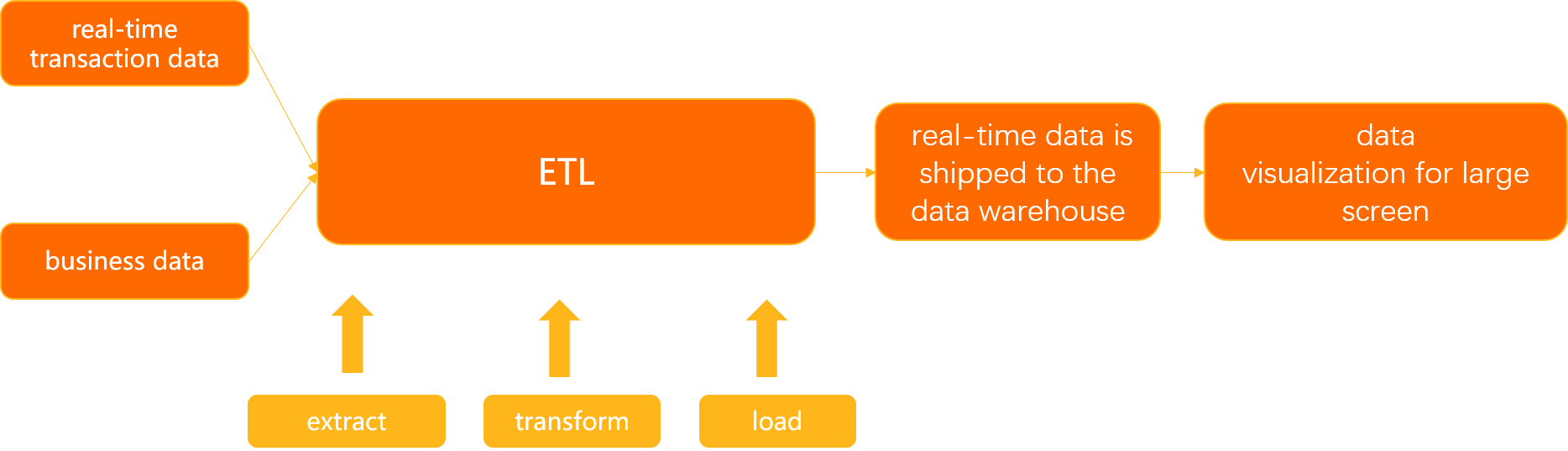
This example demonstrates how to use the streaming ETL feature to join real-time transaction data (such as order ID, customer ID, product code, transaction amount, and transaction time) with business dimension data (such as product code, unit price, and product name). Data that meets specific filter conditions, such as transactions with an amount greater than 3,000, loads into a data warehouse in real time. This enables multi-dimensional analysis of transaction data by dimensions like product and customer. You can also use visualization tools to create dynamic dashboards for data-driven insights.
Procedure
To ensure that you can successfully configure and run the ETL task, carefully read and follow the Prerequisites and Usage notes before you start.

Step | Description |
Store the real-time transaction data and business dimension data in source tables, and create a destination table that meets your business requirements. Note In this example, the real-time transaction table, business dimension table, and destination table are all stored in an ApsaraDB RDS for MySQL instance. | |
Configure the real-time transaction data as a stream table and the business dimension data as a dimension table. | |
Join the dimension table and the stream table to create a wide table. | |
Configure a filter condition (single transaction amount must be greater than 3,000) to filter data from the wide table. | |
Load the processed data into the destination table in real time. | |
Run a precheck and start the ETL task to apply the configuration. |
Preparations
Before you configure the ETL task, store your real-time transaction data in a stream table and your business dimension data in a dimension table in the source ApsaraDB RDS for MySQL database.
Then, create a table in the destination ApsaraDB RDS for MySQL database based on your business requirements.
Real-time transaction data
create table test_orders(
   order_id bigint not null COMMENT 'Order ID',
     user_id bigint not null comment 'User ID',
     product_id bigint not null comment 'Product ID',
   total_price decimal(15,2) not null COMMENT 'Total order value',
   order_date TIMESTAMP  not null COMMENT 'Order date',
   PRIMARY KEY (order_id))
Business dimension data
CREATE table product (
      product_id bigint not null comment 'Product ID',
      product_name varchar(20) comment 'Product name',
      product_price decimal(15,2) not null comment 'Product unit price')
Destination table
create table test_orders(
 order_id bigint not null COMMENT 'Order ID',
 user_id bigint not null comment 'User ID',
 product_id bigint not null comment 'Product ID',
 total_price decimal(15,2) not null COMMENT 'Total order value',
 order_date TIMESTAMP  not null
 COMMENT 'Order date',
 product_id_2 bigint not null comment 'Product ID',
 product_name varchar(20) comment 'Product name',
 product_price decimal(15,2) not null comment 'Product unit price',
 PRIMARY KEY (order_id))
Step 1: Configure source database
-
Go to the ETL task list page.
-
Log on to the Data Transmission Service (DTS) console.
-
In the left-side navigation pane, click ETL.
-
-
In the upper-left corner, click
 . In the Create Data Flow dialog box, enter a name for the ETL task in the Data Flow Name field, and set Development Method to DAG.
 -
Click Confirm.
Configure the stream table and dimension table.
Configure the stream table
From the left-side pane, drag the Input/Dimension Table (MySQL) node to the canvas on the right.
Click the Input/Dimension Table MySQL-1 node on the canvas, and then configure the source database.
On the Node Configuration tab, set the following parameters.
Parameter
Description
Data Source Name
For easier identification, we recommend using a descriptive, non-unique name.
Region
Select the region of the source database.
NoteETL tasks are available only in the following regions: China (Hangzhou), China (Shanghai), China (Qingdao), China (Beijing), China (Zhangjiakou), China (Shenzhen), China (Guangzhou), and China (Hong Kong).
Instances
Select the name of the instance that hosts the source database. You can also click Create Instance to create a new instance. For more information, see Databases supported by DMS.
Node Type
Select the type of the source table. In this example, select Stream Table.
Stream Table: A table that changes in real time. It can be joined with a dimension table for data enrichment.
Dimension Tables: A table that is updated infrequently (not in real time). It is typically used to join with real-time data to create a wide table for analysis.
Convert Format
When processing data, ETL converts a stream into a dynamic table and runs continuous queries on it. The dynamic table is constantly modified by INSERT, UPDATE, and DELETE operations, which generates a new dynamic table. When writing data to the destination database, this new dynamic table is converted back into a stream. You must specify a conversion format to encode the changes:
Upsert Stream: Data in the dynamic table can be modified by INSERT, UPDATE, and DELETE operations. When converted to a stream, INSERT and UPDATE operations are encoded as upsert messages, and DELETE operations are encoded as delete messages.
NoteThis encoding format requires the dynamic table to have a unique key, which can be a composite key.
Append-Only Stream: Data in the dynamic table can be modified only by INSERT operations. When converted to a stream, only the inserted data is sent.
Select Databases and Tables
Select the source databases and tables to transform.
After the node is configured, the Output Fields tab is displayed. In the Column Name column, select the required fields.
In this example, a stream table is used. Click the Time Attribute tab and set the following parameters.
Parameter
Description
Select Event Time Watermark
Select a time field from the stream table. A stream table typically has a time field that indicates when the data was generated, such as a business-specific timestamp like
ordertime.Latency of Event Time Watermark
Enter the maximum data latency that you can tolerate.
Due to network conditions, data may not arrive at the ETL service in the order it was generated, which can cause delays. ETL cannot wait indefinitely for late-arriving data. Therefore, you must specify a latency period to handle out-of-order data. For example, if data from 10:00 has arrived but data from 9:59 has not, ETL waits only until 10:00 plus the specified latency. If the 9:59 data arrives after this period, ETL discards it.
Processing Time
Processing time is the local server time when ETL processes data. You must define a column to store this value. It is primarily used for operator calculations; for example, a temporal join uses processing time to look up the latest version of a regular table.
NoteThe configuration is complete when the exclamation mark icon
 disappears from the right side of the source database node.
Configure the dimension table
From the left-side pane, drag the Input/Dimension Table (MySQL) node to the canvas on the right.
Click the Input/Dimension Table MySQL-2 node on the canvas, and then configure the source database.
On the Node Configuration tab, set the following parameters.
Parameter
Description
Data Source Name
For easier identification, we recommend using a descriptive, non-unique name.
Region
Select the region of the source database.
Instances
Select the name of the instance that hosts the source database. You can also click Create Instance to create a new instance. For more information, see Databases supported by DMS.
Node Type
Select the type of the source table. In this example, select Dimension Tables.
Select Databases and Tables
Select the source databases and tables to transform.
After the node is configured, the Output Fields tab is displayed. In the Column Name column, select the required fields.
NoteThe configuration is complete when the exclamation mark icon
disappears from the right side of the source database node.
Step 2: Configure Table Join node
-
In the left-side pane, drag the Table Join node to a blank area on the canvas.
Move the pointer over the configured stream table and dimension table nodes. Click the circle on each node and drag a connection line to the Table Join-1 node.
Click the Table Join-1 node on the canvas to configure the node.
On the Node Settings tab, set the following parameters.
Section
Parameter
Description
Conversion Name
Enter Transformation Name
For easier identification, we recommend using a descriptive, non-unique name.
JOIN Settings
Left Table in JOIN Clause
Select the table to be placed on the left side of the JOIN operator. This table serves as the primary table. In this example, select the stream table.
Temporal Join Time Attribute (Regular joins apply if not selected)
Select the time attribute of the stream table that is used to join with the temporal table. If you do not select an attribute, DTS performs a regular join. In this example, select Based on Processing Time.
NoteA temporal table, also known as a dynamic table, is a parameterized view of a table that records data changes over time. Temporal tables include versioned tables that show historical versions of data and regular tables that show only the latest version of data.
A temporal join requires the stream table to have a time attribute and the right table to have a primary key. If the right table is a dimension table, the Join condition must include the primary key of the dimension table.
Based on Event Time Watermark: Uses the event time of the stream table to join with the corresponding version in the versioned table.
Based on Processing Time: Uses the processing time of the stream table to join with the latest version of the regular table.
Select JOIN Operation
Select a join operation. In this example, select Inner Join.
Inner Join: Returns records that have matching values in both tables.
Left Join: Returns all records from the left table, and the matched records from the right table.
Right Join: Returns all records from the right table, and the matched records from the left table.
JOIN Condition
+ Add condition
Click + Add Condition to select the fields for the join condition.
NoteThe field to the left of the equal sign (=) belongs to the left table in the join, and the field to the right belongs to the right table.
After you configure the join condition, click the Output Fields tab. In the Column Name column, select the required fields.
The configuration is complete when the exclamation mark icon disappears from the right side of the node.
Step 3: Configure Table Record Filter node
-
In the left-side pane, drag the Table Record Filter node to a blank area on the canvas.
Move the pointer over the configured Table Join-1 node. Click the circle and drag a connection line from the Table Join-1 node to the Table Record Filter-1 node.
Click the Table Record Filter-1 node on the canvas to configure the node.
In the Conversion Name section, enter a name for the transformation.
NoteFor easier identification, we recommend using a descriptive, non-unique name.
In the WHERE Condition section, configure the WHERE condition by using one of the following methods:
Directly enter the WHERE condition. For example, enter
total_price > 3000.00to filter for records where thetotal_pricefrom the joined table is greater than 3000.00.Click options in the Input Fields or Operator sections to build the WHERE condition.
The configuration is complete when the exclamation mark icon disappears from the right side of the node.
Step 4: Configure destination database
On the left side of the page, drag the output MySQL node to the blank area of the canvas on the right side of the page.
Move the pointer over the configured Table Record Filter-1 node. Click the circle and drag a connection line from the Table Record Filter-1 node to the Output MySQL-1 node.
Click the Output MySQL-1 node on the canvas to configure the destination database.
On the Node Configuration tab, set the following parameters.
Parameter
Description
Data Source Name
For easier identification, we recommend using a descriptive, non-unique name.
Region
Select the region of the destination database.
NoteETL tasks are available only in the following regions: China (Hangzhou), China (Shanghai), China (Qingdao), China (Beijing), China (Zhangjiakou), China (Shenzhen), China (Guangzhou), and China (Hong Kong).
Instances
Select the name of the instance that hosts the destination database. You can also click Create Instance to create a new instance. For more information, see Databases supported by DMS.
Table Mapping
Select the destination table where the transformed data will be stored.
In the Select Destination Table section, click the destination table.
In the Column Name column, select the required parameters.
The configuration is complete when the exclamation mark icon disappears from the right side of the destination database node.
Step 5: Precheck and start the task
After you complete the configuration, click Generate Flink SQL Validation. ETL generates and validates the Flink SQL.
After the validation is complete, click View ETL Validation Details to view the generated Flink SQL statement and validation results in a dialog box. After you confirm that the information is correct, click Close.
NoteIf the validation fails, troubleshoot the failure based on the causes displayed in the results.
Click Next: Save Task Settings and Precheck. The ETL task can start only after it passes the precheck. If the precheck fails, click View Details next to the failed item, fix the issue based on the provided information and run the precheck again.
After the precheck is complete, click Next: Purchase Instance at the bottom of the page.
On the Purchase page, select an Instance Class and specify the Compute Units (CUs). Then, read and select Data Transmission Service (Pay-as-you-go) Service Terms and Service Terms for Public Preview.
NoteDuring the public preview, each user can create and use two ETL instances free of charge.
Click Buy and Start to start the ETL task.
Task results
In this example, after the ETL task starts (for instance, on August 1), when an updated record in the test_orders real-time transaction table meets the filter condition (total_price > 3000.00), the record is synchronized to the test_orders_new destination table.
Figure 1. The test_orders real-time transaction table contains two records where the order_date is after August 1: one with order_id 3 (total_price is 5000.00, which meets the filter condition and will be synchronized) and another with order_id 4 (total_price is 2000.00, which does not meet the condition and will not be synchronized).
Figure 2. The test_orders_new destination table. In the DMS SQL Console, run SELECT * FROM test_orders_new LIMIT 20; to query the destination table. The query returns one synchronized record: order_id=3, user_id=2020073003, total_price=5000.00 (which is greater than 3000.00), and order_date=2021-08-03 16:58:14. The record also includes the joined product information: product_name=Stationery and product_price=20.00. This verifies that the ETL task joined the qualifying order data with product information and synchronized the result to the wide table.