Configure HTTPS certificates for ALB Ingress via automatic discovery, Secrets, or AlbConfig.
Choose a certificate configuration method
Select a method based on your certificate management needs:
-
Automatic certificate discovery: Best when certificates are already in Certificate Management Service. No Secret required; cross-namespace support included.
-
Secret-managed certificates: Best with in-cluster tools such as cert-manager. Automatic renewal on Secret update.
-
AlbConfig-specified certificates: Best for centralized, listener-level certificate control with an explicit certificate ID.
| Automatic certificate discovery | Secret-managed certificates | AlbConfig-specified certificates | |
|---|---|---|---|
| Certificate storage | Certificate Management Service | Kubernetes Secret | Certificate Management Service |
| Certificate discovery | By domain name bound to the certificate | By the Secret that stores the certificate | By certificate ID |
| Best for | Certificates purchased or uploaded to Certificate Management Service | Certificates managed by in-cluster tools such as cert-manager | Centralized, listener-level certificate control |
| Cross-namespace support | Yes | No — a Secret is only accessible within its own namespace | N/A |
| Certificate renewal | Upload a new certificate to Certificate Management Service, then update the Ingress configuration | Update the Secret that stores the certificate | Upload a new certificate, then update the AlbConfig |
An ALB instance supports a maximum of 25 certificates across all listeners, including those configured through Ingresses. See Methods to calculate ALB quotas.
Certificate compatibility
When multiple methods apply to the same listener, these rules determine which certificate takes effect:
| Configuration | Behavior |
|---|---|
| Automatic discovery + Secret, same domain | The Secret-based certificate takes priority. |
| Automatic discovery + Secret, different domains | Each certificate is used for its respective domain. |
| Automatic discovery + AlbConfig, same listener | Only the AlbConfig-specified certificate is used. |
| Secret + AlbConfig, same listener | Both certificates are used. |
Prerequisites
Ensure you have:
-
A trusted SSL/TLS certificate, obtained via one of these methods:
-
Purchase a certificate from the Certificate Management Service console . See Purchase an official certificate.
-
Purchase a certificate from a third-party CA.
-
(Optional) Create a self-signed certificate for testing. See Create a self-signed certificate below.
-
How it works

AlbConfig includes only an HTTP listener on port 80 by default. Create an HTTPS listener and configure a certificate; without one, the HTTPS listener is unavailable and the ALB Ingress controller reports an error.
Step 1: Create an HTTPS listener in AlbConfig
Add a port 443 HTTPS listener to your AlbConfig.
ACK console
-
Log on to the ACK console. In the left-side navigation pane, click Clusters .
-
On the Clusters page, click the target cluster name. In the left-side navigation pane, choose Workloads > Custom Resources.
-
On the Resource Objects tab, search for
AlbConfigand click the result. -
In the AlbConfig panel, find the resource named
alband click Edit YAML in the Actions column. -
In the View in YAML panel, add
port: 443andprotocol: HTTPSunderspec.listeners, then click OK.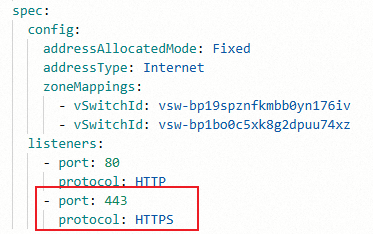
kubectl
-
Open the AlbConfig for editing:
kubectl edit albconfig <Albconfig_Name> -
Add the HTTPS listener under
spec.listeners:apiVersion: alibabacloud.com/v1 kind: AlbConfig metadata: name: alb spec: config: addressAllocatedMode: Fixed addressType: Internet zoneMappings: - vSwitchId: vsw-bp19sXXXXXXX176iv - vSwitchId: vsw-bp1boXXXXXXXu74xz listeners: - port: 80 protocol: HTTP - port: 443 # Add this listener for HTTPS. protocol: HTTPS # Valid values: HTTP, HTTPS, QUIC.
Step 2: Create a self-signed certificate (optional)
Skip this step if you already have a trusted certificate. Self-signed certificates are untrusted and suitable only for testing.
Generate a self-signed certificate for the demo.alb.ingress.top domain. Replace the domain with your own.
openssl genrsa -out albtop-key.pem 4096
openssl req -subj "/CN=demo.alb.ingress.top" -sha256 -new -key albtop-key.pem -out albtop.csr
echo subjectAltName = DNS:demo.alb.ingress.top > extfile.cnf
openssl x509 -req -days 3650 -sha256 -in albtop.csr -signkey albtop-key.pem -out albtop-cert.pem -extfile extfile.cnf
View the certificate and private key:
cat albtop-key.pem # Private keycat albtop-cert.pem # CertificateBase64-encode both files (required for Kubernetes Secrets):
cat albtop-key.pem | base64 # Base64-encoded private keycat albtop-cert.pem | base64 # Base64-encoded certificateStep 3: Create sample resources
Create the four Kubernetes resources required by ALB Ingress: Deployment, Service, IngressClass, and Ingress.
ACK console
-
Log on to the ACK console. In the left-side navigation pane, click Clusters.
-
On the Clusters page, click the target cluster name. In the left-side navigation pane, choose Workloads > Deployments.
-
Click Create from YAML.
-
Sample Template: Select Custom.
-
Template: Copy this YAML into the editor.
-
-
Click Create.
-
Verify that the resources are created:
-
In the left-side navigation pane, choose Workloads > Deployments. Confirm that
https-deployis running. -
Choose Network > Services. Confirm that
https-svcis created. -
Choose Network > Ingresses. Confirm that
https-ingressis created.
-
kubectl
-
Create a file named
https-quickstart.yamlwith the following content:apiVersion: networking.k8s.io/v1 kind: IngressClass metadata: name: https-ingressclass spec: controller: ingress.k8s.alibabacloud/alb parameters: apiGroup: alibabacloud.com kind: AlbConfig name: alb # Set to the name of your AlbConfig. --- apiVersion: apps/v1 kind: Deployment metadata: name: https-deploy spec: replicas: 1 selector: matchLabels: app: https-deploy template: metadata: labels: app: https-deploy spec: containers: - image: registry.cn-hangzhou.aliyuncs.com/acs-sample/old-nginx:latest imagePullPolicy: IfNotPresent name: https-deploy ports: - containerPort: 80 protocol: TCP --- apiVersion: v1 kind: Service metadata: name: https-svc spec: ports: - name: port1 port: 443 protocol: TCP targetPort: 80 selector: app: https-deploy sessionAffinity: None type: ClusterIP --- apiVersion: networking.k8s.io/v1 kind: Ingress metadata: annotations: name: https-ingress spec: ingressClassName: https-ingressclass rules: - host: demo.alb.ingress.top http: paths: - backend: service: name: https-svc port: number: 443 path: / pathType: Prefix -
Apply the configuration:
kubectl apply -f https-quickstart.yaml
Step 4: Configure the certificate
Choose one of the three methods below.
Method 1: Automatic certificate discovery
The ALB Ingress controller matches the domain in the Ingress tls field against certificates in Certificate Management Service. Leave secretName blank to use this method.
ACK console
-
Upload the certificate to the Certificate Management Service console. See Upload and share an SSL certificate.
-
Log on to the ACK console and navigate to your cluster. In the left-side navigation pane, choose Network > Ingresses.
-
Find
https-ingressand click Update in the Actions column. -
In the Modify Ingress panel, set these parameters:
Parameter Description Example TLS Settings > Domain Name The domain name bound to the certificate. Must match rules.host.demo.alb.ingress.topTLS Settings > Secret Leave blank to use automatic certificate discovery. (blank) Annotations (optional) Add alb.ingress.kubernetes.io/listen-portsif you need to listen on both HTTP and HTTPS.Name: alb.ingress.kubernetes.io/listen-ports; Value:[{"HTTP": 80},{"HTTPS": 443}]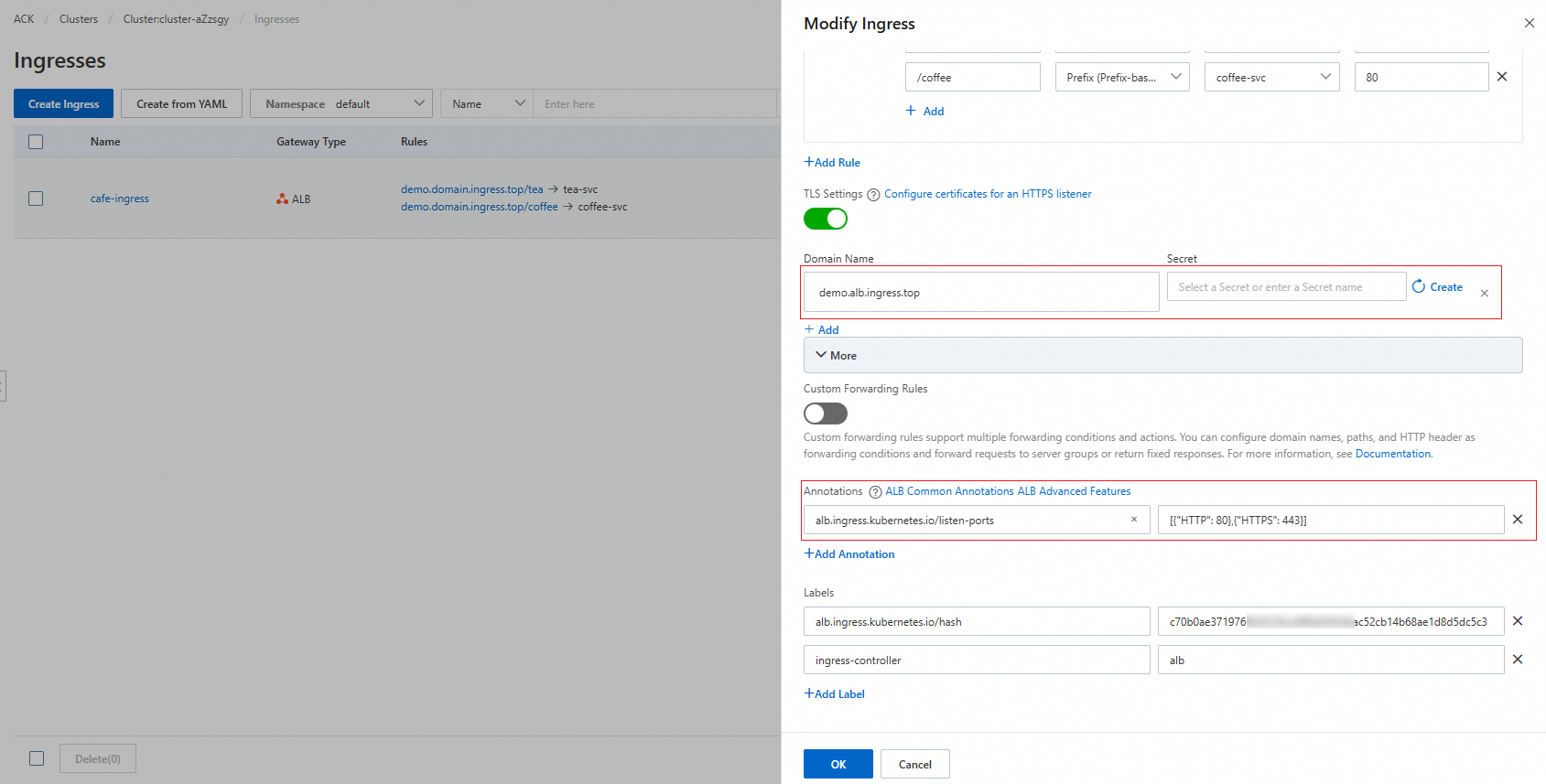
kubectl
-
Upload the certificate to the Certificate Management Service console. See Upload and share an SSL certificate.
-
Edit the Ingress:
kubectl edit ingress https-ingress -
Add the
tlsfield. Sethoststo the domain name bound to the certificate — it must matchrules[].host.apiVersion: networking.k8s.io/v1 kind: Ingress metadata: # annotations: # alb.ingress.kubernetes.io/listen-ports: '[{"HTTP": 80},{"HTTPS": 443}]' # Uncomment to listen on both HTTP and HTTPS. name: https-ingress spec: ingressClassName: https-ingressclass rules: - host: demo.alb.ingress.top # Replace with your domain name. http: paths: - backend: service: name: https-svc port: number: 443 path: / pathType: Prefix tls: - hosts: - demo.alb.ingress.top # Must match rules[].host — the controller uses this domain to look up the certificate.
Method 2: Secret-managed certificates
Store the certificate in a Kubernetes Secret of type kubernetes.io/tls, then reference it in the Ingress tls field. Use this method when managing certificates with in-cluster tools such as cert-manager.
ACK console
-
Log on to the ACK console and navigate to your cluster. In the left-side navigation pane, choose Network > Ingresses.
-
Find
https-ingressand click Update in the Actions column. -
In the Modify Ingress panel, set these parameters:
Parameter Description Example TLS Settings > Domain Name The domain name bound to the certificate. demo.alb.ingress.topTLS Settings > Secret The Secret storing the certificate. To create one, click Create next to the field. In the Create Secret dialog box, set Name, Cert (not Base64-encoded), and Key (not Base64-encoded), then click OK. Secret name: https-secretAnnotations (optional) Add alb.ingress.kubernetes.io/listen-portsto listen on both HTTP and HTTPS.Name: alb.ingress.kubernetes.io/listen-ports; Value:[{"HTTP": 80},{"HTTPS": 443}]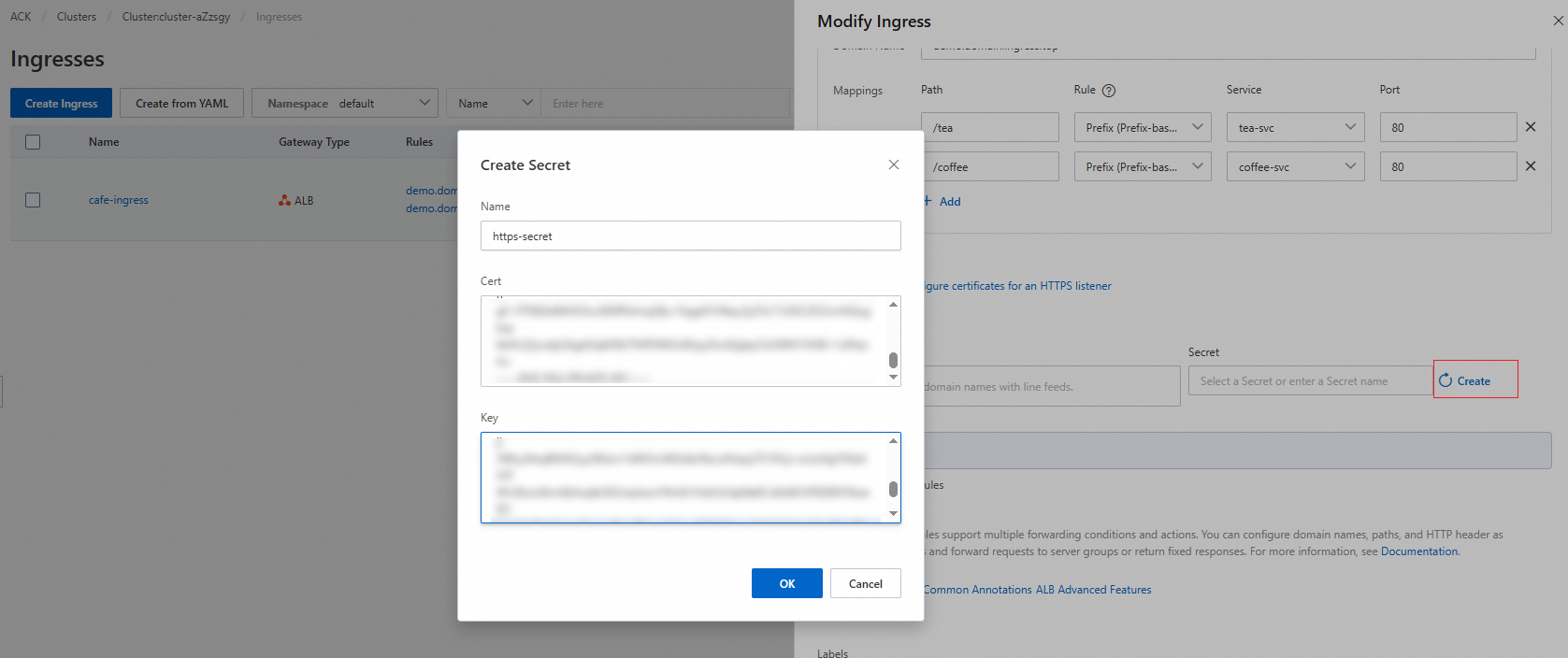
kubectl
-
Create the Secret. Create a file named
https-secret.yaml. Replace placeholders with Base64-encoded certificate and key content. For encoding, see Step 2.apiVersion: v1 kind: Secret metadata: name: https-secret type: kubernetes.io/tls data: tls.key: | # Base64-encoded content of albtop-key.pem. {base64 albtop-key.pem} tls.crt: | # Base64-encoded content of albtop-cert.pem. {base64 albtop-cert.pem}Apply the Secret:
kubectl apply -f https-secret.yaml -
Edit the Ingress.
kubectl edit ingress https-ingressAdd the
tlsfield with bothhostsandsecretName:apiVersion: networking.k8s.io/v1 kind: Ingress metadata: # annotations: # alb.ingress.kubernetes.io/listen-ports: '[{"HTTP": 80},{"HTTPS": 443}]' # Uncomment to listen on both HTTP and HTTPS. name: https-ingress namespace: default spec: ingressClassName: alb rules: - host: demo.alb.ingress.top # Replace with your domain name. http: paths: - backend: service: name: https-svc port: number: 443 path: / pathType: Prefix tls: - hosts: - demo.alb.ingress.top # Must match rules[].host — the controller uses this domain to look up the certificate. secretName: https-secret # The Secret that stores the certificate.
Method 3: AlbConfig-specified certificates
Specify the certificate in the AlbConfig listener by CertificateId. This binds the certificate at the listener level and disables automatic discovery for that listener.
ACK console
-
Get the certificate ID. Upload the certificate to Certificate Management Service if you haven't already. See Upload and share an SSL certificate. To find the certificate ID:
-
Log on to the Certificate Management Service console.
-
In the left-side navigation pane, choose Certificate Management > SSL Certificate Management.
-
On the Manage Uploaded Certificates tab, find the certificate and click More in the Actions column.
-
In the Certificate Details panel, copy the CertIdentifier value.
-
-
Add the certificate to the AlbConfig.
-
Log on to the ACK console and navigate to your cluster. Choose Workloads > Custom Resources.
-
Search for
AlbConfig, find the resource namedalb, and click Edit YAML in the Actions column. -
In the View in YAML panel, add these fields to the HTTPS listener:
Field
Description
Example
certificatesCertificate configuration block
—
CertificateIdThe
CertIdentifiervalue from Certificate Management Service756****-cn-hangzhouIsDefaultWhether this is the default certificate for the listener
true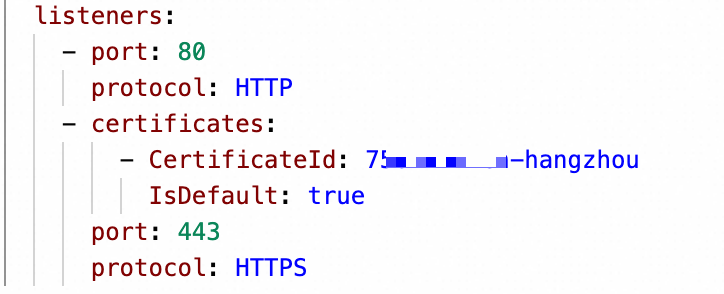
-
-
Update the Ingress to route traffic to the HTTPS listener.
-
In the left-side navigation pane, choose Network > Ingresses.
-
Find
https-ingressand click Update in the Actions column. -
Add the
alb.ingress.kubernetes.io/listen-portsannotation:Parameter
Value
Name
alb.ingress.kubernetes.io/listen-portsValue
[{"HTTPS": 443}]— change to[{"HTTP": 80},{"HTTPS": 443}]to also listen on HTTP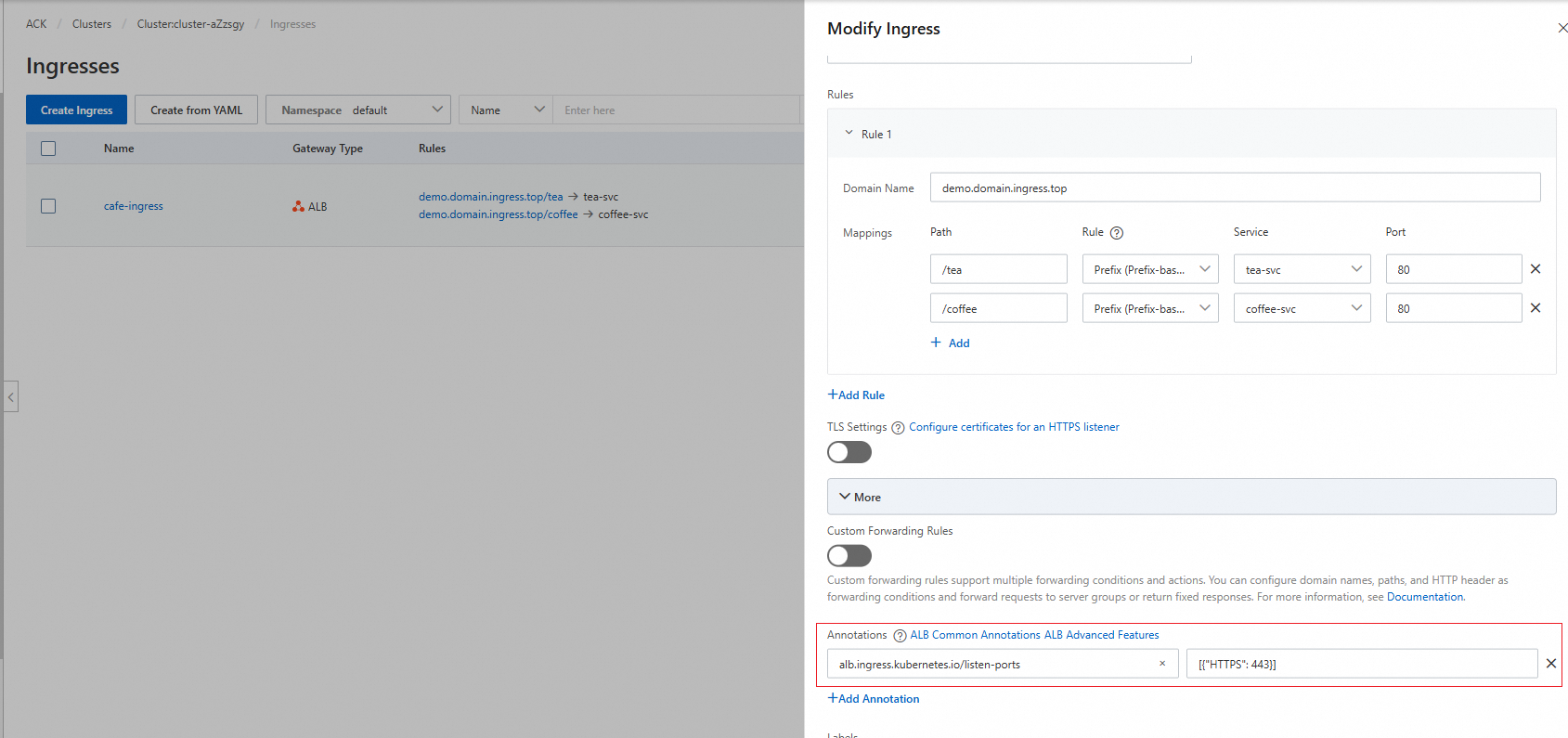
-
kubectl
Specifying a certificate in AlbConfig disables automatic discovery for that listener.
-
Upload the certificate to Certificate Management Service. See Upload and share an SSL certificate.
-
Get the certificate ID.
-
Log on to the Certificate Management Service console.
-
In the left-side navigation pane, choose Certificate Management > SSL Certificate Management.
-
On the Manage Uploaded Certificates tab, find the certificate and click More in the Actions column.
-
In the Certificate Details panel, copy the CertIdentifier value.
-
-
Edit the AlbConfig:
kubectl edit albconfig <ALBCONFIG_NAME>Add the
certificatesfield to the HTTPS listener:apiVersion: alibabacloud.com/v1 kind: AlbConfig metadata: name: alb spec: config: addressType: Intranet name: xiaosha-alb-test listeners: - port: 80 protocol: HTTP - certificates: - CertificateId: 756****-cn-hangzhou # The CertIdentifier from Certificate Management Service. IsDefault: true # Set to true to use as the default certificate. port: 443 protocol: HTTPS -
Edit the Ingress:
kubectl edit ingress https-ingressAdd the
alb.ingress.kubernetes.io/listen-portsannotation:apiVersion: networking.k8s.io/v1 kind: Ingress metadata: annotations: alb.ingress.kubernetes.io/listen-ports: '[{"HTTPS": 443}]' # Change to '[{"HTTP": 80},{"HTTPS": 443}]' to also listen on HTTP. name: https-ingress spec: ingressClassName: https-ingressclass rules: - host: demo.alb.ingress.top # Replace with your domain name. http: paths: - backend: service: name: https-svc port: number: 443 path: / pathType: Prefix
Step 5: Verify the result
-
Query the Ingress to get the ALB address:
kubectl get ingressExpected output:
NAME            CLASS                HOSTS                  ADDRESS                         PORTS     AGE
https-ingress   https-ingressclass   demo.alb.ingress.top   alb-********.alb.aliyuncs.com   80, 443   83m
Note the values in the
HOSTSandADDRESScolumns. -
Send an HTTPS request to the backend Service. Replace
demo.alb.ingress.topandalb-********.alb.aliyuncs.comwith the values from the previous step.curl -H HOST:demo.alb.ingress.top -k https://alb-********.alb.aliyuncs.comIf the certificate is configured correctly, the output is:
old
Next steps
-
To support HTTP/3, see Use a QUIC listener to support HTTP/3.
-
To enable mutual TLS authentication, see Use HTTPS mutual authentication to enhance service security.