The Sending Email component sends emails through the Alibaba Cloud email platform. It is often used to send promotional messages and notification emails to users outside China.
Regardless of whether the link starts from the behavioral event component or the target population component, users entering the email component will use their QAID to match the email addresses provided by all data sources.
The Alibaba Cloud email interface is configured by the organization administrator. For more information, see Configure Alibaba Cloud Email API.
To make automatic marketing work smoothly, emails must use a template that has passed the review. The sender, title, and content in the template become the sender, title, and content of the email and cannot be modified. For more information about how to create an email template, see Create Email Templates.
For more information about how to limit the number of emails that can be sent to the same user within a certain period of time and the period of time during which emails can be sent to the same user, see Fatigue Control.
To configure a universal filter, perform the following steps:
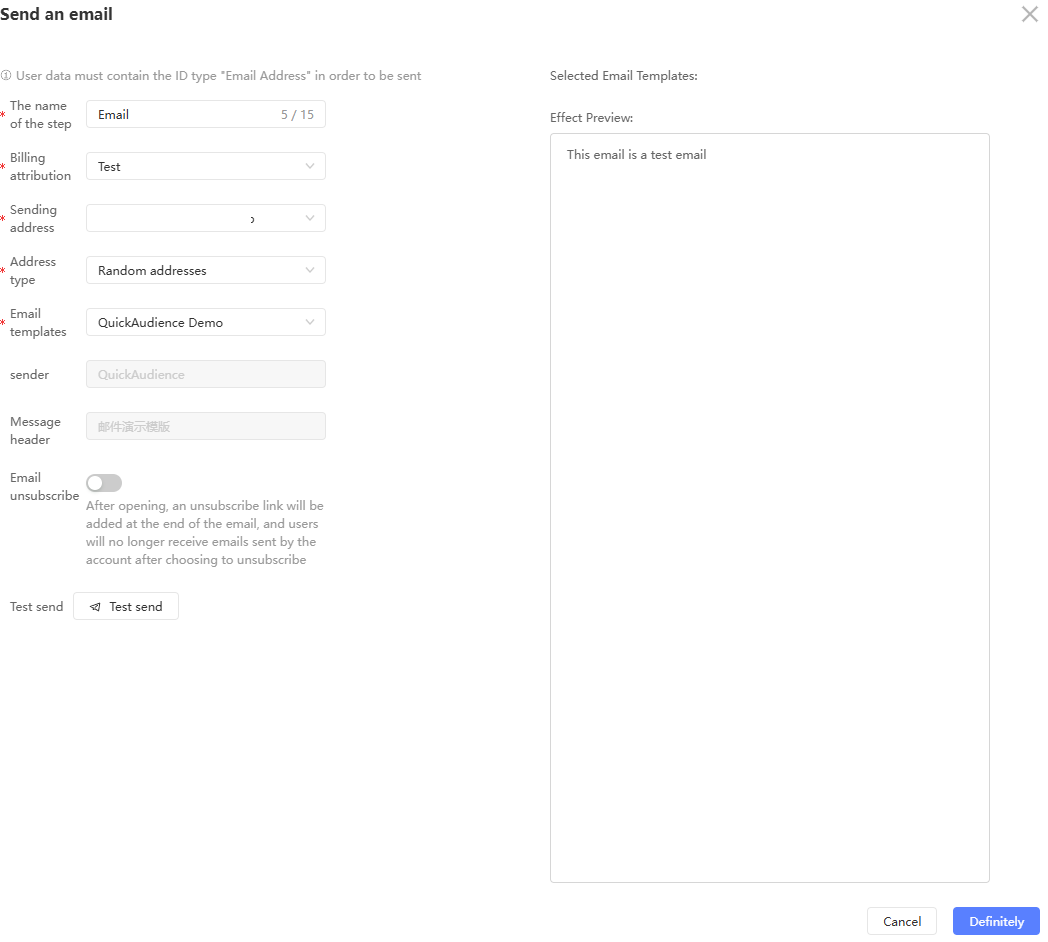
Click the Sending Email component and configure it in the panel that appears on the right, as shown in the following figure.
Item
Example value
Step Name
Enter a step name.
Email Platform
You can select only the Alibaba Cloud email platform.
The sender address.
Choose the originating address to use from the drop-down list. You must configure the sending address in the Alibaba Cloud Email Push Console.
The type of the address.
Select the display type of the sender address:
Random address: display the combination of the random string automatically generated by the system and the sending address, which is convenient for analyzing the return status and recommend selection.
Send Address: displays only the sending address.
Email gateways
Select the approved template from the drop-down list. The sender, title, and content in the template will be used as the sender, title, and content of the send. The right side provides a preview of the specific content.
Sender
Use the sender in the template.
Email Title
Use the title in the template.
Email Unsubscription
An email unsubscribe button will be added to the email sent to the user when the user chooses to unsubscribe. The system will record the email after the user chooses to unsubscribe, and the user will be automatically excluded when the user sends an email next time.
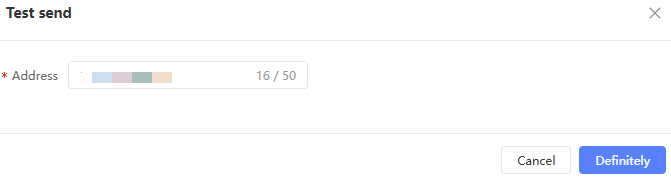
To test the delivery, click Test delivery. In the dialog box that appears, enter the email address of the test recipient and click OK.
The system will send a test email, please check it carefully.
Click OK.