The influx CLI lets you connect to a TSDB for InfluxDB® instance and run read and write operations directly from your terminal.
Prerequisites
Before you begin, make sure you have:
-
A TSDB for InfluxDB® instance. To purchase one, see Purchase a TSDB for InfluxDB® instance
-
A user account with access to the instance. To create one, see Manage user accounts and databases
-
The domain name and port of your instance (available on the instance details page in the console)
Download the influx CLI
The influx CLI is included in the InfluxDB v1.7.6 package.
-
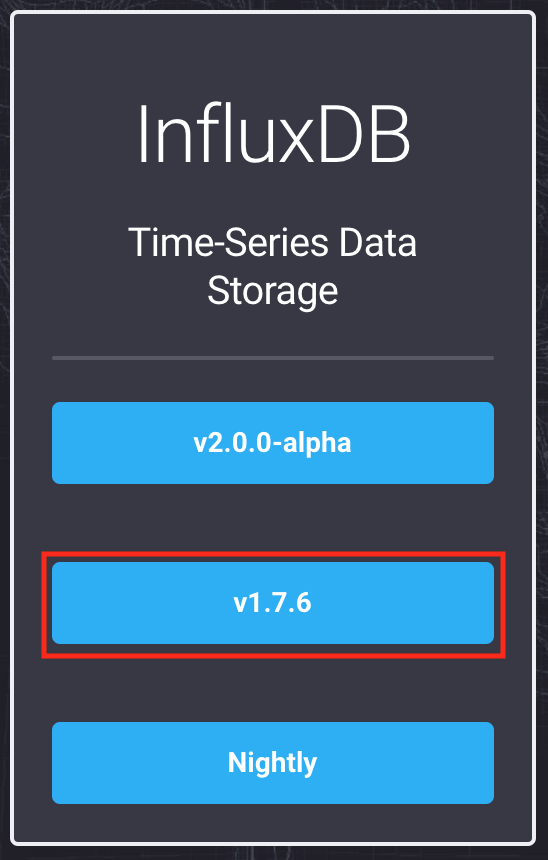
Go to the InfluxDB downloads page and select v1.7.6.
-
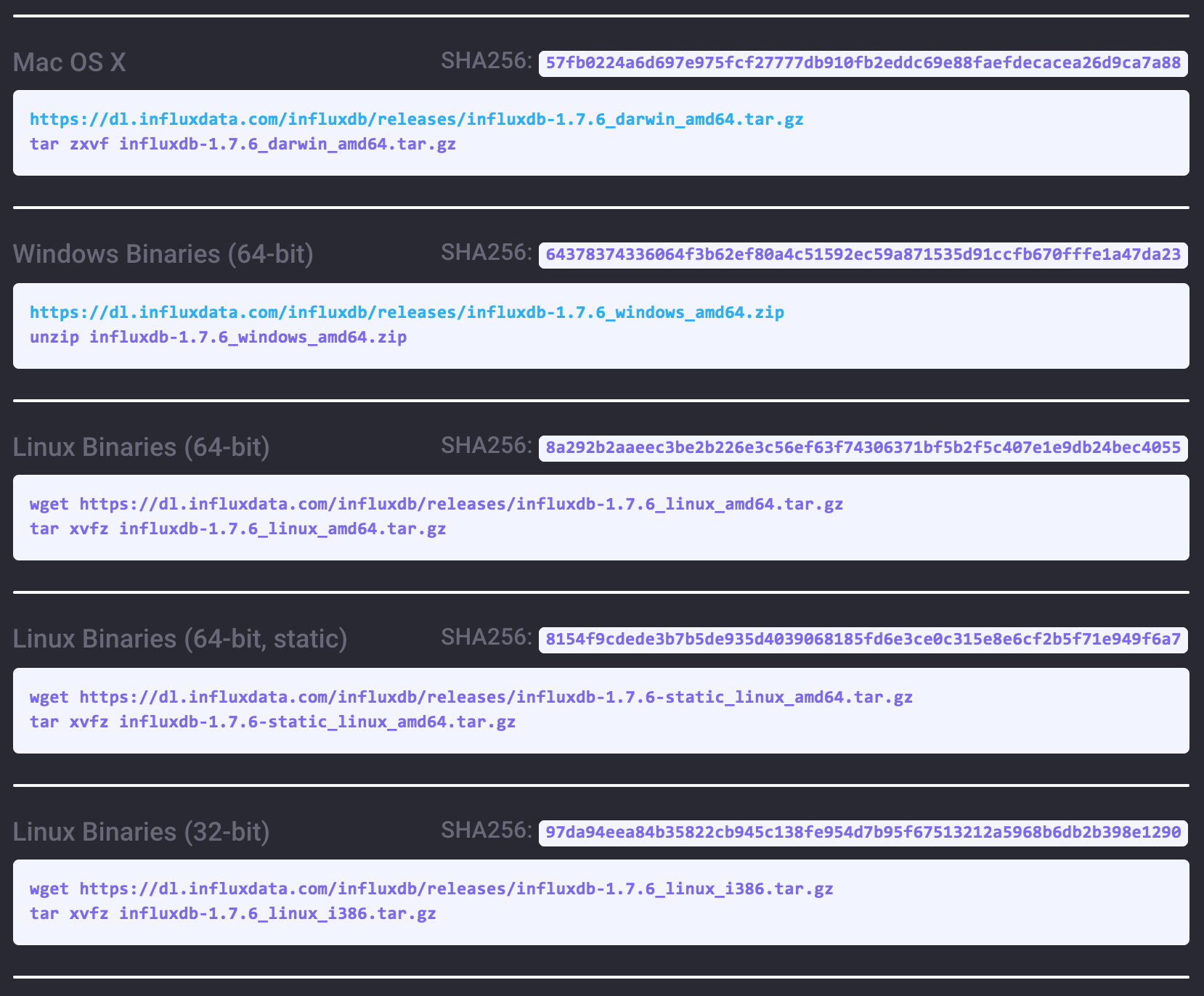
Select the binary package for your operating system.
-
Download and extract the package. After extraction, the
influxbinary is at::Operating system Binary path macOS usr/bin/influxLinux usr/bin/influxWindows influx.exein the directory created during extractionOn macOS, run these commands to download and extract the package:
wget https://dl.influxdata.com/influxdb/releases/influxdb-1.7.6_darwin_amd64.tar.gz
tar zxvf influxdb-1.7.6_darwin_amd64.tar.gz
cd influxdb-1.7.6-1/usr/bin
Connect to your instance
Run the following command to connect to your TSDB for InfluxDB® instance:
./influx -ssl -username <username> -password <password> -host <domain-name> -port 3242Replace the placeholders with the values for your instance:
| Placeholder | Description |
|---|---|
<username> |
Username of the account used to access the instance |
<password> |
Password for the username |
<domain-name> |
Domain name of the instance, available on the instance details page in the console |
If the connection succeeds, the CLI displays output similar to:
Connected to https://<domain-name>:3242 version 1.7.6
InfluxDB shell version: 1.7.6
>
Connection flags
All five flags are required each time you connect.
| Flag | Description |
|---|---|
-ssl |
Establishes an HTTPS connection to the instance |
-username |
Username for instance access |
-password |
Password for the username |
-host |
Domain name of the instance. View it on the instance details page in the console. 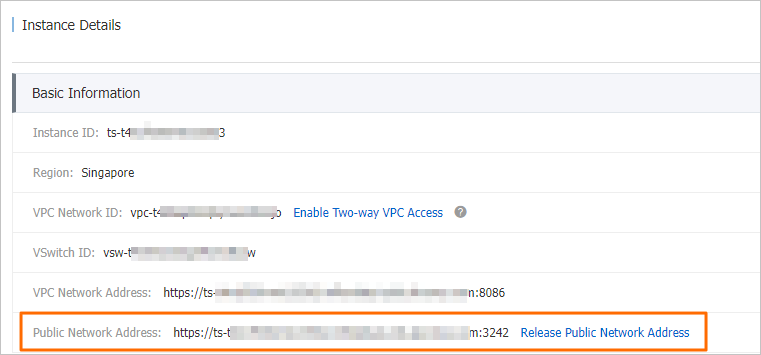 |
-port |
Port number. The default value is 3242. |
Write data
Before writing data, create a database. See Manage user accounts and databases for instructions. The following examples use a database named mydb.
Write a single point
-
Connect to the instance:
./influx -ssl -username <username> -password <password> -host <domain-name> -port 3242 -
Select the database:
> USE mydb Using database mydb -
Write a data point using the INSERT statement:
> INSERT cpu,host=serverA,region=us_west value=0.64
In this example, cpu is the measurement, host and region are tag keys, and value is a field. Data is written in line protocol format.
If you omit the timestamp, the system uses the current Unix timestamp of your local server in nanoseconds. All timestamps in TSDB for InfluxDB® are stored in Coordinated Universal Time (UTC).
Write multiple points from a file
Use the -import flag to bulk-load data from a file. An import file has two sections:
-
DDL (Data Definition Language) (optional): InfluxQL commands to create databases or retention policies.
-
DML (Data Manipulation Language): Context metadata specifying the target database and retention policy, followed by data in line protocol format.
Example file (test.txt):
# DML
# CONTEXT-DATABASE: mydb
# CONTEXT-RETENTION-POLICY: autogen
h2o_feet,location=coyote_creek water_level=3.524,level\ description="between 3 and 6 feet" 1439868600
h2o_feet,location=coyote_creek water_level=3.399,level\ description="between 3 and 6 feet" 1439868960
h2o_feet,location=coyote_creek water_level=3.278,level\ description="between 3 and 6 feet" 1439869320
h2o_feet,location=coyote_creek water_level=3.159,level\ description="between 3 and 6 feet" 1439869680
h2o_feet,location=coyote_creek water_level=3.048,level\ description="between 3 and 6 feet" 1439870040
h2o_feet,location=coyote_creek water_level=2.943,level\ description="below 3 feet" 1439870400
h2o_feet,location=coyote_creek water_level=2.831,level\ description="below 3 feet" 1439870760
h2o_feet,location=coyote_creek water_level=2.717,level\ description="below 3 feet" 1439871120
h2o_feet,location=coyote_creek water_level=2.625,level\ description="below 3 feet" 1439871480
h2o_feet,location=coyote_creek water_level=2.533,level\ description="below 3 feet" 1439871840
In this example, h2o_feet is the measurement, location is a tag key, and water_level and level description are fields.
Run the following command to import the file:
./influx -ssl -username <username> -password <password> -host <domain-name> -port 3242 -import -path=test.txtA successful import produces output similar to:
2015/12/22 12:25:06 Processed 0 commands
2015/12/22 12:25:06 Processed 10 inserts
2015/12/22 12:25:06 Failed 0 inserts
Query data
TSDB for InfluxDB® supports InfluxQL, a query language similar to SQL. The following examples use the mydb database from the previous section.
Connect to the instance and select the database:
./influx -ssl -username <username> -password <password> -host <domain-name> -port 3242> USE mydb
Using database mydbQuery all points for a measurement
> SELECT * FROM "h2o_feet"
name: h2o_feet
time       level description    location     water_level
----------------------------------------
1439868600 between 3and6 feet coyote_creek 3.524
1439868960 between 3and6 feet coyote_creek 3.399
1439869320 between 3and6 feet coyote_creek 3.278
1439869680 between 3and6 feet coyote_creek 3.159
1439870040 between 3and6 feet coyote_creek 3.048
1439870400 below 3 feet         coyote_creek 2.943
1439870760 below 3 feet         coyote_creek 2.831
1439871120 below 3 feet         coyote_creek 2.717
1439871480 below 3 feet         coyote_creek 2.625
1439871840 below 3 feet         coyote_creek 2.533
Apply math to a field
InfluxQL supports standard mathematical operations on field values. The following query computes (water_level + 2) * 3 for each point:
> SELECT ("water_level"+2)*3 FROM "h2o_feet"
name: h2o_feet
time       water_level
---------------
143986860016.572
143986896016.197
143986932015.834000000000001
143986968015.477
143987004015.144
143987040014.828999999999999
143987076014.492999999999999
143987112014.151000000000002
143987148013.875
143987184013.598999999999998
For more information, see Mathematical operations.
Filter by field value
Use the WHERE clause to return only points that match a condition:
> SELECT * FROM "h2o_feet" WHERE "water_level">3
name: h2o_feet
time       level description    location     water_level
----------------------------------------
1439868600 between 3and6 feet coyote_creek 3.524
1439868960 between 3and6 feet coyote_creek 3.399
1439869320 between 3and6 feet coyote_creek 3.278
1439869680 between 3and6 feet coyote_creek 3.159
1439870040 between 3and6 feet coyote_creek 3.048
For more information, see WHERE clause.
Group results
Use the GROUP BY clause to aggregate data by tag value. The following query calculates the mean water_level grouped by location:
> SELECT MEAN("water_level") FROM "h2o_feet" GROUP BY "location"

name: h2o_feet
tags: location=coyote_creek
time mean
--------
0    3.0057
For more information, see GROUP BY clause.
Filter with a regular expression
Use a regular expression to select fields and tag keys by name pattern. The following query returns all keys containing the string level:
> SELECT /level/ FROM "h2o_feet"
name: h2o_feet
time       level description    water_level
--------------------------------
1439868600 between 3and6 feet 3.524
1439868960 between 3and6 feet 3.399
1439869320 between 3and6 feet 3.278
1439869680 between 3and6 feet 3.159
1439870040 between 3and6 feet 3.048
1439870400 below 3 feet         2.943
1439870760 below 3 feet         2.831
1439871120 below 3 feet         2.717
1439871480 below 3 feet         2.625
1439871840 below 3 feet         2.533
For more information, see Regular expressions.
What's next
-
Data exploration — explore InfluxQL SELECT statements and query options
-
Schema exploration — list measurements, tag keys, field keys, and series
-
Line protocol — understand the data format used for writes