ApsaraVideo VOD supports the manual review feature. We recommend that you use the automated review feature to review videos on media platforms. Then, perform manual reviews only on files that contain suspected violations. This topic describes how to use the manual review feature and how to view the review history.
Overview
If you use the manual review feature, your files are reviewed by professional reviewers. This lets you detect and block illegal and non-compliant videos in advance or take them offline. This reduces the adverse impact caused by illegal and non-compliant content.
Usage notes
The final moderation result of an audio or video file is determined by both the automated and manual moderation results. However, the manual moderation result always overrides the automated moderation result.
After media moderation, only audio and video files in the Normal state can be played. Audio and video files in the Flagged or Reviewing state can be played only in the ApsaraVideo VOD console or using a security IP for moderation. You cannot obtain playback addresses for these files using an API or SDK. However, any valid playback addresses that have already been exposed can still be used for playback.
Prerequisites
ApsaraVideo VOD is activated. For more information, see Activate ApsaraVideo VOD.
You must upload the audio and video files to the Video-on-Demand (VOD) media asset library for review. For more information, see Media Upload.
Step 1: (Optional) Configure event notifications
We recommend that you configure event notifications in ApsaraVideo VOD before you perform manual reviews on media files. This way, you can obtain information such as review status and results from the callbacks after the files are reviewed. For more information about how to configure event notifications, see Configure callbacks.
The event that related to manual review is CreateAuditComplete.
Step 2: Start a manual review
Console method
Log on to the ApsaraVideo VOD console.
In the left-side navigation pane, choose Review Management > Content Moderation.
On the Content Moderation page, select the audio or video file that you want to review.
You can filter and search for files by upload time (ALL or Custom Time ), Video Title, or ID.
Start the manual review.
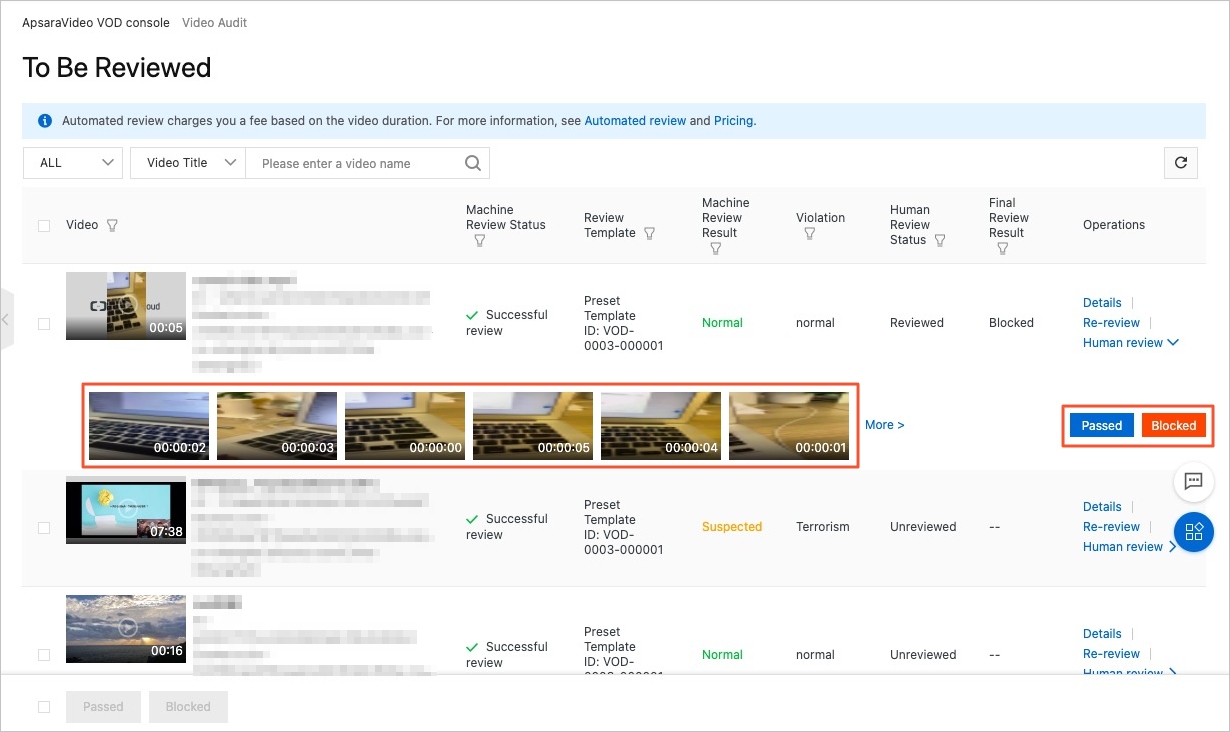
Method 1: Review video snapshots
NoteSnapshots are displayed only for videos that pass an automated review.
In the Actions column, click Manual Review. View the video snapshots and select Passed or Blocked.
Method 2: Review the video
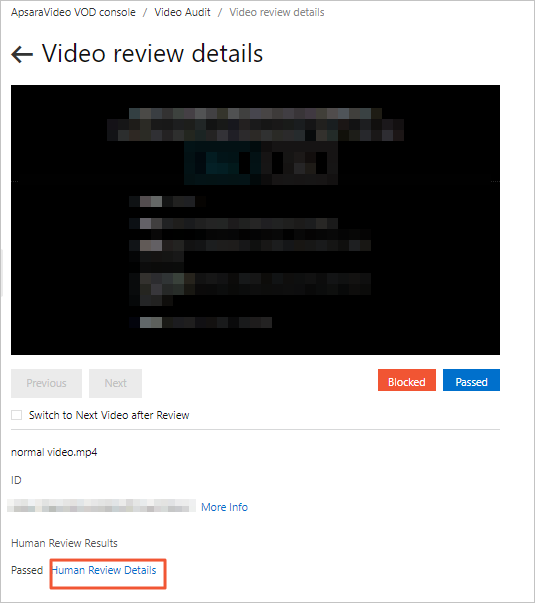
In the Actions column, click Details to go to the video review details page. Click the play button to watch the video, and then select Passed or Blocked.
Method 3: Batch review
On the Video Moderation page, select the checkboxes for one or more videos. In the lower-left corner of the page, select Passed or Blocked to complete the batch manual review.
Step 3: View the review results
Using the console
Log on to the ApsaraVideo VOD console.
In the left-side navigation pane, choose Review Management > Content Moderation.
You can view the moderation details for your videos on the Video Moderation list page.
The Manual Review Status column shows information about the manual review. The following table describes the parameters.
Parameter Name
Description
Video
Displays the name, ID, and storage address of the audio or video file.
Machine-assisted Moderation Status
The status of the machine-assisted moderation. Valid values:
Not Started: The audio or video file has not been reviewed by the machine.
Review Succeeded: The machine-assisted moderation is complete and successful. The Review Template column displays the template used, and the Machine-assisted Moderation Result column displays Violation, Suspected, or Normal.
Review Failed: The machine-assisted moderation is complete but failed. The Review Template column displays the template used, and the Machine-assisted Moderation Result column displays --.
Reviewing: The audio or video file is undergoing its first machine-assisted moderation.
Re-reviewing: The audio or video file is being re-reviewed by the machine.
Review Template
The template used for the automated review. You can set this in Step 1. (Optional) Configure an automated review template.
Machine-assisted Moderation Result
The result of the automated review. Valid values:
Violation: The audio or video file contains non-compliant content as configured in the review template. The Violation column displays the specific violations.
Suspected: The audio or video file may contain non-compliant content as configured in the review template. The Violation column displays the potential violations. We recommend that you perform a manual review for confirmation.
Normal: The audio or video file does not contain non-compliant content as configured in the review template. The Violation column displays normal.
--: The audio or video file has not been reviewed by the machine, or the review failed.
Violations
The violations detected by the automated review. Values include the following: Pornography detection, Terrorism and politically sensitive content, Ad, Logo, Undesirable scene, Voice, normal, --. The value -- indicates that the audio or video file has not yet been reviewed by the machine.
Manual Review Status
The status of the manual review. Valid values:
Not Reviewed: The audio or video file has not been manually reviewed. The Final Review Result column displays --.
Review Complete: The audio or video file has been manually reviewed. The Final Result column displays Passed or Blocked.
Final Result
The final result of the video review. Valid values:
Pass: Audio and video files with this status can be played back normally.
Block: Audio and video files with this status can be played back only in the ApsaraVideo VOD console or using a secure review IP address. You cannot obtain the playback URL of these files using an API or SDK. However, playback URLs that have already been distributed can still be used for playback.
--: The audio or video file has not been reviewed by the machine or by a human. Whether it can be played back normally depends on whether its status on the Video on Demand console > Media Library > Audio/Video page is Normal.
Actions
The operations you can perform on the audio or video file, including viewing review details and starting an automated or manual review.
View the review details of the audio or video file.
In the Actions column, click Details to go to the video review details page. This page displays a playback preview, the file name and ID, and the manual and automated review results. On this page, you can also play the file and set the manual review result.
View the historical manual reviews.
For an audio or video file whose Manual Review Status is Reviewed, click Manual Review Details on the video review details page to view its manual review history.