Database migration is a major cloud adoption challenge. When database domain names or IPs are hardcoded in application clients, migrating to ApsaraDB RDS requires modifying client code—a complex, high-risk process.
Solution
Use Private Zone to create a database domain name matching your original on-premises domain name, then add a CNAME record pointing it to the internal endpoint of your ApsaraDB RDS instance. This eliminates client code changes during migration, reducing refactoring effort and risk.

Before you begin
-
Prepare the following resources.
Resource
Quantity
Sample value
On-premises database domain name
1
db.example.com
ECS instance
1 or more
1.1.XX.XX, 2.2.XX.XX
ApsaraDB RDS instance
1
rm-2ze44q293vs56l9po*****.mysql.rds.aliyuncs.com
Procedure

1. Get the RDS internal endpoint
-
Log on to the ApsaraDB RDS Console. In the left-side navigation pane, click Instances. On the Instances page, click your target instance ID in the Instance ID/Name column.
-
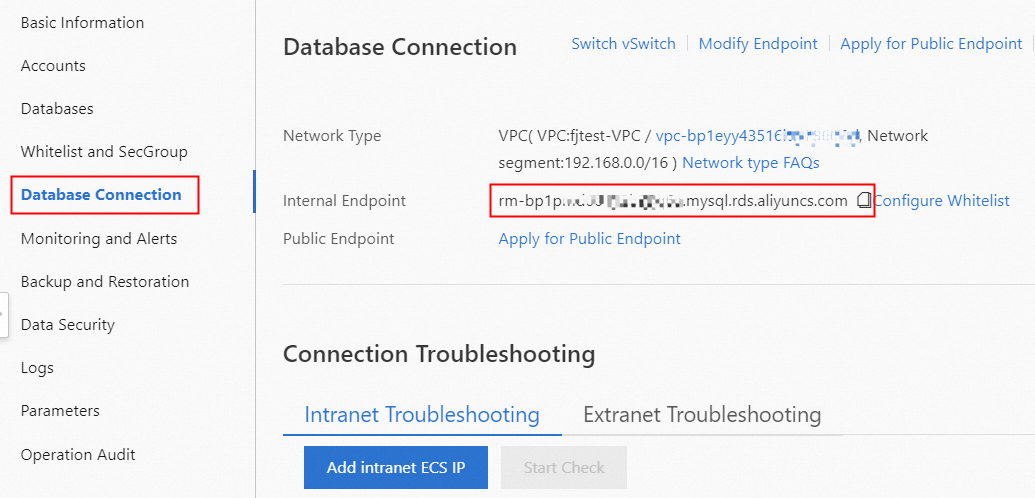
In the left-side navigation pane, click Database Connection and copy the domain name next to Internal Endpoint.
2. Add a Private Zone and CNAME record
-
Navigate to the Alibaba Cloud DNS - Private Zone console.
-
On the Private Zone page, click the User Defined Zones tab.
-
Click Add Zone. In the Add Private Zone Domain (Zone) dialog box, enter your domain name, such as db.example.com. For the zone type, we recommend Private Zone Acceleration. Click OK.
-
On the User Defined Zones page, find the domain
db.example.comand click Settings in the Actions column. -
On the Settings page, click Add DNS Record. Set Record Type to CNAME, Hostname to @, and DNS Request Source to Default. For Record Value, enter the internal endpoint of your ApsaraDB RDS instance, such as
rm-2ze44q293vs56l9po*****.mysql.rds.aliyuncs.com. Use your actual endpoint. Click OK. -
Return to the User Defined Zones page. Find the domain
db.example.comand click Effective Scope in the Actions column. On the Zone Settings page, set the Effective Scope by associating the zone with your database VPC.
3. Verify the configuration
-
Log on to an ECS instance in the associated VPC and run the following command to test DNS resolution. A successful response is shown below. If resolution fails, verify your DNS record configuration.
dig db.example.com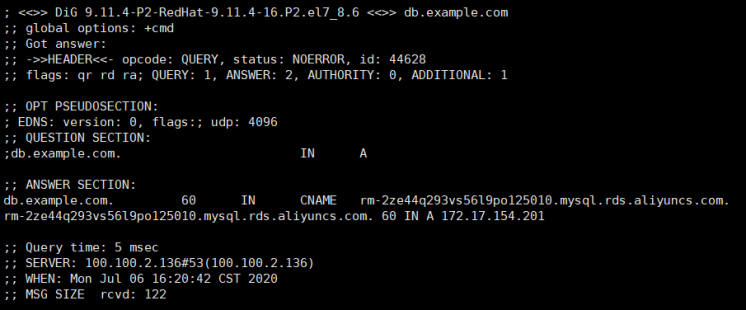
-
Log on to an ECS instance in the same VPC and run the following command to test the RDS connection. A successful connection produces the following output.
mysql -utest_dns -ptest_dns -hdb.example.com -P3306 -Dtest_dns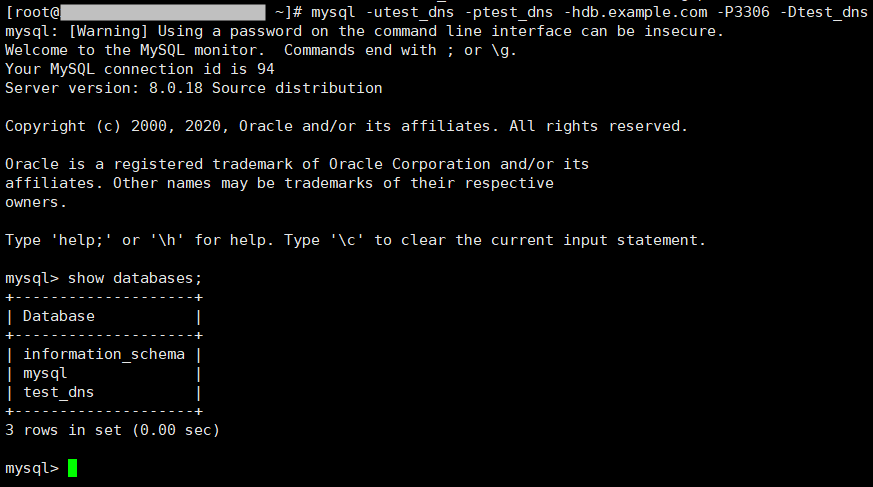
Troubleshooting
-
ERROR 2003 (HY000): Can’t connect to MySQL server on ‘db.example.com’ (110): Connection failure. Add the ECS instance IP address to the database whitelist.
