When you add or back up a data source of the type User-Created Database with Public IP Address <IP Address:Port Number>, Data Disaster Recovery cannot add its CIDR blocks to the security settings automatically. You must add them manually to the firewall rules or security group rules of the self-managed database before the connection can succeed.
When to add CIDR blocks manually
Data Disaster Recovery handles CIDR block configuration automatically for some data source types, but requires manual configuration for others.
| Data source type | How CIDR blocks are added |
|---|---|
| ApsaraDB instance (ApsaraDB RDS, PolarDB, or ApsaraDB for MongoDB) | Automatically added to the IP whitelist of the ApsaraDB instance. No manual steps required. |
| Self-managed database hosted on an Elastic Compute Service (ECS) instance | Automatically added to the security group rules of the ECS instance. No manual steps required. |
| User-Created Database with Public IP Address <IP Address:Port Number> | Must be added manually to the firewall settings or security group rules of the self-managed database. |
| Express Connect DB/VPN Gateway/Smart Access Gateway (SAG) | Must be added manually as the destination for the virtual private cloud (VPC) to which the data source is connected. |
Allowing public access to a self-managed database carries security risks. To reduce exposure, strengthen database authentication, restrict allowed ports, or use a private connection method such as Express Connect, VPN Gateway, or Smart Access Gateway instead of a direct public IP connection.
Prerequisites
Before you begin, make sure that you have:
-
A self-managed database with a public IP address that has firewall settings or security group rules configured
-
Sufficient permissions to modify the firewall or security group rules of the data source
-
(Required for RAM users) The AliyunDBSFullAccess and AliyunOSSFullAccess policies attached to the Resource Access Management (RAM) user. Without these policies, Data Disaster Recovery cannot automatically add CIDR blocks to ApsaraDB instance whitelists or ECS security group rules. For details, see Grant permissions to a RAM user.
If you revoke Data Disaster Recovery's access permissions on ECS instances, automatic CIDR block addition to ECS security group rules stops working. In that case, add the CIDR blocks manually.
Add CIDR blocks to the security settings of a self-managed database
The CIDR blocks displayed in the console vary by region. Copy the blocks that match your data source's region, then add them to the appropriate security settings.
Step 1: Copy the CIDR blocks for your region
-
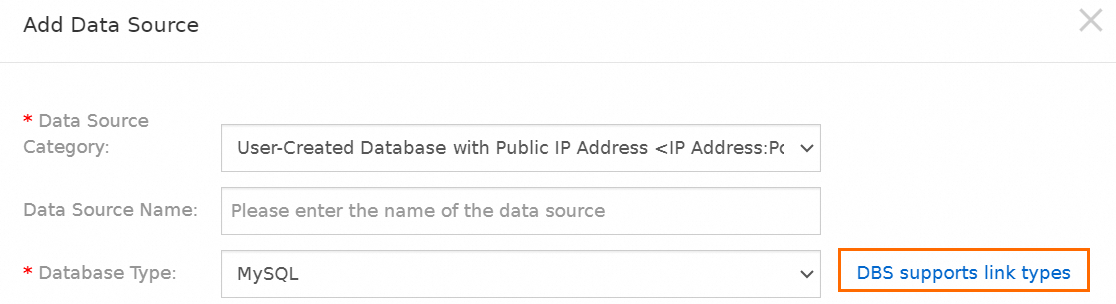
When adding or backing up a data source, click Set Whitelist. The following screenshot shows the Set Whitelist button on the Data Source page. Other pages provide a similar button.
-
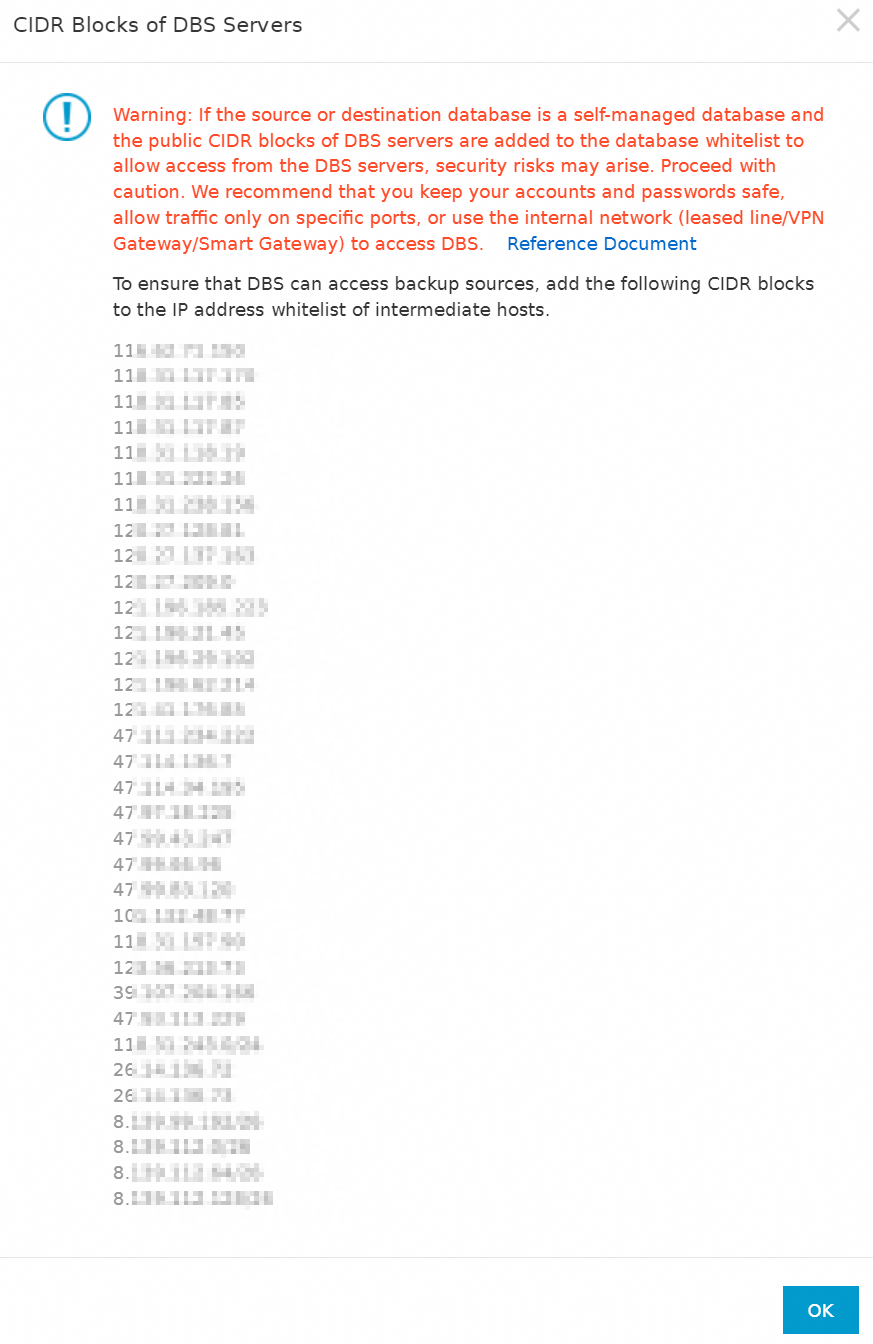
In the dialog that appears, copy all CIDR blocks listed for your region.
Step 2: Add the CIDR blocks to your security settings
Add the copied CIDR blocks to the security settings of the data source. The exact steps depend on where your database is hosted:
-
On-premises server: add the CIDR blocks to the firewall rules of the server.
-
Database with its own firewall: add the CIDR blocks to the firewall settings of the database.
-
ECS-hosted database: add the CIDR blocks to the security group rules of the ECS instance. See the steps below.
After the CIDR blocks are added, Data Disaster Recovery connects to the data source using the database account and password you specify.
Some databases restrict account access by IP address. For example, username'@'localhost allows the account to connect only from the local host, which blocks Data Disaster Recovery. If this applies to your setup, change the administrator permissions for that account or specify a different database account.
Add CIDR blocks to ECS security group rules
-
On the Instances page of the ECS console, click the ECS instance that hosts your database.
-
On the instance details page, click the Security Groups tab, then click the security group to configure.
-
On the Inbound tab, click Quick Add.
-
In the Quick Add dialog box:

-
Paste the copied CIDR blocks into the Authorization Object field.
-
In the Port Range section, select All (1/65535).
-
Click OK.
-
By default, outbound rules allow ECS instances to access all IP addresses. If you have disabled outbound traffic for the security group, also add the CIDR blocks to the outbound rules.
Next steps
If Data Disaster Recovery still cannot connect to your data source after adding the CIDR blocks, see Common errors and troubleshooting for Data Disaster Recovery.