The DMS knowledge base helps you manage knowledge used by Data Copilot. It allows you to view knowledge automatically generated by Meta Agent and to manually add or modify it. An enriched knowledge base improves Data Copilot's ability to understand questions, make automated decisions, and provide reasoned answers. This topic describes how to add, edit, and manage knowledge.
Knowledge sources
Business knowledge is crucial for the effectiveness of NL2SQL. DMS builds business knowledge in three ways: through interactive Q&A in the Copilot interface, manual user additions, and the DMS data augmentation pipeline. The following figure illustrates how knowledge enhances Copilot.
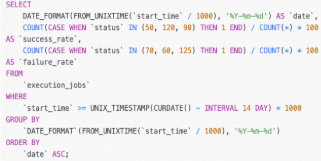
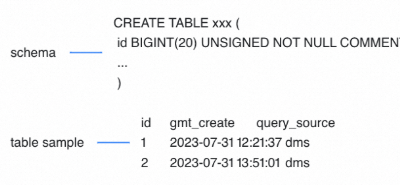
The data augmentation pipeline builds knowledge by extracting SQL templates from your historical SQL queries in DMS. The system then translates these queries into natural language questions and stores them as SQL records in the knowledge base.
Notes
-
The knowledge management page displays all business knowledge for the current DMS tenant, including both auto-generated and manually added knowledge.
-
Copilot automatically creates SQL records in the knowledge base from your feedback (likes).
-
The system automatically generates knowledge snippets in the knowledge base from SQL execution history and table structure.
Add knowledge
Add a single knowledge entry
Manually add knowledge
Log in to DMS 5.0.
-
In the upper-left corner of the console, click the
 icon and choose .Note
If you are using the classic console, choose from the top menu bar.
-
On the Knowledge Granularity tab, click Add.
-
In the Add Knowledge panel, enter the Description and Content. Select a knowledge type, knowledge level, and associated database.
-
Click OK.
Automatically generate knowledge
-
Copilot creates knowledge when you like or provide feedback on the information it generates. For more information, see Data Copilot (New).
-
The system automatically adds liked SQL queries and their corresponding questions to the knowledge base as SQL records with a knowledge level of pending review.
-
Your feedback and modified SQL are automatically added to the knowledge base as knowledge snippets, with the knowledge level set to pending review.
-
-
Build knowledge through the data augmentation pipeline.
Batch import knowledge
Only CSV files can be imported.
-
On the Knowledge Granularity tab, click Batch Import.
-
Download and review the template. Complete the template with your knowledge data, and then upload the CSV file.
-
Click OK.
Manage knowledge
On the knowledge list page, you can edit or delete knowledge entries.
Add tags
You can use tags to quickly find target knowledge entries.
-
At the top of the knowledge list page, click Tag Management.
-
Add a tag.
Click Add, enter a tag name, and then click OK.
NoteYou can also modify or delete tags.
-
Bind tags to knowledge.
-
In the row of the target knowledge entry, click the tag
 icon, and then click Bind.
 -
In the Tag dialog box, click Add.
-
Select one or more target tags, and then click OK.
NoteYou can bind up to 20 tags to each knowledge entry.
-
Search knowledge
You can filter for knowledge entries by keyword, tag, knowledge level, knowledge type, and associated database.
The filtered results are displayed in a table that includes columns such as Knowledge ID, Knowledge type, Description, Tag, Knowledge level, Associated database, Associated table, Associated field, and Popularity. The Actions column provides options to Edit and Delete entries.
Manage SQL knowledge
To reduce AI errors when you use Copilot, DMS introduces the knowledge base and Similar Queries features.
Manage business knowledge
-
Generate business knowledge
DMS builds business knowledge in three ways: through interactive Q&A with Copilot, manual user additions, and the data augmentation pipeline. For more information, see Add knowledge.
When Copilot generates SQL, it references this business knowledge and indicates that the knowledge was used.
-
Verify business knowledge
On the Business knowledge tab of the Table Details page, you can review the generated business knowledge for accuracy. If it is correct, you can change the knowledge level from pending review or pending verification to verified.
NoteOnly database developers and database and table owners can verify knowledge.
-
Adjust business knowledge
If business knowledge is incorrect, you can edit it in the area where it is referenced by the SQL, or adjust it directly in the knowledge base. For more information on the latter, see Knowledge base.