Connect an EMR Serverless StarRocks instance to a Data Lake Formation (DLF) Paimon catalog over the REST protocol, then query your data lake directly from StarRocks.
Prerequisites
Before you begin, ensure that you have:
-
An EMR Serverless StarRocks instance at version 3.3.8 or later. If your instance is on an older version, upgrade it.
-
The Serverless StarRocks service and DLF reside in the same VPC.
Create a DLF catalog
See Get started with DLF.
Set up access control
DLF uses Resource Access Management (RAM) for access control. By default, StarRocks users have no access to DLF. To grant access, create a RAM user that acts as the StarRocks identity when connecting to DLF, grant that user data permissions in the DLF console, then map it to a StarRocks user.
Step 1: Create or select a RAM user
-
Log on to the RAM console as an Alibaba Cloud account owner or RAM administrator.
-
Create a RAM user or select an existing one.
The RAM user name can contain only letters, digits, and underscores (
_) to satisfy StarRocks naming conventions.
Step 2: Grant data permissions in DLF
-
Log on to the DLF console.
-
Navigate to your Paimon catalog.
-
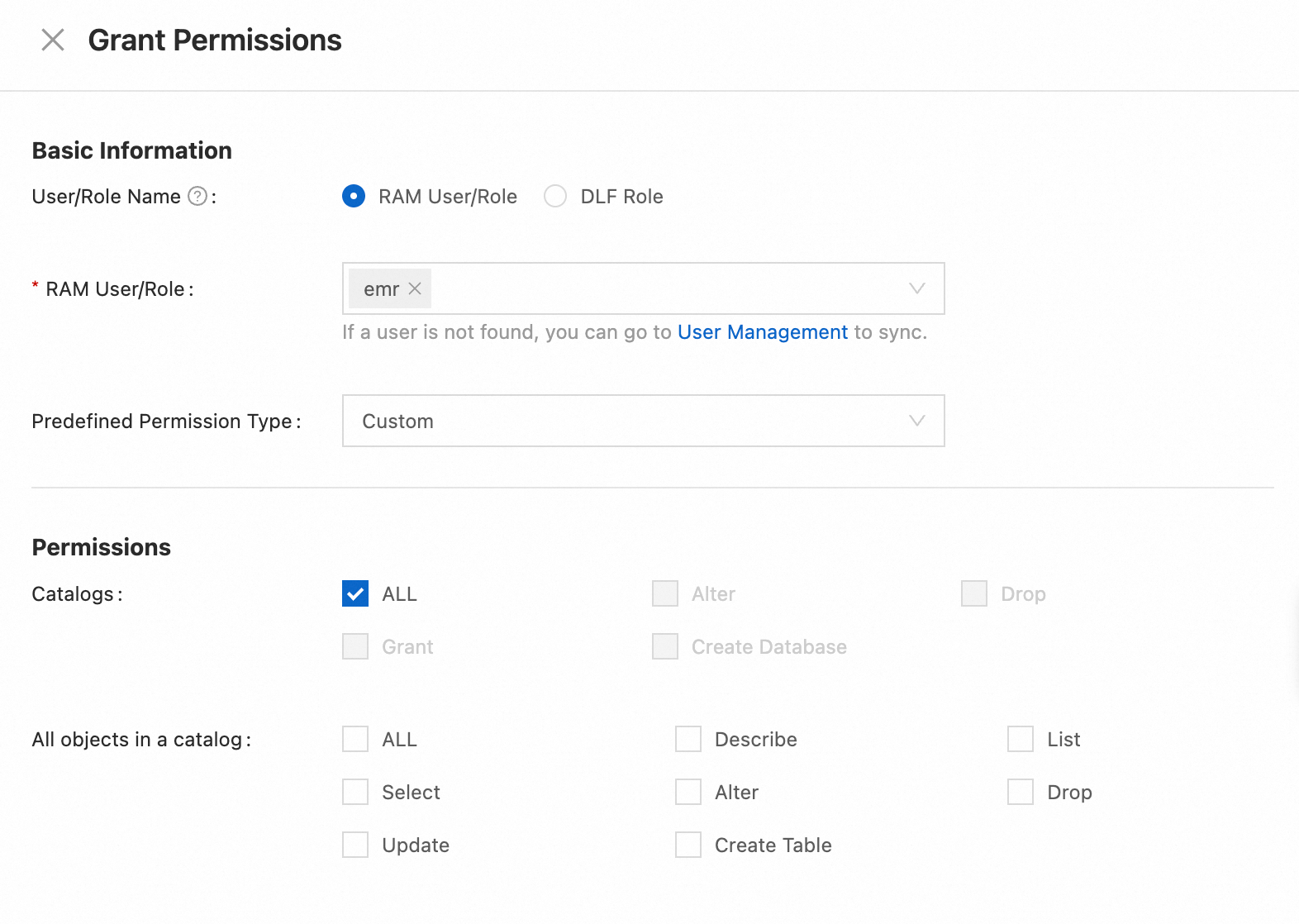
On the Permissions tab, click Grant Permissions and grant the necessary data access on your catalog to the RAM user. For more information, see Manage data permissions.
Step 3: Create and configure a StarRocks user
-
Go to the EMR Serverless StarRocks console.
-
Click Connect in the Actions column of your StarRocks instance. For more information, see Use EMR StarRocks Manager to connect to an EMR Serverless StarRocks instance.
Connect with an
adminor other administrative user. -
In StarRocks Manager, navigate to Security Center > User Management and click Create User.
-
In the Create User dialog, configure the following settings and click OK:
Field Value User Source Select RAM User Username Select the RAM user you created in step 1 Password Set a password for this StarRocks user Role Default is public -
Grant StarRocks privileges to the new user:
-
On the User Management page, find the new user and click Add Permission in the Actions column.
-
On the Permissions tab, click Add Permission.
-
In the Add Permission panel, set Resource and Permission as needed, then click OK.
This grants the user access to StarRocks internal resources. To modify permissions on your DLF catalog, go to the DLF console.
-
Step 4: Verify the user mapping (optional)
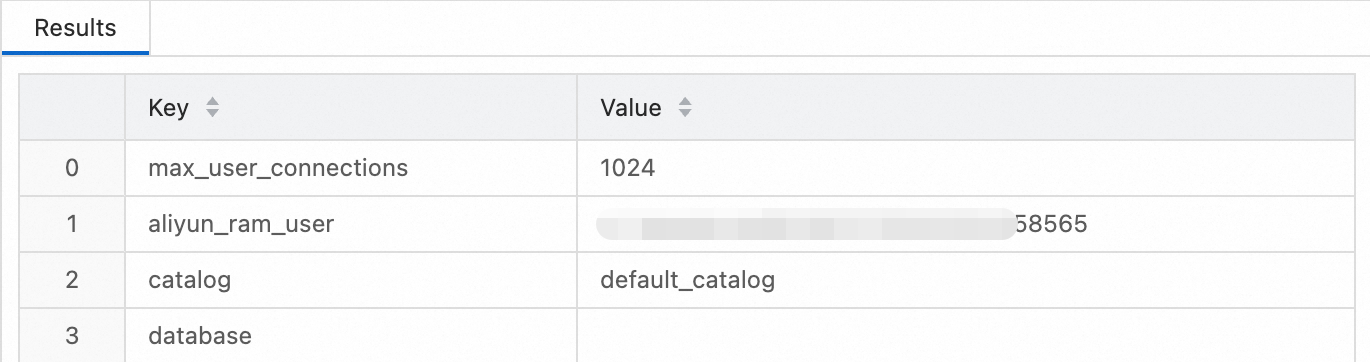
The StarRocks user is mapped to the RAM user within 10 to 20 seconds. To verify the mapping:
-
Log on to StarRocks Manager with the new StarRocks user.
-
Navigate to SQL Editor and click the
 icon to create an SQL script.
 -
Run the following command:
show property;If the RAM user ID appears in the output, the mapping is active:
Connect StarRocks to DLF
This creates a logical mapping to your DLF catalog. Creating or deleting the catalog in StarRocks does not affect the actual data in DLF.
Log on to StarRocks Manager as the new StarRocks user, then create an external catalog that points to your DLF Paimon catalog.
-
Navigate to SQL Editor and click the
icon to create an SQL script. -
Run the following SQL to create the external catalog. Replace the placeholder values in the
PROPERTIESclause with your actual values.CREATE EXTERNAL CATALOG `paimon_catalog` PROPERTIES ( 'type' = 'paimon', 'uri' = 'http://<region-id>-vpc.dlf.aliyuncs.com', 'paimon.catalog.type' = 'rest', 'paimon.catalog.warehouse' = '<dlf-paimon-catalog-name>', 'token.provider' = 'dlf' );The following table describes each property:
Property Description Example typeStarRocks catalog type. Set to paimon.paimonuriDLF endpoint. Format: http://[region-id]-vpc.dlf.aliyuncs.com.http://ap-southeast-1-vpc.dlf.aliyuncs.compaimon.catalog.typePaimon catalog type. Set to restto access DLF.restpaimon.catalog.warehouseThe name of your DLF Paimon catalog. You can obtain this name in the DLF console. StarRockstoken.providerREST service provider. Set to dlf.dlf
What's next
-
Manage data permissions — update which tables and databases the RAM user can access in DLF.
-
Get started with DLF — learn how to create and manage DLF catalogs and Paimon tables.