This topic describes how to read data from Data Lake Formation (DLF) in EMR Serverless Spark using PVFS (Paimon Virtual File System). PVFS provides a unified virtual file system layer that lets Spark jobs address DLF-managed objects directly by catalog path, eliminating the need to resolve underlying storage URIs manually.
Prerequisites
You have an Alibaba Cloud account with access to DLF and EMR Serverless Spark.
Your EMR Serverless Spark workspace runs one of the following versions or later:
esr-2.9.0
esr-3.5.0
esr-4.6.0
You have a DLF catalog. If not, see Get started with DLF.
Your DLF catalog is connected to your EMR Serverless Spark workspace. If not, complete the steps in Connect a DLF catalog to a Spark workspace before proceeding.
Connect a DLF catalog to a Spark workspace
Follow the steps for your situation.
New workspaces
Follow the steps in Create a workspace.
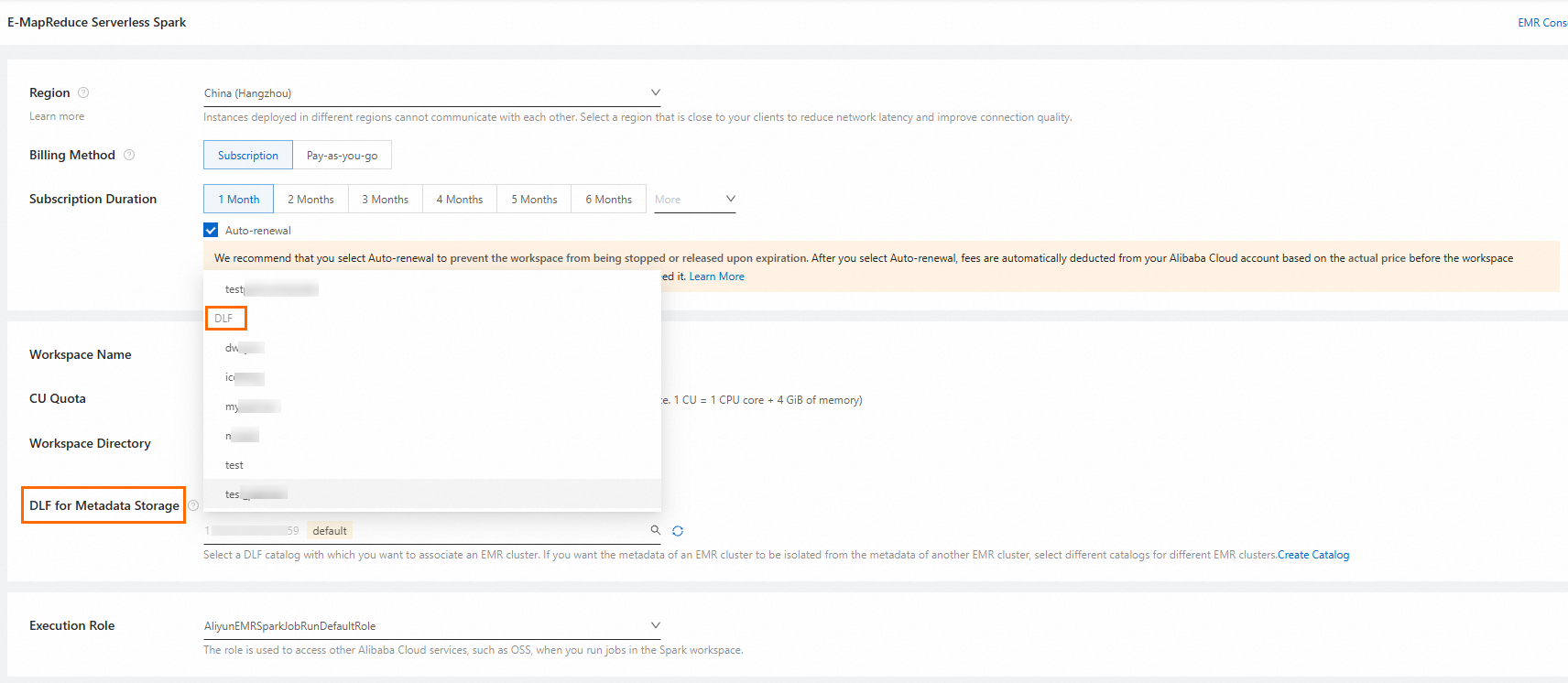
When creating the workspace, enable DLF for Metadata Storage and select your DLF catalog.
Existing workspaces
Navigate to the Catalog page of your Spark workspace and add a DLF catalog.
All DLF catalogs in a Spark workspace must be the same version. You can add only DLF-Legacy catalogs or only the latest DLF catalogs, but not a mix. If your workspace already has a DLF-Legacy catalog and you want to add the latest DLF catalog, choose one of the following options:
Remove the DLF-Legacy catalog before adding the latest DLF catalog. Ensure no running Spark jobs are using its data before you remove it.
Create a new Spark workspace and add the latest DLF catalog there.
Access DLF from EMR Serverless Spark
Complete the following steps to create an object table in DLF, upload a sample file, and query it from a Spark notebook using a PVFS path.
Log on to the DLF console.
In the left-side navigation pane, choose Catalogs. Click the name of the catalog connected to your EMR Serverless Spark workspace. In the default database, create an object table named
object_table.Click
object_tableto open its details page. Select the File List tab.Click Upload File and upload the employee.csv file.
Go to the EMR console. In the left-side navigation pane, choose EMR Serverless > Spark. Click your Spark workspace name.
In the left-side navigation pane, choose Development.
On the Development tab, click the
 icon. In the New dialog box, enter a name, set Type to Notebook, and click OK.
Copy and paste the following code to access the sample file:
   # Replace catalog_name with your actual catalog name.
   df = spark.read.option("delimiter", ",").option("header", True).csv("pvfs://catalog_name/default/object_table/employee.csv")
   # Show the first 5 rows.
   df.show(5)
   # Perform an aggregate by calculating the total salary for each department.
   sum_salary_per_department = df.groupBy("department").agg({"salary": "sum"}).show()
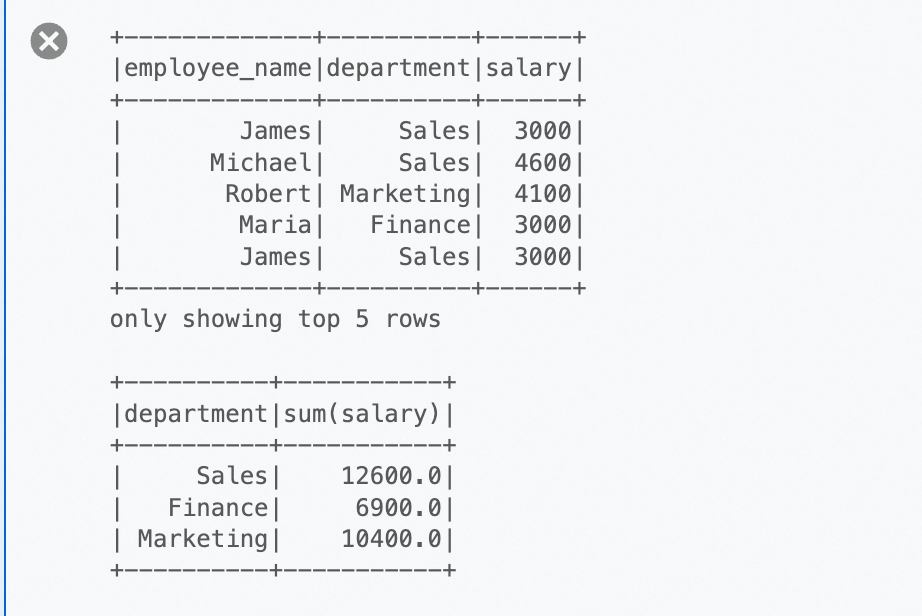
The result is shown in the following figure:
What's next
Now that you can query DLF data from EMR Serverless Spark via PVFS, you can explore more advanced scenarios such as joining object tables with Hive-managed tables, applying column-level access control through DLF permissions, or scheduling recurring Spark jobs against your DLF catalog.