In the DirectMail console, go to data statistics to view aggregated data for all sender addresses under your primary account and data for each individual address. The statistics include the total number of emails sent, successful deliveries, failures, invalid addresses, success rate, and invalid address rate.
Sending data
In the left-side navigation pane of the DirectMail console, click Send Data.
Email sending
Select a mail tag, sender address, Start Time, and End Time, and then click Query.
Note: This page displays key sending metrics, including the total number of emails sent, successful deliveries, delivery failures, invalid addresses, success rate, and invalid address rate.
Email sending trends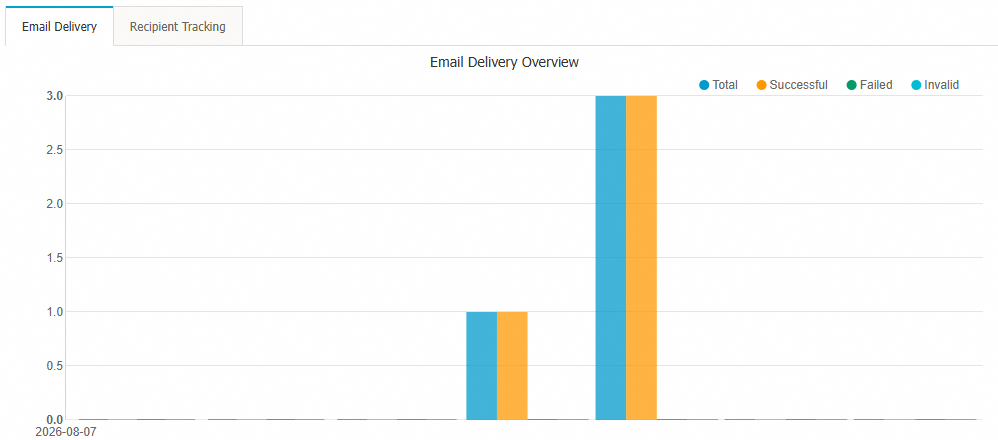
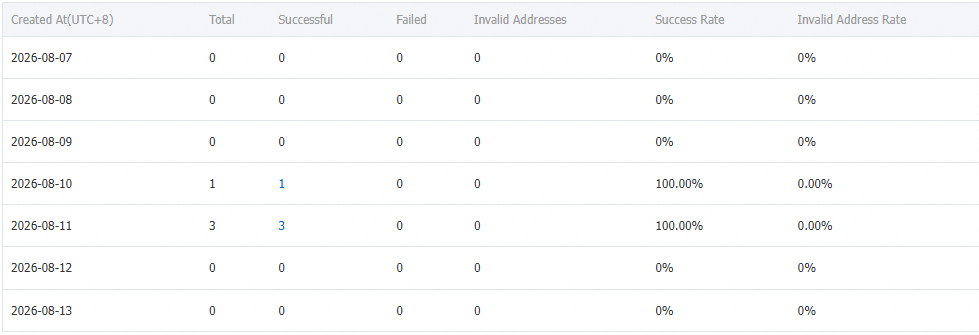
You can query data for up to a 31-day interval within the last 90 days. By default, the page displays data from the last 7 days.
Email tracking
On the Send Data page, click the Email Tracking tab.
Select a start and end time, and then click Query to view the tracking data.
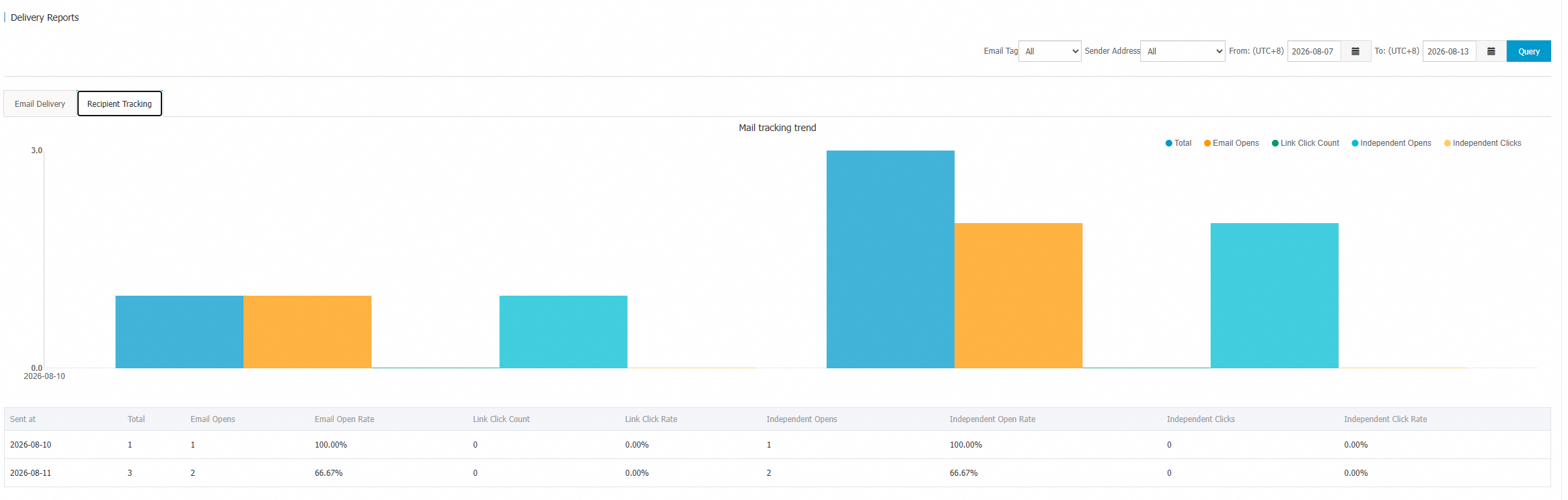
Use email tracking to collect open and click data from your sent emails and measure the effectiveness of your campaigns. You can query tracking data for your sending tasks, which includes metrics for opens, open rate, clicks, click rate, unique opens, unique open rate, unique clicks, and unique click rate.
Metric Definitions:
"Total": The number of emails successfully delivered with email tracking enabled.
"Open": An event recorded when a recipient opens an email.
"Click": Occurs when a recipient clicks a link in an email.
"Unique open": Counts only the first open of an email by each unique recipient.
"Unique click": Counts only the first click on a link within an email by each unique recipient.
To use this feature, see How do I enable email tracking?
To enable the data tracking feature, see How do I enable the data tracking feature?
Sending details
Query sending details by task creation time, sender address, recipient address, mail tag, or delivery status.
In the left-side navigation pane of the DirectMail console, click Sending Details.
Select a Time Range, Filter Criteria, and Delivery Status, and then click Query.
You can query data from the last 30 days.
Unsubscribe
A recipient has opted out of receiving your emails.
DirectMail blocks future deliveries to this address and returns the error code: 562 Unsubscribed rcptto.
For more information, see Instructions for using the unsubscribe feature.
Spam reports
A spam report indicates that a recipient has marked your email as spam. This feedback is sent from the recipient's email service provider (ESP) to Alibaba Cloud DirectMail through a feedback loop (FBL). The location of the "report spam" button may vary depending on the recipient's email client.
DirectMail blocks future deliveries to this address and returns the error code: 560 Recipient Reported Spam.
Unsubscribe data is updated in real time.
Spam Reports data is updated daily.
Do not send marketing or subscription emails to a recipient who has unsubscribed or reported your email as spam. For transactional emails, such as verification codes, ensure you use a sender address designated for that purpose. Do not remove these addresses from your suppression list unless you can confirm the recipient made a mistake. Removing these addresses may increase your complaint rate, which can cause ESPs to blocklist your sender address or domain.