This topic explains how to create, edit, and submit an email template for review.
Template list
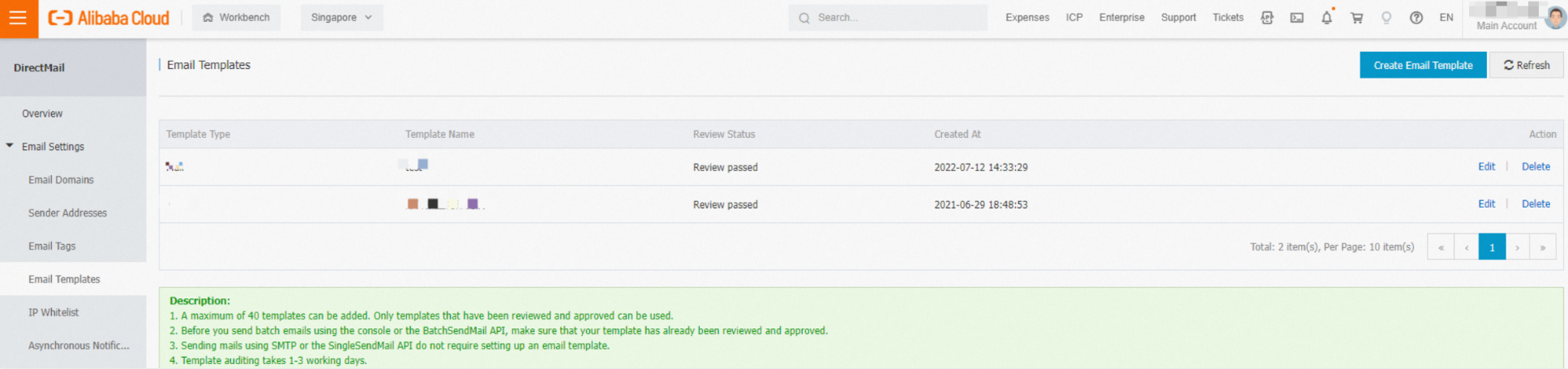
The Template Management page in the DirectMail console displays the name, status, creation time, and available operations for each template.
A template can have one of three statuses: Draft, Approved, or Rejected. For a template in Draft status, click Submit for Review. You cannot use the template to send emails until it is approved by the DirectMail operations team.
Create a template
1. Log on to the DirectMail console.
2. In the left-side navigation pane, click Template Management.
3. In the upper-right corner of the Template Management page, click Create Template.
4. On the template creation page, specify the required parameters and click Save in the lower-right corner. Saving the template sets its status to Draft. You can edit, submit for review, or delete it.
Variables
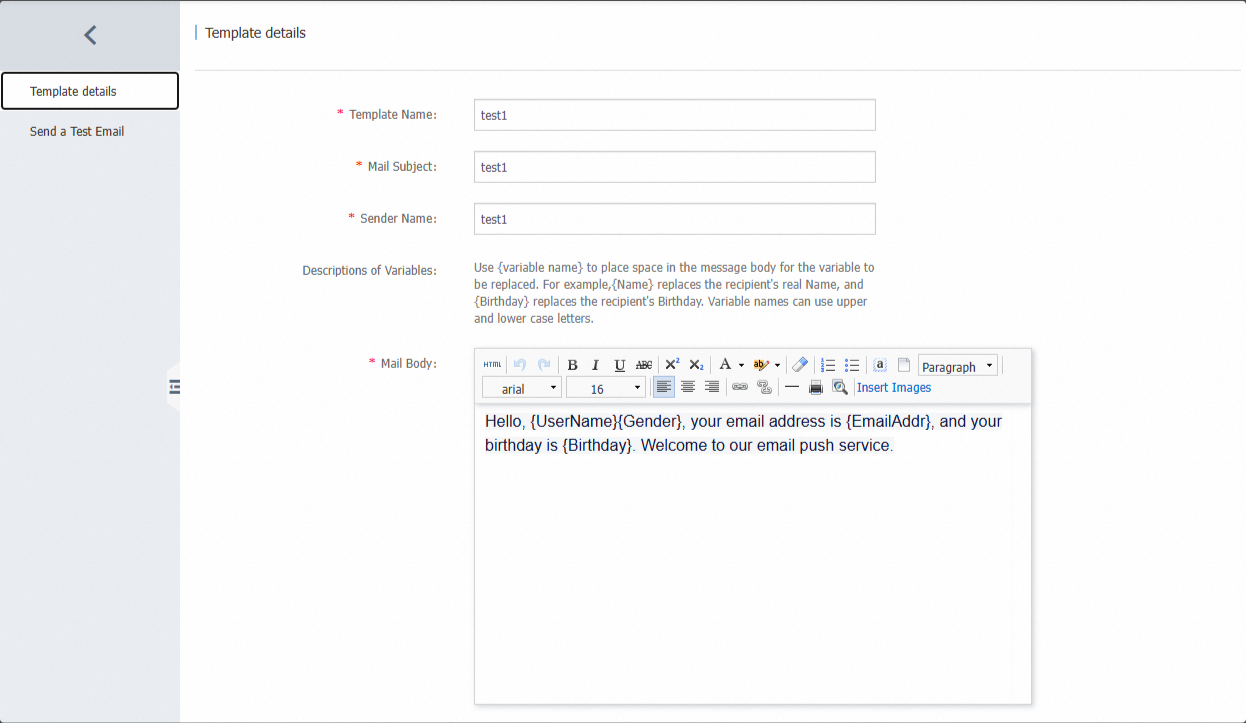
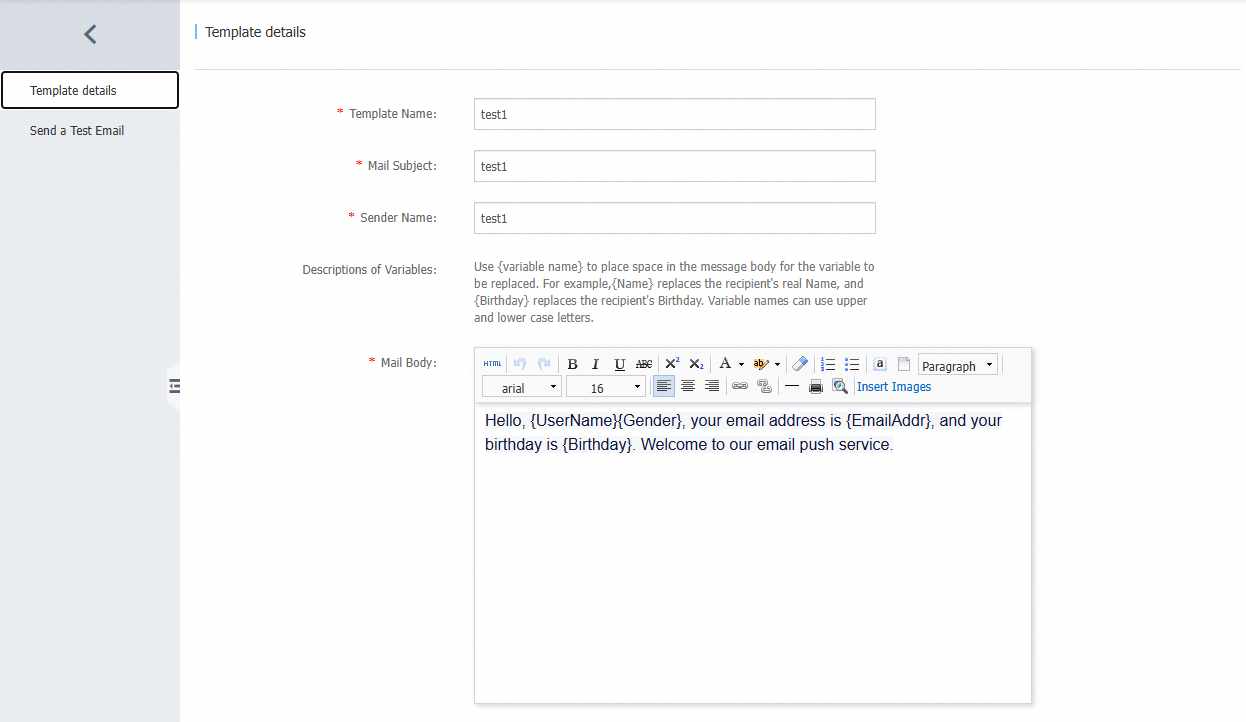
In an email template, a variable is a placeholder for personalized information that changes for each recipient. Use the format {VariableName} to embed a placeholder in the email body. At send time, the system automatically replaces the placeholder with the corresponding data for each recipient.
Rules and examples:
Format: The variable name must be enclosed in curly braces, such as
{UserName}or{Birthday}.Data source:
On the Send Test Email page, you can enter test values for your variables, such as John.
For production use, you must provide values for the corresponding columns when you create a recipient list. Otherwise, the variables cannot be correctly replaced. You can upload a template attachment or create a single entry in JSON format, for example,
{"UserName":"John Doe","Birthday":"1990/1/1","Gender":"Ms."}.
Naming conventions: Variable names can only contain uppercase and lowercase English letters, such as
UserNameandBirthday.Limit: Each email template can include up to 50 variables.
Sample email content:
Hello, {UserName}{Gender}, your email address is {EmailAddr} and your birthday is {Birthday}. Welcome to DirectMail.
Images
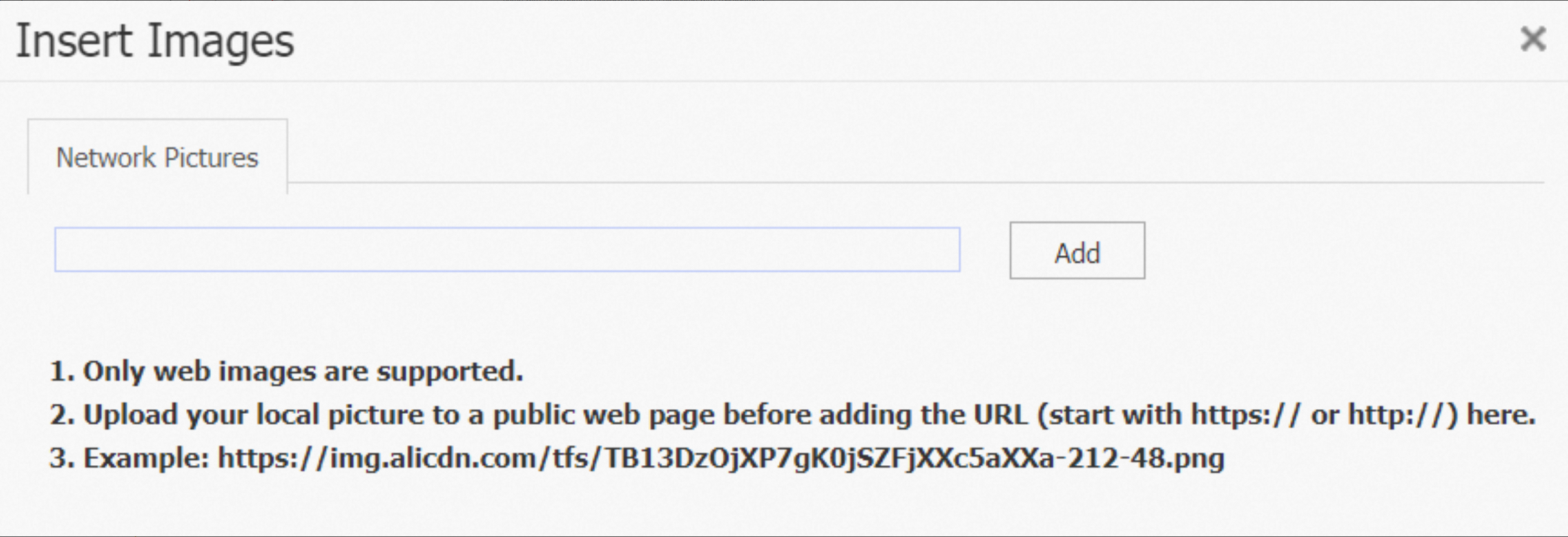
Email templates do not support embedding local images. You can only insert image URLs that start with HTTPS and allow hotlinking. Host your images on a service, such as a web album, to generate links that you can then add to your email template.

Unsubscribe link
Click the Hyperlink button, and then select Email Unsubscribe Link. This link allows recipients to unsubscribe from your emails.
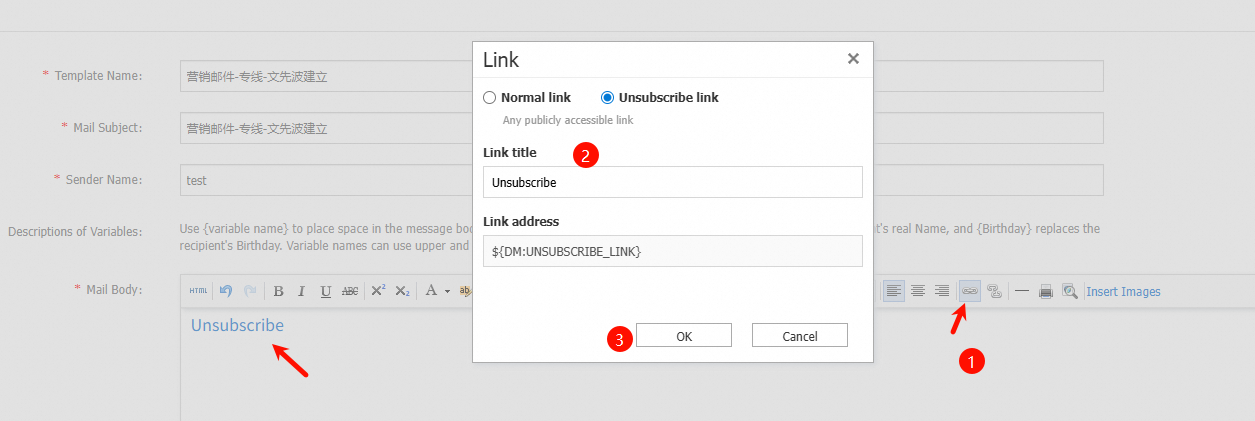
When sending emails from the console or by using the API, the variable ${DM:UNSUBSCRIBE_LINK} is automatically replaced with the unsubscribe link.
When sending emails by using SMTP, enable data tracking to ensure the variable is replaced correctly. How do I enable data tracking?
Sample HTML code (for API and SMTP reference only): <a href="${DM:UNSUBSCRIBE_LINK}" title="test" data-link-type="unsubscribe" target="_blank">test</a>
Unsubscription management
You can manage unsubscription records in the DirectMail console by navigating to Data Analysis > Unsubscribe.
5. After you create the template, submit it for review. The review process typically takes 1 to 3 business days. If a template is rejected, you can edit it and resubmit it for review.
You can save up to 100 email templates per account. Templates can be edited and deleted.
The size of the email body in a template cannot exceed 1 MB.
The length of the email subject cannot exceed 100 characters.
If you edit an approved or previously used template, its status resets to Draft and it must be submitted for review again.
Send test email
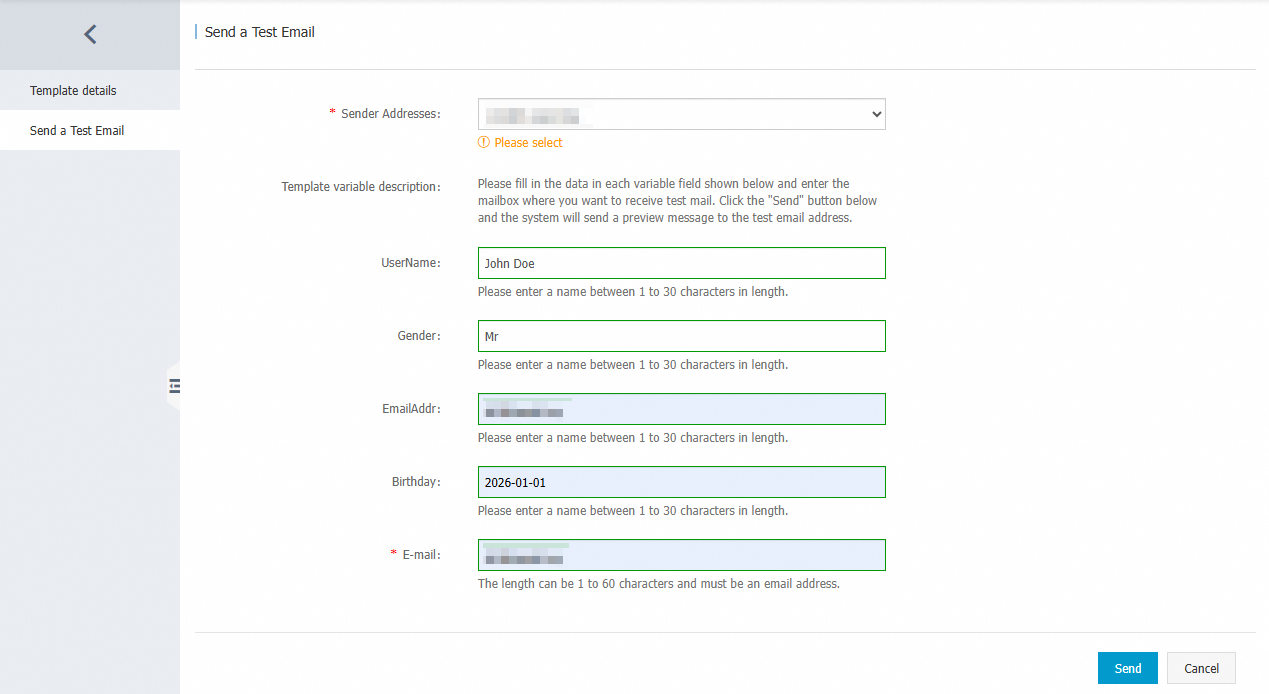
After you save the template content, you can send a test email.
On the Send Test Email tab, select a from address, enter the variable values and recipient addresses, and then click Send.
The recipient receives the email with the variables replaced by their corresponding values.
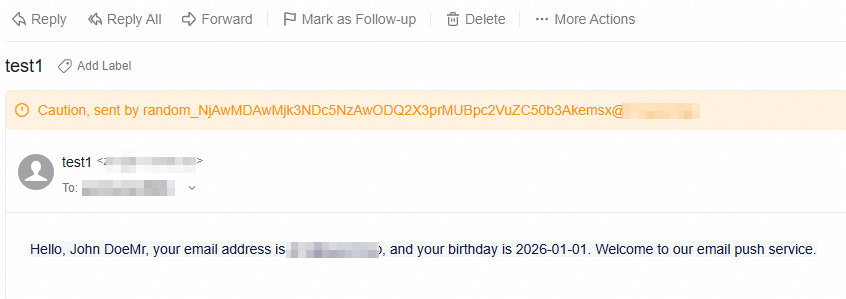
Test emails are sent from a random from address. For production emails, you can choose whether to use a random address.