For overprovisioning-enabled Dedicated Host (DDH) types, you can configure the cpu overcommit ratio. For workloads that have low CPU utilization or are not sensitive to CPU performance predictability, you can increase this ratio to provision more vCPUs. This allows you to increase the deployment density of your ECS instances and significantly reduce deployment costs.
Prerequisites
-
The DDH must be an overprovisioning-enabled type, such as g6s, c6s, r6s, g7s, or r7s. For more information, see Dedicated host types.
-
All ECS instances on the DDH must be in the Stopped state.
Procedure
Log on to the ECS console.
In the left-side navigation pane, choose Instances & Images >
 > Dedicated Hosts.
In the upper-left corner of the page, select a region and resource group.
-
Select the DDH that you want to configure and, in the upper-left corner of the page, choose
 >Modify Host Information.
-
In the Modify DDH Information dialog box, enter the cpu overcommit ratio.
ImportantSet the cpu overcommit ratio carefully. A higher ratio provides more available vCPUs but may increase resource contention and affect performance stability. Set the ratio based on the actual load of your services.
The cpu overcommit ratio can be set to a value from 1 to 5. Use the following formula to calculate the number of available vCPUs on a DDH: Number of available vCPUs = Number of physical CPU cores × 2 × cpu overcommit ratio. For example, a g6s DDH has 52 physical CPU cores. If you set the cpu overcommit ratio to 2, the total number of vCPUs is 208 (52 × 2 × 2).
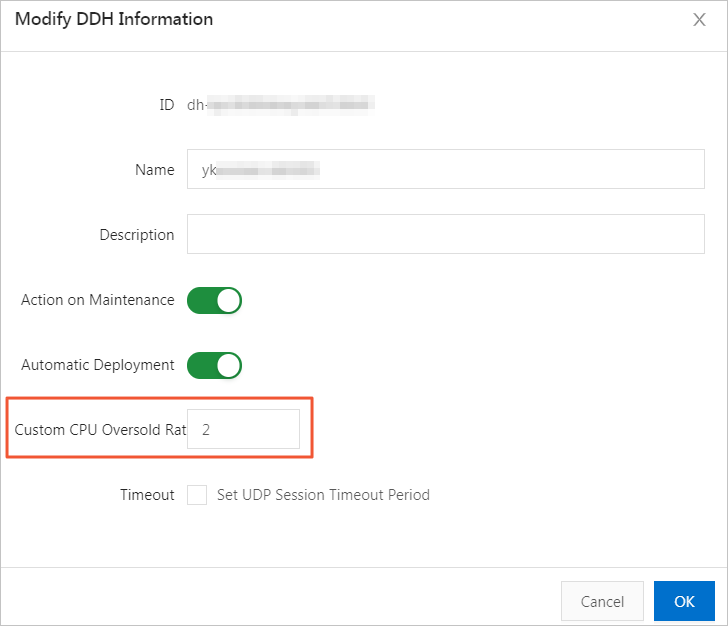
-
Click OK.