When you add databases to a backup instance, Database Backup (DBS) automatically backs them up.
Prerequisites
The database type is ApsaraDB RDS for MySQL.
You have created a backup instance and added an authorized account to it. For more information, see Step 3: Configure a backup by using a data source (Recommended) and Step 2: Authorize a data source account for disaster recovery.
NoteMake sure that the account has the permissions required to back up and restore databases. For more information, see Account permissions.
Usage notes
Cross-region backup is not supported.
Backups can affect the performance of the source database. We recommend that you perform backups during off-peak hours.
When you configure a backup instance, you do not need to set a backup schedule or the retention period for backup sets. The system automatically creates a default backup policy with the following settings:
Data backup: Enabled by default and cannot be disabled. Backups run every Monday, Wednesday, Friday, and Sunday. The retention period for data backup sets is 7 days. You can modify the data backup policy after the initial configuration is complete. For more information, see Modify a backup policy.
Log backup: Enabled by default and cannot be disabled. Logs are readable. The retention period for log backup sets is fixed at 30 days.
Billing
After you start a backup instance, you incur fees for backups and for backup set storage. You cannot use resource plans to offset these fees. No fees are charged if you configure a backup instance without starting it.
Billable item | Description |
Backup fees | DBS provides a free quota for disaster recovery that varies based on the specifications of your backup instance. You are not charged for backups if your usage is within the free quota. You are billed on a pay-as-you-go basis for usage that exceeds the free quota. For more information, see Backup fees. |
Storage fees | Backup sets are stored in the internal storage of DBS, which incurs storage fees. For more information, see Storage fees. |
Procedure
Go to the Data source page. In the top navigation bar, select a region, and then click the ID of the target data source.
In the navigation pane on the left, click Backup policies.
On the Backup policies page, click the Logical Backup tab.
NoteThis step is required only for cloud databases.
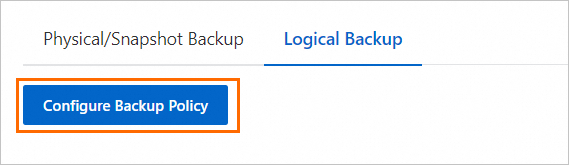
Click Configure Backup Policy.
On the Select Backup Schedule page, select the backup instance that you want to configure and click Next.

On the Select Account to Authorize page, select an authorized database account and click Next.
If no account is available, click Add Account to Authorize to add one before proceeding. Make sure that the account has the permissions required to back up and restore databases. For more information, see Account permissions.
On the Select Database and Table page, select the databases or tables that you want to back up, click the
 icon to move them to the Selected box, and then click Submit.
After the precheck is complete, click Precheck in the Resume dialog box.
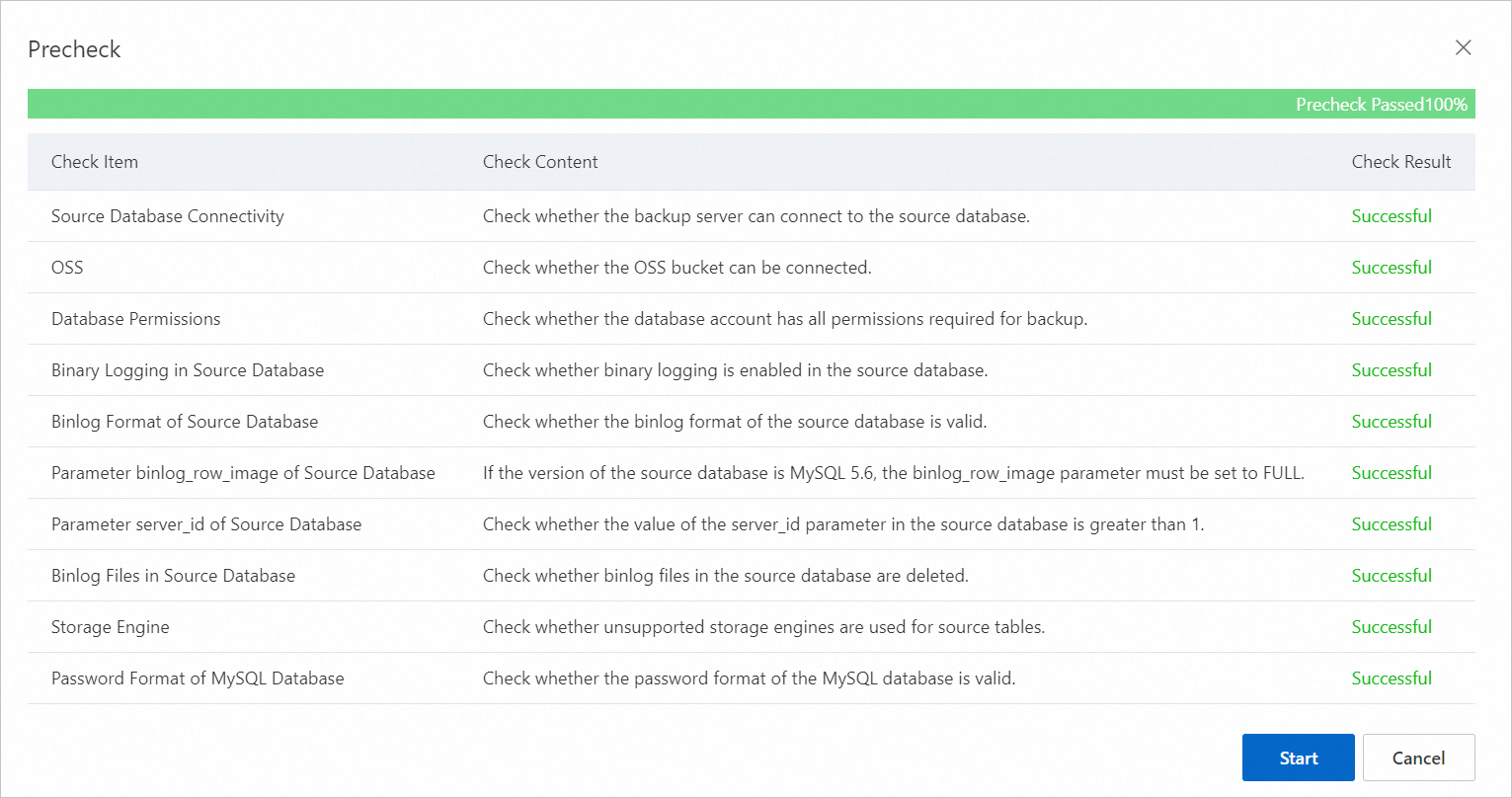 Note
NoteIf you want to perform other operations first, such as modifying the backup policy, you do not have to start the backup immediately. The system automatically starts the backup at the scheduled time.
You can also manually start the backup. On the Logical Backup tab, click the Resume button next to Backup Status. After you click Resume, the system immediately initiates a full backup task and an incremental backup task.
Optional: View the progress of the backup task.
On the Task Management > Backup tasks page, view the progress of the task.
Related documents
FAQ
Q: Why does the mysql JDBC Connect diagnostic fail, and how can I fix it?
A: The database username or password may be incorrect, or the password may contain special characters. For troubleshooting information, see Notes on database accounts.