Governance items define the rules that Data Asset Governance uses to detect issues after a file is deployed. Data governance engineers can view governance items from the global, individual, or workspace dimensions to quickly identify and resolve issues. Enable or disable governance items per workspace to control which rules are active and how they affect your workspace health scores.
By default, Data Asset Governance generates initial governance items automatically.
Limitations
-
Governance items count toward workspace health score calculations.
-
Custom governance items are not supported.
Prerequisites
Before you begin, ensure that you have one of the following roles or permissions:
-
An Alibaba Cloud account
-
A Resource Access Management (RAM) user with the
AliyunDataWorksFullAccesspolicy -
A tenant-level data governance administrator role
-
A workspace-level data governance administrator role
Users without any of the above can view governance items for their own workspace, but cannot enable or disable them.
Configure governance items
-
Go to the Data Asset Governance page. Log on to the DataWorks console. In the top navigation bar, select the desired region. In the left-side navigation pane, choose Data Governance > Data Asset Governance, then click Go to Data Asset Governance.
-
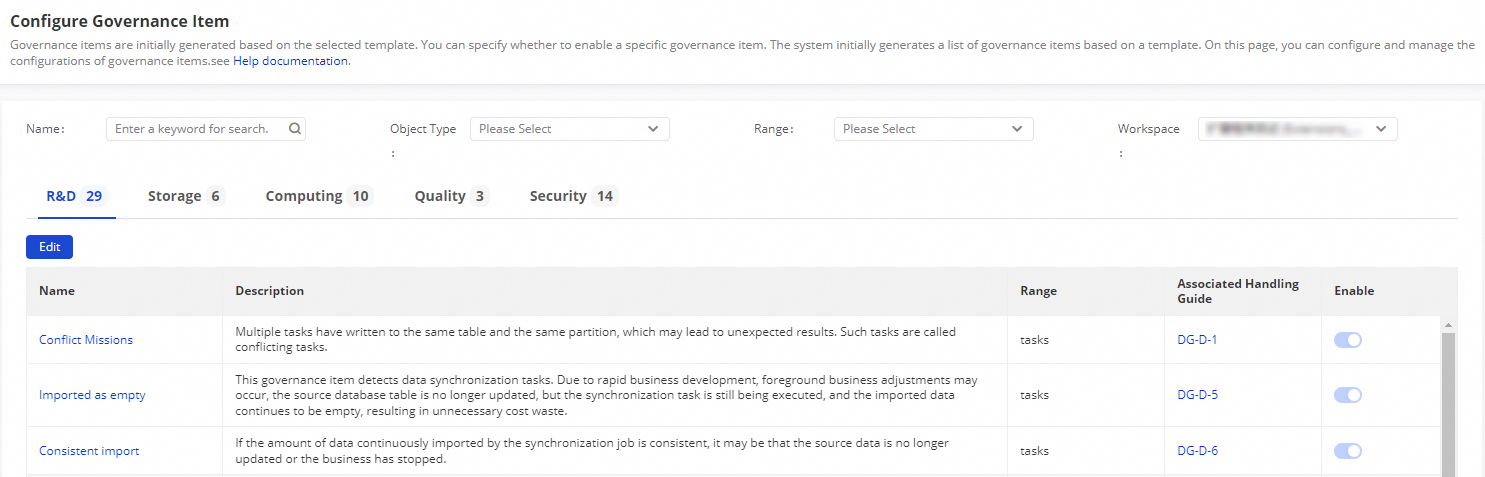
In the left-side navigation pane, choose System Settings > Governance Settings > Issues. The Configure Governance Item page appears.
-
Browse governance items across the R&D, Storage, Computing, Quality, and Security tabs.
Data Asset Governance supports fuzzy match. Enter keywords in the Name field to search for governance items by name. To view troubleshooting guidance for a specific item, click the link in the Associated Handling Guide column.
-
From the Workspace drop-down list above the governance item list, select the workspace you want to configure.
-
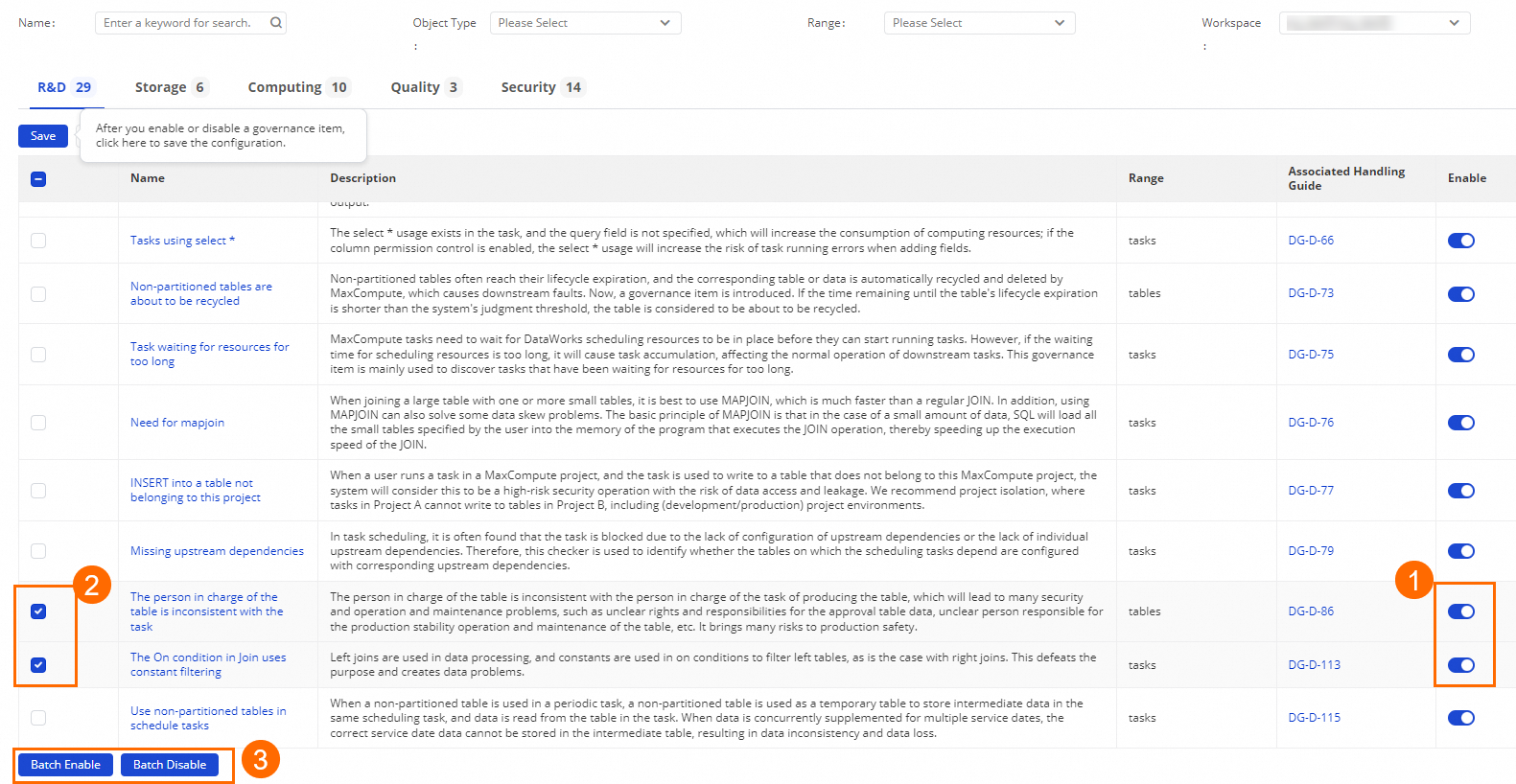
Click Edit, then enable or disable governance items:
-
To toggle a single item, use the control shown in section ①.
-
To toggle multiple items at once, use the bulk controls shown in sections ② and ③.
Disabling a governance item stops Data Asset Governance from detecting related issues in the selected workspace. Disabled items no longer appear on the Governance Issue tab. To view the Governance Issue tab, go to Overview > To-Do List in the left-side navigation pane.
-