Entity transfer lets you transfer entities, such as resources and functions, from modules in a workspace to a specified recipient. A transfer can be triggered automatically or manually. In addition to default rules, you can customize workspace-level transfer rules.
Background information
Entity transfer is especially useful for employee offboarding. It helps ensure the security and stability of your DataWorks services after an employee leaves and prevents business disruptions.
In an employee offboarding scenario, the employee's Alibaba Cloud account may be deleted or may still exist. DataWorks provides both automatic and manual transfer triggers to accommodate these scenarios. You can also define custom tenant-level and workspace-level transfer rules on the Entity Transfer page in addition to the default rules.
Limits
Only tenant security administrators and tenant administrators can access the Entity Transfer page to configure entity transfers. For more information about tenant permission management, see Global module permissions.
How it works
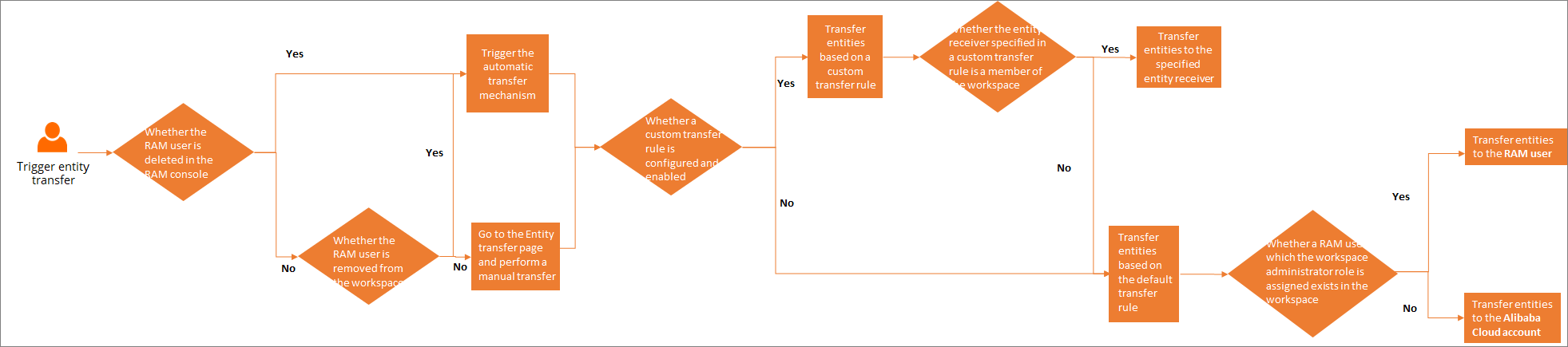
If custom transfer rules are enabled, the system first transfers entities to the recipient specified in the custom rule. If the specified recipient does not exist or has been removed from the workspace, the entities are transferred according to the default rules.
-
Trigger logic for automatic tenant-level resource transfer: When a Resource Access Management (RAM) user is deleted, the transfer process is automatically triggered. The target owner is determined based on the following priority order: .
-
Trigger logic for automatic workspace-level transfer: When a RAM user is deleted or removed from a workspace, the transfer process is automatically triggered.
-
If no custom target owner is defined for the workspace, entities are transferred according to the default rules after the user is removed. By default, entities are transferred to a RAM user who is a workspace administrator. If no RAM users are assigned the workspace administrator role, entities are transferred to the Alibaba Cloud account.
-
If a custom entity transfer recipient is defined for the workspace and the recipient has not been removed from the workspace, entities are transferred to the specified recipient according to the transfer rule.
-
-
Trigger logic for manual transfer: You can manually trigger a transfer for a RAM user who has not been deleted and is still a member of the workspace. Go to the Entity transfer page and select Execute an entity transfer immediately to start a transfer task for tenant-level and workspace-level resources.
-
If the workspace does not have a custom entity transfer rule, the transfer follows the default rules.
-
If the workspace has a defined entity transfer recipient who has not been removed from the workspace, entities are transferred to that specified recipient.
For more information about how to configure custom tenant-level and workspace-level transfer rules, see Configure tenant-level entity transfer rules and Configure workspace-level entity transfer rules.
-
-
If the original entity owner is also the access identity for the MaxCompute scheduling engine, the access identity is also updated when the transfer rule is triggered. For more information about MaxCompute access identities, see Configure a workspace.
-
You can define custom transfer rules for each workspace.
Go to the Entity Transfer page
-
Log on to the DataWorks console. In the top navigation bar, select the destination region. In the navigation pane on the left, click . On the page that appears, click Go to Security Center.
-
In the navigation pane on the left, choose Security policy > Entity transfer to go to the Entity Transfer page.
View transferable entities
On the Transfer Settings tab, you can view transferable resources, their corresponding modules, and transfer descriptions.
Transferable entity resources include MaxCompute tables in the tenant-level Data Map module, and quality monitoring owners, quality rule owners, and alerting rule owners in the workspace-level Data Quality module. They also include nodes, resources, and functions in the workspace-level Data Studio module, and auto-triggered tasks in the workspace-level Operation Center module. In the upper-right corner of the Transfer Settings tab, click Execute Transfer Now to manually trigger a transfer.
Entities such as nodes, resources, and functions in the new version of Data Studio also support entity transfer. When Security Center triggers an entity transfer, whether automatically or manually, entities in both the new and old versions of Data Studio are transferred to the target owner. The transfer process for each version runs independently.
Execute an entity transfer immediately
On the tab, in the Entity Resources section, you can manually transfer the entity resources of an undeleted RAM user in a workspace to a specified recipient.
-
If a RAM user has not been deleted and is still a member of the workspace, go to the tab and click Immediate execution of referral to manually configure and execute a transfer.
The Entity Resources list displays transferable resources, including MaxCompute tables in the tenant-level Data Map module. After the transfer, the approval owner and table owner are set to the target owner. It also includes the quality monitoring owner, quality rule owner, and alerting rule owner in the workspace-level Data Quality module. After the transfer, the target owner becomes the new owner. Click Execute Transfer Now in the upper-right corner to start the transfer.
-
In the Immediate execution of referral dialog box, configure the Original Responsible Person and the Transfer to target responsible person. Then, click Confirm referral. The tenant-level and workspace-level entity resources of the Original Responsible Person are immediately transferred to the target owner.
NoteIf the specified recipient does not exist or has been removed from the workspace, the entities are transferred according to the default rules.
Configure tenant-level entity transfer rules
In the Tenant-level Entity Transfer Target Owner section, you can configure the automatic transfer process for when a RAM user is deleted. The target owner is determined by the following priority order: . To configure an entity recipient for each target owner level, click the Edit button in the Transfer to Target Owner column.
In the Tenant-level entity to target responsible person section, click Edit in the Transfer to target responsible person column to configure the target owner in the dialog box that appears.
-
First target responsible person: Empty by default. You must specify this manually.
-
Second target responsible person: Tenant administrators, excluding the Alibaba Cloud account.
-
Third target responsible person: The Alibaba Cloud account by default.
Configure workspace-level entity transfer rules
In the Workspace-level entity to target owner section, you can configure a target owner for workspace entity transfers. This rule applies when a RAM user is deleted, removed from the workspace, or when a transfer is executed immediately. If no target owner is configured, the target owner is determined by the default priority order: .
-
First target owner: The specified target owner.
-
Second target owner: Workspace administrators by default.
-
Third target owner: Tenant administrators by default, excluding the Alibaba Cloud account.
-
Fourth target owner: The Alibaba Cloud account by default.
If there are multiple potential target owners, the user who joined the earliest is selected.
-
In the transfer rule configuration area, search for the target workspace.
-
Configure the entity recipient.
-
Transfer rules include default rules and custom workspace-level rules. In the Transfer rule configuration area, you can define custom workspace-level entity transfer policies. For the desired workspace, click the Edit button in the Transfer entity receiver list. In the Select the target responsible person dialog box that appears, select a target owner. When a transfer is triggered, the system automatically follows the rules below. If a rule is disabled or the specified recipient does not exist or has been removed from the workspace, the default rule is used.
-
Default transfer rule: This rule is enabled by default and cannot be disabled. It applies to all workspaces that do not have a custom workspace-level recipient and to workspaces where the specified recipient is invalid.
NoteAn invalid entity recipient is one who was specified in a workspace-level rule but has been removed from the workspace by the time of the transfer.
-
Custom workspace-level transfer rule: This rule is disabled by default. To specify an entity recipient, select a workspace member as the recipient and enable the custom rule. The custom workspace-level rule takes effect when a transfer is executed.
NoteIf a custom rule is enabled, entities are first transferred to the recipient specified in the custom rule. If the specified recipient does not exist or has been removed from the workspace, the entities are transferred according to the default rule.
-
-
Click the switch in the Actions column to enable or disable the transfer rule.
-
Enable Transfer: Entities are transferred to the specified recipient. If the specified recipient does not exist or has been removed from the workspace, the entities are transferred according to the default rule.
-
Disable Transfer: Entities are transferred according to the default rule.
-
-
View transfer logs
On the Transfer log page, you can view information about executed entity transfers, such as Transfer Time, Transfer method, and Transfer status. You can also click Download log to view detailed transfer information.
Logs are retained for 183 days from the Entity Transfer Submission Time. Logs older than 183 days cannot be downloaded.