Connect DataWorks to a public-network data source. A MySQL instance with a public endpoint is used as an example.
Use case
This solution is recommended if your data source meets the following condition:
The data source has a public endpoint.
How it works
Serverless resource groups cannot access the public network by default. You must configure an Internet NAT Gateway and EIPs for the VPC attached to the resource group before you can access data sources over the Internet.
Legacy resource groups have public network access by default and can connect directly.
NoteLegacy resource groups are being phased out. We recommend that you use serverless resource groups.
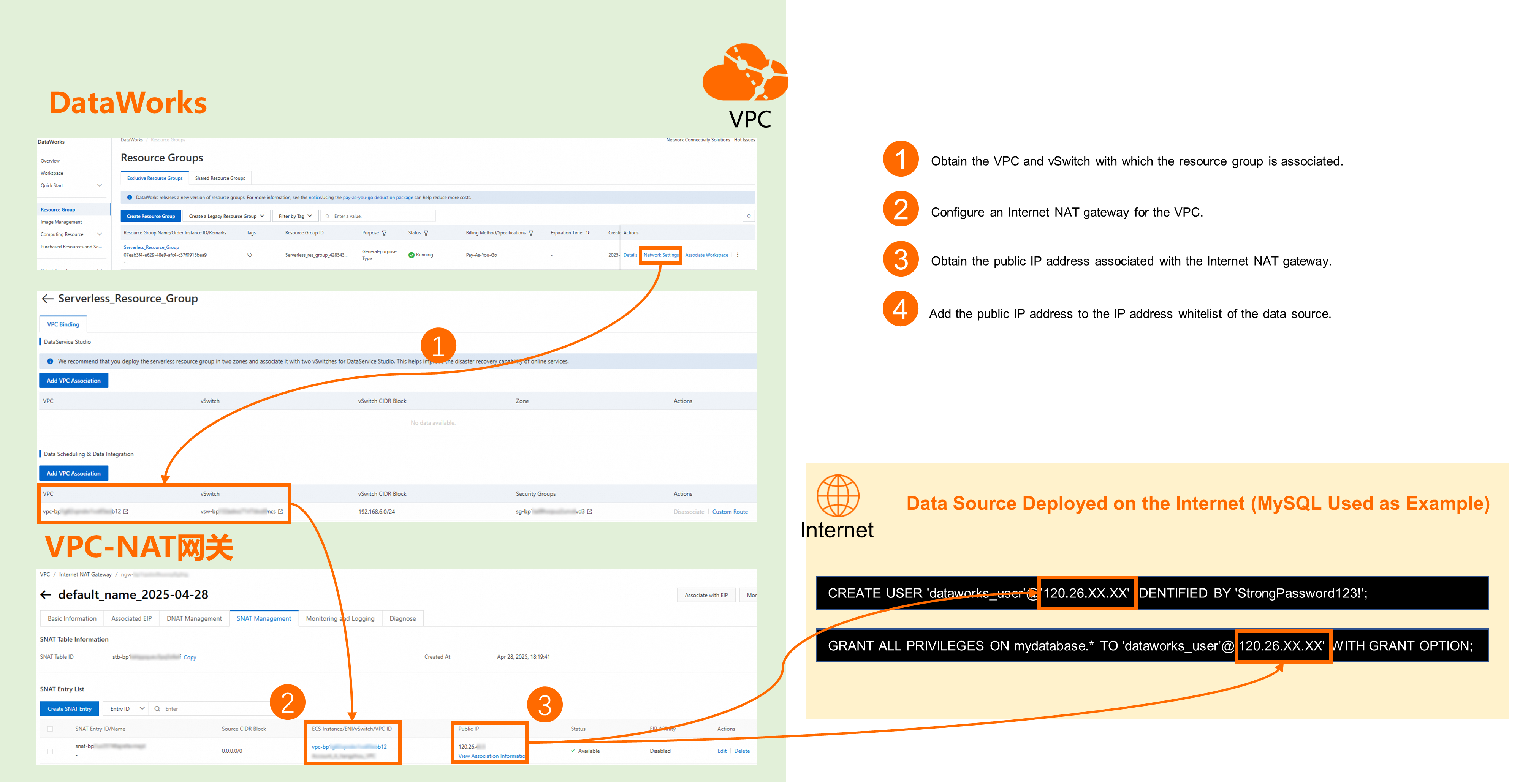
Alibaba Cloud allocates and maintains the egress IP address for each resource group. You cannot modify or customize this address by using a proxy IP or other methods. Even if you configure proxy settings in your Python code or other programs, DataWorks tasks still use the IP address allocated to the resource group at runtime. To access geo-restricted data sources, use VPN Gateway or Express Connect to establish cross-border connections.
Prerequisites
You have a data source that is supported by DataWorks.
-
You have created a workspace.
-
You have created a resource group and bound it to the workspace.
The data source has a public endpoint.
If your data source is not an Alibaba Cloud database, such as a self-managed database or a third-party cloud database like TencentDB for MySQL or PostgreSQL, you can choose any region within the Chinese mainland for your DataWorks workspace. There is no strict requirement for region consistency. We recommend that you select a region geographically close to your data source to minimize network latency.
Billing
To enable internet access for a serverless resource group, you must configure an Internet NAT Gateway and bind an EIP for the VPC in which the resource group resides. For billing details, see NAT Gateway billing and EIP billing overview.
Configure network connectivity
The following steps outline the general procedure for establishing network connectivity and explain the core logic. For detailed configuration, see the configuration example.
Step 1: Get basic information
Data source side
Public IP address of the server where the data source resides
Obtain the public IP address of the server that hosts the data source, or contact your network administrator.
DataWorks side
Serverless resource group
VPC and vSwitch information associated with the resource group
Go to the DataWorks Resource Group List page, find the target resource group, and click Network Settings in the Operation column.
View the associated VPC and vSwitch under the corresponding feature module.
For example, if you want to connect a MySQL instance with a public endpoint to DataWorks for data synchronization, view the corresponding VPC and vSwitch information under Task Scheduling & Data Integration.
On the Network Settings page of the resource group, click the VPC Binding tab and view the associated VPC information in the Bound VPC column under the corresponding feature module.
Legacy exclusive resource group
EIP address of the resource group
Go to the DataWorks Resource Group List page, find the target resource group, and click Details in the Operation column to go to the resource group details page.
Obtain the EIP address.
In the Basic Information panel of the Data Integration resource group, find the EIP Address field and record the address. If you need to transfer data over the internet, add this EIP to the allowlist on the data source side.
Step 2: Establish network connectivity
Serverless resource group: A serverless resource group does not have internet access by default. You must configure an Internet NAT Gateway and bind an EIP for the VPC associated with the resource group before it can access data sources over the internet.
Legacy exclusive resource group: Has internet access by default and can connect directly.
If you encounter issues during network configuration, submit a ticket to contact Alibaba Cloud technical support.
If the existing NAT gateway already has DNAT entries that conflict with the SNAT requirements for DataWorks internet access (for example, using the same EIP for both DNAT and SNAT), but the DNAT entries cannot be deleted due to other business dependencies, create a separate SNAT entry on the current NAT gateway. When creating the SNAT entry, configure the parameters as described in "Step 2: Establish network connectivity" in this topic to ensure that the VPC where the serverless resource group resides can access external data sources through the new SNAT entry.
Step 3: (Optional) Add IP addresses to the allowlist
If the data source has allowlist controls, add the public IP address of the resource group to the data source allowlist.
The following example uses MySQL IP allowlist configuration, where a specific user can access the database only from the public IP address of the resource group.
Keep the following in mind when configuring the allowlist:
When a serverless resource group accesses a data source over the internet, the egress IP is the EIP bound to the NAT gateway, not the CIDR block of the vSwitch. Add this EIP to the security group or firewall allowlist on the data source side, rather than configuring only the vSwitch CIDR block.
If the allowlist becomes invalid due to a source IP change, verify that DNS resolution and the routing policy correctly map to the EIP of the NAT gateway. Common causes include: the VPC route table is misconfigured, the SNAT entry has not taken effect, or multiple NAT gateway instances cause an unpredictable egress IP.
The egress IP of a legacy exclusive resource group is the EIP bound to the resource group itself. Obtain this address from the resource group details page and add it to the allowlist.
Log on to the database as an administrator.
Create an account for DataWorks to access the data source and configure the required permissions.
-- "dataworks_user" is the username, which you can customize.
-- "StrongPassword123!" is the user password, which you can customize.
CREATE USER 'dataworks_user'@'<Public IP address bound to the resource group>' IDENTIFIED BY 'StrongPassword123!';
-- Grant the user access to the specified database (e.g., mydatabase) from the public IP address bound to the resource group.
GRANT ALL PRIVILEGES ON mydatabase.* TO 'dataworks_user'@'<Public IP address bound to the resource group>' WITH GRANT OPTION;
Run the
FLUSH PRIVILEGES;command to refresh permissions, and then exit the database (exit).
Verify network connectivity
Log on to the DataWorks console. In the target region, click in the left-side navigation pane. Select a workspace from the drop-down list and click Go to Data Integration.
In the left-side navigation pane, click Data Sources. On the data source list page, click the button to add a data source, select the data source type, and configure the connection parameters as needed.
In the Connection Configuration section, select the resource group that has network connectivity with the data source, and click Test Connectivity next to the target resource group. A green check mark with Connectable indicates that network connectivity is normal.
NoteIf the connectivity test result is Not Connectable, use the Network Connectivity Diagnostic Tool to troubleshoot the issue. If you still cannot connect the resource group to the data source, submit a ticket.
Configuration example
This section uses a MySQL instance with a public endpoint in a DataWorks workspace in the China (Shanghai) region as an example.
1. Basic information
Parameter | Data source (RDS MySQL) | DataWorks resource group |
Region | - | China (Shanghai) |
Network information |
|
On the serverless resource group details page, click the VPC Binding tab. In the Task Scheduling & Data Integration section, verify the associated Bound VPC (such as |
2. Establish network connectivity
This procedure applies only to serverless resource groups. It uses an Internet NAT Gateway to enable internet access for the associated VPC. Legacy resource groups already have a bound EIP by default and do not require this configuration.
If you encounter issues during network configuration, submit a ticket to contact Alibaba Cloud technical support.
Go to the DataWorks Resource Group List page, find the target resource group, and click Network Settings in the Operation column.
Under the corresponding feature module, find the associated VPC and click the
 icon next to the VPC to go to the VPC Basic Information page.
For example, if you want to connect a MySQL instance with a public endpoint to DataWorks for data synchronization, find the corresponding VPC under Task Scheduling & Data Integration and click the
 icon next to the VPC.
Switch to the Resource management tab. In the Internet Access Service section, click Create under Internet NAT Gateway to enable internet access for the VPC associated with the resource group.
Configure the following key parameters:
Parameter
Value
VPC
Use the same VPC and vSwitch that are associated with the resource group.
Associated vSwitch
Access mode
Select Full VPC mode (SNAT).
EIP Instance
Select Purchase New EIP.
Associated Role
When you create a NAT gateway for the first time, you must create a service-linked role. Click Create Associated Role.
Click Buy Now, complete the payment, and create the NAT gateway instance.
After the purchase is complete, a success message is displayed along with the results of three resource operations: Create EIP (created), Create NAT Gateway (created), and Bind EIP (bound).
After the NAT gateway instance is purchased, click the button to return to the console and create an SNAT entry.
NoteOnly after an SNAT entry is configured can resource groups using this VPC access the internet.
SNAT entries support four granularity levels: VPC, vSwitch, ECS/ENI, and custom CIDR block. The vSwitch granularity covers only the selected vSwitches. If the DataWorks resource group is deployed on a vSwitch that is not selected, it cannot access the internet through this SNAT entry. We recommend VPC granularity, where the source CIDR block is 0.0.0.0/0. This covers all CIDR blocks in the VPC and ensures that resource groups on all vSwitches can access the internet through the NAT gateway.
Click Management in the Operation column of the newly purchased instance to go to the management page of the target NAT gateway instance, and switch to the SNAT Management tab.
In the SNAT Entry List section, click Create SNAT Entry to create a NAT entry. The following are the key configurations:
Parameter
Value
SNAT entry granularity
Select VPC granularity to ensure that all resource groups in the VPC can access the internet through the configured EIP.
Select EIP address
Select the EIP bound to the current NAT gateway instance.
After you configure the SNAT entry parameters, click OK to create the SNAT entry.
In the SNAT Entry List section, when the Status of the newly created SNAT entry changes to Enabled, the VPC associated with the resource group has internet access.
If you previously configured a vSwitch-granularity SNAT entry, you can delete it after creating a VPC-granularity SNAT entry. The VPC-granularity entry uses a source CIDR block of 0.0.0.0/0, which already covers all vSwitch CIDR blocks in the VPC. Deleting the old vSwitch-granularity entry does not affect the VPC-granularity SNAT entry.
3. Add IP addresses to the allowlist
Obtain the public IP address of the resource group.
Serverless resource group
Go to the VPC console. In the left-side navigation pane, click NAT Gateway > Internet NAT Gateway to go to the Internet NAT Gateway list page.
Find the Internet NAT Gateway that you created and view the EIP column to obtain the EIP address.
Legacy resource group
Go to the DataWorks Resource Group List page, find the target resource group, and click Details in the Operation column to go to the resource group details page.
Obtain the EIP address.
Log on to the database as an administrator.
Create an account for DataWorks to access the data source and configure the required permissions.
-- "dataworks_user" is the username, which you can customize.
-- "StrongPassword123!" is the user password, which you can customize.
CREATE USER 'dataworks_user'@'<Public IP address bound to the resource group>' IDENTIFIED BY 'StrongPassword123!';
-- Grant the user access to the specified database (e.g., mydatabase) from the vSwitch CIDR block bound to the resource group.
GRANT ALL PRIVILEGES ON mydatabase.* TO 'dataworks_user'@'<Public IP address bound to the resource group>' WITH GRANT OPTION;
Run the
FLUSH PRIVILEGES;command to refresh permissions, and then exit the database (exit).
4. Test connectivity
Log on to the DataWorks console. In the target region, click in the left-side navigation pane. Select a workspace from the drop-down list and click Go to Data Integration.
In the left-side navigation pane, click Data Sources to go to the Data Sources page, and then click Add Connection.
Select the MySQL data source type and configure the data source connection information.
Set Configuration Mode to User-created Data Store with Public IP Addresses.
Set Host Address to the public IP address of the server where MySQL resides (in this example,
47.117.XX.XX).Set Port Number to
3306.Set Database Name to the name of an existing database.
Set Username and Password to the
dataworks_useruser and password created in the Add IP addresses to the allowlist step.
In the Connection Configuration section, click Test Connectivity next to the resource group associated with the workspace and check whether the result is Connectable.
NoteIf the test result shows Failed, use the Network Connectivity Diagnostic Tool to troubleshoot. If connectivity still fails, submit a ticket for assistance.
FAQ
What do I do if a serverless resource group times out when connecting to a public FTP data source?
A serverless resource group does not have internet access by default. If a connection timeout occurs when accessing a public FTP data source, follow these steps to troubleshoot:
Verify that a NAT gateway and SNAT entry are configured for the VPC where the serverless resource group resides. If not, complete the NAT gateway binding and SNAT entry creation as described in "Step 2: Establish network connectivity" in this topic.
Verify that the NAT gateway is bound to the VPC and vSwitch actually used by the serverless resource group. Ensure that the binding is consistent with the resource group network settings.
In the VPC route table, add a route entry for the CIDR block corresponding to the FTP server IP address. For example, if the FTP server address is
121.4.x.x, add a route entry with the destination CIDR block121.4.0.0/16and set the next hop to the NAT gateway instance.Check the allowlist on the FTP server side and add the egress IP of the serverless resource group (the EIP bound to the NAT gateway) to the FTP server allowlist.
What do I do if the DataWorks console for an overseas region is inaccessible from a Chinese mainland network?
When you access the DataWorks console for an overseas region (such as US (Silicon Valley)) from the Chinese mainland, the page may fail to load or load slowly due to cross-border network latency or restrictions. Recommended steps:
Try a different computer or network environment (such as a mobile hotspot) to rule out local network issues.
If the issue is caused by cross-border network conditions, contact your network administration team to adjust network policies for accessing the DataWorks console in the overseas region.
For long-term stable access to an overseas console, use Alibaba Cloud Global Accelerator (GA) for low-latency, highly available cross-border network acceleration.
Can I use a proxy IP to disguise a resource group as an overseas IP?
No. Alibaba Cloud allocates and maintains the egress IP address for each resource group. You cannot modify or customize this address by using a proxy IP or other methods. Even if you configure proxy settings in your Python code or other programs, DataWorks tasks still use the IP address allocated to the resource group at runtime. To access geo-restricted data sources, use VPN Gateway or Express Connect to establish cross-border connections.