Establish network connectivity between a data source and DataWorks when both belong to the same Alibaba Cloud account but reside in different regions. This topic uses an RDS MySQL instance as an example.
Scenarios
This solution is recommended if your data source and DataWorks workspace meet all of the following conditions:
The data source is an Alibaba Cloud product.
The data source and the DataWorks workspace belong to the same Alibaba Cloud account.
The data source and the DataWorks workspace are in different regions.
Solution overview
For the same-account, different-region scenario, we recommend that you use a VPC (private network) connection. Use a network connectivity tool (Cloud Enterprise Network or VPC Peering Connection) to connect the VPC of your DataWorks workspace resource group with the VPC where the data source resides.
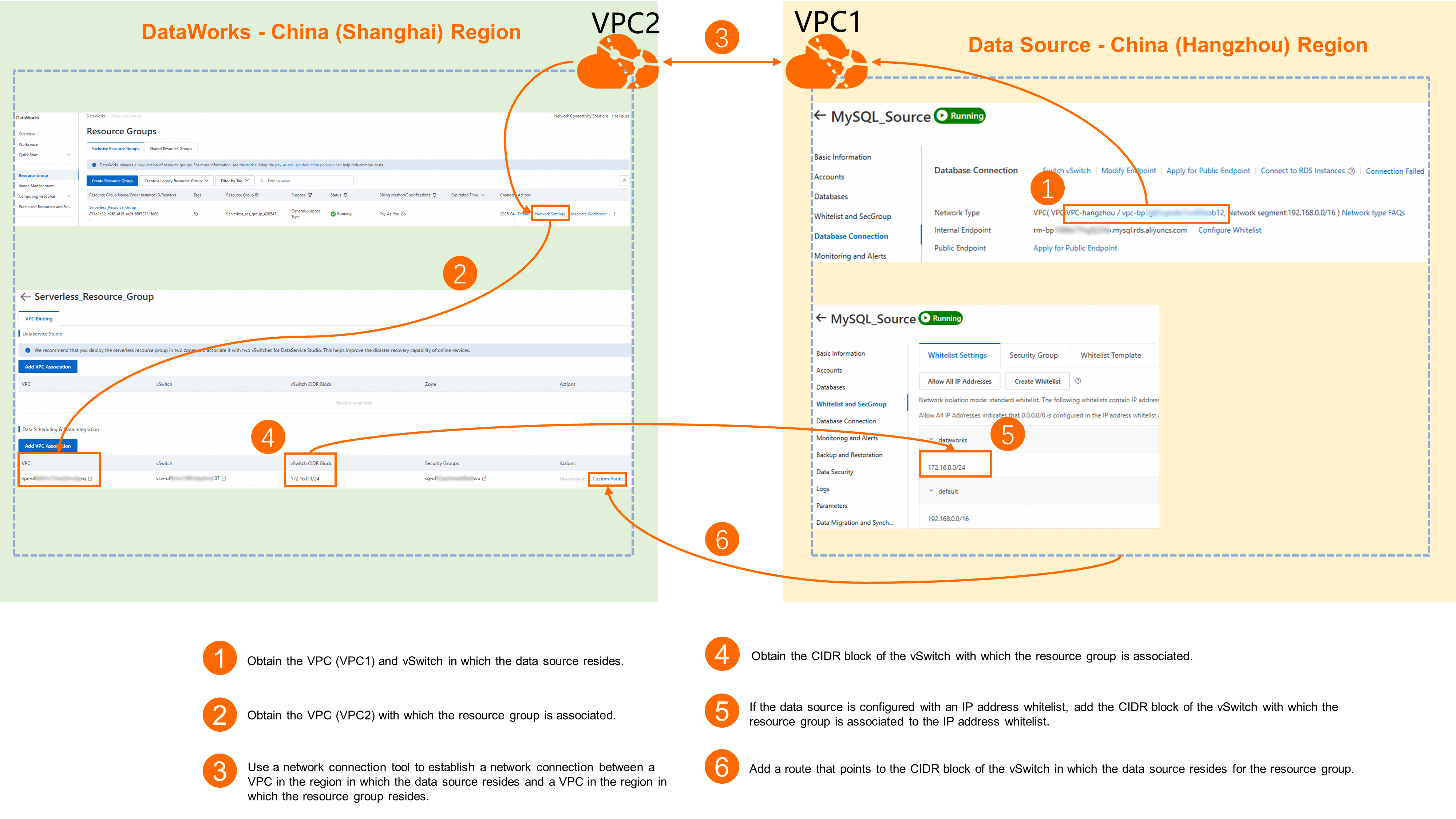
Prerequisites
-
You have an Alibaba Cloud data source that is supported by DataWorks.
-
You have created a workspace.
-
You have created a resource group and bound it to the workspace.
-
Your data source and DataWorks workspace meet the requirements described in Scenarios.
Billing information
Billing varies depending on the network connectivity tool you choose. For details, see Cloud Enterprise Network billing or VPC peering connection billing.
Configure network connectivity
The following steps outline the general process for connecting your data source to DataWorks over a private network. For detailed configuration steps, see the configuration examples in this topic.
Step 1: Gather basic information
Data source side
-
Region: This example uses an RDS MySQL instance in the China (Hangzhou) region.
-
VPC and vSwitch information:
NoteThis example uses RDS MySQL. For other Alibaba Cloud instances, consult the relevant product documentation to learn how to obtain VPC details.
-
Go to the RDS console, find your target instance, and click the Instance Name to open the Basic Information page.
-
In the navigation pane on the left, click Database Connection to view the VPC and vSwitch details of your RDS MySQL instance.
Under Network Type, note the VPC ID, vSwitch ID, and CIDR block.
-
DataWorks side
-
Region: This example uses a DataWorks workspace and resource group in the China (Shanghai) region.
-
VPC and vSwitch information bound to the resource group:
-
Go to the DataWorks Resource Groups page, find your target resource group, and click Operation > Network Settings.
-
In the relevant feature section, view the bound VPC and vSwitch.
For example, to synchronize data between RDS MySQL and DataWorks, check the VPC and vSwitch under Data Scheduling & Data Integration.
-
Step 2: Establish network connectivity
To connect VPCs across regions, use one of the following network connectivity tools:
-
Cloud Enterprise Network (CEN): Ideal for complex enterprise networks requiring connectivity among multiple VPCs. For configuration steps, see Connect VPCs across regions.
-
VPC peering connection: Suitable for direct connectivity between two VPCs. For configuration steps, see Use VPC peering to enable private connectivity between VPCs.
If you encounter issues during network configuration, submit a ticket to contact Alibaba Cloud technical support.
Step 3: Add a route in the DataWorks resource group
When DataWorks accesses a data source across regions, you must add a custom route in the DataWorks resource group that points to the vSwitch CIDR block of the data source.
-
Go to the DataWorks Resource Groups page, find your target resource group, and click Operation > Network Settings.
-
In the relevant feature section, find the bound VPC and click Operation > Custom Route.
-
Click Add Route. Set the connection method to CIDR Block, and set the Destination CIDR Block to the vSwitch CIDR block of your data source.
Step 4: (Optional) Configure a whitelist
If your data source uses IP whitelisting, add the vSwitch CIDR block of your DataWorks resource group to the data source’s whitelist to allow access.
This example uses RDS MySQL IP whitelist configuration. In Whitelist and Security Group, add the vSwitch CIDR Block bound to your DataWorks resource group.
For other Alibaba Cloud services, refer to their official documentation for specific whitelist configuration steps.
For example, create a whitelist group named dataworks and add the vSwitch CIDR block 172.16.0.0/24 to it.
Verify network connectivity
-
Log on to the DataWorks console. In the target region, click in the left-side navigation pane. Select a workspace from the drop-down list and click Go to Data Integration.
-
In the navigation pane on the left, click Data Sources, and then in the data source list, click Add Data Source, select a data source as needed, and configure the relevant connection parameters.
-
In the resource group list at the bottom, select the resource group that has network connectivity to your data source, and click Test Connectivity. Confirm that the status shows Connectable.
NoteIf the test result shows Failed, use the Network Connectivity Diagnostic Tool to troubleshoot. If connectivity still fails, submit a ticket for assistance.
Configuration example
This example connects an RDS MySQL instance in China (Hangzhou) to a DataWorks workspace in China (Shanghai), both under the same Alibaba Cloud account.
1. Basic information
|
Parameter |
Data source (RDS MySQL) |
DataWorks resource group |
|
Account |
Same account |
|
|
Region |
China (Hangzhou) |
China (Shanghai) |
|
VPC |
On the Database Connection page of the RDS instance MySQL_Source, you can view the private endpoint (for example, |
On the Network Settings page of your DataWorks Serverless resource group, go to the VPC Binding tab. In the Data Scheduling & Data Integration section, click Add Binding and bind the VPC and vSwitch listed above. |
2. Establish network connectivity
This solution supports both Cloud Enterprise Network (CEN) and VPC peering connection. Choose the option that best fits your needs.
If you encounter issues during network configuration, submit a ticket to contact Alibaba Cloud technical support.
Configure network connectivity using Cloud Enterprise Network
-
Go to the Cloud Enterprise Network console and click Create CEN Instance.
-
In the Create CEN Instance dialog box, switch to the Scenario-based Creation (Recommended) tab, select the Interconnect Multiple VPCs on Cloud scenario, and click Start Scenario-based Creation to begin the setup process.
NoteThe Interconnect Multiple VPCs on Cloud scenario supports VPC interconnection within the same account, either within the same region or across regions.
-
In the Create Networking Configuration step, configure the network information for both your data source and DataWorks resource group.
-
On the first tab, configure the data source network information:
-
Region: China (Hangzhou)
-
VPC:
-
VPC instance: The VPC where your data source resides. In this example, select
vpc_hangzhou. -
vSwitch: Select the vSwitch where your data source resides. In this example, select
hz-h.NoteCEN requires at least two vSwitches in different zones for zone-level disaster recovery. After selecting the vSwitch where your data source resides, add another vSwitch in any other zone. If none exists, click Create vSwitch in the drop-down menu and follow the on-screen instructions to create one before selecting it.
-
-
-
Click + to add a new tab and configure the DataWorks resource group network information:
In this example, the second vSwitch is
sh-nin Zone N of China (Shanghai).-
Region: China (Shanghai)
-
VPC:
-
VPC instance: The VPC where your DataWorks resource group resides. In this example, select
vpc_shanghai. -
vSwitch: Select the vSwitch where your resource group resides. In this example, select
sh-l.NoteCEN requires at least two vSwitches in different zones for zone-level disaster recovery. After selecting the vSwitch where your resource group resides, add another vSwitch in any other zone. If none exists, click Create vSwitch in the drop-down menu and follow the on-screen instructions to create one before selecting it.
-
-
-
-
Click Next step. CEN automatically generates the Networking Configuration and Fee Details based on your inputs. Review the details and click Start Deployment.
-
Wait for deployment to complete.
ImportantDo not close the page until deployment finishes.
Configure network connectivity using VPC peering connection
-
Go to the VPC Peering Connections console. At the top of the page, switch the region to China (Hangzhou), then click Create Peering Connection and configure the required parameters.
The following table lists key parameters for this example. Keep all other parameters at their default values.
Parameter
Description and example
Peering connection name
A custom name. In this example, use
Same-account Hangzhou-Shanghai VPC interconnection.Requester VPC instance
The VPC where your RDS MySQL instance resides. In this example, select
vpc-hangzhou.Accepter account type
In this example, select
Same Account.Accepter region type
In this example, select
Cross-region.Accepter region
The region where your DataWorks workspace and resource group reside. Select
China (Shanghai).Accepter VPC instance
The VPC where your DataWorks resource group resides. In this example, select
vpc-shanghai. -
Click Determine to complete the peering connection configuration.
-
In the VPC Peering Connections console, find your newly created peering connection. Click Configure Routes under both the Requester VPC Instance and Accepter VPC Instance.
-
Configure a route entry for the requester VPC instance (pointing to the accepter): after naming the custom route entry Name, set the destination CIDR block to the accepter's vSwitch CIDR block. In this example, it is set to
172.16.0.0/24. -
Configure a route entry in the accepter VPC instance (pointing to the requester): after customizing the route entry Name, configure the destination CIDR block as the requester VPC's vSwitch CIDR block. In this example, it is configured as
192.168.6.0/24.
-
3. Add a route in the DataWorks resource group
-
Go to the DataWorks Resource Groups page, find your target resource group, and click Operation > Network Settings.
-
In the relevant feature section, find the bound VPC and click Operation > Custom Route.
-
Click Add Route. Set the connection method to CIDR Block, and set the Destination CIDR Block to the vSwitch CIDR block of your RDS MySQL instance (
192.168.6.0/24in this example).
4. Configure a whitelist
In the Whitelist and Security Group settings of your RDS MySQL instance, add the vSwitch CIDR Block bound to your DataWorks resource group. In this example, use 172.16.0.0/24.
For example, create a whitelist group named dataworks and add the vSwitch CIDR block 172.16.0.0/24 to it.
5. Test connectivity
-
Log on to the DataWorks console. In the target region, click in the left-side navigation pane. Select a workspace from the drop-down list and click Go to Data Integration.
-
In the navigation pane on the left, click Data Sources to open the Data Sources page, then click Add Connection.
-
Select MySQL as the data source type and configure its connection details.
-
Set Configuration Mode to ApsaraDB for RDS.
-
Set Region to China (Hangzhou).
-
For Instance, select the RDS MySQL instance you created in China (Hangzhou) and configured for network connectivity.
-
-
In Connection Configuration, click Test Connectivity for the resource group that is already attached to the workspace, and check whether the result is Connectable.
On the Connection Configuration tab of your data source, select the target resource group and click Test Connectivity. Confirm that the status shows Connectable.
NoteIf the test result shows Failed, use the Network Connectivity Diagnostic Tool to troubleshoot. If connectivity still fails, submit a ticket for assistance.
References
For common network connectivity questions, see Resource group operations and network connectivity.