Say goodbye to tedious manual data work. Data Agent, the built-in AI agent in DataWorks, is designed to free you from repetitive, low-impact tasks, giving you more time for innovation and strategic thinking. Deeply integrated into every DataWorks module, Data Agent allows you to use natural language commands throughout the entire data lifecycle—from data integration, development, operations and maintenance (O&M), and governance to analysis—to:
Accelerate code development: Instantly generate, optimize, and explain code to transform your ideas into high-quality, standardized code.
Automate task orchestration: Intelligently create and orchestrate tasks for data integration, development, and governance to achieve end-to-end process automation.
Consolidate team knowledge: Incorporate best practices and business knowledge as context into every task.
Overview
What is Data Agent?
Data Agent is a one-stop AI agent within the DataWorks platform that features core capabilities such as the Agent, coding assistant, ChatBI, and quick AI operations. It covers the entire data lifecycle, from data integration and development to O&M, governance, and analysis. Powered by advanced AI reasoning and natural language interaction, you can automate data integration, data development and O&M, Data Quality governance, and data analysis tasks simply through conversation. This provides an efficient, reliable, and intelligent data development experience for your enterprise.
Core value
Improve efficiency: Significantly shorten data development and analysis cycles with features like automatic code generation, intelligent code completion, and natural language interaction.
Lower the barrier to entry: Users unfamiliar with complex SQL or product operations can use natural language to quickly start and complete data development and governance tasks.
Ensure quality: Improve code quality and maintainability by using AI for code debugging, optimization, and test case generation.
Preserve knowledge: Build a custom enterprise knowledge base to integrate company standards, business definitions, and technical guidelines into the AI. This allows for knowledge to be preserved and applied consistently.
Availability and policies
Available to: Customers who use DataWorks Basic Edition or a higher edition. Some features are available only in the new version of Data Studio.
Available regions: China (Zhangjiakou), China (Beijing), China (Ulanqab), China (Hangzhou), China (Shanghai), China (Shenzhen), China (Chengdu), China (Hong Kong), Singapore, Malaysia (Kuala Lumpur), Indonesia (Jakarta), Japan (Tokyo), South Korea (Seoul), US East 1 (Virginia), US West 1 (Silicon Valley) .
Billing: Starting May 28, 2026, Data Agent will be a paid service. For more information about the pricing, see Data Agent pricing.
Quick start
Accessing Data Agent
You can interact with Data Agent in the following ways:
Global entry point: In the upper-right corner of the top navigation bar on the Data Studio page, click the
 icon to open the Data Agent chat window.
In the editor: In the intelligent code editor for code-based data development nodes, open Data Agent from the context menu or by using a keyboard shortcut.
Embedded in modules: In the functional areas of specific product modules, use the quick action buttons that are marked with the Copilot icon.
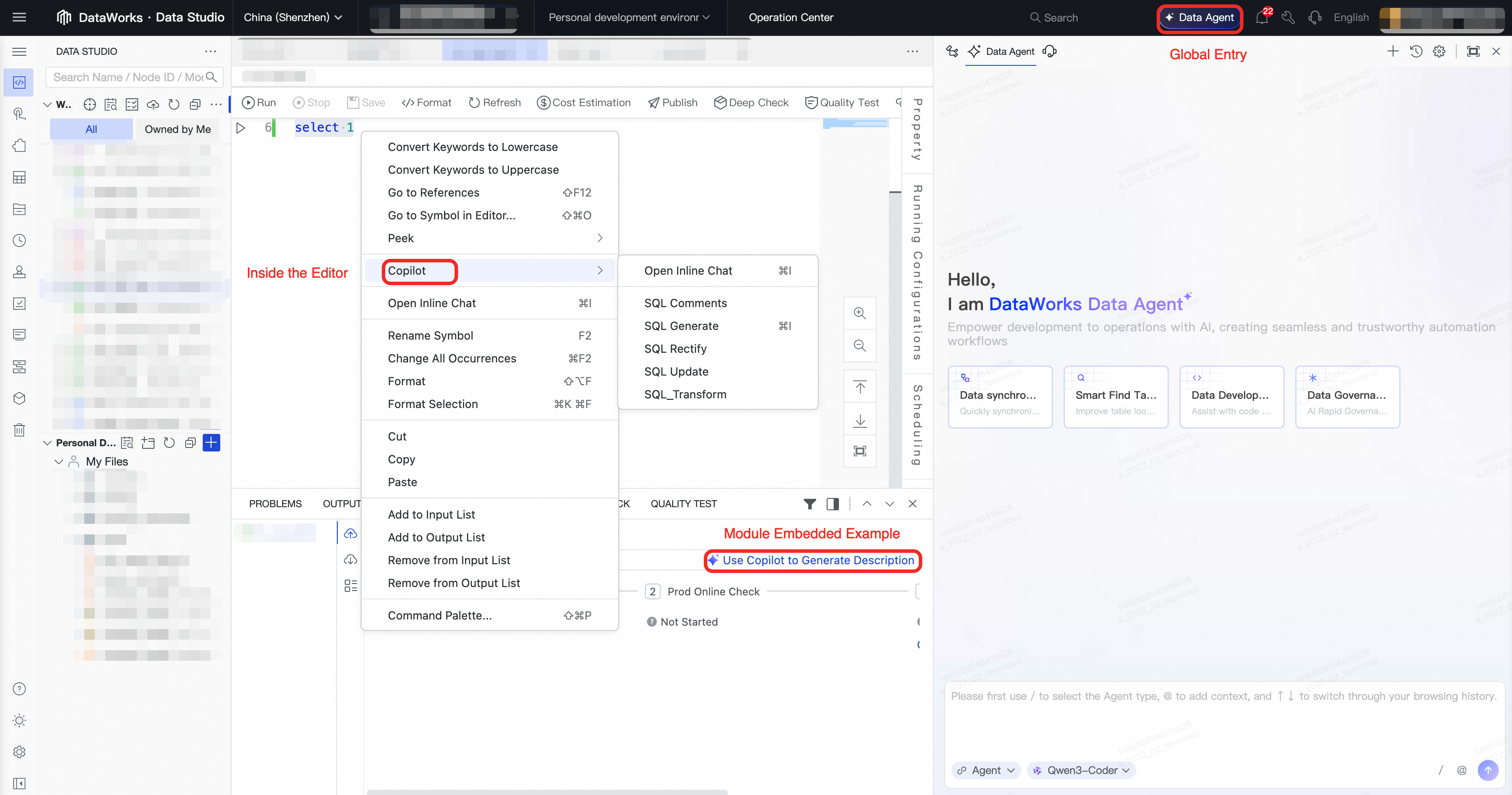
From the global entry point, Data Agent provides preset scenario-based examples for tasks such as data sync, intelligent table search, data development, and data governance. You can click a card to quickly get a sample prompt for that scenario. This helps lower the barrier to entry and improve interaction efficiency.
Core features
Agent: Automate complex tasks
Overview
The DataWorks Agent service transforms data development and governance through automation. It goes beyond simple Q&A to act as an intelligent agent that autonomously completes complex tasks.
The Agent uses the deep reasoning and planning capabilities of large language models to fully understand your tasks, break them down into steps, create execution plans, and call the relevant tools in the MCP Server to automate task execution. DataWorks will continue to enrich and iterate on the toolset in the DataWorks MCP Server to provide you with a more intelligent and efficient data development and governance experience.
Key highlights
Deep understanding and autonomous planning: Based on context awareness and multi-turn conversations, the Agent accurately identifies complex user intent and autonomously breaks down tasks into executable multi-step plans.
Automated data development and governance: The Agent is deeply integrated with the core product capabilities and processes of DataWorks, providing comprehensive context data connectivity and a built-in DataWorks toolset.
Access the feature
In the Data Agent chat window, switch from Ask mode to Agent mode.
Based on your task type, enter
/to select the appropriate Agent type.Provide instructions to the Agent by asking a question.
Use cases
Use case 1: Data Integration Agent
Description: You can describe data sync requirements in natural language, such as Chinese or English. The system automatically parses the semantics and intelligently generates the corresponding data sync task configuration. This includes the data source types for the source and destination, table structure mappings, column filter conditions, partition policies, and scheduling parameters.
Use case 2: Data Development Agent
Description: Provides a natural language-based ETL development experience that covers the entire process from requirements analysis and code generation to workflow creation and deployment.
Use case 3: Data O&M Agent
Description: This agent provides comprehensive health assessments and issue diagnosis for task instances. It combines multi-dimensional analysis of dependency chains, resource utilization, historical run trends, change impact, log anomalies, and data quality to automatically generate structured diagnostic reports.
For more information about the Data O&M Agent, see AI-powered O&M.
Use case 4: Data Map Agent
Description: This agent focuses on improving the efficiency of data discovery and comprehension. Through AI-driven natural language interaction, you can quickly explore metadata in various scenarios across massive datasets.
Core capabilities:
Natural language search: Supports natural language Q&A without requiring exact keywords. You can quickly locate target data based on business intent. For example, "Find summary tables related to user activity."
Automatic scope adjustment: Supports specifying a scope within a conversation. The Agent automatically understands the semantics and quickly locates data within that scope. For example, "In the adm_bi project, find tables related to business operations."
In-depth data comprehension: Supports follow-up questions about target data to quickly obtain detailed information such as data lineage, the owner, and field definitions. For example, "What are the direct downstream dependencies of the @dws_bi_metric_di table? If it is modified, which owners will be affected?"
Use case 5: Data Governance Agent
Description: The DataWorks Data Governance Agent transitions enterprise data governance from a proactive to an autonomous model. Data governance is no longer about complex data analysis and extensive configuration changes. Now, you can use natural language commands to perform precise governance actions, set up operations with expert-level capabilities, and enable automatic execution.
Core capabilities:
Quality rule configuration: Use natural language to automatically configure monitoring rules for specified key tables. The Data Governance Agent can intelligently analyze the field types, business semantics, and importance of a table to automatically recommend and configure appropriate monitoring rules. These rules can include primary key uniqueness, non-null constraints, and enumeration value range checks, which efficiently completes tasks that previously required extensive data exploration and rule configuration.
Example: Automatically generate quality rules for the
dim_user_infocore user dimension table.Example: Automatically configure table row count-related quality rules for tables that start with
ods_.
Quality issue remediation: For quality issues automatically identified by the system in the data asset governance module, such as "Frequently accessed table has no quality rules configured" or "Table generated by high-priority baseline task has no quality rules configured", you can provide remediation requirements in natural language. The system then automatically analyzes the issue and performs the corresponding remediation.
Example: Find frequently accessed tables that have no quality rules configured, and then recommend and configure quality rules.
Example: Help me resolve issues in the quality dimension.
Coding assistant
Overview
The Data Agent coding assistant, powered by advanced large language models, uses natural language interaction to efficiently perform tasks such as generating, optimizing, explaining, and testing SQL and Python code. To ensure the best results, you can freely switch between various models, including the DataWorks default model, Qwen, and DeepSeek, to significantly improve ETL development and data analysis efficiency.

Key highlights
Multiple models with free switching: Supports models such as the default model and Qwen3-235B-A22B.
Full ETL lifecycle support: Supports code generation, Q&A, refactoring, optimization, debugging, commenting, test case generation, and explanation for SQL and Python.
Context awareness: Understands conversation content, code, table structures, data lineage, custom knowledge bases, and more.
Access the feature
Intelligent code editor
Use case 1: Intelligent code completion
How to use: When you are developing code-based nodes, Data Agent intelligently predicts and recommends subsequent code snippets based on the context, such as the code you have already entered and the referenced table structures. Completion suggestions appear automatically. Press the Tab key to accept them.
Use case 2: Right-click menu for quick operations
How to use: In the intelligent code editor, select a piece of code, right-click it, and choose Copilot from the context menu.

Data Agent Chat (Ask mode)
Ask mode is the default mode for Data Agent Chat and is suitable for solving specific coding problems in a Q&A format. It supports code generation, code refactoring, code debugging, comment generation, code explanation, code optimization, test case generation, code Q&A, intelligent Notebook Cell generation, and quick table search. When using Data Agent Chat in Ask mode, you can select code in the editor to use as context for targeted operations.
Quick AI operations
DataWorks leverages large language model capabilities across its data development, O&M, and quality modules to provide convenient and intelligent product operations.
Intelligent query result visualization
Description: In DataWorks data development and data analysis, you can use the Data Agent intelligent chart assistant to generate a visualization and data insights from query results with a single click.
Access the feature: In the results of a node run or SQL query, switch to the Visualization tab.
AI-powered table creation
Description: In the Data Studio data catalog, you can use the Data Agent table creation assistant to create a table by simply entering keywords for the table name. You can also trigger intelligent recommendations for field names and descriptions with a single click.
Access the feature: When creating a table in Data Studio, click the Agent table creation button in the upper-left corner of the page. Enter a description of your table creation requirements, and Copilot will automatically generate a table creation plan that includes field definitions and the DDL.
Deployment description generation
Description: In Data Studio, during the deployment phase, you can use the deployment assistant to generate deployment descriptions with a single click, which improves deployment efficiency.
Access the feature: In Data Studio, during the deployment phase, click the Copilot generation description button to the right of the deployment description input box to automatically generate a deployment description.
Task anomaly diagnosis
Description: The intelligent diagnosis feature in the DataWorks Operation Center is now integrated with the Qwen and DeepSeek-R1 (671B) models. When a task runs abnormally, you can click Run Diagnosis. The large language model instantly extracts key information from the logs, provides an error analysis and resolution suggestions, and recommends quick actions to fix the error.
Access the feature: On the Operation Center page, click in the left-side navigation pane to go to the cyclic instance page. Click a failed instance, select the failed node, and then click Run Diagnosis in the lower-right corner to perform an intelligent diagnosis on the task.
Data quality rule recommendation
Description: You can use Data Agent with a single click to quickly generate data quality rules for specific tables or business scenarios based on the complete metadata in DataWorks. This feature supports multiple data source types and multi-dimensional quality checks.
Access the feature: On the Data Quality page, click in the left-side navigation pane. Select the target table and click Create Monitor on the right to configure the quality rules for the table.
Data Service API
Description: DataWorks Data Service can use the Data Agent intelligent assistant for quick API packaging. It generates an SQL script based on business requirements with a single click and automatically parses it into API request and response parameters.
Access the feature: In the Data Service module, create an API and select script mode.
ChatBI
ChatBI is a conversational intelligent analysis tool that is powered by large language models. You simply describe your analysis requirements in natural language, and ChatBI automatically identifies the target tables, generates and executes SQL, creates visualizations, and extracts analysis conclusions. This helps you quickly obtain professional data analysis reports without writing any code. For more information, see ChatBI overview.
Advanced features and best practices
Improving accuracy with context
To ensure Data Agent's responses align with your enterprise standards and business scenarios, provide it with precise knowledge.
Custom knowledge (Rules)
Description: Rules are standards and background knowledge that you define for Data Agent. They guide how Data Agent thinks and responds.
Access the feature: In the upper-right corner of the Data Agent Chat window, click the
 icon to go to the Rules configuration page.
Enterprise-level Rules and personal-level Rules:
Enterprise-level Rules: These rules are configured by an administrator and support a configurable scope of effect. They are suitable for defining company-level business terms, coding standards, and more.
Personal-level Rules: These rules are configured by individual users and are effective only for them. They are suitable for defining personal preferences, frequently used code snippets, and more.
Specify context in conversations
Description: In each conversation, you can manually specify the context that is relevant to the current task. This allows Data Agent to focus on this information when responding and helps deliver more precise results.
Supported context types:
Table: Reference the metadata of one or more tables.
Node/code file: Reference the code from a specific node.
Data Collection: Reference a Data Collection from Data Map.
Rules: Temporarily specify one or more Rules to apply to the current conversation.
Local file: Upload a local document to use as background information.
How to reference context: In the Data Agent Chat input box, type
@or click+to open the context selector and add the context.
Managing conversations
Conversation history
Data Agent automatically records your recent conversations.
Record scope: You can view up to 100 conversation records from the last 7 days.
Access the feature: In the upper-right corner of the Data Agent Chat window, click Chat History.
New conversation per task
We highly recommend that you start a new conversation (New Chat) for each independent task.
Reason: This practice prevents the context of different tasks from interfering with each other. It allows Data Agent to focus on the current task, which helps ensure the accuracy and relevance of its responses.
FAQ
Q: Why are the responses from Data Agent inaccurate or not meeting my expectations?
A: This may be due to insufficient context. Try providing Data Agent with more precise background information as described in Specify context in conversations.
Q: What is the difference between Ask mode and Agent mode? How should I choose?
A: Ask mode is for simple, single-question tasks, such as generating a code snippet or explaining a function. Agent mode is for complex tasks that require multiple steps and tools.
Q: How can I make Data Agent prioritize responses in English?
A:You can guide Data Agent to respond in English in the following ways:
When asking a question, explicitly add an instruction, such as
Please respond in English,Respond in English, orExplain in English.Switch to the DataWorks English UI to improve the consistency and accuracy of the model's English output.