The modeling workspace feature in DataWorks allows you to share a unified set of data modeling tools across multiple workspaces. This feature helps you implement consistent data warehouse planning, dimensional modeling, and metric definitions for your entire data ecosystem. This topic describes the use cases for the modeling workspace and explains how to configure it.
Background
To enable unified data modeling across multiple workspaces, the DataWorks Data Modeling feature introduces two key concepts: the Workspace for Data Model Design and the Workspace for Data Development. The modeling workspace feature enables you to apply models across workspaces.
-
Workspace for Data Model Design: From a model designer's perspective, this workspace is used to centrally manage all models designed for associated data development workspaces.
-
Workspace for Data Development: From a data developer's perspective, this workspace is used for model publishing and ETL development based on the model designs.
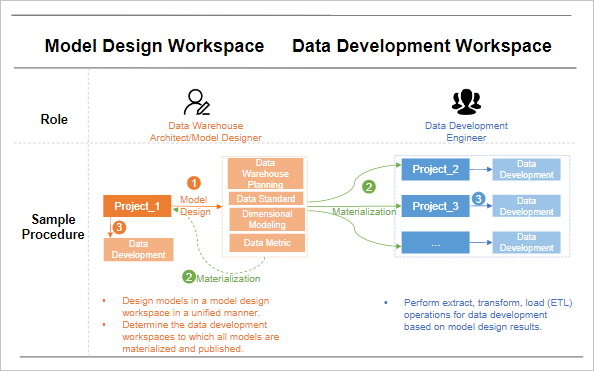
After a model designer establishes the relationship between a Workspace for Data Model Design and one or more Workspace for Data Development, they can publish models, such as aggregate tables, dimension tables, fact tables, and application tables. During model publishing, the designer can choose which associated development workspace to materialize the model in. Data developers can then perform data development in the corresponding workspace.
Consider the following points:
-
For example, if a model designer creates a model (Model 1) in a model design workspace named Project_1 and materializes it in data development workspaces Project_2 and Project_3, any subsequent modifications to the model must be made in Project_1. The model design details are not visible or editable directly within Project_2 or Project_3.
-
A workspace designated as a Workspace for Data Model Design, such as Project_1, can also function as its own development workspace. However, workspaces designated as data development workspaces, such as Project_2 and Project_3, cannot serve as a model design workspace.
Restrictions
-
When establishing the model design and development relationships between workspaces:
You can select only workspaces for which the current account has Workspace Administrator permissions. You cannot select a workspace that has already been added as a Workspace for Data Development.
-
When removing the model materialization relationship for a workspace:
You can remove only the workspaces for which the current account has workspace administrator permissions.
Procedure
Follow these steps to establish the model design and materialization relationship between your DataWorks workspaces. This enables you to select a target workspace during model publishing.
-
Go to the Data Layer page.
-
Log on to the DataWorks console. In the target region, click in the left-side navigation pane. Select a workspace from the drop-down list and click Go to Data Modeling.
-
In the top navigation bar of the Data Modeling page, click Data Warehouse Planning. The Data Layer page appears.
-
-
In the navigation pane on the left of the Data Warehouse Planning page, click Workspace for Data Modeling to go to the Workspace for Data Modeling page.
-
On the Workspace for Data Modeling page, in the Data Model Workspace Configuration area, you can view the current mapping between the Workspace for Data Model Design and Workspace for Data Development. Click Modify Configuration to modify the Workspace for Data Development configuration.
NoteAfter you go to the Modify Configuration page, you can add or remove only workspaces for which you have Workspace Administrator permissions.
-
Click the drop-down list next to Workspace for Data Development, select the workspace where you want to materialize and publish models and click OK. Then, click Submit to add the workspace as a data development workspace.
-
To remove a workspace, click Delete next to its name, and then click Submit to remove the mapping between the modeling workspace and the selected data development workspace.
-
-
After you submit the changes, the modeling workspace page appears. In the Change Records section, you can view a history of all configuration changes made by workspace administrators.
Next steps
After you complete the preceding steps, you must select a target data development workspace during model publishing. For more information, see Model Publishing.